Wix Bookings – How to Set Up Services & Accept Appointments
Want to let clients book appointments directly on your website? Wix Bookings makes it surprisingly easy. Whether you're a coach, consultant, yoga teacher, or run a beauty salon, you can set up services, manage your availability, and accept payments — all without any third-party tools. This tutorial walks you through the entire setup from scratch. You can try Wix for free and have your booking system live today.
1. Install the Wix Bookings App
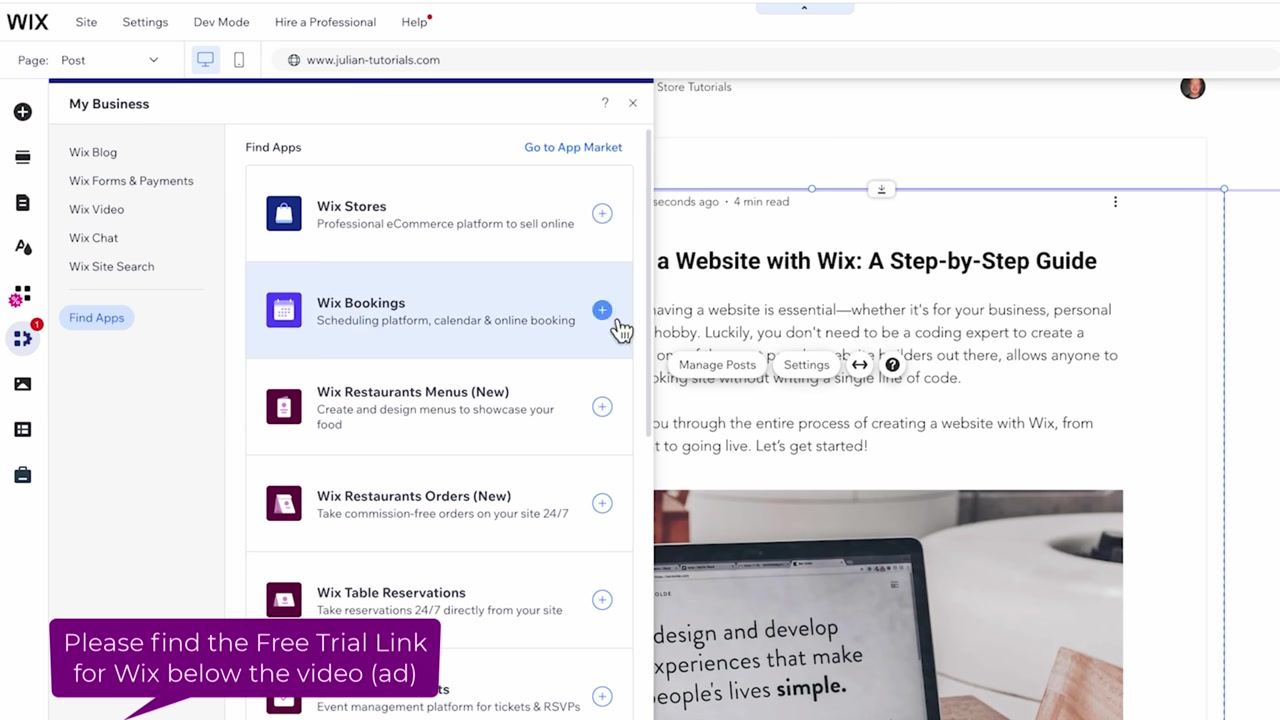
To get started, head to your Wix dashboard and click on My Business. Wix surfaces its most useful apps right there, and you'll find the Wix Bookings app listed prominently.
Click Add to Site and the app installs in a few seconds. Wix Bookings is ideal for:
- Beauty and massage salons
- Coaches and consultants
- Fitness and yoga instructors
- Any business that sells time-based appointments — in person or online
2. Set Up Your Navigation Menu for Bookings
Once installed, Wix adds a Book Online page to your site menu. You may want to rename it — something like Services works well and tells visitors exactly what to expect.
You'll notice the booking system comes with several pages automatically:
- Services page — lists all your offerings
- Booking calendar — where clients pick a time
- Booking form — where clients enter their details
- Cart & thank you page — for completed bookings
Wix has really thought this through. You also get a Google Calendar integration so you can sync appointments automatically.
3. Add Your First Service in Wix Bookings
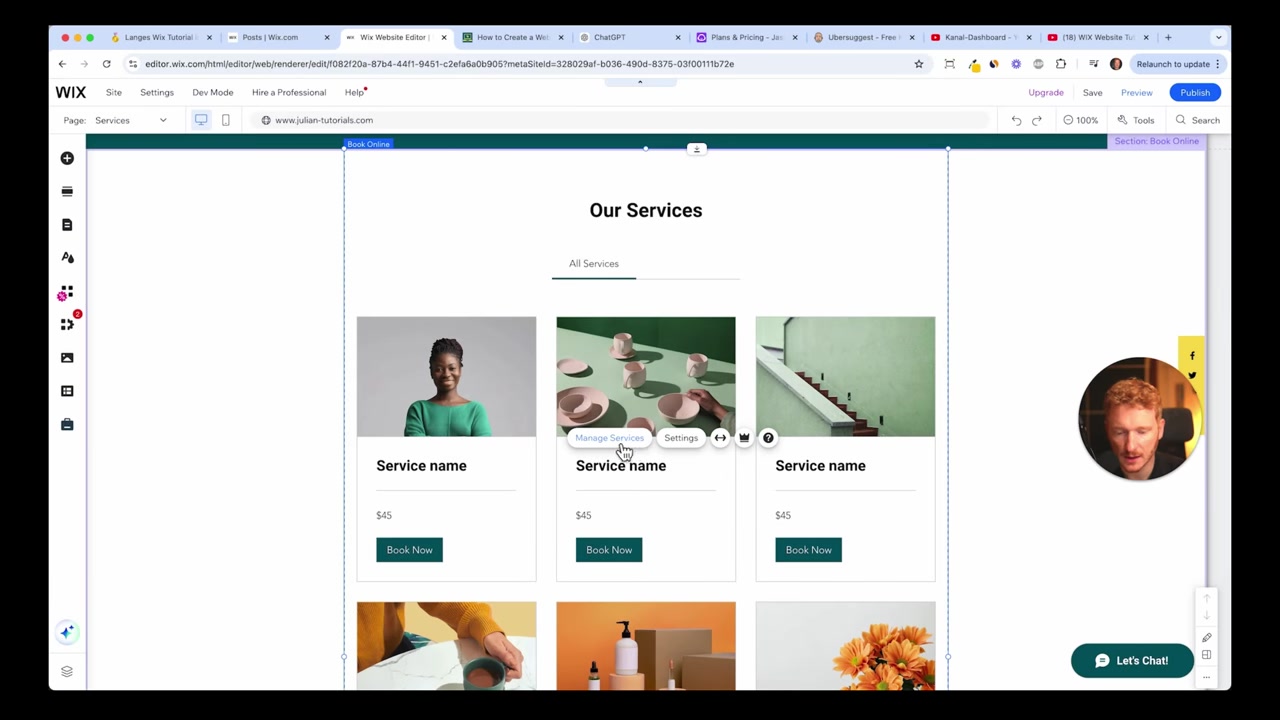
Click Manage Services from your editor or dashboard. Wix provides several demo services to get you started — you can edit one of these templates instead of building from scratch.
For each service you'll configure:
- Name, tagline, and description (AI can help you write this)
- Cover image — grab a free photo from Unsplash right inside the editor
- Duration and buffer time — buffer time prevents back-to-back bookings and gives you prep time between sessions
- Pricing — set a fixed price, custom price, or make it free as a lead magnet
For location, you can choose:
- Your business address
- Client's location
- A custom location (e.g., "Zoom meeting — link sent by email")
4. Customize Your Booking Form
The default booking form collects name, email, and phone number. But you can add custom fields to gather any information you need before the session.
For example, if you offer an SEO audit, you might want the client's website URL before the call. Simply add a short answer field, label it Your Domain Name, mark it as required, and save. Now every booking comes pre-loaded with the info you need.
5. Manage Staff Members and Working Hours
If you work with a team, Wix Bookings lets you assign specific services to specific staff members. Each person manages their own availability — no external scheduling tool needed.
To edit your working hours, go to Staff Members and click on your name. You'll see a weekly schedule where you can:
- Remove days you're unavailable
- Set custom hours per day (e.g., Wednesday 1 pm – 5 pm only)
- Let certain days run on your default hours
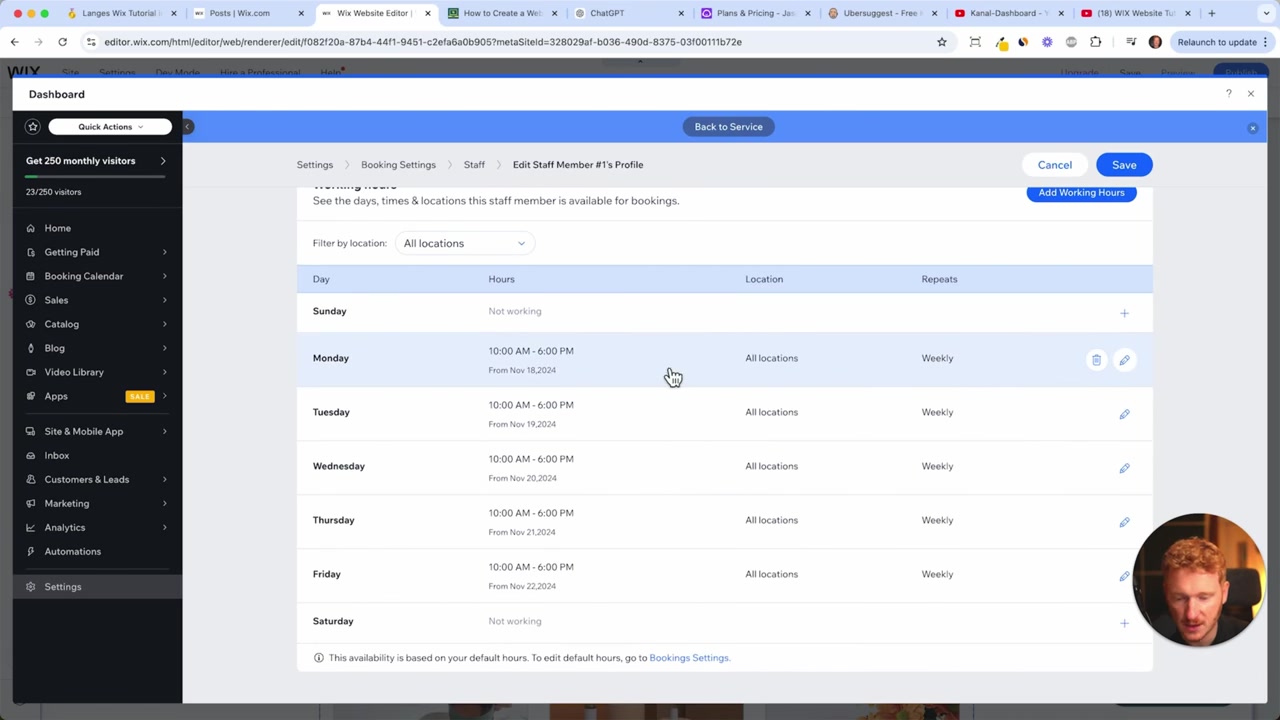
Once you save your schedule, Wix automatically syncs it with the booking calendar. Clients will only see available slots — no double-bookings, no awkward back-and-forth emails.
6. Publish and Test Your Wix Booking System
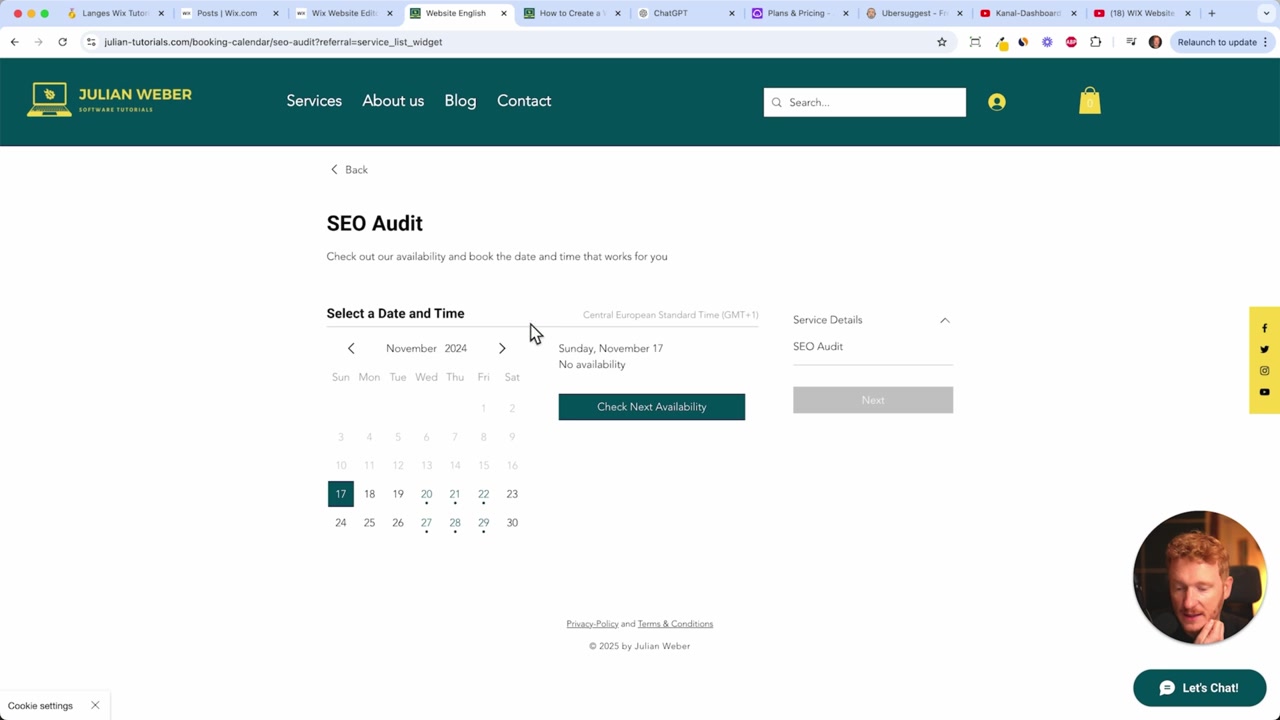
Hit Publish and navigate to your live site. Click on Services, choose your service, and you'll see the calendar reflect your exact availability. Clients can select a time slot, fill in the booking form, and confirm their appointment.
They'll receive an automated confirmation email — and if you've connected Google Calendar, the appointment shows up there too. It's a clean, professional experience from start to finish.
7. Promote Your Service on the Homepage
Having your service in the menu is great, but you can also feature it on your homepage for maximum visibility. Go back to the editor, scroll to the section where you want to add it, and click Add Section.
Under Booking Sections, Wix offers pre-designed layouts — a featured single service, a multi-column layout for several offers, and more. Pick the one that fits, add a headline like Get a Free SEO Audit, and your visitors can book directly from the homepage without even clicking into the menu.
8. What Is Wix Bookings?
Wix Bookings is a built-in scheduling and appointment management app available on the Wix platform. It lets service-based businesses create bookable services, manage staff calendars, collect client information, and accept payments — all from within Wix.
Unlike standalone booking tools, Wix Bookings is fully integrated with your website. There's no need to embed third-party widgets or manage separate subscriptions for scheduling software.
9. Who Is Wix Bookings Good For?
Wix Bookings works well for a wide range of service-based businesses:
- Coaches and consultants — offer 1-on-1 sessions or group workshops
- Health and wellness — yoga studios, personal trainers, therapists
- Beauty and personal care — hair salons, nail studios, massage therapists
- Freelancers — designers, developers, SEO specialists booking discovery calls
If your business revolves around selling time slots, Wix Bookings handles the logistics so you can focus on your clients.
10. Wix Bookings Pros and Cons
Pros:
- Deeply integrated with Wix — no third-party tools needed
- Staff management and individual scheduling built in
- Supports both free and paid services
- Customizable booking forms
- Google Calendar sync
- Works for in-person and online appointments
Cons:
- Advanced features (e.g., payment processing, removing Wix branding) require a paid Wix plan
- Less flexible than dedicated booking platforms for very complex scheduling needs
- Group class management is available but simpler than specialized tools
11. How Much Does Wix Bookings Cost?
The Wix Bookings app itself is free to install. However, to accept online payments and unlock the full feature set, you'll need a paid Wix plan.
Wix offers several pricing tiers depending on your needs. For a full breakdown of what's included at each level, check out our post on Wix plans and pricing.
Frequently Asked Questions
Can I use Wix Bookings for free?
Can clients book appointments without creating an account?
Can I accept online payments with Wix Bookings?
How do I add multiple staff members to Wix Bookings?
Can I offer group classes with Wix Bookings?
How does the buffer time feature work?
Can I sync Wix Bookings with Google Calendar?
How do I hide a service temporarily?
12. Disclosure
Some links in this post are affiliate links. If you make a purchase, I may earn a commission at no extra cost to you. All content is provided for informational purposes only and comes without any guarantee. This post does not constitute financial, legal, tax, or investment advice.
Related Articles

23 Oct 2021
Wix Blog Tutorial – How To Create a Blog with Wix
Want to start a blog but not sure where to begin? Wix is one of the most popular website builders in the world — and for good reason. In this step-by-step tutorial, you'll learn exactly how to create ...

13 Apr 2025
Wix Email Automation & Newsletters – How to Set Up Automations on Wix
Want to stop answering every inquiry manually and let Wix do the heavy lifting for you? In this tutorial, you'll learn how to set up Wix email automation, build a multi-step email funnel for new newsl...

18 Apr 2025
How to Create a Sales Page with Wix (2026 Tutorial)
Want to build a professional sales or service page with Wix that actually converts visitors into clients? In this tutorial, you'll learn exactly how to do that — from picking the right template and fi...