Wix Blog Tutorial – How To Create a Blog with Wix
Want to start a blog but not sure where to begin? Wix is one of the most popular website builders in the world — and for good reason. In this step-by-step tutorial, you'll learn exactly how to create your own blog with Wix, from signing up and choosing a design to writing your first blog post and optimizing it for Google. No coding required, and the whole thing takes less than 30 minutes.
If you haven't signed up yet, you can get started with Wix right here: Sign up for Wix.
1. What is Wix and Why Use It for Your Blog?
Wix is the world's largest website builder, and it's packed with features that make it ideal for bloggers of all levels. Whether you want a personal blog, a travel blog, or a niche content site, Wix has you covered.
The platform offers two main editing experiences: Wix ADI (Artificial Design Intelligence) and the Wix Editor. For beginners, Wix ADI is the better starting point — it uses an algorithm to build a website for you based on a few simple questions.
Don't worry: you can always switch to the full Wix Editor later if you want more control.
2. Sign Up and Launch Your Wix Blog
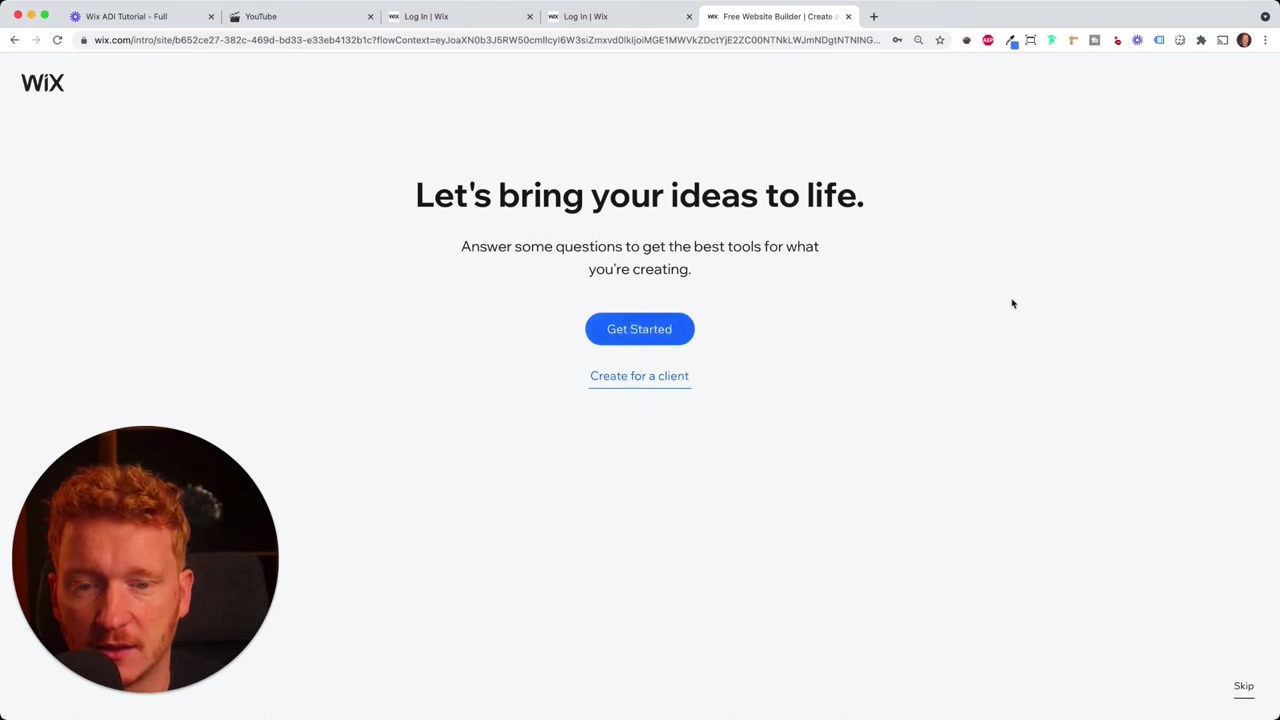
Head to Wix and click Get Started. You can sign up with Facebook, Google, Apple, or your email address.
Once you're in, Wix will walk you through a quick setup wizard. The first question: what kind of website are you creating?
Select Blog, then pick your blog type — personal blog, travel blog, tech blog, and so on. Choose the one that best fits your topic. For this tutorial, we'll go with a travel blog.
3. Choose Your Blog Features
Next, Wix asks which features you'd like on your blog. The Blog feature is already selected by default. You can also add:
- Chat — a live chat widget so visitors can message you directly
- Forms — great for collecting email subscribers
- Online Shop, Bookings, Events, and more
You don't have to decide everything right now. You can add or remove features later. For a new blog, sticking with Blog, Chat, and Forms is a solid starting point.
4. Set Up Your Blog Name and Branding
Wix will ask for your experience level, then prompt you to enter a blog name — for example, Julian's Travel Blog. Make it memorable and relevant to your niche.
You can also link your Google My Business or existing website URL so Wix can pull in existing photos and content automatically. If you don't have those, just skip that step.
On the next screen, upload a logo, add your email and address, and connect your social media accounts. If you're a travel blogger, linking your Instagram account is especially useful — Wix can pull your photos directly into your site.
5. Pick a Design Theme for Your Wix Blog
Wix ADI presents you with several design themes to choose from — for example, Retro, Clean, Hype, and more. Each theme comes in multiple color variations.
Pick the one that feels right for your brand. You can always change it later.
If you have a brand color, click on the color picker and enter your hex color code (a unique code starting with # that identifies any color). Your designer or brand guidelines will have this. Wix then builds a full color palette around it.
You can also adjust fonts and font size in the same panel. Avoid over-using animations — they slow down your page load speed.
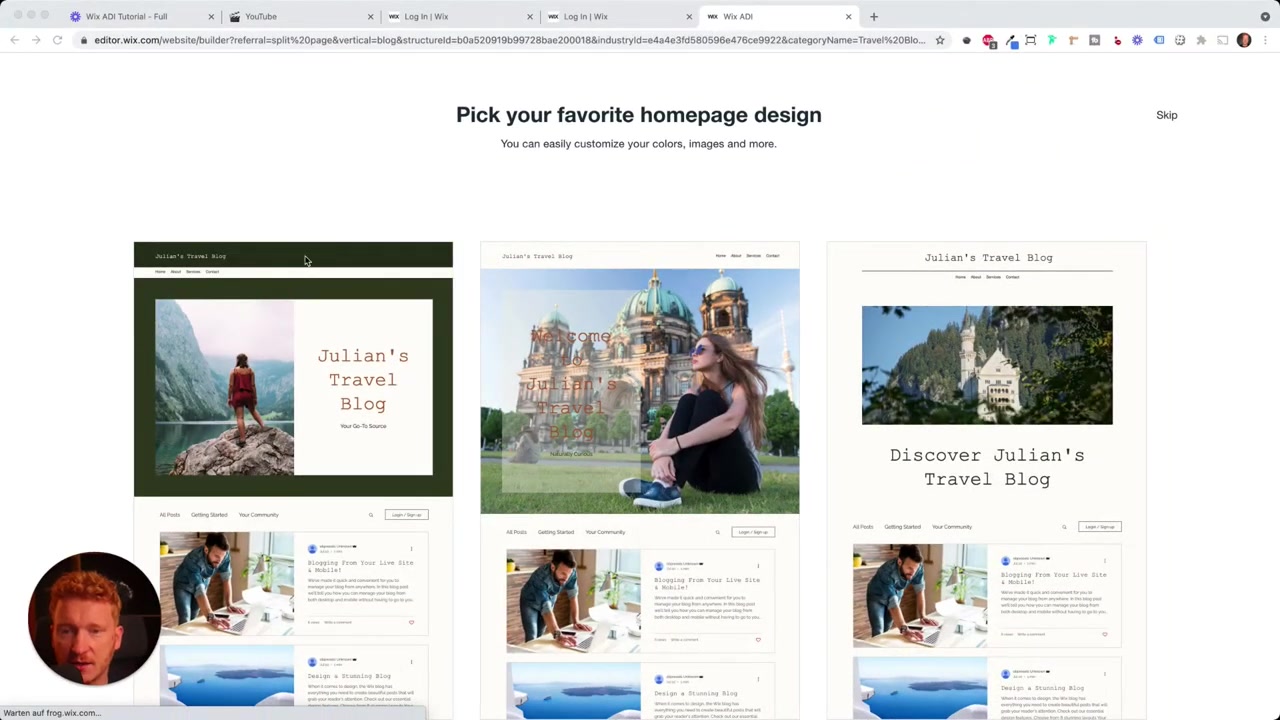
6. Edit Your Homepage in the Wix Editor
Once the ADI algorithm generates your website, you'll land in the Wix editor with a fully built homepage. It uses blocks (also called stripes) — stacked sections you can edit, rearrange, or delete.
Click any block to see two options: Edit (to change the content) and Design (to change the appearance).
You can:
- Replace the placeholder image with your own photo
- Edit the title, subtitle, and paragraph text
- Add or remove buttons and link them to pages, URLs, emails, or phone numbers
- Move blocks up or down to rearrange your layout
- Add entirely new sections by clicking the + button
Use Undo/Redo freely — it's easy to experiment without breaking anything permanently.
7. Add Pages to Your Wix Blog Website
In the left panel, you'll see all the pages on your site — Home, About, Instagram, etc. You can click any page to edit it, or click Add Page to create a new one from a template.
Click Edit Menu to rearrange the navigation order. Drag pages up or down to control how they appear in your site's menu bar.
8. Create Your First Blog Post with Wix
This is where things get exciting. Go to Manage Apps in the left panel, then click Blog. This opens the Wix blog backend, where you'll manage all your posts.
You'll see a few dummy blog posts already there — ignore those. Click New Post to start writing your own.
Add a title that includes your target keyword. For example, instead of "Top 10 Restaurants in Rome" (very competitive), try something more specific like "Top 10 Vegan Restaurants in Rome". Niche keywords give you a much better chance of ranking on Google.
The blog editor works like a word processor. Type your content, press Enter to start new paragraphs, and click the + button to insert:
- Images (with drag-and-drop or free stock photos from Unsplash)
- Galleries
- Videos
- GIFs
- Dividers, buttons, tables
- Custom HTML code
9. Format Your Blog Post for Readability
Good formatting keeps readers engaged and helps with SEO. In the Wix blog editor, you can apply heading styles — H1, H2, H3 — to your text.
Here's a simple rule to follow:
- H1 — your main title (one per post, already set)
- H2 — main section headings with important keywords
- H3 — subsection headings for supporting details
Keep paragraphs short — two or three lines at most. Use bullet points and numbered lists to break up long content. Add bold or italic text to highlight key ideas.
10. Optimize Your Wix Blog Post for SEO
Once your content is written, click Settings inside the blog editor. Here you can:
- Set a cover image (shown when someone shares your post on social media)
- Add the author name
- Link related posts that appear at the bottom of the article
Then go to the SEO tab. This is where you set your meta title and meta description — the text Google shows in search results. Make sure your main keyword appears naturally in both.
You can also assign categories (e.g., Italy, Food, Travel Tips) and tags to keep your blog organized. Categories help readers browse related content, and tags help Google understand what each post is about.
If you want to monetize your blog with gated content, Wix also supports subscription plans — readers pay a monthly fee to access premium posts.
11. Publish Your Post and Preview the Blog Feed
When you're ready, click Publish to make your post live — or use Schedule to set a future publish date. Published posts appear in your blog management dashboard, where you can also find drafts and deleted posts.
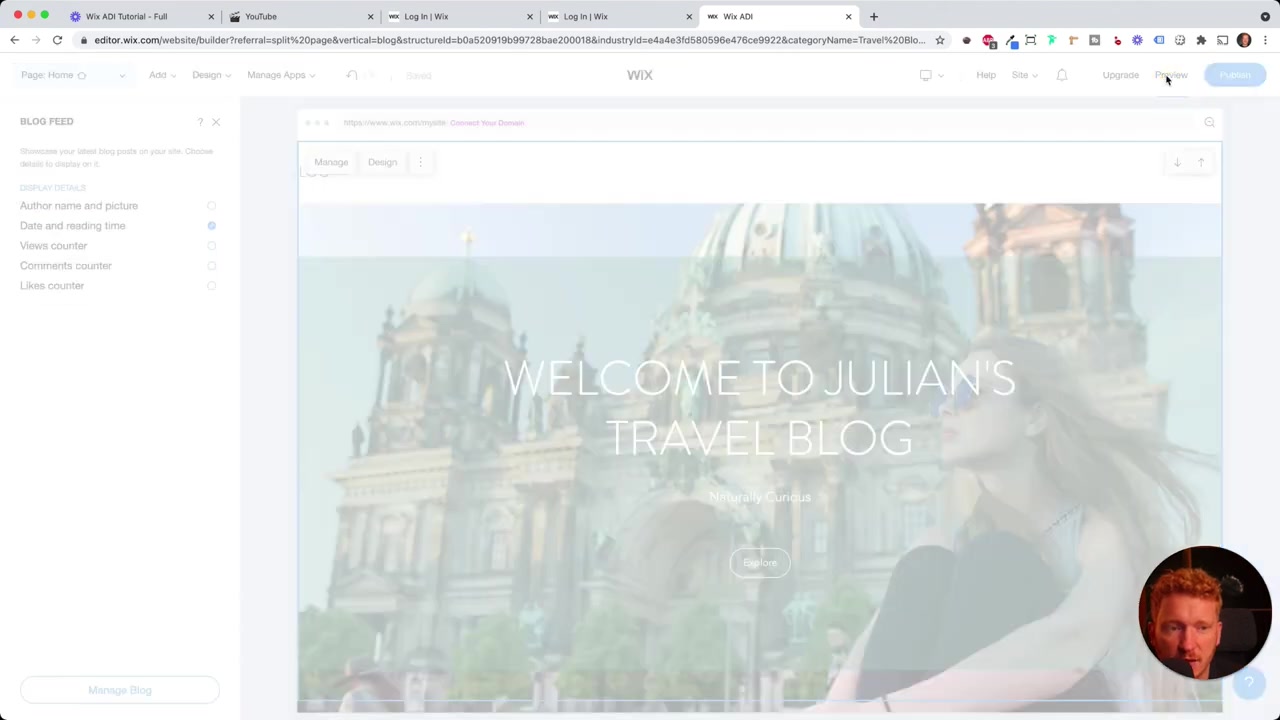
Back on your homepage, add a Blog Feed section by clicking + and selecting the blog feed block you like best. You can customize what information is displayed — date, reading time, author name and photo — and adjust the visual layout.
Hit Preview to see exactly how your blog looks to visitors. Click any post to open it and see the full reading experience, including comments, social sharing buttons, and related posts.
12. Connect a Custom Domain and Go Live
You can publish your Wix blog for free, but to connect a custom domain (e.g., yourblog.com instead of username.wixsite.com) you'll need a paid plan.
Wix plans typically start around €10–15 per month. Click the Publish button in the editor, then follow the prompts to connect your domain or purchase one through Wix.
For a full breakdown of Wix plan options, check out our post on Wix Promo Code 2026 to see if you can save on your subscription.
13. Is Wix Good for Beginner Bloggers?
Absolutely. Wix is widely considered one of the most beginner-friendly website builders available. The ADI wizard does the heavy lifting upfront, and the drag-and-drop editor makes customization intuitive.
You don't need to know anything about coding, hosting, or web design. Within 20–30 minutes, you can have a fully functional blog online.
That said, as your blog grows, you may want more flexibility. The full Wix Editor gives you pixel-level control over your layout and is a natural next step once you've outgrown ADI.
14. How Much Does Wix Cost for a Blog?
Wix offers a free plan that lets you build and publish your blog — but it includes Wix branding and a Wix subdomain.
To use a custom domain and remove Wix ads, you'll need a premium plan. Pricing typically starts around €10–15 per month, depending on your region and the plan tier.
For more details, see the full guide on Wix Promo Code 2026.
Frequently Asked Questions
Can I start a blog on Wix for free?
How long does it take to set up a Wix blog?
Can I switch from Wix ADI to the Wix Editor?
How do I add SEO to my Wix blog posts?
Can I add images to my Wix blog posts?
Does Wix support blog categories and tags?
Can I schedule blog posts on Wix?
Can I monetize my Wix blog?
15. Disclosure
Some links in this post are affiliate links. If you sign up through them, we may earn a small commission at no extra cost to you. All content is provided for informational purposes only, and no guarantee of results is given. This post does not constitute financial, legal, tax, or investment advice.
Related Articles

15 Dec 2025
Wix Promo Code 2026 – How to Save on Wix Premium Plans
If you've been thinking about upgrading to a Wix premium plan, timing your sign-up the right way can make a real difference. In this guide, I'll walk you through the exact method to access the best av...

28 Oct 2025
How to Create a TikTok Ads Account in 2026
Want to run ads on TikTok but not sure where to start? Setting up your TikTok Ads Manager account is easier than you think — and it only takes a few minutes. In this guide, I'll walk you through the e...

3 May 2024
Come creare un sito web con IONOS – Tutorial 2026 – Costruttore di siti web AI
Vuoi creare un sito web professionale senza dover scrivere una riga di codice? In questo tutorial ti mostro come usare IONOS AI Website Builder per costruire un sito completo, passo dopo passo. Dall'a...