Wix Email Automation & Newsletters – How to Set Up Automations on Wix
Want to stop answering every inquiry manually and let Wix do the heavy lifting for you? In this tutorial, you'll learn how to set up Wix email automation, build a multi-step email funnel for new newsletter subscribers, and send one-off campaigns for promotions and seasonal events — all without a third-party tool like Mailchimp.
If you haven't built your Wix website yet, you can try Wix for free and follow along from scratch.
1. What Is Wix Email Automation?
Wix email automation lets you send a pre-written sequence of emails to subscribers automatically — no manual work required after the initial setup.
Whenever someone fills in your newsletter form or contacts you, Wix triggers the automation and sends the right email at the right time.
This is different from a one-off campaign. Automations run in the background 24/7, nurturing new leads through a structured email funnel.
2. Find the Automation Manager in Wix
You can access automations in two ways: from the Wix dashboard or directly inside the Wix Editor.
In the editor, click on your newsletter signup form, open Form Settings, give the form a clear name (for example, Newsletter Signup Box – Homepage), and then switch to the Automation tab.
This takes you straight into the Wix Automation Manager, where you can build and manage all your email flows.
3. Set Up Your First Wix Newsletter Automation
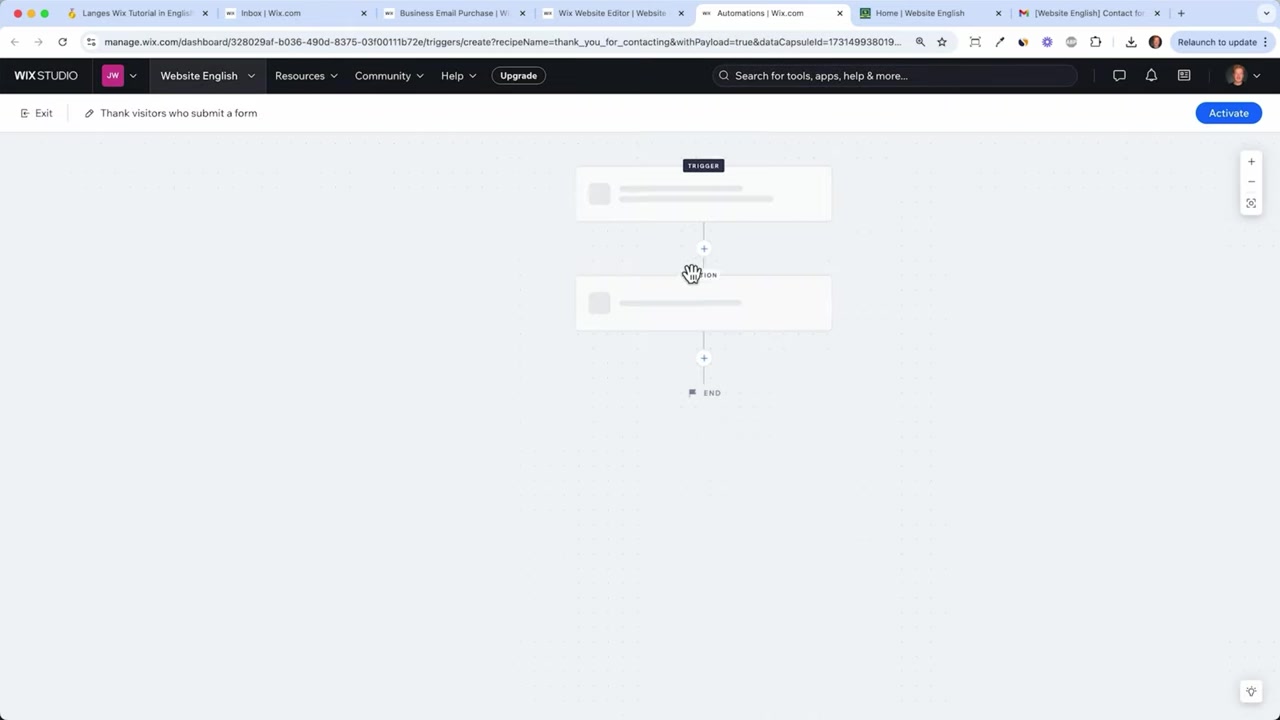
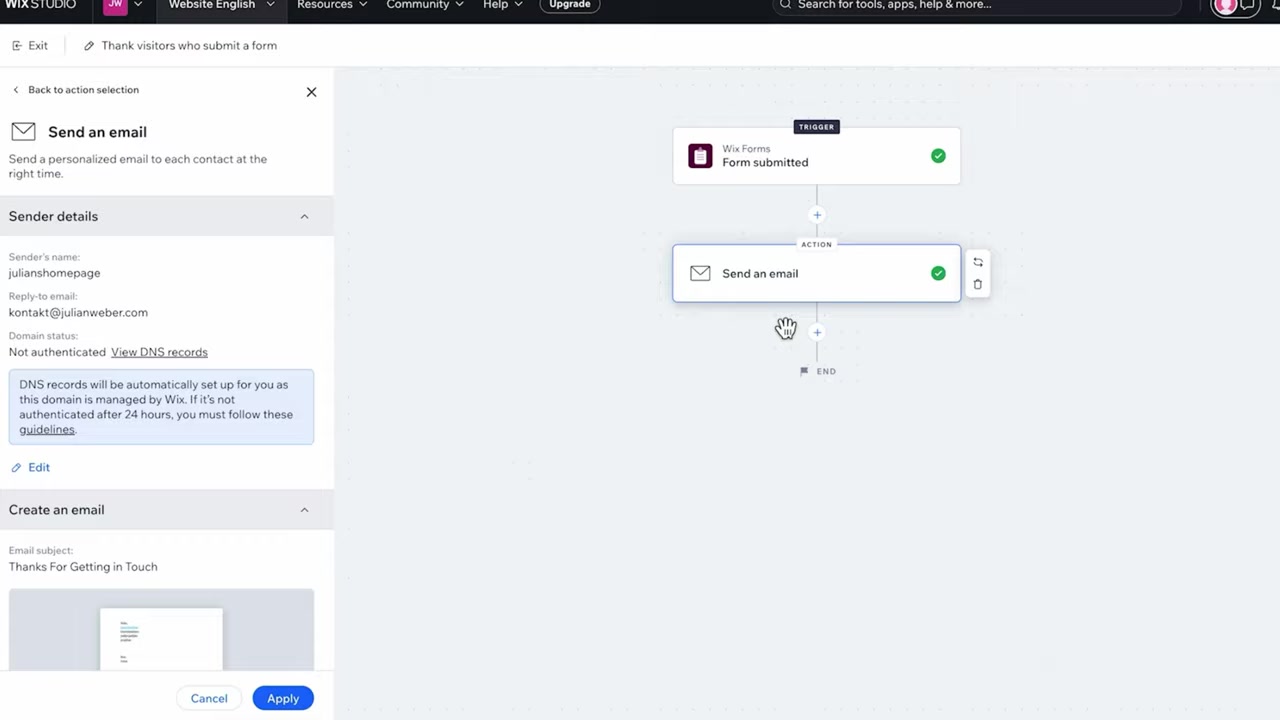
In the Automation Manager, set the trigger to "When someone submits a form" and select your specific newsletter form.
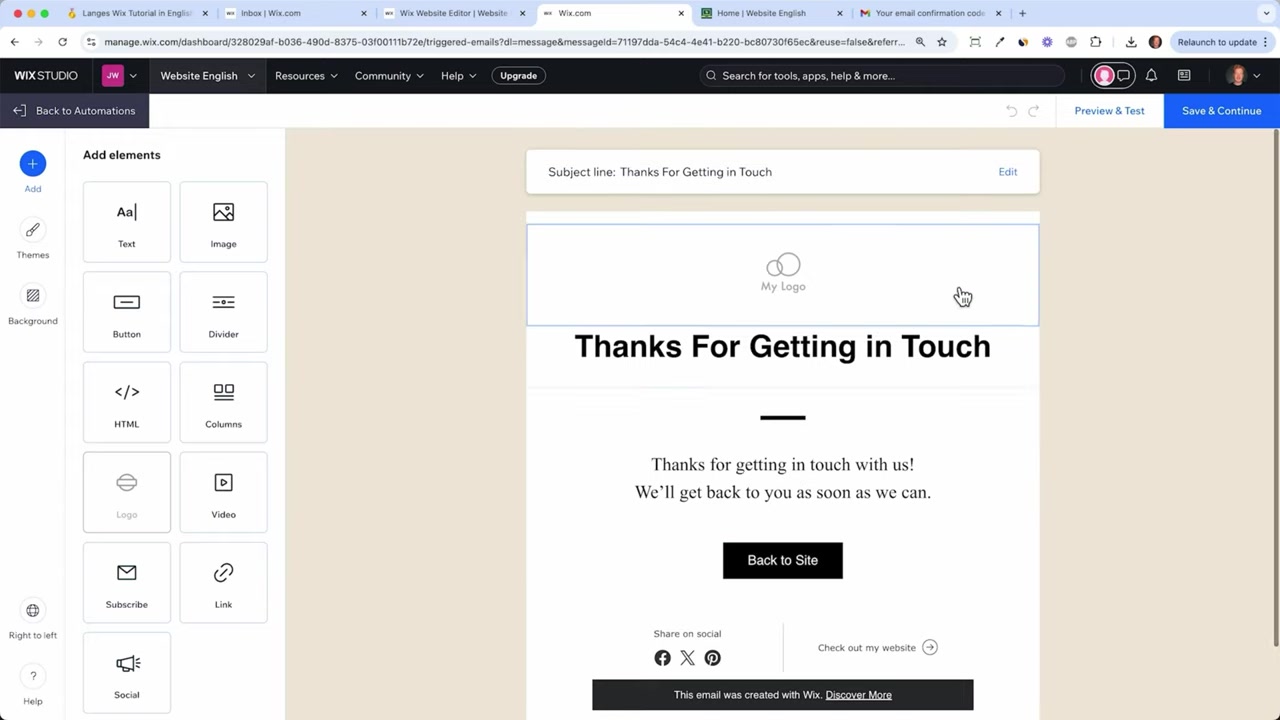
Then add an email action. Click Edit to open the email template editor — it works just like the Wix drag-and-drop website builder, so it will feel familiar straight away.
Before you can send, Wix will ask you to verify your email address. Enter the confirmation code sent to your inbox and click Confirm.
4. Customize Your Email Template
Here's a key tip from the video: less styling is often better, especially if you're not an online store.
Heavily designed HTML emails with big banners and colorful buttons scream "marketing campaign" — and most people delete them instantly. If you run a service business, coaching practice, or agency, a plain-text-style email feels personal and gets far better engagement.
Practically, that means:
- Remove the large header image and decorative buttons
- Set the background to plain white
- Left-align your text
- Hide unnecessary social media icon rows
- Sign off naturally, like Best, Julian
Of course, if you run an online store, stick with polished templates — your customers expect product images, branding, and clear calls to action.
5. Build a Multi-Step Email Funnel
Sending just one welcome email is a missed opportunity. The real power of Wix automations is building a full email funnel — a sequence of emails that arrive over days or weeks.
Here's how to extend your automation:
- After your first email action, click the + button to add a Time Delay (e.g., 2 days).
- Add a second Send Email action.
- Add another delay (e.g., 6 days) and a third email.
- Repeat as needed — there's no hard limit.
Each email should deliver real value to your subscriber. Think: industry tips, common mistakes to avoid, useful resources. Stay on-brand and on-topic — if they signed up for website advice, don't write about your weekend.
Keep the frequency reasonable. Emailing every single day will burn out your list fast. Space your emails out and make each one worth reading.
Once you're happy with the full sequence, click Activate and the automation goes live. Every new subscriber will automatically receive the full series.
6. Add Conditions to Your Wix Automation
Beyond time delays, you can add Conditions to branch your automation based on subscriber behavior.
For example, you can split subscribers depending on which form they used (homepage vs. lead magnet page) or whether they submitted on a weekday or weekend.
Depending on whether the condition is met, subscribers go down one path or another — making your funnel feel more targeted and personal.
7. Send One-Off Email Campaigns with Wix
Beyond automated funnels, Wix also lets you send one-off marketing emails — perfect for seasonal promotions, product launches, or company updates.
Go to Marketing → Email in your Wix dashboard. Give the campaign a name (e.g., January Newsletter), write your content, and hit Next.
You can then choose your audience: all contacts, or a specific segment (e.g., new clients from last year, existing customers). Then preview your email, check the subject line, add a reply-to address, and send a test before going live.
This is ideal for holiday campaigns — Black Friday, Christmas, New Year's — where you want to push a timely message to your entire list in one go.
Think of automations as your always-on nurture sequence, and one-off campaigns as your seasonal broadcast tool. Both work together inside Wix.
8. Why Your Email List Is Your Most Valuable Marketing Asset
With paid ads, you pay every time you want to reach someone. Your email list is the opposite — once someone subscribes, you can contact them for free, whether that's in 6 months or 3 years.
That's exactly why smart businesses use lead magnets (free ebooks, consultations, checklists) to grow their list. The email addresses you collect today have long-term compounding value.
Subscribers who already know your brand are far more likely to buy from you than cold traffic. Warming them up through an email funnel is one of the most cost-effective strategies available.
9. Is Wix a Good Alternative to Mailchimp for Email Marketing?
For most Wix website owners, yes — Wix's built-in email tools are a genuine alternative to standalone platforms like Mailchimp or GetResponse.
Wix gives you automated sequences, one-off campaigns, audience segmentation, and a drag-and-drop email editor — all under the same roof as your website.
You save money on a separate email marketing subscription, and you keep everything in one dashboard. The only time you might outgrow Wix Email is if you need very advanced segmentation, A/B testing at scale, or deep CRM integrations.
10. Wix Email Marketing Pros and Cons
Pros:
- Fully integrated with your Wix website and contact list
- Drag-and-drop email editor — no coding needed
- Automated funnels with delays and conditions
- One-off campaign broadcasting
- No need for a third-party email tool
- Pre-built automation templates for common use cases
Cons:
- Less powerful than dedicated platforms for advanced segmentation
- Limited A/B testing options compared to Mailchimp
- Template customization is solid but not as deep as some specialist tools
For small to medium businesses, the built-in tools will more than cover your needs.
Frequently Asked Questions
How do I set up email automation in Wix?
Can I send newsletters with Wix without a paid plan?
Does Wix have an email funnel feature?
Is Wix email marketing as good as Mailchimp?
How do I send a one-off promotional email in Wix?
Can I segment my email list in Wix?
How often should I email my Wix newsletter subscribers?
Can I connect Wix email to my professional email address?
11. Disclosure
Some links in this post may be affiliate links. If you make a purchase through them, I may earn a small commission at no extra cost to you. All content is provided for informational purposes only and comes without any guarantee. This post does not constitute financial, legal, tax, or investment advice.
Related Articles

15 Apr 2025
How to Get a Professional Email Address with Wix
If you're running a business website on Wix, a professional email address is one of the easiest ways to boost your credibility. Instead of using a generic Gmail account, you can have something like in...

16 Apr 2025
How to Install the Wix Chat App – Live Chat Setup Guide
Want to chat with your website visitors in real time? Adding a live chat to your Wix site is one of the easiest ways to boost customer engagement and build trust. In this guide, you'll learn exactly h...
18 Apr 2025
How to Create a Sales Page with Wix (2026 Tutorial)
Want to build a professional sales or service page with Wix that actually converts visitors into clients? In this tutorial, you'll learn exactly how to do that — from picking the right template and fi...