Webador Free – Create a Stunning Website Without Spending a Dime
Did you know you can build and publish a real website with Webador completely for free? The free plan exists, but it's a little tricky to find — and even trickier to actually publish without being pushed toward a paid domain. In this tutorial you'll learn exactly how to navigate the process, so you can get your site live without spending a cent. Check out Webador to get started.
1. What Is Webador and Who Is It For?
Webador is a beginner-friendly website builder that lets you create a professional-looking website without writing a single line of code. It's designed for small businesses, bloggers, freelancers, and hobbyists who need to get online quickly.
The platform offers a free plan that gives you access to all the core building tools. The only real limitation on the free plan is that you can't connect a custom domain — you'll use a temporary subdomain instead. For many people just starting out, that's more than enough.
2. Sign Up and Get Started with Webador
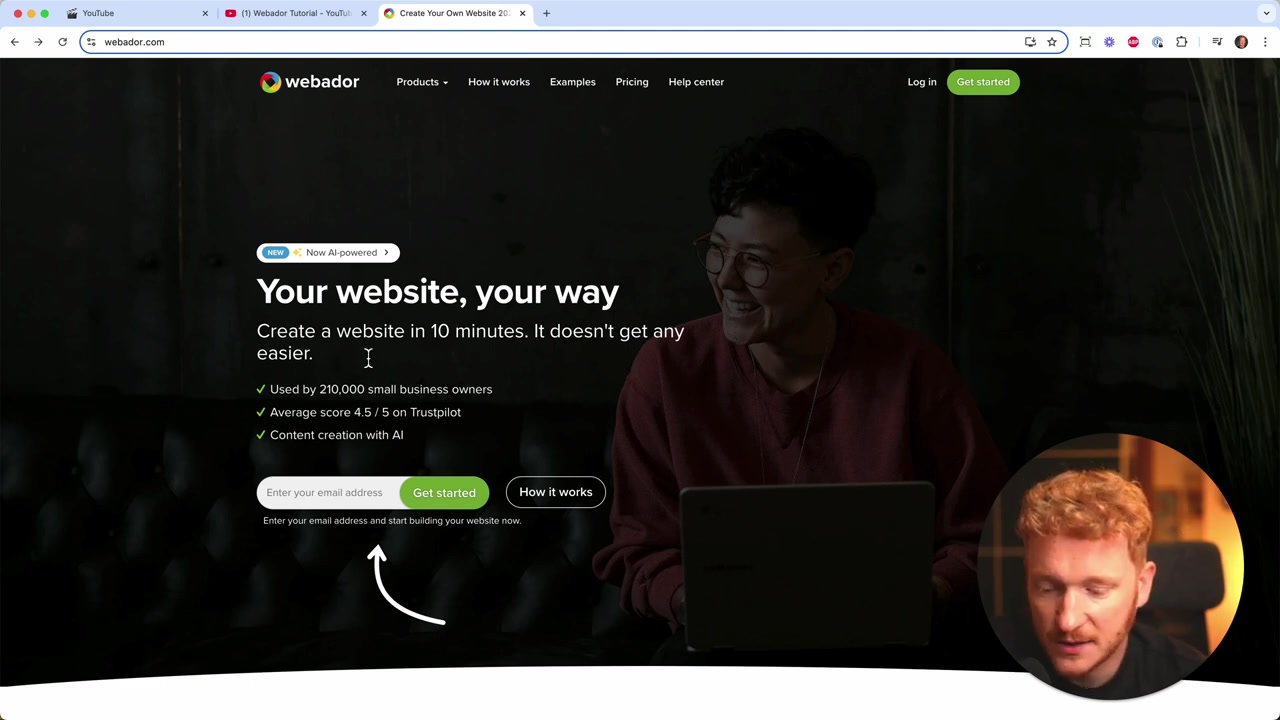
Start by visiting Webador through this link. You'll land on the sign-up page where you can enter your email address and click Get Started — no credit card required.
After signing up, Webador will ask you a few simple questions:
- Do you want a website or an online store?
- What is the name of your website?
- Would you like Webador to prefill your site with content based on your type of business?
The prefill option is surprisingly useful. If you're a coach, consultant, or run any kind of service business, just describe what makes your business unique and Webador will generate a starting point for your site automatically.
3. Choose Your Pages and Design
Once you've described your business, Webador lets you pick which pages you want on your site — like a Home, About, or Contact page. Only select the pages you actually need. You can always add more later.
Next, you'll choose a design and color scheme. Don't overthink this step — you can change the look and feel at any time inside the editor. Just pick something that feels close to what you want and move on.
4. Skip the Domain and Choose the Webador Free Plan
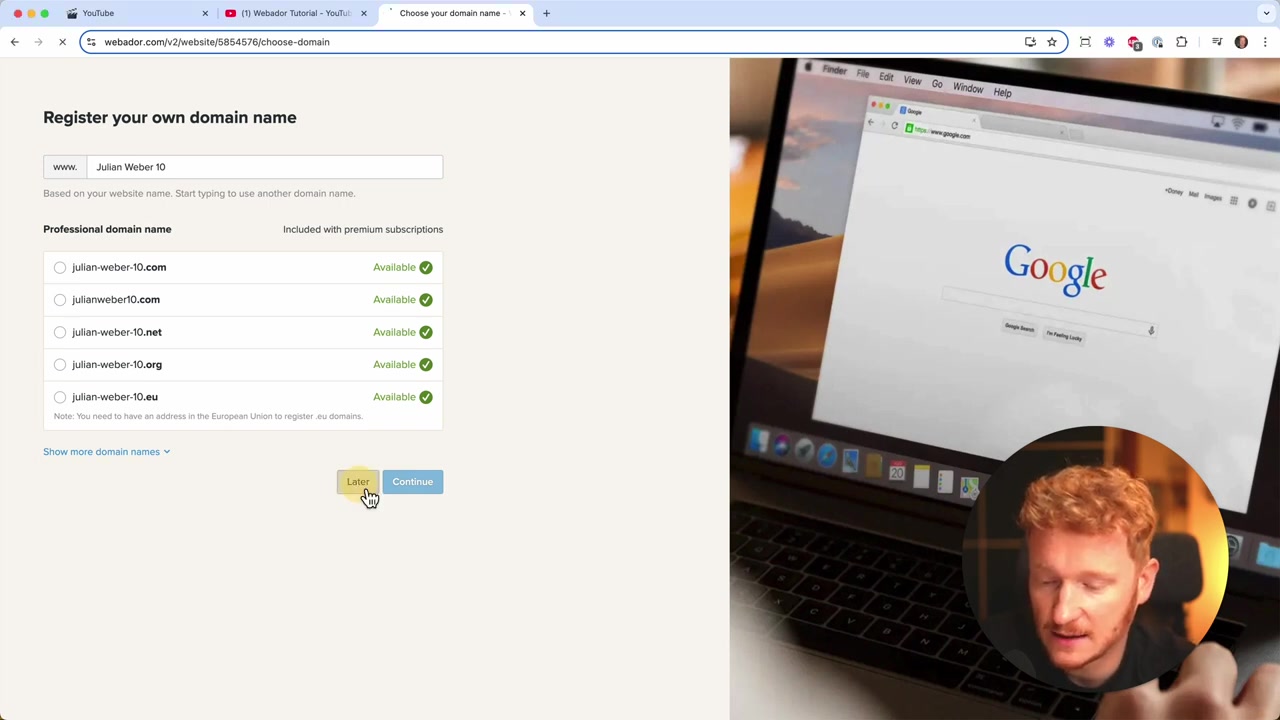
Here's where most people get stuck. Webador will prompt you to register a domain name. You'll see a list of available domains that match your site name — all of them require a paid plan.
Simply click Later to skip this step. Webador will then show you its pricing plans. Scroll down and select the free plan. A popup may appear trying to nudge you toward a paid option — click Continue for Free to proceed.
5. Design Your Website in the Webador Editor
You're now inside the Webador editor. This is where you customize your site — edit text, swap images, rearrange sections, and make it your own. If you want a full walkthrough of the editor, check out the Webador tutorial for a complete step-by-step guide.
Take your time here. Everything you see is drag-and-drop, so building your site is as intuitive as editing a document. No coding skills needed.
6. Publish Your Free Webador Website (The Trick Everyone Misses)
This is the most important part of the whole tutorial — and the step that confuses almost everyone. When you click the Publish button inside the editor, Webador will show you that domain popup again, seemingly blocking you from publishing for free.
Here's the secret: your website is already live the moment you create the project. You don't actually need to click publish at all.
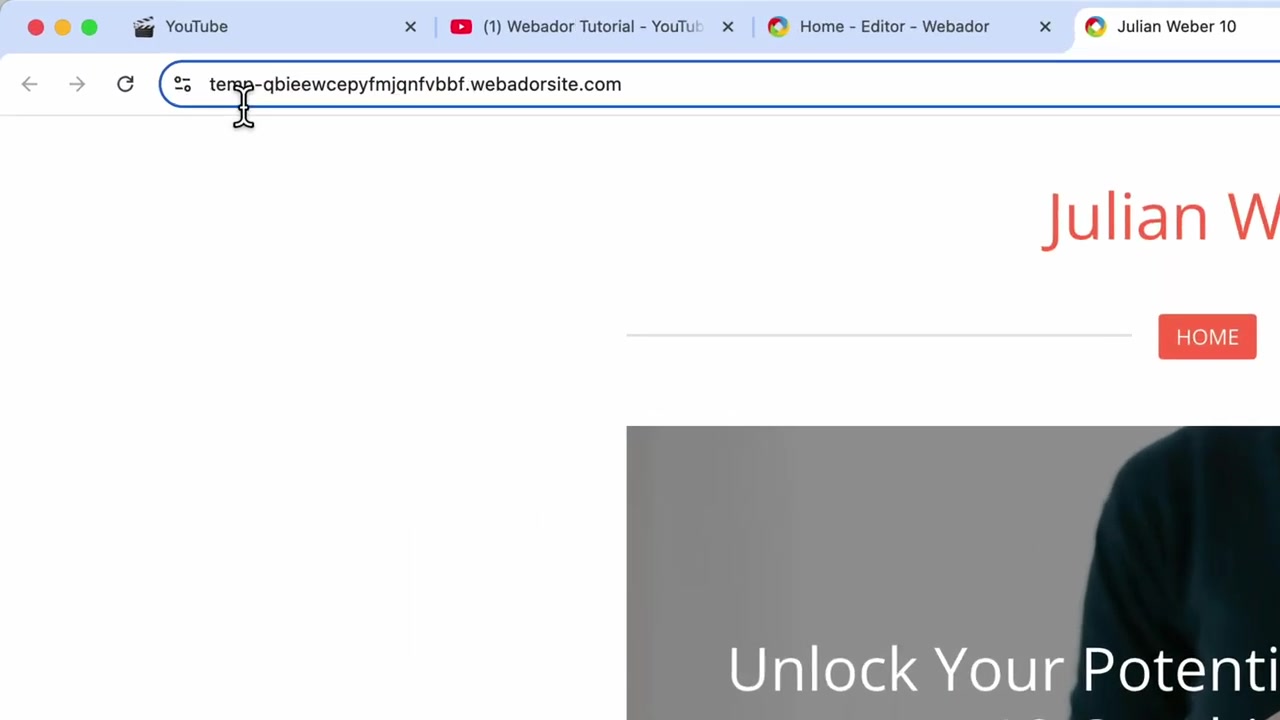
To find your live site URL, go to View Your Website from inside the editor. You'll see a temporary URL that looks something like temp-[code].website.com. This is your free subdomain — and it's already publicly accessible.
7. Share Your Free Website URL
To confirm your site is live, open an incognito window in your browser and paste in the temporary URL. You'll see your site exactly as visitors will — no login, no cookies, completely public.
You can share this URL directly on social media, add it to your email signature, or shorten it with a tool like Bitly to make it look cleaner. Your site works perfectly on this free subdomain.
The only time you'll need to upgrade to a paid plan is when you want to connect a custom domain (like yourname.com). Until then, Webador is completely free to use.
8. Webador Free vs Paid Plans
The free plan covers everything you need to get started: full access to the editor, all page types, mobile-responsive design, and a live website. It's a genuinely usable product — not a crippled demo.
Paid plans unlock custom domains, more storage, e-commerce features, and the removal of the Webador branding from your site. If you're running a business and want a professional custom domain, upgrading makes sense. But for a personal project, portfolio, or hobby site, the free plan delivers real value.
9. Is Webador Good for Beginners?
Absolutely. Webador was built from the ground up with non-technical users in mind. The setup wizard walks you through every decision, the editor is visual and intuitive, and you don't need any design experience to end up with a good-looking site.
Compared to more complex builders like WordPress, Webador has a much gentler learning curve. You can go from signing up to having a live website in under 30 minutes — even if it's your first time building a site.
Frequently Asked Questions
Is Webador really free?
Do I need a credit card to sign up for Webador's free plan?
How do I publish my Webador website for free without buying a domain?
Can I use my own domain name on the Webador free plan?
What can I build with Webador for free?
Can I switch from the Webador free plan to a paid plan later?
Does a Webador free website look professional?
How do I make my Webador URL look better for free?
10. Disclosure
Some links in this post are affiliate links. If you click through and make a purchase, a small commission may be earned at no extra cost to you. All content is provided for informational purposes only and comes without any guarantee. This post does not constitute financial, legal, tax, or investment advice.
Related Articles
10 Feb 2025
Webador Website Maken – Nederlandstalige Tutorial voor Beginners
Wil je een mooie website maken zonder ook maar één regel code te schrijven? In deze tutorial laat ik je stap voor stap zien hoe je met Webador een professionele website bouwt. Van het kiezen van een s...
19 Feb 2025
Comment créer un site web avec Webador | Tutoriel Complet en Français
Vous voulez créer un site web professionnel sans toucher une seule ligne de code ? Dans ce tutoriel, nous allons explorer Webador de A à Z : inscription, personnalisation, ajout de pages et publicatio...

12 Feb 2025
Hur man skapar en webbplats med Webador – Tutorial på svenska
Vill du bygga en professionell webbplats utan att kunna ett enda rader kod? I den här tutorialen går vi igenom hur du skapar en webbplats med Webador – steg för steg. Du lär dig allt från att registre...