How to Create a Website with Webador | Full Tutorial (2026)
Want to build a professional website without touching a single line of code? Webador makes it surprisingly easy. In this tutorial, we'll walk through everything — from signing up and picking a template to adding pages, setting up SEO, and publishing under your own domain. Try Webador for free and follow along.
1. What is Webador?
Webador is a beginner-friendly website builder that lets you create professional-looking websites using a simple drag-and-drop editor. No coding knowledge is required.
It comes with ready-made templates, over 2 million free stock photos, built-in SEO settings, and an optional online store. It's a solid all-in-one solution for freelancers, small businesses, and creators.
2. Sign Up and Create Your Webador Account
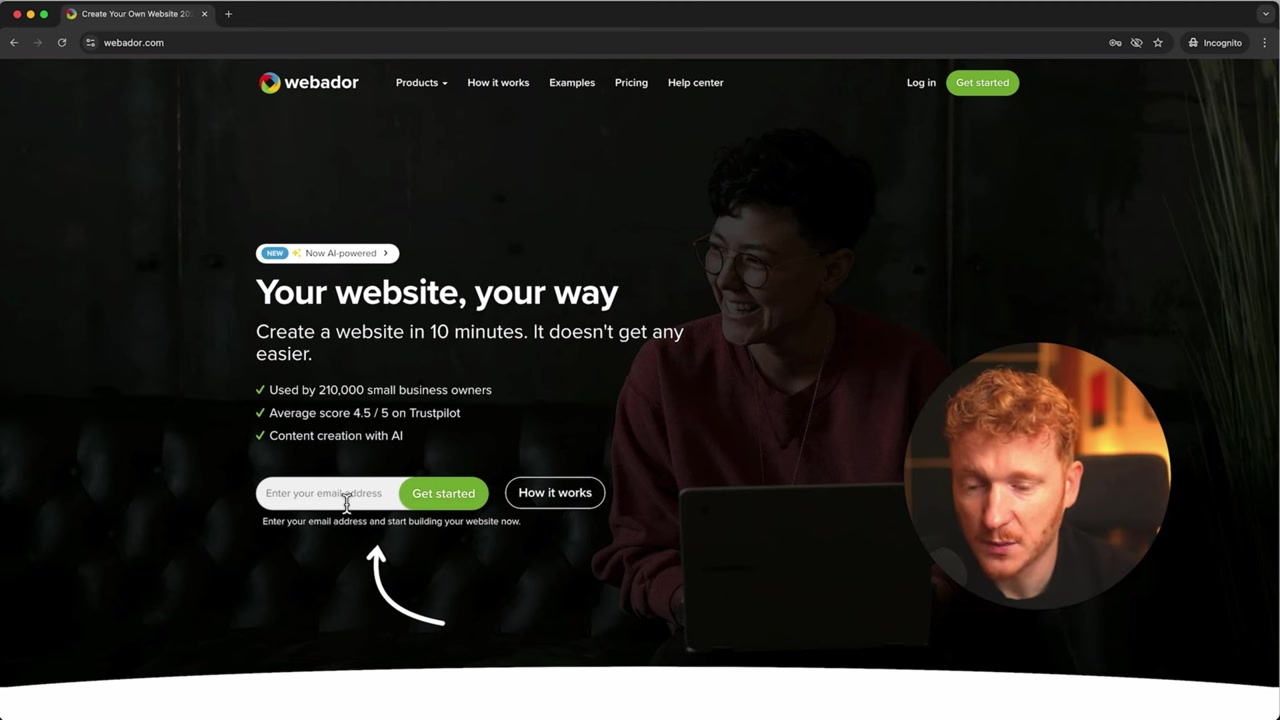
Head to Webador and sign up with your email address and a password. It only takes a minute.
Once you're in, Webador asks what kind of site you want to build: a regular website, an online store, or a blog. For most people, website is the right choice.
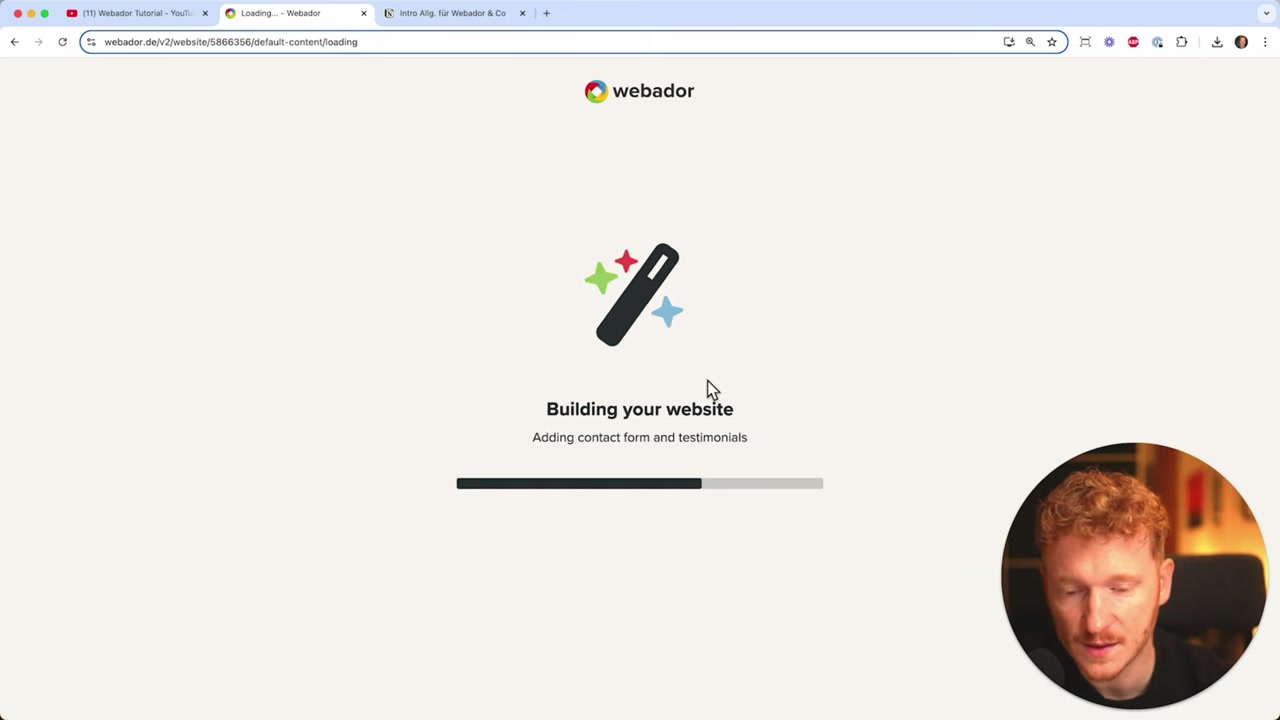
Give your site a name, then choose to have it pre-filled with content rather than starting from scratch. This is the faster route — Webador's AI will generate a draft based on your business type and a short description you provide.
3. Choose Pages and a Design Template
After describing your project, Webador asks which pages you'd like: a homepage, contact page, about page, and FAQ page are the common picks. Select what you need and click Continue.
You'll then choose a design template. Don't stress over this decision — you can switch to a completely different template at any point inside the editor without losing your content.
Skip the domain and mailbox setup for now. You can start on the free plan and upgrade once you're happy with how your site looks.
4. Intro to the Webador Editor
Once the editor opens, your site is already pre-filled with AI-generated content based on your description. The left sidebar holds all the content elements you can add: titles, text blocks, images, videos, buttons, columns, tables, and more.
Your site is already live on a temporary Webador domain the moment you enter the editor. You can share that link right away so someone else can preview it while you keep building.
You can also switch to mobile view from the top menu to see how everything looks on a phone. Webador templates are fully responsive, so you rarely need to make manual adjustments.
5. Edit Text, Images, and Buttons in Webador
Click any element on the page to start editing it. The banner at the top of your homepage is a great place to start — click Edit to swap out the placeholder image.
Webador gives you three ways to add images: upload your own file, drag and drop from your desktop, or browse the built-in library of over 2 million free stock photos. Just type a keyword and pick an image.
After updating the image, edit the headline and the call-to-action button. Click the button's Change option to link it to another page on your site, an external URL, or even a phone number or email address.
6. Add New Sections to Your Website
Your Webador site is built in stacked sections — think of them like Lego blocks. You can add a new section by dragging the Sections element from the left sidebar onto the canvas.
A popup lets you choose from pre-designed section templates: welcome banners, about sections, FAQ accordions, service grids, and more. Or start with an empty section and build it yourself.
Inside a section, use columns to lay out content side by side. For example, you can create a two-column layout with your photo on the left and a bio text block on the right. Adjust column widths by dragging the handle between them.
Use ChatGPT to generate placeholder text for your bio or service descriptions — paste the result in, then edit it to match your voice. This saves a huge amount of time.
7. Add Services to Your Webador Homepage
To showcase what you offer, find a services section in the templates or build one from scratch with a column layout. Each service card typically has an icon or image, a headline, and a short description.
Need to add more services? Click Add a Column, then duplicate an existing card using the dropdown menu. Delete columns you don't need. It's fast and flexible.
Link each service button to its own dedicated page — we'll create those pages in the next step. That way visitors can click through for more detail.
8. Webador App Integrations
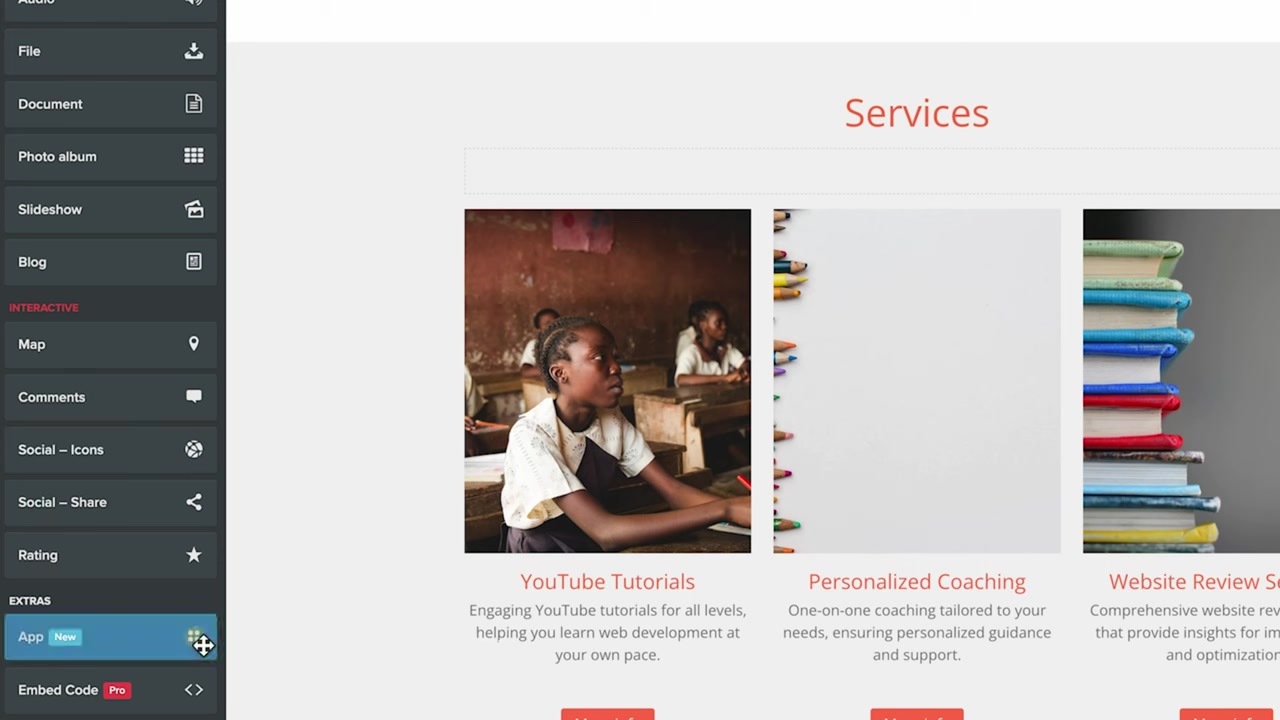
One of Webador's standout features is its App integrations. You can embed content from third-party platforms directly on your site — no plugins or custom code needed.
Supported integrations include Instagram, Facebook, Spotify, Airbnb, Cal.com, SoundCloud, Amazon, Canva, YouTube, and GoFundMe. Just drag the App block onto your page, enter your URL, and Webador pulls in your content automatically.
This is particularly useful for creators and small businesses who want to consolidate their online presence on a single website.
9. Add New Pages to Your Webador Site
Click Pages in the top navigation to see all your current pages. From there you can switch between pages, add new ones, or change page settings.
The contact page Webador generates for you is already functional. Update the map location, add your phone number, and link it so mobile visitors can dial you directly with one tap. Link your email address the same way so clicking it opens the user's email client.
The built-in contact form is fully editable. Add custom fields — like a company domain or a project budget — to collect exactly the information you need from potential clients.
10. Add an About Us Page
The about page is a great place to tell your story. Use the Meet the Team section template to introduce yourself or your team members with photos and role descriptions.
Add a photo gallery or slideshow to show your workspace or office. Include your office hours and contact information so visitors know how and when to reach you.
Keep the about page focused on building trust. Short paragraphs, real photos, and clear contact details go a long way.
11. SEO Meta Information in Webador
Good SEO starts at the page level. Open a page's Settings to find the SEO fields: a page title and a meta description. Both are shown in Google search results, so make them count.
Include relevant keywords in both the title and description for every page on your site. Use ChatGPT if you're not sure what to write — just describe the page's purpose and ask for an SEO-friendly title and description.
You can also set a social media image for each page. This is the preview image shown when someone shares your URL on WhatsApp, Twitter, or Facebook. Webador's stock photo library works fine for this if you don't have a branded image ready.
If you have pages you don't want to appear in the main navigation — like a privacy policy — deselect the Show in menu option in that page's settings.
12. Change the Global Design Template
Once your content is in place, experiment with templates. Go to Design in the top menu and click Change template. Webador applies the new look across your entire site instantly.
You can also adjust your accent color here. Every color on the web has a hex code — a # followed by six characters. Swap it out to match your brand colors.
Browse through the available templates and pick the one that fits your style best. Modern, minimal, or bold — there are options for every kind of business.
13. Website Settings and Favicon
Click Settings to manage your site's general configuration. Here you can set the site name, choose your language and time zone, and enable a cookie consent banner (required in Europe).
Don't forget the favicon — the small icon displayed in the browser tab. By default it shows the Webador logo. Upload your own logo file to replace it and make your site feel more professional.
You can also add collaborators from the Settings page, which is handy if you're working with a designer or a team member.
14. Upgrade and Publish Your Webador Website Under Your Own Domain
When you're ready to go live with a custom domain, click Publish and search for your preferred domain name. Webador will show you whether it's available.
Here's a quick breakdown of Webador's paid plans:
- Light — Custom domain, basic website
- Pro — Custom domain + online store (up to 10 products) + professional mailbox
- Business — Custom domain + unlimited products store + XL mailbox
If you just need a website with your own domain and no store, the Light plan covers everything. Paying annually includes 6 free months on any plan.
After choosing your plan and completing checkout, your domain will be connected and your website will be live within about 30–60 minutes.
15. How Much Does Webador Cost?
Webador offers a free plan with a temporary subdomain — perfect for testing the builder before committing. When you're ready for a custom domain and more features, paid plans are available on a monthly or annual basis.
Paying annually saves you significantly because you get several months included at no extra charge. Check the Webador pricing page for the most current rates in your region.
16. Is Webador Good for Beginners?
Absolutely. Webador is designed specifically for people with no technical background. The drag-and-drop editor is intuitive, and the AI-assisted setup means you can have a working website in under 30 minutes.
The template system, built-in stock photo library, and ready-made section layouts remove most of the guesswork. If you can use a word processor, you can build a site with Webador.
17. Webador Pros and Cons
Pros:
- Very beginner-friendly drag-and-drop interface
- AI-assisted site generation
- 2 million+ free stock photos built in
- App integrations (Instagram, Spotify, Airbnb, YouTube, and more)
- Mobile-optimized templates out of the box
- Free plan available to test before buying
Cons:
- Free plan uses a Webador subdomain (no custom domain)
- Online store requires at least the Pro plan
- Template selection, while solid, is smaller than some larger competitors
Frequently Asked Questions
Can I use Webador for free?
Do I need coding skills to use Webador?
Can I change my template after building my site?
How do I add an online store to my Webador site?
Can I connect my own domain to Webador?
How long does it take for my domain to go live?
Can I add a professional email address with Webador?
Does Webador have SEO features?
18. Disclosure
Some links in this post are affiliate links. If you make a purchase through them, a small commission may be earned at no extra cost to you. All content is provided for informational purposes only and comes without any guarantee of results. This post does not constitute financial, legal, tax, or investment advice.
Related Articles

6 Feb 2025
Webador Free – Create a Stunning Website Without Spending a Dime
Did you know you can build and publish a real website with Webador completely for free? The free plan exists, but it's a little tricky to find — and even trickier to actually publish without being pus...

3 Feb 2025
Webador Pricing Explained – How Much Does the Webador Pro Plan Cost?
If you're thinking about building a website with Webador, the first question on your mind is probably: how much does it actually cost? This guide walks you through every Webador pricing plan — Free, L...
10 Feb 2025
Webador Website Maken – Nederlandstalige Tutorial voor Beginners
Wil je een mooie website maken zonder ook maar één regel code te schrijven? In deze tutorial laat ik je stap voor stap zien hoe je met Webador een professionele website bouwt. Van het kiezen van een s...