How to Build a WordPress Website in 10 Minutes – Thanks to AI
Building a WordPress website used to take hours — finding a theme, wrestling with plugins, and writing all the content from scratch. Not anymore. In this tutorial, Julian Weber shows you how to get a fully designed, AI-generated WordPress site live under your own domain in under 10 minutes, even if you've never built a website before.
All you need is a hosting plan, a domain name, and a few minutes to follow along.
1. What Is Managed WordPress Hosting?
Before we dive in, it helps to understand what managed WordPress hosting actually means. With a managed host like Ionos, all the technical server setup is handled for you automatically.
Back in the day, you had to log into a cPanel, configure your server, connect your domain manually, and install WordPress yourself. That process could take hours and was error-prone for beginners.
With managed WordPress hosting, you just click a button and the host installs everything on its servers within a couple of minutes. It's the fastest and most beginner-friendly way to get WordPress running.
2. Set Up WordPress Hosting with Ionos
The first thing you need is a hosting provider. Julian recommends Ionos — you can find the link in the description or click here to check it out.
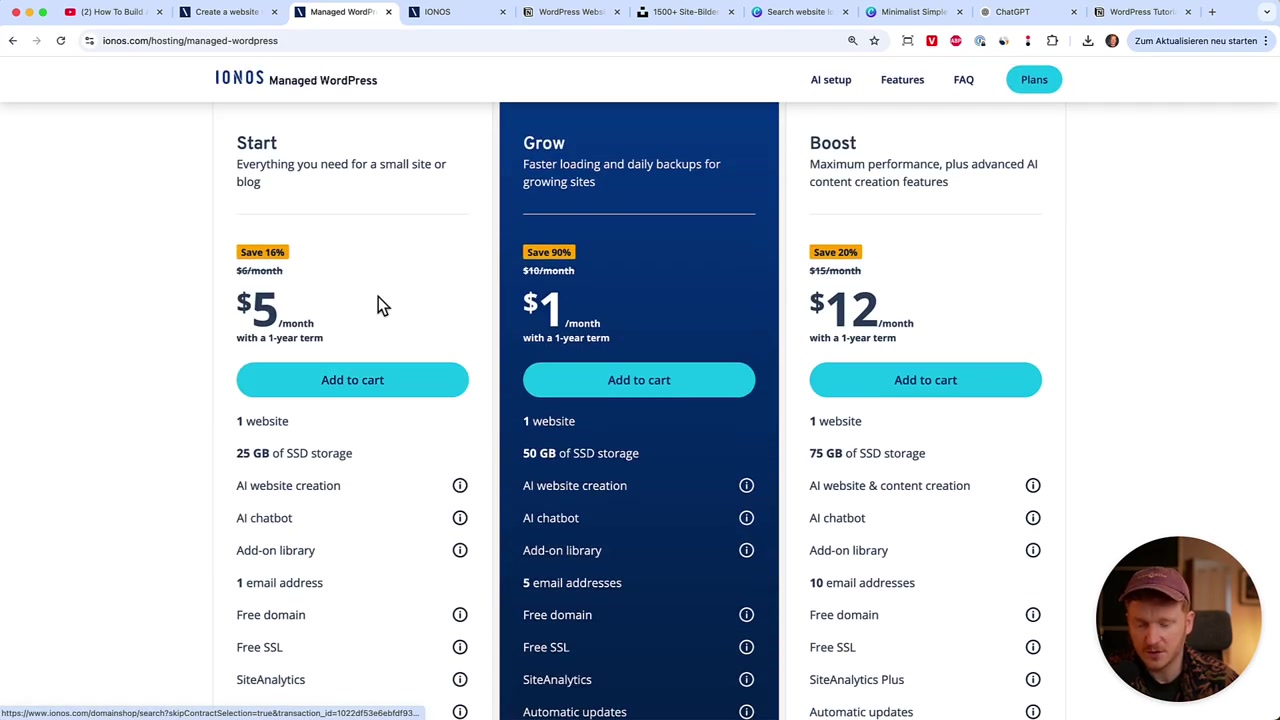
Ionos offers two main WordPress plans:
- Grow Plan — starts at 1/month for the first year, then 10/month
- Starter Plan — starts at 5/month immediately, then 6/month after the trial
The main difference is storage and the number of email addresses included. Either plan works for building a full website.
After choosing your plan, select your subscription duration. The longer you commit, the more you save. Then click Continue.
3. Choose a Domain Name Using AI
On the next screen, you'll be asked to enter your domain name. If you already have one, just type it in. If you need a new one, Ionos has a built-in AI domain generator that makes brainstorming easy.
Just give the AI a short prompt describing yourself or your project — for example: "I'm Julian Weber, a YouTuber doing website tutorials." Hit Generate and within seconds you'll get a list of available domain name ideas.
Julian got suggestions like tutorialdive.com and webkillhub.com and picked the one he liked best. Play around with different prompts until something clicks, then click Continue.
4. Complete Your Purchase and Install WordPress
You'll be shown a shopping cart with your WordPress plan and domain. Skip any upsells you don't need, then click Continue to pay by credit card or PayPal.
There's a 30-day money-back guarantee, so you can try it risk-free. If building a WordPress website turns out not to be for you, you can get a full refund.
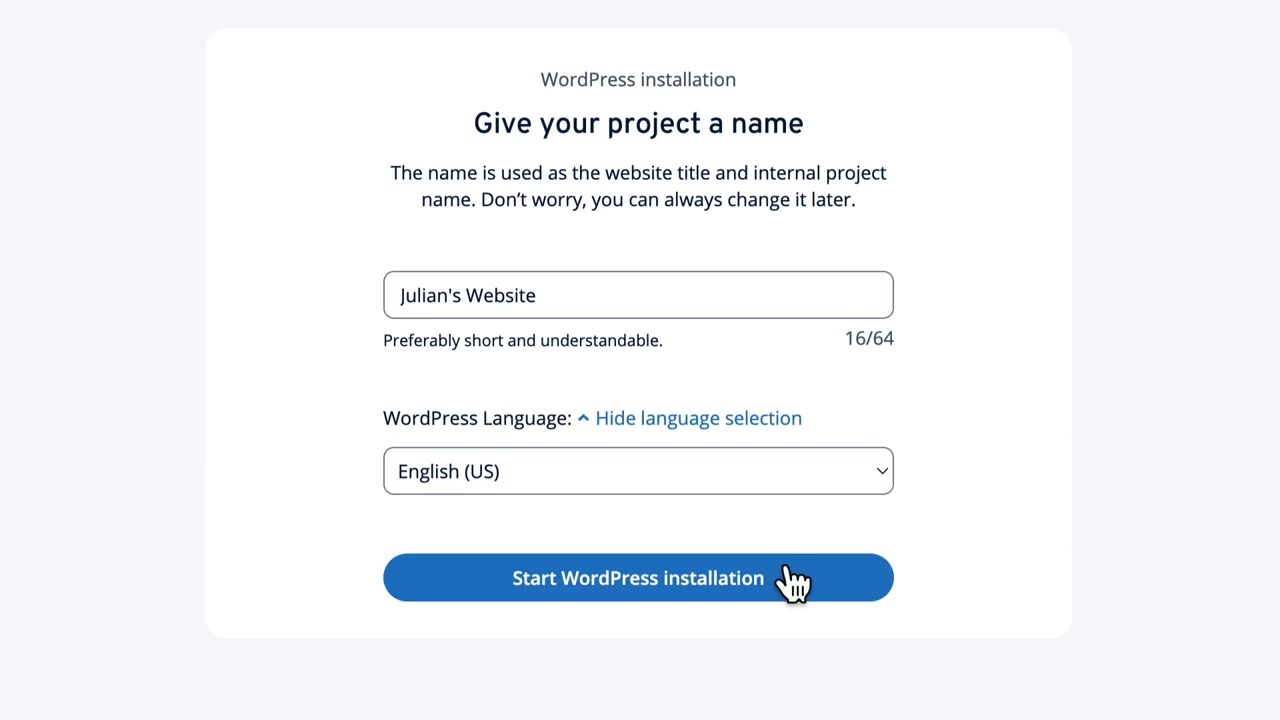
Once payment is done, Ionos will prompt you to give your website a name and choose a language. Enter your site name — something like Julian's Website — select your language, and hit Start WordPress Installation. Ionos does all the heavy lifting in the background within one to two minutes.
5. Build Your WordPress Site with AI in Minutes
Once WordPress is installed, you'll be taken to the Ionos dashboard. Here you have two options: set everything up manually (themes, plugins, content), or let the built-in AI do it for you.
Julian strongly recommends the AI route — it can save you one to two hours of work. Just enter a short description of yourself or your business in the prompt field. The AI uses this to generate content, images, and a full site layout.
Next, you'll be asked to:
- Set a tone — for example, Professional and Friendly
- Choose your goals — grow traffic, collect email subscribers, start a blog
- Pick a site type — full homepage (with separate pages) or a single one-pager
- Select a template — browse several professionally designed layouts and pick your favorite
- Choose your pages — homepage, about page, contact page, portfolio, etc.
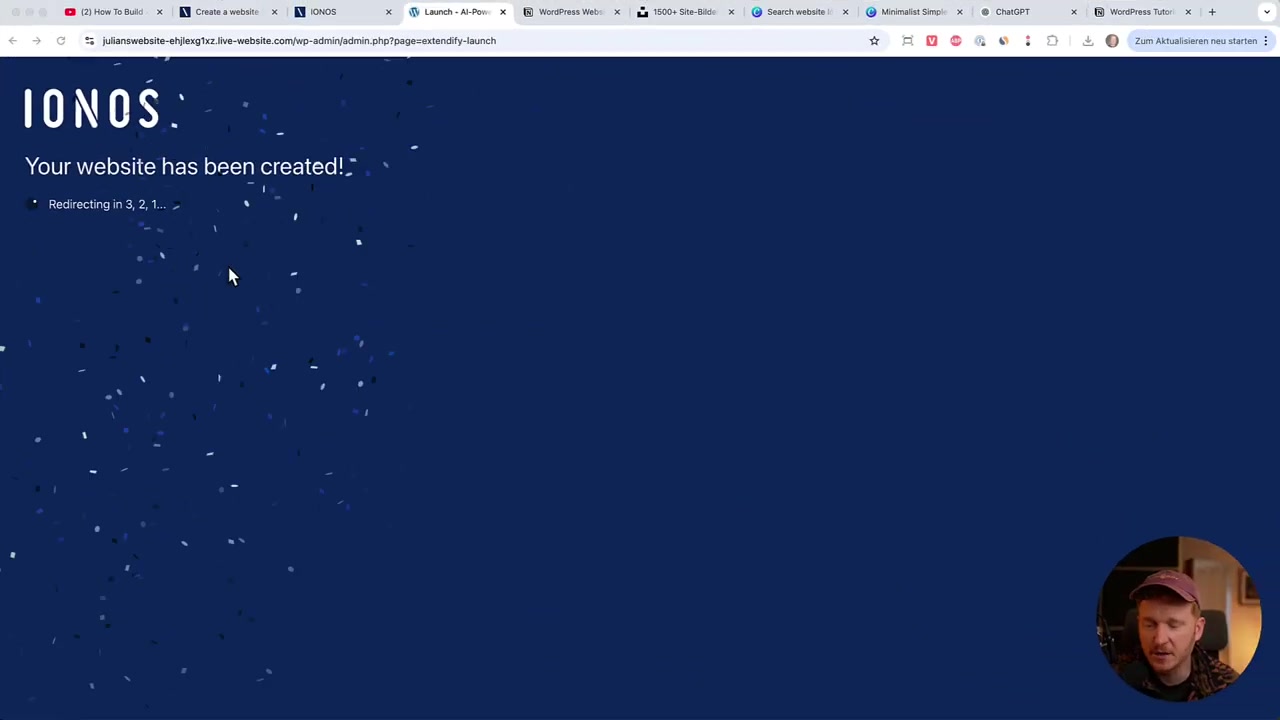
Hit Next, and the AI will build your entire website in about two minutes. When you see confetti on screen — your site is live!
6. Explore What the AI Created for You
After the site is built, click Visit Site to see it in action. The AI generates a full homepage with a hero section, pre-written copy, and even a blog with sample posts already inside.
You'll also get an about page and a contact page ready to customize. The pre-written text is often surprisingly good — Julian found he barely needed to change most of it.
Most importantly, the site is already optimized for desktop, tablet, and mobile out of the box. You don't need to do any extra work to make it responsive.
7. Edit Your WordPress Website in the Gutenberg Editor
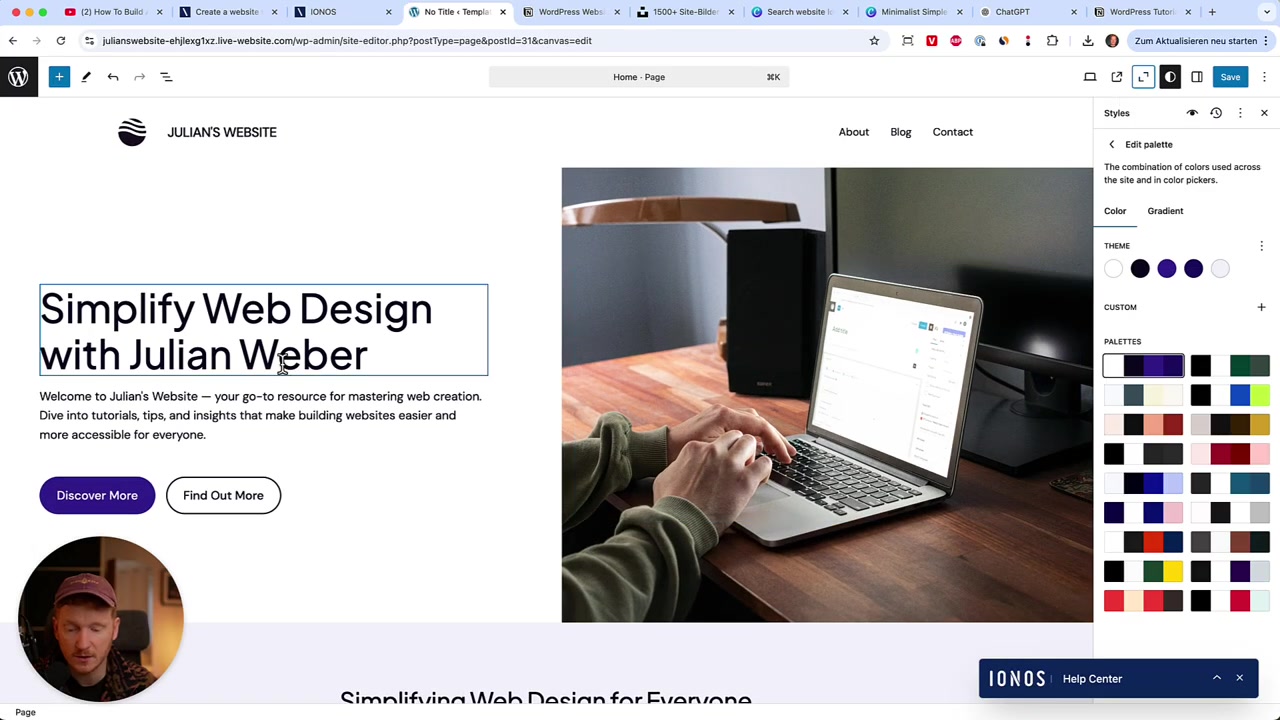
To make the site your own, go back to the dashboard and click Edit Your Site. This opens the WordPress Gutenberg editor, which is where all your customizations happen.
Here's what you can do inside the editor:
- Change color palettes — try different color schemes or enter your own hex brand color
- Switch to dark or light mode
- Edit text directly — just click on any text block and start typing
- Link buttons to any page on your site
- Replace images — click Replace on any image to upload your own from your desktop
- Add new content blocks — headings, images, galleries, videos, contact forms, and more
You can also embed YouTube videos directly by pasting a URL into a video block. The editor pulls in the video automatically — no embed code needed.
The Gutenberg editor has a lot more depth to it. Julian mentions he has a longer tutorial dedicated entirely to editing inside Gutenberg — worth watching if you want to master every detail.
8. Is WordPress Good for Beginners?
WordPress powers over 40% of all websites on the internet — and for good reason. It's incredibly flexible, has a massive plugin ecosystem, and gives you full control over your site.
Traditionally, WordPress had a steeper learning curve than drag-and-drop builders. But with managed hosting and AI-assisted setup like Ionos offers, that gap has closed significantly.
If you're a complete beginner, the AI-assisted flow covered in this tutorial is the easiest way to get started. You don't need to know anything about servers, code, or design.
9. WordPress vs. Wix – Which Should You Choose?
Both WordPress and Wix are excellent options, but they serve slightly different audiences.
WordPress gives you more control, more flexibility, and a much larger plugin library. It's the better choice if you want to scale your site, run a serious blog, or build something highly customized.
Wix is a fully hosted drag-and-drop builder — everything is managed for you, and the visual editor is extremely beginner-friendly with no technical knowledge required. If you want to explore Wix as an alternative, Julian also uses it daily and recommends it via this link.
In short: go with WordPress if you want power and flexibility; go with Wix if you want the fastest and simplest experience possible.
10. How Much Does a WordPress Website Cost?
The cost of a WordPress website depends mainly on your hosting plan and domain. With Ionos, the Grow Plan starts at $1/month for the first year, making it one of the most affordable options available.
After the first year, pricing moves to the regular rate. There are no additional costs for the AI site builder — it's included in your Ionos hosting plan.
Many popular WordPress plugins are free. Premium plugins and themes can add costs, but for a basic professional website you can get started without spending anything extra beyond hosting.
11. Publish Your WordPress Website Under Your Own Domain
Because you connected your domain during the Ionos checkout, your site is automatically published under your own domain once everything is set up. No extra steps needed.
From the Ionos dashboard, you can also manage your domain settings, connect additional domains, and set up professional email addresses tied to your domain — for example, [email protected].
Once you've finished editing your content in Gutenberg, your changes go live automatically. Just save and your visitors will see the updated version.
Frequently Asked Questions
Do I need any coding skills to build a WordPress website?
How long does it take to set up a WordPress website?
What is the Gutenberg editor in WordPress?
Can I change the design after the AI builds my site?
Is my WordPress website mobile-friendly automatically?
What happens if I don't like my website after signing up?
Can I use my own domain with Ionos WordPress hosting?
What's the difference between the Ionos Grow Plan and the Starter Plan?
12. Disclosure
Some links in this post are affiliate links. If you make a purchase through them, a small commission may be earned at no extra cost to you. All content is provided for informational purposes only — no guarantees are made regarding results. Nothing in this post constitutes financial, legal, tax, or investment advice.
Related Articles

28 Oct 2025
How to Create a TikTok Ads Account in 2026
Want to run ads on TikTok but not sure where to start? Setting up your TikTok Ads Manager account is easier than you think — and it only takes a few minutes. In this guide, I'll walk you through the e...

15 Dec 2025
Wix Promo Code 2026 – How to Save on Wix Premium Plans
If you've been thinking about upgrading to a Wix premium plan, timing your sign-up the right way can make a real difference. In this guide, I'll walk you through the exact method to access the best av...

26 May 2026
How to Add Signature in Gmail (Tutorial 2026)
Want to make your emails look polished and professional? A well-designed Gmail signature can make a huge difference. In this tutorial, Julian Weber walks you through everything — from creating a basic...