How to Add Signature in Gmail (Tutorial 2026)
Want to make your emails look polished and professional? A well-designed Gmail signature can make a huge difference. In this tutorial, Julian Weber walks you through everything — from creating a basic Gmail signature to building a beautiful, image-rich signature using Google Docs and Canva.
1. Create a Basic Gmail Signature
Start by clicking the gear icon (Settings) in the top-right corner of Gmail. Then click See all settings and scroll down until you find the Signature section.
Click Create new signature, give it a name like "Business One", and start typing your details — your name, company, job title, phone number, and website.
Gmail's built-in editor lets you change font size, apply bold or italic formatting, change text color, and even hyperlink your website and email address. Just select the text and click the link icon — Gmail will auto-link it for you.
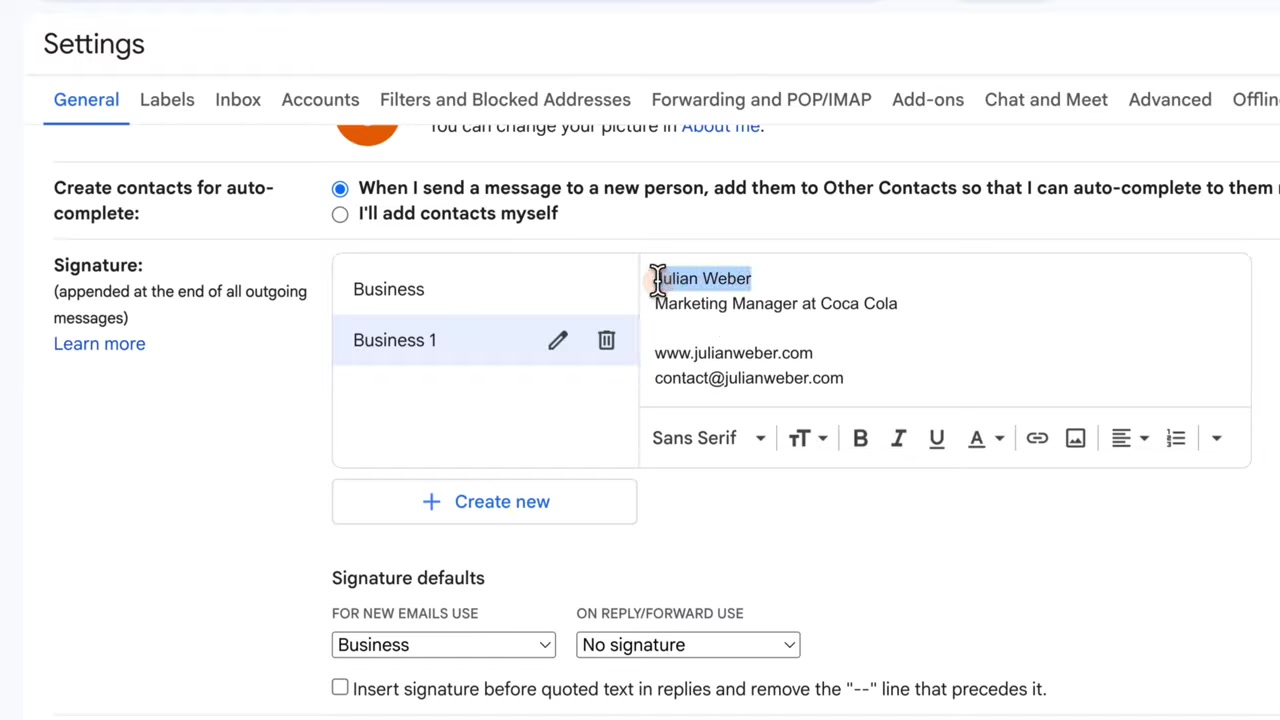
The limitation: Gmail's signature editor is fairly basic. You can adjust fonts and colors, but making something that truly looks professional is hard within Gmail alone. That's where the next approach comes in.
2. Build a Professional Gmail Signature in Google Docs
For a signature that stands out, build it in Google Docs (or Microsoft Word) first — then paste it into Gmail. The formatting transfers cleanly and you get far more design control.
Open a new Google Doc and insert a two-column table (Insert → Table → 2 columns, 1 row). The left column will hold your profile photo; the right column holds your name, title, and contact details.
Type your name and position into the right column. Increase the font size to make your name stand out, and set the line spacing to 1.5 for a fresher, more spacious look.
3. Add a Round Profile Picture with Canva
A square photo works, but a rounded profile image looks far more polished. Google Docs doesn't support rounded image masks natively — but Canva does, and it's free to get started.
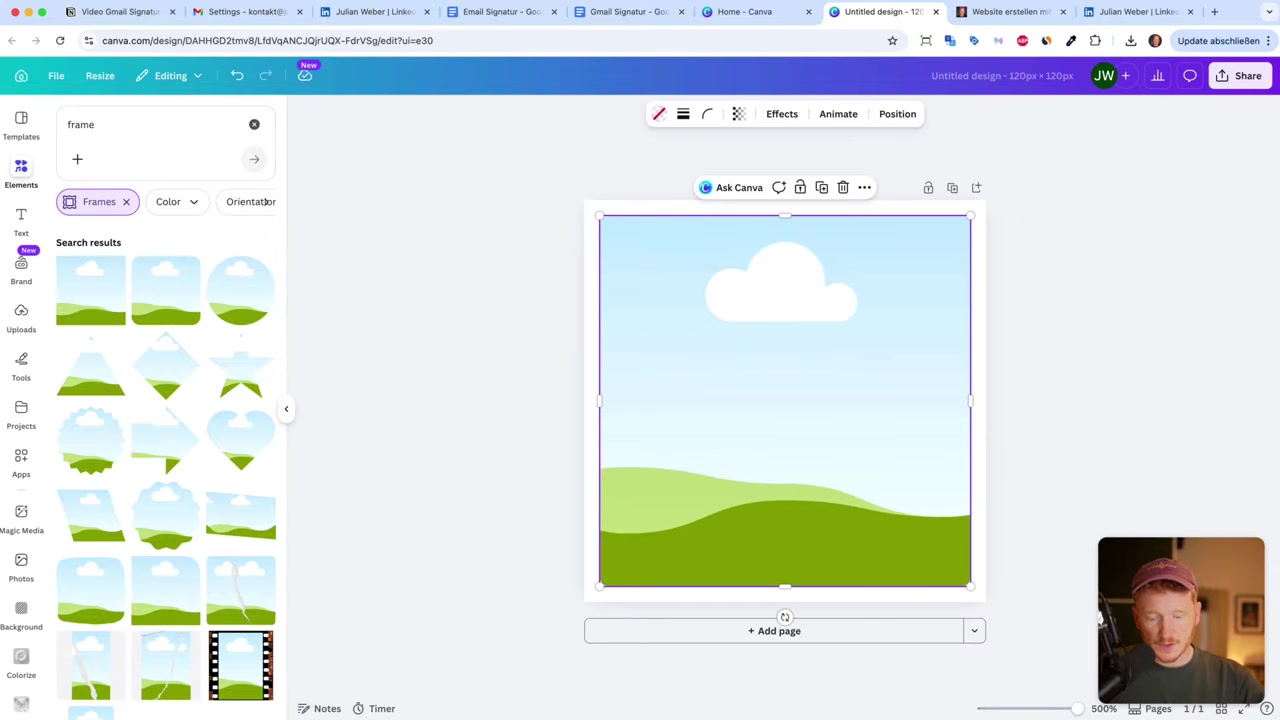
Head to Canva and create a custom size canvas of 120 × 120 pixels. Go to Elements → Frames and pick a round or rounded-corner frame. Drag and drop your photo into the frame.
Adjust the corner radius to your liking, then click Download. If you want a transparent background, the premium plan supports that. Once downloaded, drag the image directly into the left column of your Google Docs table.
4. Add Social Media Icons to Your Gmail Signature
Icons for LinkedIn, Twitter, or YouTube make your signature feel complete and give recipients a direct link to your profiles.
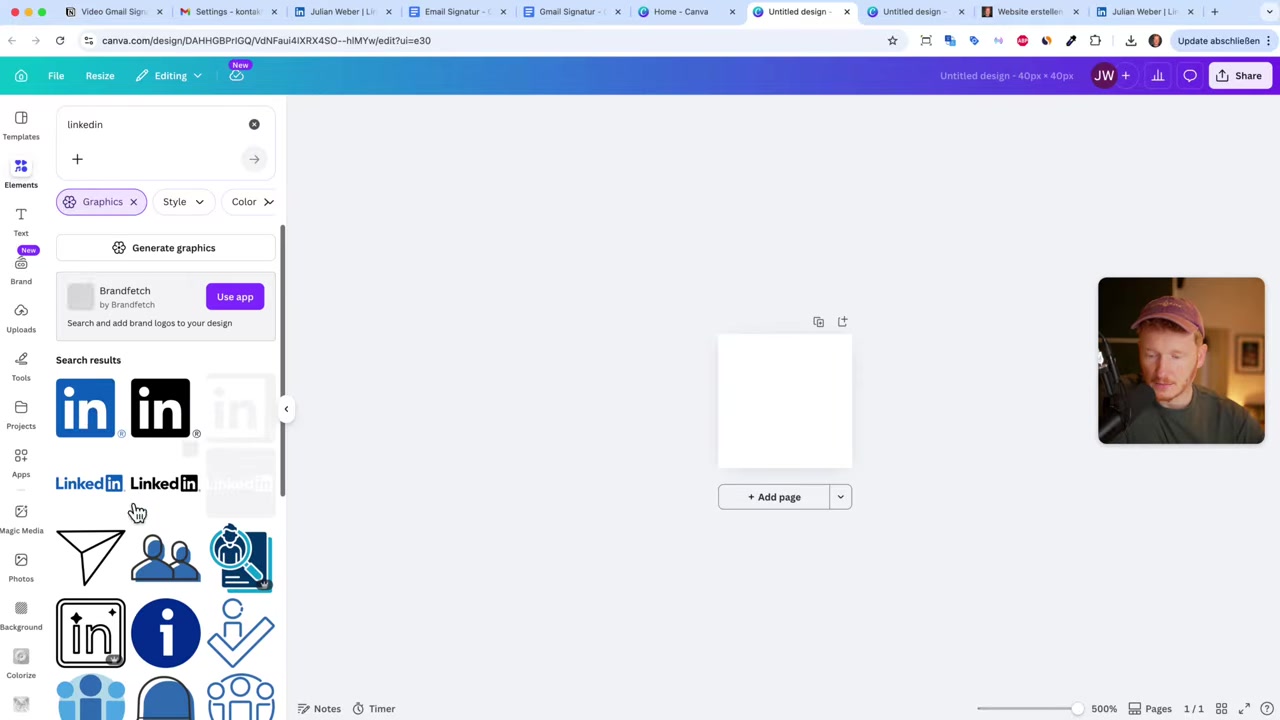
Back in Canva, create another custom canvas — this time 40 × 40 pixels. Search for the platform name (e.g., "LinkedIn") in the Elements panel and pick an icon you like.
Resize the icon to fill the canvas, use the Crop tool if needed to remove any unwanted elements, then download it. Drag the icon into your Google Docs signature, select it, click the link icon, and paste in your profile URL. Now anyone who clicks the icon goes straight to your profile.
5. Remove Table Borders and Finalize the Design
Your signature table will show visible borders by default — you definitely don't want those in an email. Select the entire table, go to Table properties → Border width, and set it to 0 pixels. The borders disappear instantly.
Now add any finishing touches: your company logo, additional social media icons, or a tagline. When you're happy, select all and copy the entire signature.
6. Paste the Signature into Gmail Settings
Go back to Gmail → Settings → See all settings → Signature. Select your existing signature (or create a new one), delete the old placeholder text, and paste in your new signature from Google Docs.
The formatting transfers perfectly — your rounded photo, icons, links, and typography all come through intact.
Scroll down to the Signature defaults section and set your new signature as the default for both new emails and replies/forwards. Then — crucially — click Save Changes at the bottom of the page. Don't skip this step or you'll lose everything!
7. What Is a Gmail Signature and Why Does It Matter?
A Gmail signature is a block of text (and optionally images or links) that automatically appears at the bottom of every email you send. Think of it as your digital business card.
A professional signature builds trust, reinforces your brand, and makes it easy for recipients to contact you or find you on social media — without you having to type that information every time.
8. Is Canva Free for Creating Email Signatures?
Yes — Canva has a generous free tier that covers everything you need to create a profile photo frame and social media icons for your signature.
The premium plan unlocks features like transparent image backgrounds, which can be handy if your email clients use non-white backgrounds. You can sign up with your Google account and get started in seconds.
9. Gmail Signature Tips for a Clean, Professional Look
Keep these best practices in mind when designing your Gmail signature:
- Keep it concise — name, title, company, phone, and 1–2 social links is plenty
- Use consistent fonts — match your brand's typography if possible
- Stick to 2–3 colors — too many colors looks cluttered
- Test on mobile — most emails are read on phones, so check how your signature renders
- Avoid large images — oversized images can trigger spam filters or load slowly
Frequently Asked Questions
How do I add a signature in Gmail?
Can I add an image to my Gmail signature?
How do I make my Gmail signature look professional?
Why is my Gmail signature not showing up?
How do I add a clickable link to my Gmail signature?
Can I have multiple Gmail signatures?
How do I add social media icons to my Gmail signature?
Does Gmail signature work on mobile?
10. Disclosure
Some links in this post are affiliate links. We may earn a commission if you make a purchase — at no extra cost to you. All content is provided for informational purposes only, without any guarantee of accuracy or results. Nothing here constitutes financial, legal, tax, or investment advice.
Related Articles

28 Oct 2025
How to Create a TikTok Ads Account in 2026
Want to run ads on TikTok but not sure where to start? Setting up your TikTok Ads Manager account is easier than you think — and it only takes a few minutes. In this guide, I'll walk you through the e...

15 Dec 2025
Wix Promo Code 2026 – How to Save on Wix Premium Plans
If you've been thinking about upgrading to a Wix premium plan, timing your sign-up the right way can make a real difference. In this guide, I'll walk you through the exact method to access the best av...

2 Dec 2025
La fine di PowerPoint – Gamma AI per Presentazioni Incredibili
PowerPoint è lo strumento che tutti conoscono, ma sai benissimo com'è: slide statiche, design datati e ore sprecate a sistemare testi e immagini. Gamma AI cambia tutto questo. In questo tutorial ti mo...