Wix Website Tutorial for Beginners in English (2026)
Want to build a professional website without any coding skills? Wix is one of the most popular website builders out there — and for good reason. In this beginner-friendly tutorial, Julian Weber walks you through every step: from signing up and picking a template, to editing your content, adding pages, and publishing your site under your own domain. By the end, you'll have a fully functional website ready to go live. You can try Wix for free to follow along.
1. What Is Wix?
Wix is a cloud-based website builder that lets anyone create a professional website using a drag-and-drop editor — no coding required.
It offers thousands of templates for every type of site: personal portfolios, business websites, online stores, photography galleries, and more.
Wix also has a built-in AI assistant, an app market to extend functionality, and built-in SEO tools to help Google find your site.
2. Sign Up for Wix
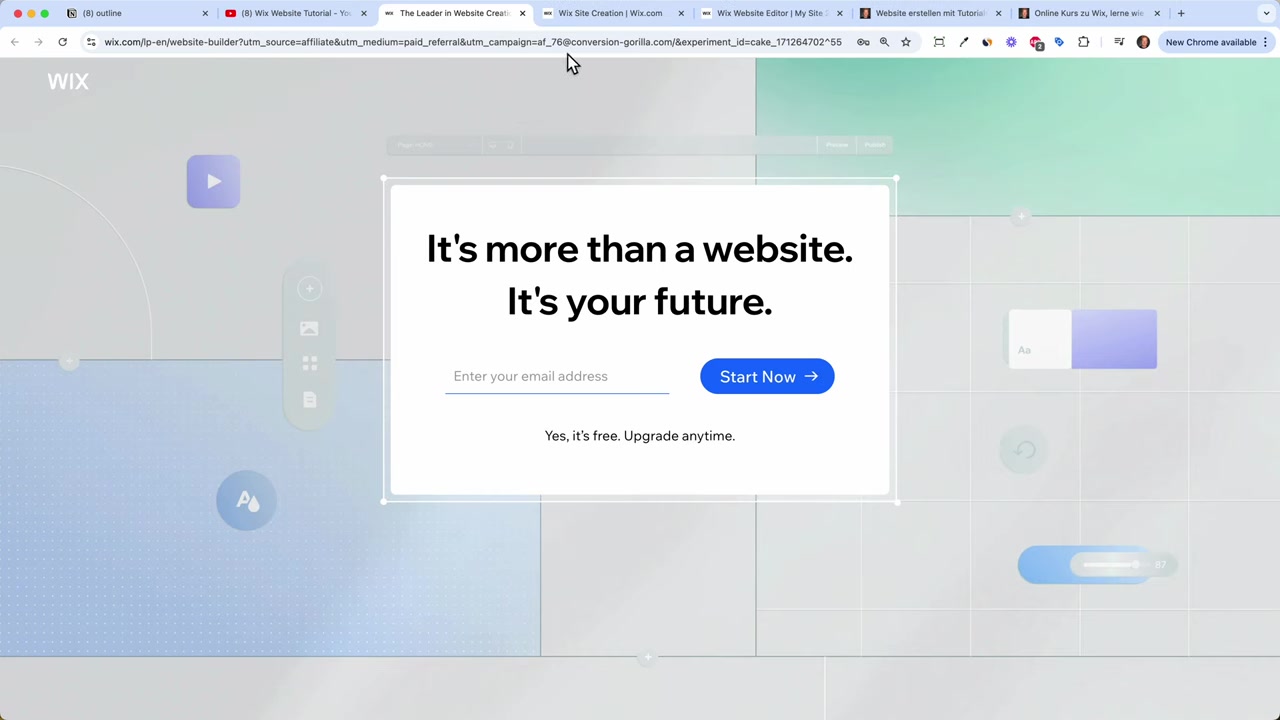
Head to Wix and sign up with your email address. It only takes a minute.
Once you're in, Wix will ask you what type of website you want to create. Choose the option that best fits your goal — for example, a business site, a portfolio, or a personal page.
After that, Wix prepares your dashboard. This is the backend of your site where you can manage marketing, analytics, inbox messages from visitors, and more.
3. Choose the Right Wix Template
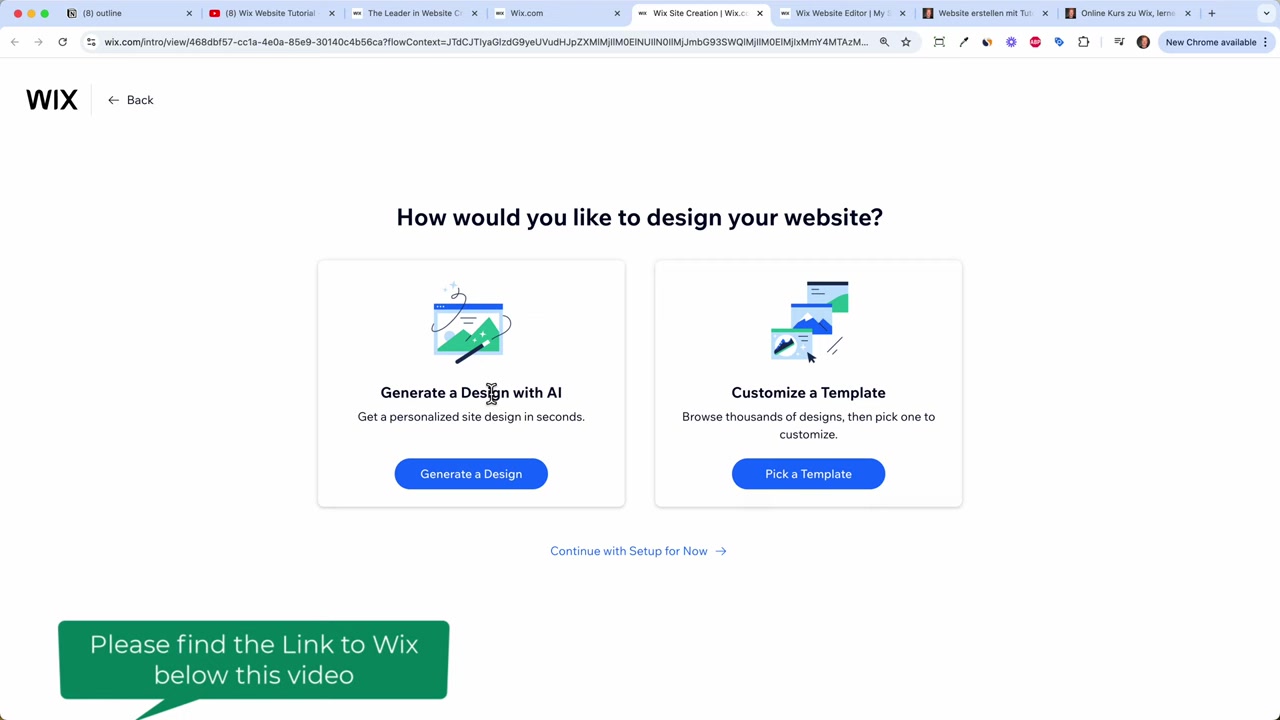
From your dashboard, click Design Site. You can either use the Wix AI to generate a site automatically or browse templates manually.
Wix has hundreds of templates organised by category: business, health and wellness, photography, online stores, portfolios, and more.
Take your time here. Pick a template that already feels close to what you want — the less you have to change, the faster you'll launch.
Once you find a template you like, click View to preview it, then click Edit Site to open it in the editor.
Wix will also prompt you to enter a short description of yourself or your business. The more detail you give, the better the AI-generated text will be.
4. Edit Text and Headlines in the Wix Editor
The Wix editor is a drag-and-drop interface — think of it like a more visual version of Word or PowerPoint, but for websites.
To edit any text, simply click on it and select Edit Text. You can change the font, make it bold or italic, adjust the size, and change the colour.
One important tip: keep your content within the borders shown in the editor. On mobile devices, anything outside those boundaries may get cut off.
5. Change Images on Your Wix Website
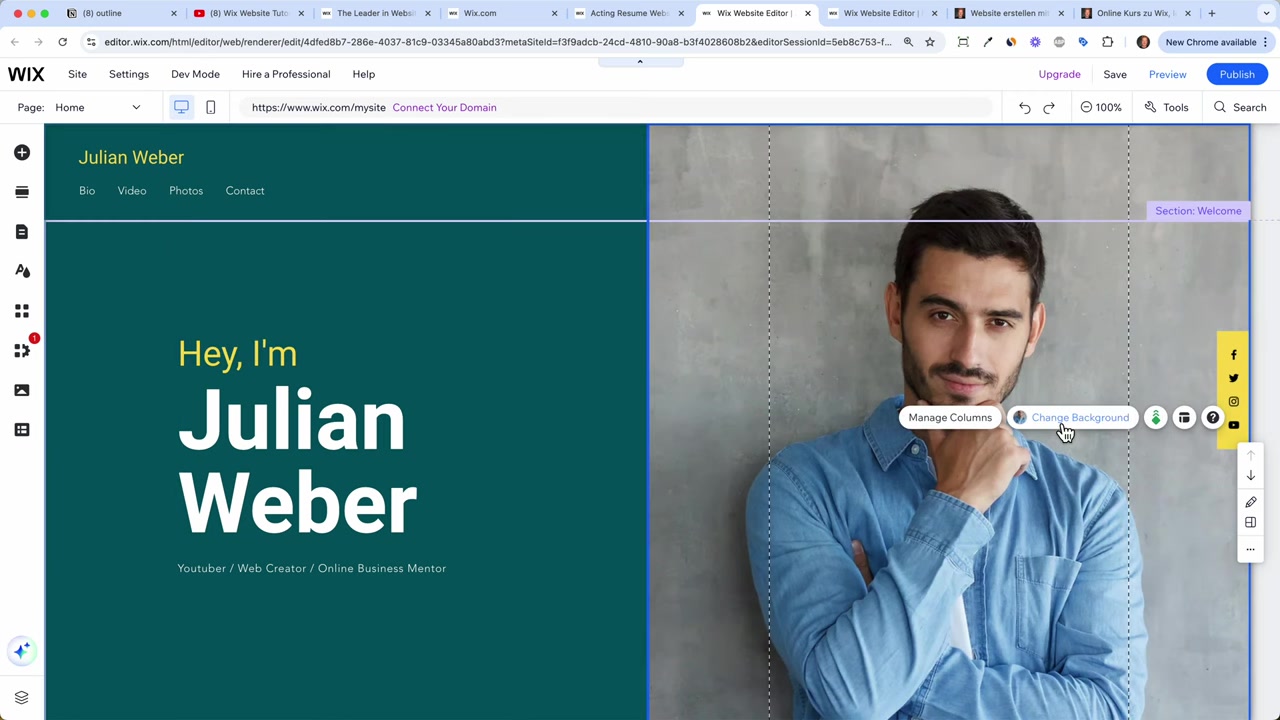
To change a background image or photo, click on the element and select Change Background Image.
You have three options: use Wix's built-in free stock photo library, generate an image with AI, or upload your own photo directly from your computer.
For a personal or business site, uploading your own images always looks more authentic. Just select Upload Media, choose your file, and apply it.
6. Add a New Section to Your Homepage
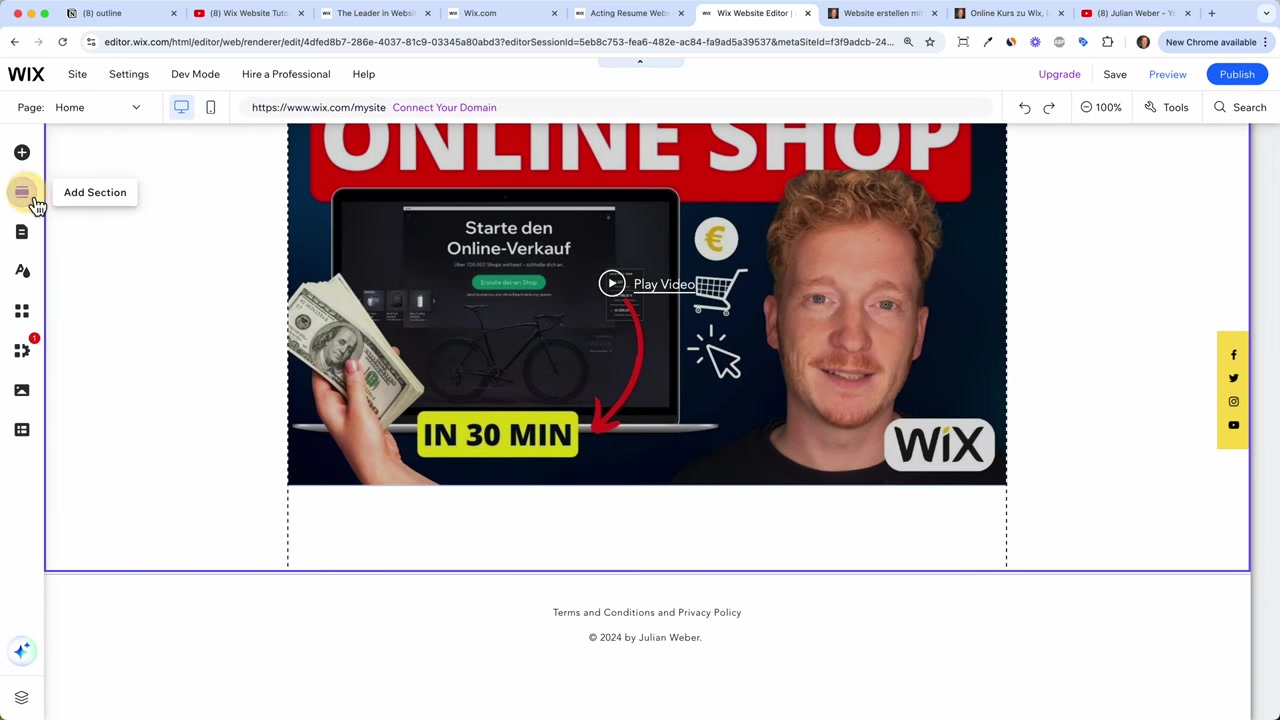
Scroll to the bottom of any section and click Add Section. A menu will open on the left with dozens of pre-built section templates.
You can add a team section, a contact section, a testimonials block, a gallery, and much more.
Once you've added the section, customise the headline and paragraph text to match your message.
7. Add Elements Like Social Media Icons
Click Add Elements to access the full library of elements you can place on any page: text blocks, images, buttons, galleries, contact forms, social media icons, and more.
Drag the element you want directly onto your page. For example, drag social media icons into your section, then click each icon to link it to your Instagram, YouTube, or other profile URL.
You can also adjust the icon size and spacing from the Layout panel.
8. Upload Your Own Video
To add a video to your site, click on the video element in your chosen section. You can either upload a video file directly or paste in a YouTube URL.
Once added, go to Layout and set the style to Compact so the video doesn't stretch awkwardly across the full page width.
This is a great way to showcase your work, introduce yourself, or demonstrate a product.
9. Edit the Footer
The footer appears on every single page of your website, so keep it clean and useful.
Remove any elements you don't need — for example, if your template includes a contact form in the footer, you may want to delete it and place it on a dedicated contact section instead.
Make sure to update the copyright year and add links to your Privacy Policy and Terms and Conditions if you're running a business.
10. Add a Contact Form to Your Wix Site
Click Add Section, go to Contact, and drag in a contact section template. Wix will automatically add form and payment functionality.
Customise the form fields to match what you need — first name, last name, email, and a message field is usually sufficient for most sites.
Wix also includes a Google Maps block in many contact sections. Click Manage Locations and enter your real address to display the correct pin.
11. Add New Pages to Your Website
A professional website needs more than just a homepage. Click Page and Menu in the editor, then Add a Menu Item and select New Page.
Wix will offer you pre-built page templates — for example, an About Me page, a Services page, or a Contact page.
Select a template, click Add Page, and Wix automatically adds it to your navigation menu.
12. Set Up SEO for Each Page
To help Google find your pages, click on the page name, then the three dots, and go to Settings.
Here you'll find the SEO basics: the URL slug, the title tag, and the meta description. These are the three things that appear in Google search results.
For service pages especially, include the keywords people would actually search for — for example, "Google Ads Agency in New York". Fill this out for every important page on your site.
13. Link Your Buttons
Every button on your site should lead somewhere. Click on a button, select Link, and choose whether it should go to another page on your site, an external URL, or an email address.
For example, link a "Read My Story" button to your About Me page. You can also edit the button text to make it more compelling and action-oriented.
Always test your buttons using the Preview mode before publishing.
14. Edit the Mobile Version of Your Wix Site
More than half of all website visitors browse on their phones. In the editor, click Switch to Mobile View to see how your site looks on a smaller screen.
Most elements adapt automatically, but you may need to tweak spacing, reposition icons, or adjust font sizes.
Check every page in mobile view before you publish — a site that looks broken on mobile will lose visitors fast.
15. Explore the Wix App Market
The Wix App Market is where you extend your site's functionality — think of it like an app store for your website.
Some useful apps to explore:
- Wix Chat — add a live chat window so visitors can message you directly
- Wix Stores — add full e-commerce functionality to sell products online
- Wix Bookings — let visitors book appointments and pay through your site
- Wix Groups — build and monetise an online community
Installing an app is as simple as clicking Add — no technical setup needed.
16. Publish Your Wix Website
When you're happy with your site, click Publish. Wix will give you a free subdomain (something like yourname.wixsite.com/mysite) that you can share immediately.
This is perfectly fine for testing and getting started. But for a professional presence, you'll want your own domain.
17. Connect Your Own Domain and Upgrade Your Plan
Click Connect Your Own Domain in the editor. Type in your desired domain name and Wix will check if it's available.
Wix supports .com, .shop, .blog, .design, and many other domain endings. A .com domain is still the most trusted and recognisable choice.
To use a custom domain, you'll need to upgrade to a paid plan. Wix offers several tiers — the Light plan is a great starting point for a basic website, while the Core plan adds e-commerce features if you want to sell online. All paid plans include a free custom domain for the first year and remove Wix branding from your site.
For more details on which plan makes the most sense for your needs, check out this guide: Wix Promo Code 2026 – How to Save on Wix Premium Plans.
18. Is Wix Good for Beginners?
Absolutely. Wix is one of the most beginner-friendly website builders available. You don't need to write a single line of code.
The drag-and-drop editor is intuitive, and the thousands of templates mean you can have a great-looking site running in under an hour.
The built-in AI assistant also helps generate text content and suggests layout improvements, making the whole process even faster for first-time website builders.
19. Wix Pros and Cons
Pros:
- Very easy to use — no coding required
- Thousands of professionally designed templates
- Built-in SEO tools for every page
- Powerful app market to extend functionality
- Free plan available to get started
- E-commerce, bookings, and community features built in
Cons:
- Once you choose a template, switching to a different one requires rebuilding your content
- Advanced customisation has some limits compared to a fully custom-coded site
- A paid plan is needed for a custom domain and to remove Wix branding
Frequently Asked Questions
Can I use Wix for free?
How long does it take to build a Wix website?
Can I change my Wix template after publishing?
Does Wix include SEO tools?
How do I get a custom domain with Wix?
Can I sell products on a Wix website?
Does Wix work well on mobile?
What happens if I need help with my Wix site?
20. Disclosure
Some links in this post are affiliate links. If you make a purchase through one of these links, a small commission may be earned at no extra cost to you. All content is provided for informational purposes only, without any guarantee of accuracy or completeness. Nothing here constitutes financial, legal, tax, or investment advice.
Related Articles

15 Dec 2025
Wix Promo Code 2026 – How to Save on Wix Premium Plans
If you've been thinking about upgrading to a Wix premium plan, timing your sign-up the right way can make a real difference. In this guide, I'll walk you through the exact method to access the best av...

28 Oct 2025
How to Create a TikTok Ads Account in 2026
Want to run ads on TikTok but not sure where to start? Setting up your TikTok Ads Manager account is easier than you think — and it only takes a few minutes. In this guide, I'll walk you through the e...

9 Oct 2024
Wix Website Maken in 2026 – Stap-voor-Stap Nederlandse Tutorial
Wil je een mooie, professionele website maken zonder technische kennis? Met Wix bouw je stap voor stap je eigen site – van sjabloon kiezen tot publiceren met je eigen domeinnaam. In deze tutorial door...