Wix Online Store: How to Set Up Shipping Regions
Getting shipping right in your Wix store is one of those things that makes a huge difference at checkout. In this tutorial, you'll learn how to define shipping regions, set flat rates, offer free shipping thresholds, and even configure weight-based rates — all inside the Wix dashboard. Whether you're shipping locally or across borders, Wix gives you the flexibility to handle it all.
1. Navigate to Shipping Settings in Your Wix Store
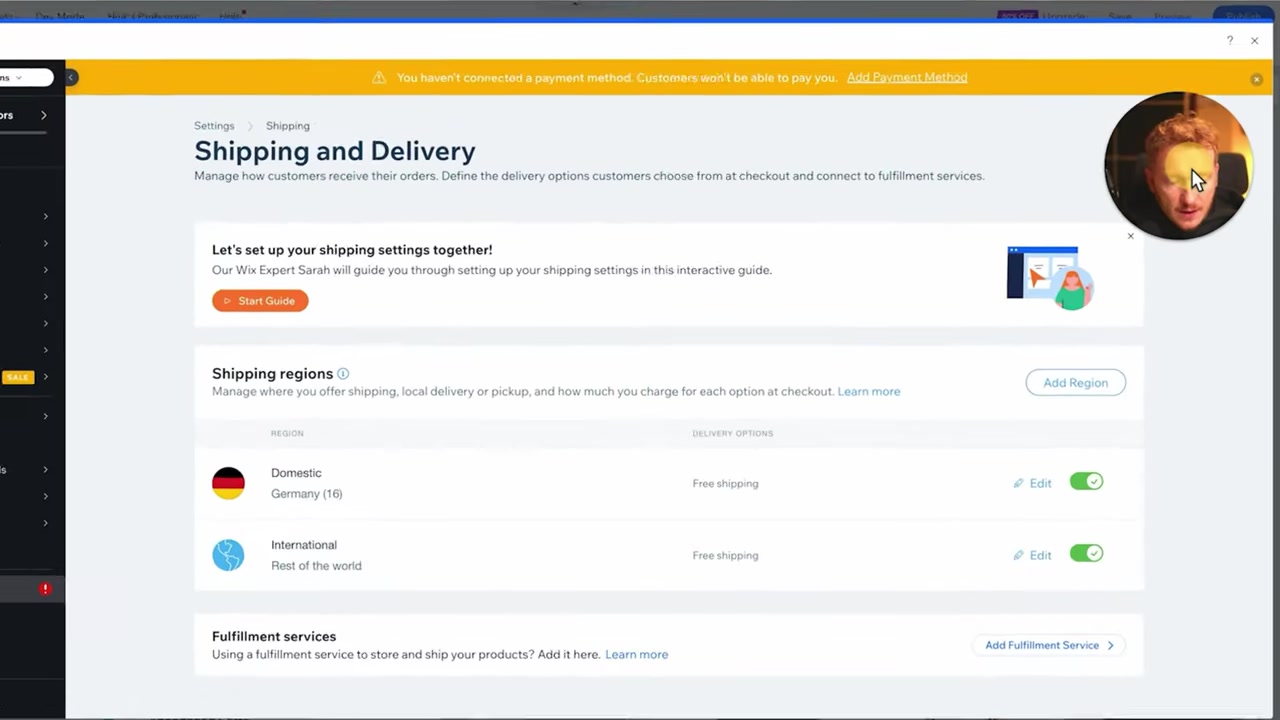
Start by clicking on My Business in your Wix dashboard. From there, select Wix Stores, and you'll see a prompt to define shipping regions.
Click Set Up Shipping and Wix will take you directly to the shipping configuration area. This is where all your shipping regions and rates will live.
2. Create Your First Shipping Region
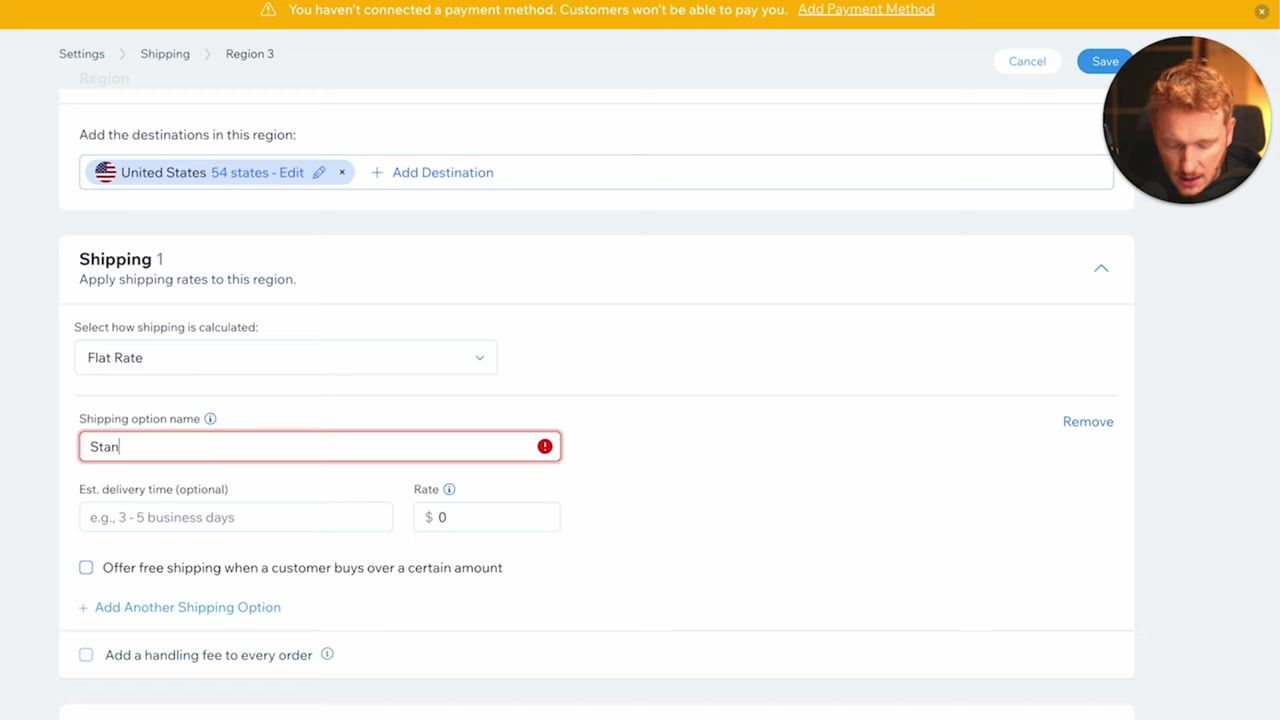
Wix automatically suggests a region based on your location. You can deselect the default and add a new region — for example, the United States, which includes all 54 states.
Once you've selected your region, you can start adding shipping options. You're not limited to one rate — Wix lets you stack multiple options for each region.
3. Set Flat Rates and Free Shipping Thresholds
A common setup is a standard flat rate plus a free shipping threshold. For example, you could charge 6 for standard shipping with a 3–4 day estimated delivery time, and then offer free shipping on orders over 150.
This kind of setup is simple, transparent, and works well for most online stores. Customers see exactly what they'll pay before they check out — no surprises.
4. Explore Advanced Wix Shipping Options
Beyond flat rates, Wix gives you several more advanced shipping methods:
- Shipping by weight — great if you sell heavy items like supplements or equipment
- Shipping by price — charge based on the order total
- Shipping by product category — useful if you carry a mix of lightweight and bulky items
- Local delivery — perfect for restaurants or local retailers
- Store pickup — let customers collect orders in person
If you sell something like protein powder where weight varies significantly between products, weight-based shipping is worth setting up. It keeps your margins intact without overcharging lighter orders.
5. Add More Shipping Regions (e.g. Canada, International)
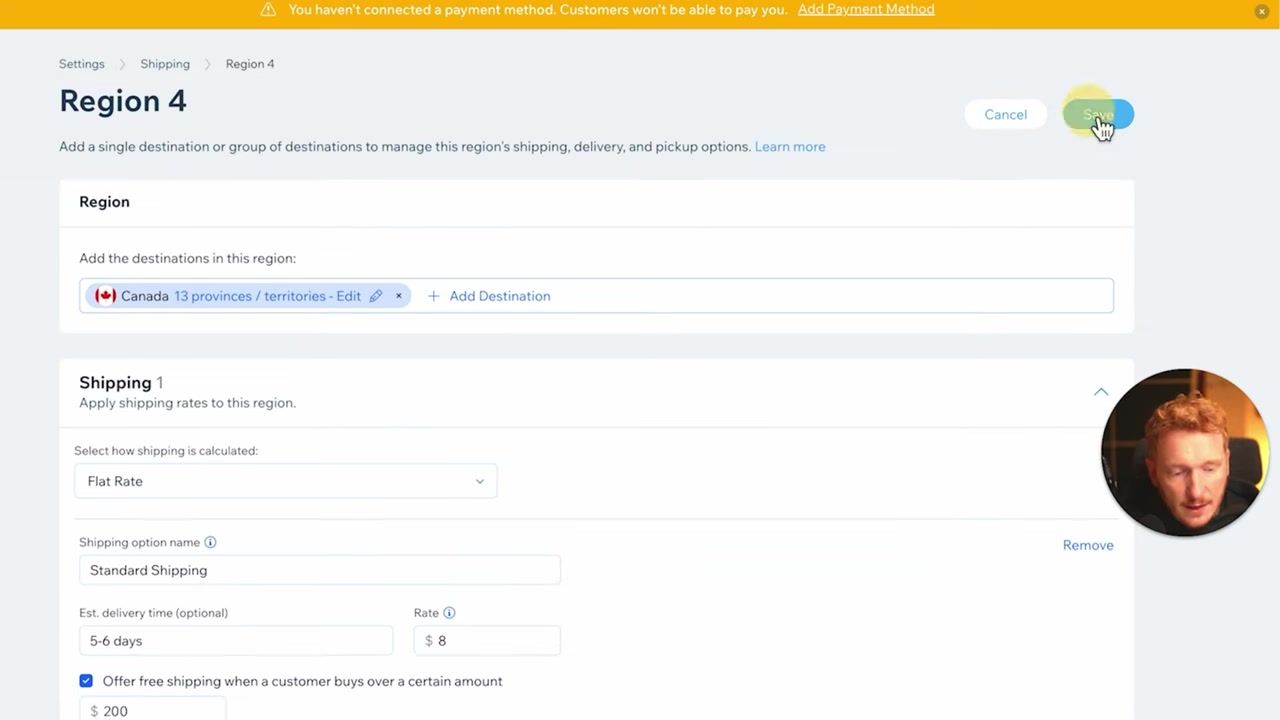
Once your first region is saved, click Add Region to configure shipping for another country. For example, if you're US-based and shipping to Canada, you might charge 8 for standard shipping with a 4–6 day delivery window — and set the free shipping threshold a bit higher, say 200.
You can keep adding regions for as many countries or zones as you serve. Each region gets its own rates, so you have full control over your international shipping strategy.
6. How Wix Applies Shipping Rates Automatically
Here's the smart part: Wix applies shipping rates based on the delivery address, not the customer's IP address. So if a customer is browsing from the US but ships to Canada, they'll be charged the Canada rate automatically.
This means you don't have to worry about customers gaming the system. Wix handles it cleanly at checkout without any extra setup on your end.
7. Add a Fulfillment Service (Amazon FBA or Third-Party)
If you use a fulfillment partner like Amazon FBA or another third-party logistics provider, you can connect them directly in the shipping settings. There's even a short explainer video inside Wix to help you through that process.
This is especially useful if you're scaling and don't want to handle fulfillment in-house.
8. What Is Wix Shipping?
Wix Shipping is the built-in shipping management system inside Wix Stores. It lets you define geographic shipping regions and set custom rates for each one — whether you're shipping domestically or internationally.
You don't need any third-party plugins or apps to get started. Everything is configured directly in your Wix dashboard under Wix Stores → Shipping & Fulfillment.
9. Is Wix Good for eCommerce Beginners?
Yes — Wix is one of the most beginner-friendly eCommerce platforms available. The shipping setup is a great example: you can configure multiple regions and rates in just a few minutes, without any technical knowledge.
For more on what Wix offers for online stores, check out related tutorials on adding products to your Wix store and organizing product categories.
Frequently Asked Questions
How do I set up shipping in Wix?
Can I offer free shipping on Wix?
Does Wix support weight-based shipping rates?
Can I ship to multiple countries with Wix?
How does Wix determine which shipping rate to apply?
Can I connect Amazon FBA to my Wix store?
Does Wix support local delivery or in-store pickup?
Do I need a paid Wix plan to set up shipping?
10. Disclosure
Some links in this post are affiliate links. If you make a purchase through them, I may earn a commission at no extra cost to you. All content is provided for informational purposes only and comes without any guarantee. This post does not constitute financial, legal, tax, or investment advice.
Related Articles

8 Apr 2025
How to Add a New Product to Your Wix Store – Step-by-Step Guide
Ready to start selling on Wix? Adding a new product to your Wix store is straightforward once you know where everything lives. In this guide, we walk through every step — from uploading images and wri...

9 Apr 2025
Wix Product Categories Explained – How to Organize Your Store
If your Wix store is starting to fill up with products, organizing them into categories is one of the smartest things you can do. Good category structure makes navigation easier, helps customers find ...

10 Apr 2025
Wix Bookings – How to Set Up Services & Accept Appointments
Want to let clients book appointments directly on your website? Wix Bookings makes it surprisingly easy. Whether you're a coach, consultant, yoga teacher, or run a beauty salon, you can set up service...