Wix Product Categories Explained – How to Organize Your Store
If your Wix store is starting to fill up with products, organizing them into categories is one of the smartest things you can do. Good category structure makes navigation easier, helps customers find what they're looking for, and can directly boost your sales.
In this tutorial, we'll walk through exactly how to set up product categories in Wix — from creating your first category to adding images and displaying them on your storefront. You can try Wix for free and follow along.
1. What Are Wix Product Categories?
Product categories in Wix are a way to group your store items so customers can browse and filter them more easily. Think of them like the sections in a physical store — clothing, electronics, accessories — each in its own aisle.
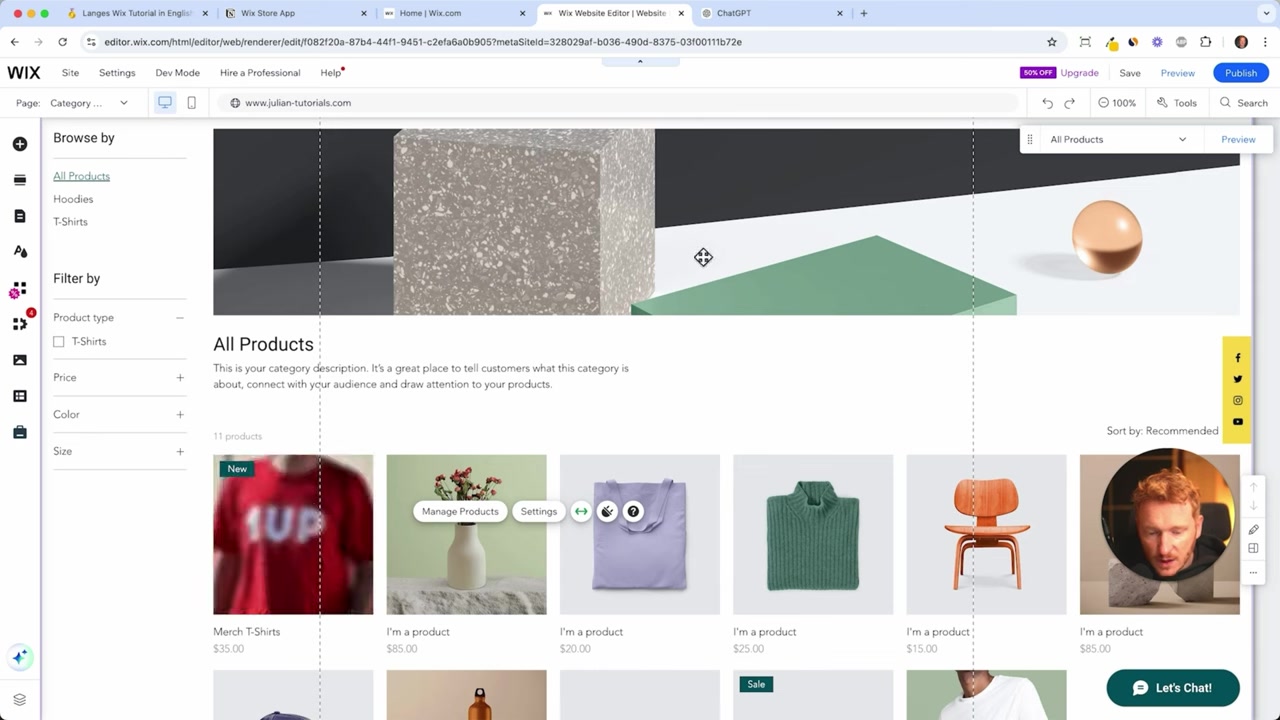
Wix automatically creates an All Products category for you. But as your inventory grows, you'll want to create specific categories like T-Shirts, Hoodies, or Accessories to keep things organized.
2. Assign a Category When Adding a Product in Wix
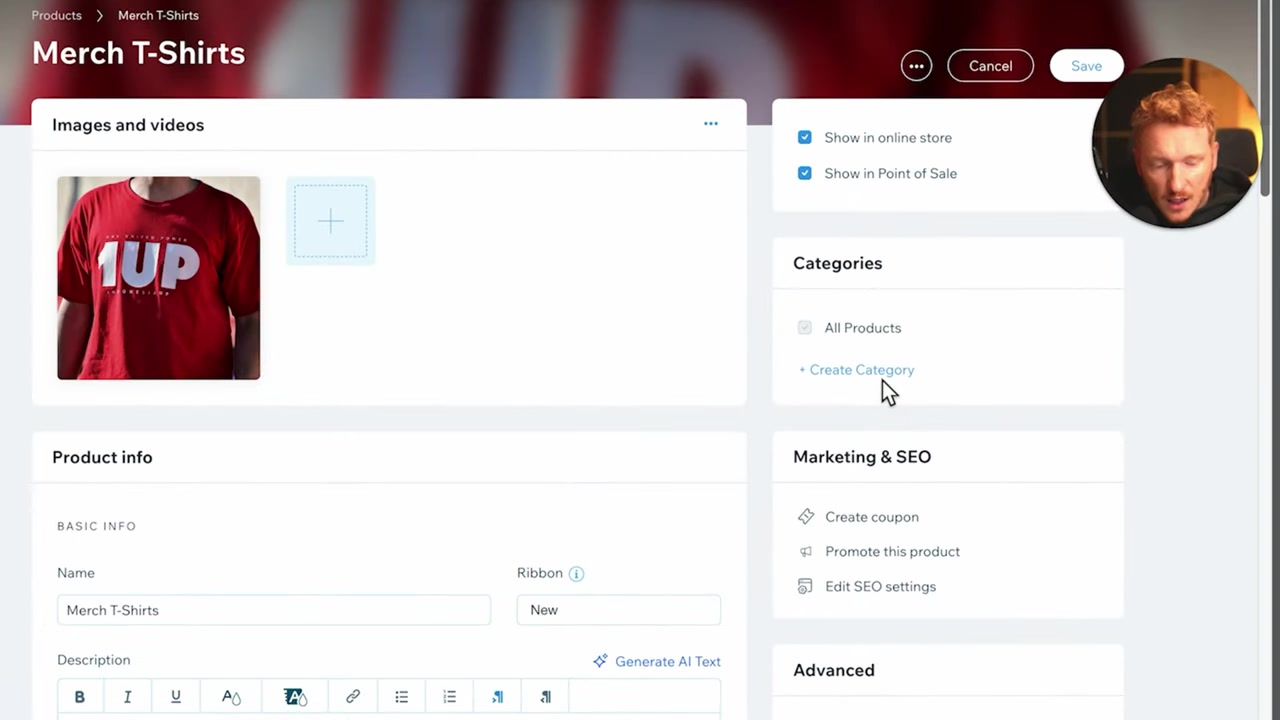
When you're creating or editing a product in Wix, you'll find a Categories section in the product settings panel. This is where you assign the product to one or more categories.
For example, if you're adding a T-shirt to your store, you'd create a "T-Shirts" category and select it here. If you later add hoodies, you create a separate "Hoodies" category and assign those products accordingly.
A product can belong to multiple categories at once — so your T-shirt could appear in both "T-Shirts" and a broader "Apparel" category if you want.
3. Create New Product Categories in Your Wix Store
To create a new category, simply type the category name in the category field while editing a product. Wix will let you create it on the spot.
Once created, you can manage all your categories by navigating to the Categories section in your Wix store dashboard. There you'll see a list of all existing categories, including the default All Products category.
From the categories overview, you can:
- Add a description to each category
- Upload a category image that will display on your storefront
- Edit or delete categories as your store evolves

4. Add Category Images for a Polished Storefront
Adding an image to each category makes your store look professional and helps customers quickly identify what they're browsing. In the category settings, click the image field, search for or upload an image, and save.
For example, you might use a lifestyle photo of a T-shirt for your "T-Shirts" category. When customers visit your store and filter by category, they'll see that image displayed alongside the category name.
It's worth doing this for every category you create. Even a single well-chosen image makes the browsing experience feel much more intentional and brand-consistent.
5. How Categories Look on Your Live Wix Store
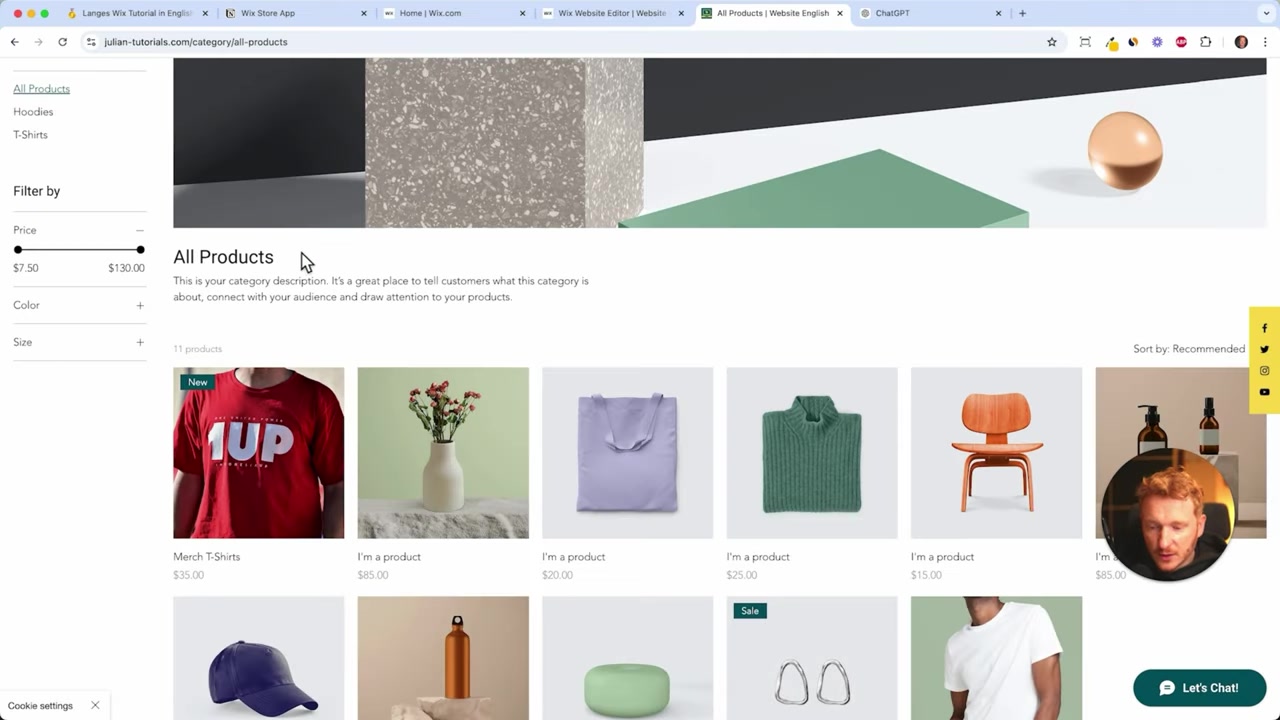
Once you've published your store, customers can use the category filter on your shop page to browse specific product types. For instance, clicking "T-Shirts" will show only T-shirts — along with the category image you assigned.
Wix also gives you the option to create individual category pages for each category. This means instead of a single shop page with filter buttons, you can have a dedicated /shop/t-shirts page with its own layout and design.
That said, for most small stores, the built-in filtering is already sufficient. You don't have to build out individual category pages right away — but it's a powerful option to explore as your store grows.
6. Set Up SEO for Every Product Page
While you're in the product editor, don't overlook the SEO settings at the bottom of the page. Each product has its own SEO meta title and description — and getting these right can help your products show up in Google search results.
The key is to use specific, searchable names. Instead of just "Merch T-Shirt", write something like "T-Shirt from [Brand Name]" — the way a real customer would search for it. Generic product names are hard to rank for; branded or niche-specific names give you a much better shot.
7. Is Wix Good for Organizing an Online Store?
Wix is a solid choice for small to medium online stores, especially if you want an all-in-one platform that's easy to manage without any coding knowledge. The category and collection system is straightforward and flexible enough for most product ranges.
For stores with a large number of SKUs or complex inventory needs, you might eventually want a more specialized eCommerce platform. But for the vast majority of store owners just getting started, Wix offers everything you need to build a clean, well-organized shop.
You can also check out the Wix Bookings tutorial if you offer services alongside products, or the Wix Blog tutorial to add content marketing to your store strategy.
8. Wix Product Categories vs. Collections – What's the Difference?
In Wix, categories and collections are often used interchangeably in everyday conversation, but they refer to the same feature inside the platform — the groupings you assign products to.
The important thing to understand is that a single product can belong to multiple categories simultaneously. This is different from some platforms where a product can only live in one place. Wix's flexible approach means you can create broad categories (like "Apparel") and specific ones (like "Summer Sale") and overlap them as needed.
9. Wix Pros and Cons for eCommerce
Pros:
- Easy drag-and-drop store builder
- Built-in product categories and filtering
- SEO tools included on every product page
- Individual category pages possible with custom layouts
- No coding required
Cons:
- Advanced inventory features may require higher-tier plans
- Large catalogs (500+ products) can feel harder to manage
- Some eCommerce features are only available on paid plans
Overall, Wix hits a strong balance between ease of use and functionality for most online store owners.
Frequently Asked Questions
How do I create a product category in Wix?
Can a product belong to more than one category in Wix?
How do I add a category image in Wix?
Can I create individual pages for each category in Wix?
Do product categories in Wix help with SEO?
What is the default category in Wix?
How many categories can I create in Wix?
Does Wix support subcategories?
10. Disclosure
Some links in this post may be affiliate links. If you make a purchase through them, we may earn a small commission at no extra cost to you. All content is provided for informational purposes only without any guarantee of accuracy or completeness. Nothing in this post constitutes financial, legal, tax, or investment advice.
Related Articles

10 Apr 2025
Wix Bookings – How to Set Up Services & Accept Appointments
Want to let clients book appointments directly on your website? Wix Bookings makes it surprisingly easy. Whether you're a coach, consultant, yoga teacher, or run a beauty salon, you can set up service...

23 Oct 2021
Wix Blog Tutorial – How To Create a Blog with Wix
Want to start a blog but not sure where to begin? Wix is one of the most popular website builders in the world — and for good reason. In this step-by-step tutorial, you'll learn exactly how to create ...

13 Apr 2025
Wix Email Automation & Newsletters – How to Set Up Automations on Wix
Want to stop answering every inquiry manually and let Wix do the heavy lifting for you? In this tutorial, you'll learn how to set up Wix email automation, build a multi-step email funnel for new newsl...