How to Add a New Product to Your Wix Store – Step-by-Step Guide
Ready to start selling on Wix? Adding a new product to your Wix store is straightforward once you know where everything lives. In this guide, we walk through every step — from uploading images and writing descriptions to setting up variants, tracking inventory, and even offering subscriptions. Whether you're selling physical goods, digital files, or print-on-demand merch, this tutorial has you covered.
You can try Wix for free and follow along right away.
1. Choose Your Product Type in Wix
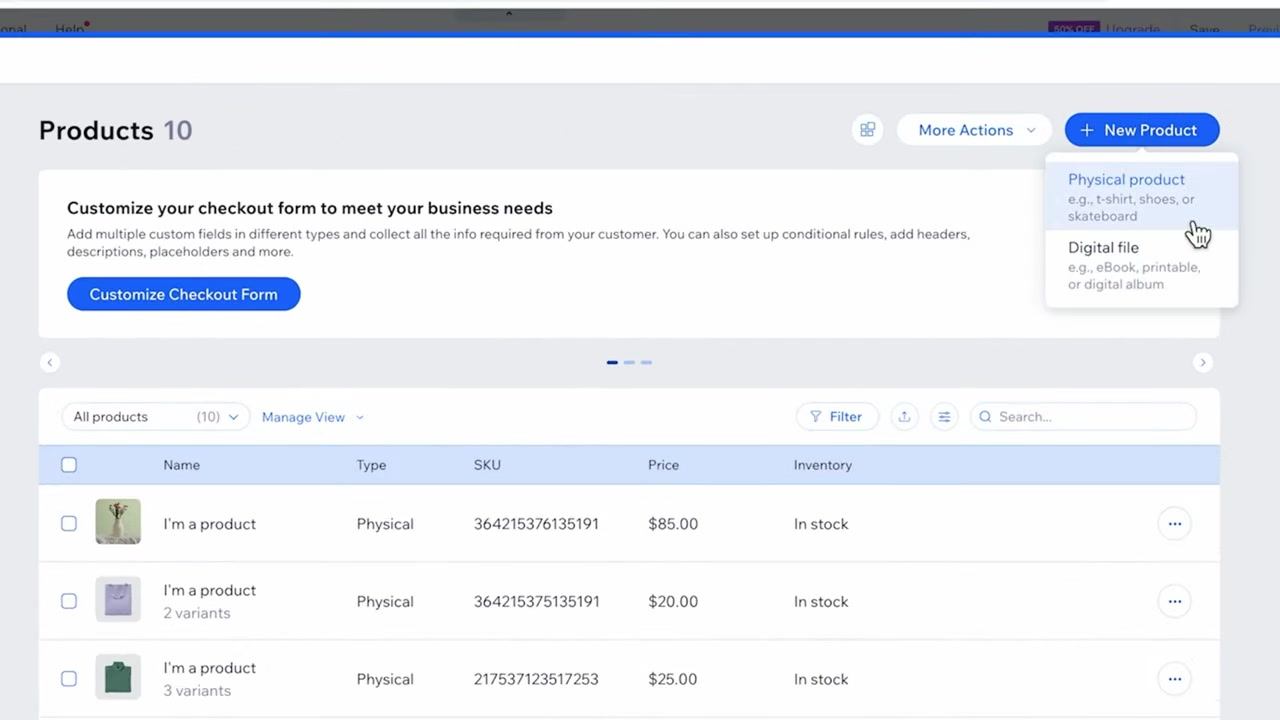
To get started, open your Wix dashboard and navigate to your store. Click New Product to create a new listing.
Wix gives you two main options: a physical product (like a t-shirt, cup, or skateboard) or a digital file (like an ebook, music track, or printable). For most store owners, physical products are the go-to choice — so we'll focus on that path.
Click Physical and you're ready to start building out your product page.
2. Add a Product Title and Upload Images
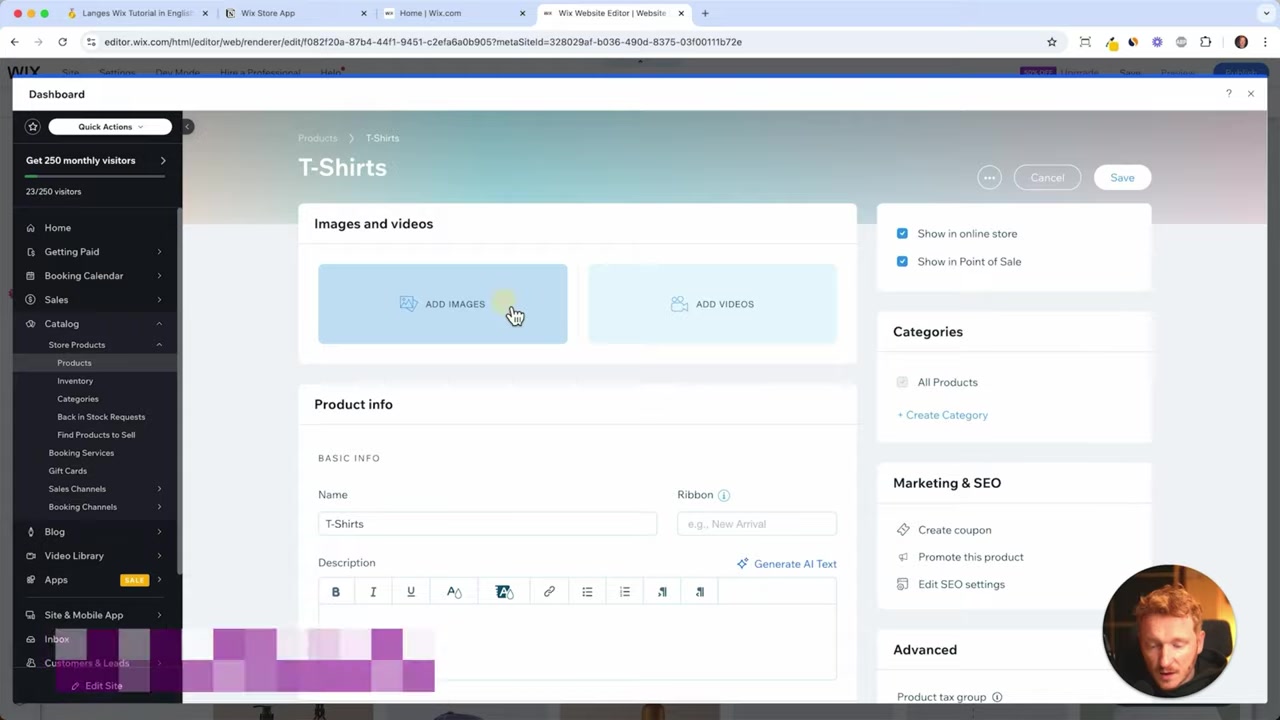
Give your product a clear, descriptive title. Something like "Merch T-Shirt" works as a starting point — you can always refine it later.
Next, upload your product images. Wix also lets you add a product video, which is a great conversion booster — shoppers who see a product in motion are more likely to buy.
Aim for at least three or four photos from different angles. For now, even a single high-quality image gets you moving forward.
3. Write a Product Description (Use AI to Save Time)
A compelling description helps customers make a decision. You don't need to write it from scratch — use ChatGPT or the built-in Wix AI text generator to create a solid draft in seconds.
For example, prompt ChatGPT with: "Please give me a product description of a 100% cotton t-shirt." Paste the result into Wix, then tweak it to match your brand voice.
Wix's product description editor supports bold, italic, underline, color, links, and bullet points — so you have full control over formatting once your draft is in place.
You can also add additional info sections below the description — useful for delivery timelines, care instructions, or print-on-demand details.
4. Set the Price and Profit Margin
Enter your product price — say, $35 for a t-shirt. You can also mark it as on sale and apply either a percentage discount or a flat dollar amount.
Here's a useful e-commerce rule of thumb: if your product is priced below 100, use a percentage discount — "10% off" sounds larger than "3.50 off" even though they're the same amount. For products above $100, a dollar figure often feels more impactful.
Wix also lets you enter your cost of goods. If your t-shirt costs 10 to produce and you sell it for 35, Wix instantly shows your profit ($21.50) and margin (~68%). This makes it easy to price profitably from day one.
5. Add Product Variants (Sizes, Colors, and More)
Most physical products come in different options. For a t-shirt, you'll want to add a Size variant with options like Small, Medium, Large, and Extra Large.
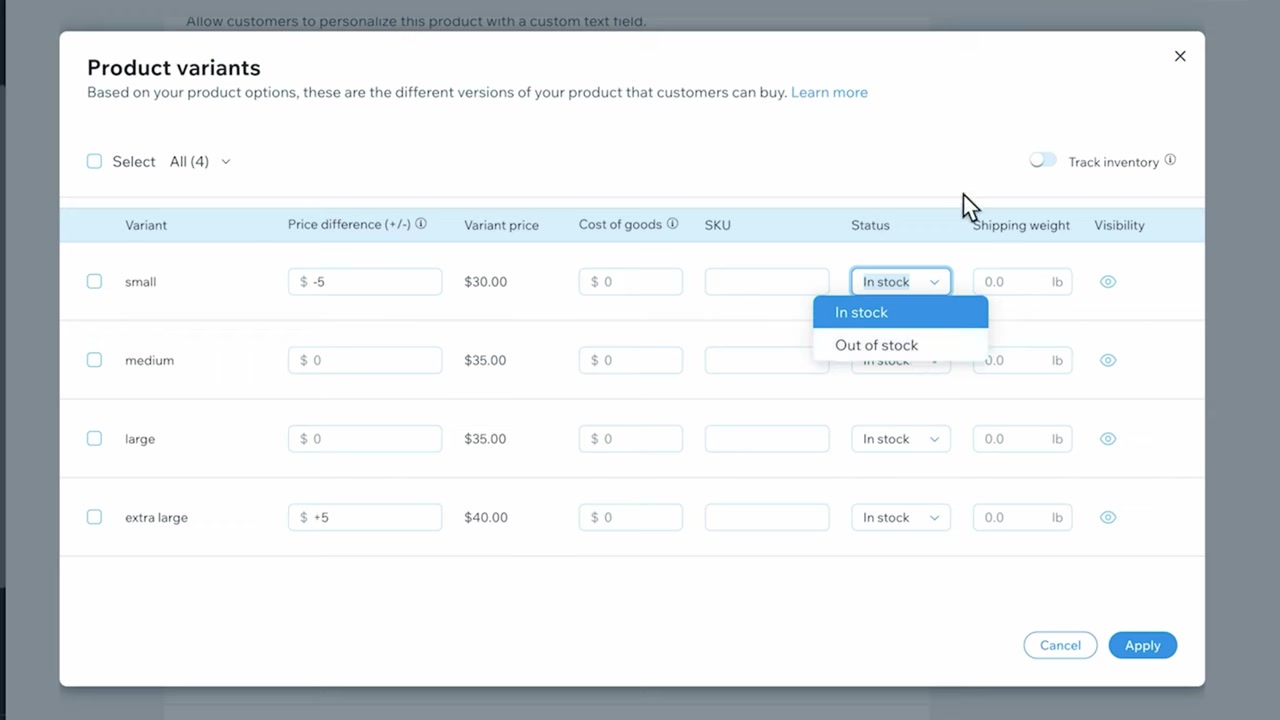
Once variants are added, you can manage pricing individually. A small t-shirt might be 5 cheaper, while an extra large might be 5 more — Wix adjusts the total price automatically based on what the customer selects.
You can also enter separate cost of goods per variant, which keeps your margin calculations accurate across the whole product line.
6. Track Inventory in Your Wix Store
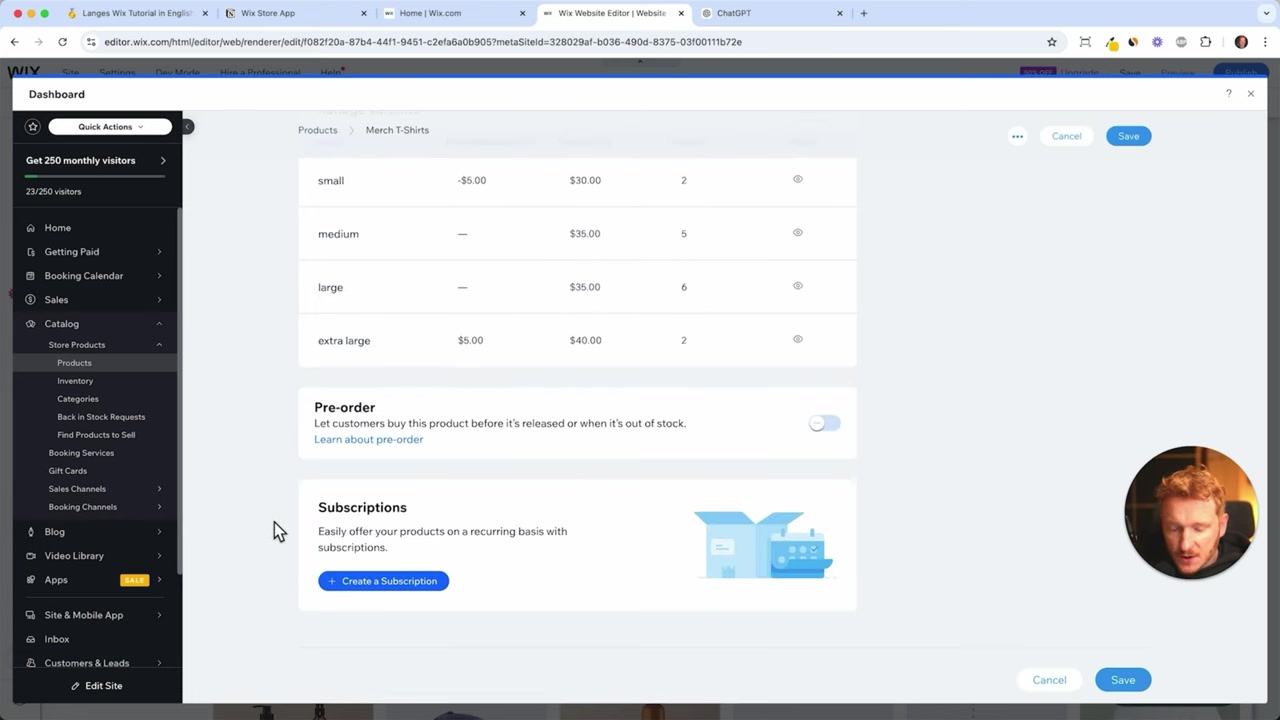
Wix has built-in inventory tracking, and it's genuinely useful. You can set exact stock quantities per variant — for example, 3 small, 5 medium, 6 large, and 2 extra large t-shirts.
Every time a customer places an order, Wix automatically deducts from the inventory count. When stock runs low, you'll receive an automatic notification so you can restock before selling out.
You can also manually mark any variant as in stock or out of stock at any time.
7. Enable Pre-Orders and Custom Text Fields
Planning a product drop for the holidays? Wix supports pre-orders, so you can advertise a product before it's available and control exactly how many pre-orders are accepted.
This is a great tool for YouTubers, creators, and limited-edition launches — you build hype before the product is even in stock.
Wix also lets you add custom text fields to a product. If you're selling personalized cups or print-on-demand items, customers can type in their name or custom message at checkout. You can make the field mandatory and set a character limit.
8. Set Up Subscription Products on Wix
Subscriptions are one of the most powerful revenue models in e-commerce. If you sell consumables — coffee, supplements, candles — Wix lets you offer recurring subscription orders directly from your store.
You can configure deliveries weekly, every two weeks, or monthly. Customers sign up once and receive shipments automatically, just like they would on Amazon's Subscribe & Save.
This is a native Wix feature, no third-party app required.
9. What Is Wix eCommerce?
Wix eCommerce is the built-in online store functionality inside the Wix website builder. It allows you to sell physical products, digital downloads, and services — all from a single dashboard.
It includes product management, payment processing, shipping configuration, tax settings, and marketing tools. No separate plugin or platform is needed.
Wix eCommerce is suitable for small businesses, creators, and growing brands who want a professional store without the complexity of dedicated platforms like Shopify.
10. Is Wix Good for Selling Products Online?
Wix is a solid choice for most small-to-medium online stores. It's especially strong for creators, service businesses, and anyone who wants an all-in-one solution without hiring a developer.
The product management interface is intuitive, inventory tracking is built in, and features like subscriptions and pre-orders are available without extra apps.
For very large catalogs or complex B2B workflows, dedicated e-commerce platforms may offer more depth — but for the majority of independent sellers, Wix covers everything needed to run a professional store.
11. Wix eCommerce vs Shopify – Which Should You Choose?
Both Wix and Shopify are popular choices for online stores, but they serve slightly different audiences.
Wix is an all-in-one website builder with e-commerce built in. It's easier to get started, more flexible for non-store pages (like blogs, portfolios, or booking systems), and tends to cost less at the entry level. If you want a full website and a store, Wix is hard to beat.
Shopify is purpose-built for e-commerce and offers more advanced inventory, multichannel selling, and a larger app ecosystem. It's better suited for high-volume sellers who need dedicated commerce infrastructure. For most beginners and small businesses, Wix is the more practical starting point.
Frequently Asked Questions
How do I add a product to my Wix store?
Can I sell digital products on Wix?
Does Wix track inventory automatically?
Can I add product variants like sizes and colors on Wix?
How do I write a product description in Wix?
Can I offer pre-orders on my Wix store?
Does Wix support subscription products?
Can I add a custom text field for personalized products on Wix?
12. Disclosure
Some links in this post may be affiliate links. If you make a purchase through them, a small commission may be earned at no extra cost to you. All content is provided for informational purposes only and comes without any guarantee. This post does not constitute financial, legal, tax, or investment advice.
Related Articles

9 Apr 2025
Wix Product Categories Explained – How to Organize Your Store
If your Wix store is starting to fill up with products, organizing them into categories is one of the smartest things you can do. Good category structure makes navigation easier, helps customers find ...

10 Apr 2025
Wix Bookings – How to Set Up Services & Accept Appointments
Want to let clients book appointments directly on your website? Wix Bookings makes it surprisingly easy. Whether you're a coach, consultant, yoga teacher, or run a beauty salon, you can set up service...

23 Oct 2021
Wix Blog Tutorial – How To Create a Blog with Wix
Want to start a blog but not sure where to begin? Wix is one of the most popular website builders in the world — and for good reason. In this step-by-step tutorial, you'll learn exactly how to create ...