Wix SEO Basics – What You Need to Do Before Publishing Your Wix Site
Want your Wix website to actually show up on Google? Before you hit publish, there are a few essential SEO settings you need to configure. In this guide, we'll walk through the Wix SEO basics — from title tags and meta descriptions to social share previews — so your site is ready to rank from day one.
You can try Wix for free and follow along with the steps below.
1. What Is Wix SEO and Why It Matters
SEO (Search Engine Optimization) is the process of making your website visible in search engines like Google. Without it, your beautifully designed Wix site might never be found by potential visitors.
Wix has solid built-in SEO tools that make it easy even for beginners. But you need to know where to look — and what to fill in — before your site goes live.
2. Set Up Your Title Tag and Meta Description in Wix
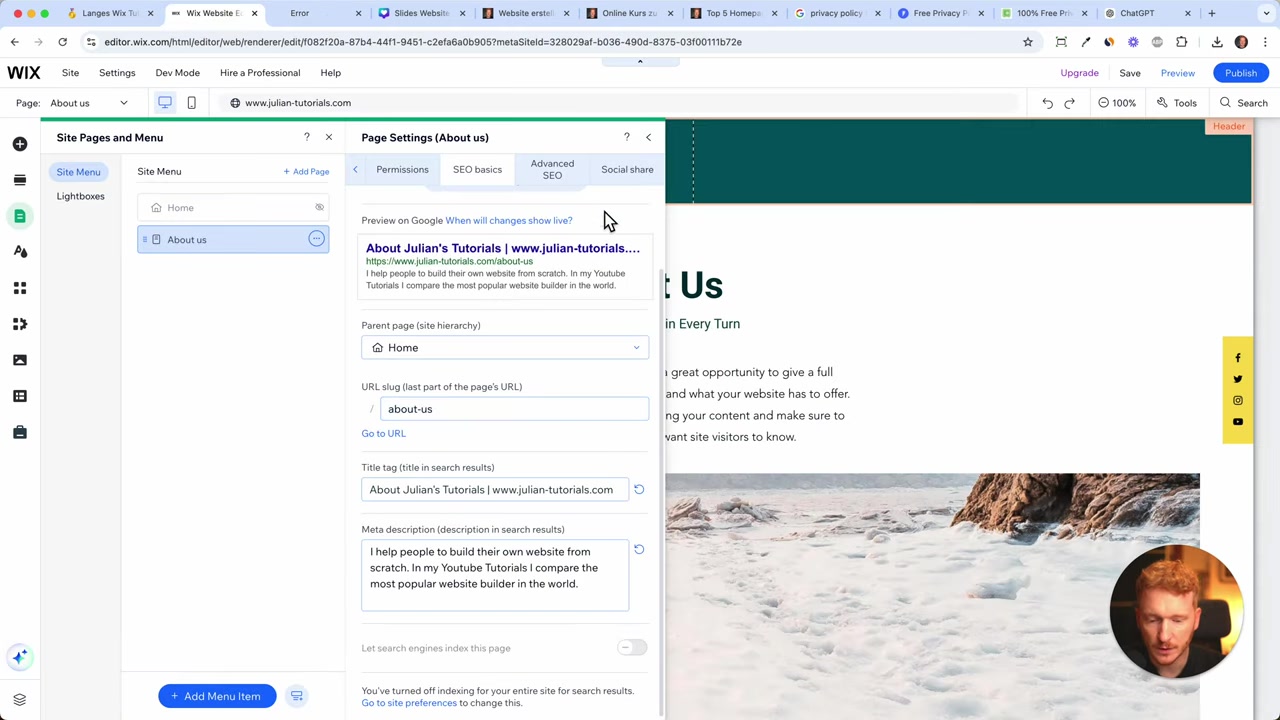
Navigate to the SEO basics panel for each page in your Wix editor. This is where you control how your page appears in Google search results.
The title tag is the clickable headline shown in Google. Make it descriptive and include your main keyword. For example: About Julian Tutorials.
The meta description is the short summary shown below the title. Write 1–2 sentences that explain what the page is about and why someone should click. Something like: "I help people build their own website from scratch. In my YouTube tutorials, I compare the most popular website builders in the world."
3. Optimize Your Wix Page URL
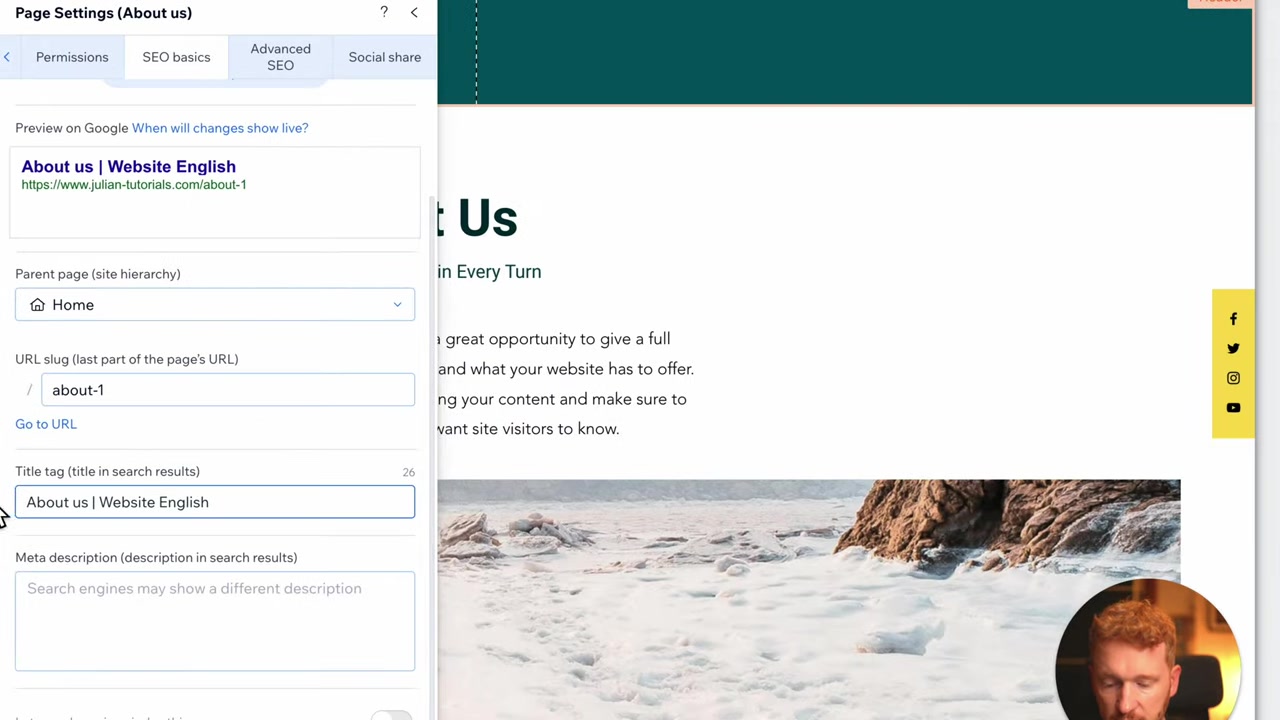
Wix sometimes auto-generates messy URLs like /about-1 or /about-2. Always clean these up before publishing.
A clean URL like /about-us is easier for Google to understand and looks more professional in search results. In the SEO panel, simply edit the URL slug to something short and readable.
4. Decide Which Pages Should Appear on Google
Not every page needs to rank on Google. Your About page, for instance, is less critical than your homepage or service pages.
Focus your SEO efforts on the pages where you present your core offer. For support or legal pages, it's often fine to leave them with minimal SEO optimization.
5. Configure the Social Share Preview for Each Page
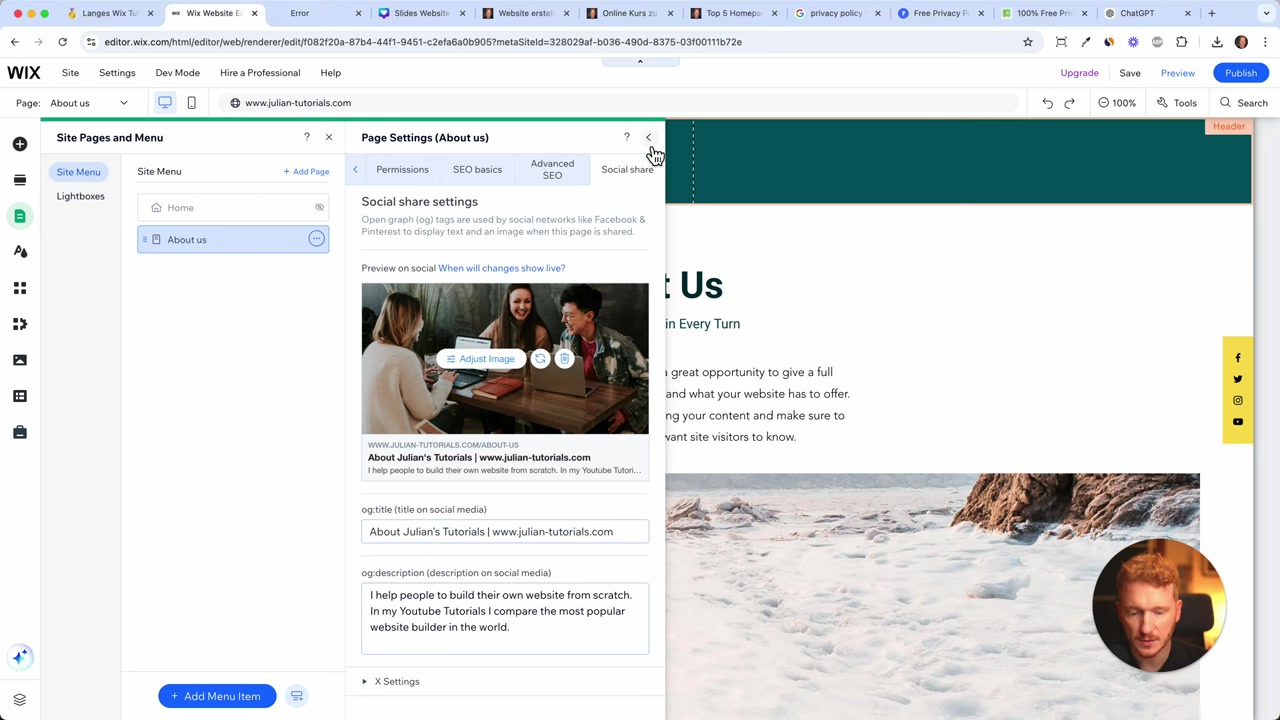
Head to the Social Share tab in the SEO panel. This controls how your page looks when someone shares it on LinkedIn, Facebook, or WhatsApp.
You'll see a preview image, a title, and a description. A simple but effective trick: take a screenshot of your homepage and upload it as the social preview image. It instantly makes shared links look polished and on-brand.
For an About page, you could use a team photo or a professional portrait instead.
6. Connect Your Wix Site to Google Search Console
Google Search Console is a free tool that lets you monitor how your site performs in Google search. Connecting it to your Wix site helps Google discover and index your pages faster.
Wix makes this straightforward through its SEO Wiz or the site settings panel. Once connected, you can submit your sitemap directly to Google and track which keywords bring visitors to your site.
7. Add Alt Text to Images for Better SEO
Every image on your Wix site should have alt text — a short written description of what the image shows. Alt text helps Google understand your content and also improves accessibility for visually impaired users.
In Wix, click on any image, open its settings, and add a descriptive alt text. Keep it concise and relevant to the page topic.
8. Use Proper Headings on Your Wix Pages
Structure your page content with proper heading tags: H1 for the main page title, H2 for major sections, and H3 for subsections. Search engines use headings to understand the structure and topics on your page.
In the Wix editor, you can assign heading styles (Heading 1, Heading 2, etc.) to any text block. Make sure each page has exactly one H1, and use H2s to organize the main content sections.
9. Is Wix Good for SEO?
Wix has come a long way with SEO. It now offers automatic sitemaps, clean URL structures, SSL certificates, and built-in tools like the SEO Wiz that guide you through optimization step by step.
For most small businesses and personal websites, Wix provides everything you need to rank well in search engines. It's especially beginner-friendly compared to manually configuring SEO on platforms like WordPress.
If you want to dive deeper into Wix plans and what's included, check out our guide on Wix pricing.
10. Wix SEO Checklist Before You Publish
Here's a quick summary of everything to check before publishing any Wix page:
- ✅ Title tag written with main keyword
- ✅ Meta description is clear and compelling (under 160 characters)
- ✅ URL slug is clean and readable
- ✅ Social share image uploaded
- ✅ Alt text added to all images
- ✅ Headings structured correctly (H1, H2, H3)
- ✅ Google Search Console connected
Completing this checklist for every important page gives your Wix site the best possible foundation for organic traffic.
Frequently Asked Questions
Does Wix have built-in SEO tools?
How do I add a meta description in Wix?
Can I rank on Google with a free Wix website?
What is the Wix SEO Wiz?
How do I connect Wix to Google Search Console?
What should I write in the alt text for images on Wix?
How long should a Wix meta description be?
Should I optimize every page on my Wix site for SEO?
11. Disclosure
Some links in this post may be affiliate links. If you make a purchase through them, I may earn a commission at no extra cost to you. All content is provided for informational purposes only, without any guarantee of accuracy or results. This post does not constitute financial, legal, tax, or investment advice.
Related Articles

22 Apr 2025
How to Edit Your Wix Website for Mobile – Responsive Design Guide (2026)
If you've just finished building your Wix homepage, there's one more step before you hit publish: making sure it looks great on mobile. With most web traffic now coming from smartphones, a poorly opti...

15 Dec 2025
Wix Promo Code 2026 – How to Save on Wix Premium Plans
If you've been thinking about upgrading to a Wix premium plan, timing your sign-up the right way can make a real difference. In this guide, I'll walk you through the exact method to access the best av...

28 Apr 2025
How to Create a WordPress Website with Hostinger and AI in Under 10 Minutes
Want to build a WordPress website but don't know where to start? With Hostinger's built-in AI tools, you can go from zero to a fully designed website in under 10 minutes — no coding required. In this ...