How to Edit Your Wix Website for Mobile – Responsive Design Guide (2026)
If you've just finished building your Wix homepage, there's one more step before you hit publish: making sure it looks great on mobile. With most web traffic now coming from smartphones, a poorly optimized mobile layout can cost you visitors and conversions. The good news? Wix makes this process surprisingly straightforward — and you can try it yourself at Wix for free right now.
1. What Is the Wix Mobile Editor?
The Wix Mobile Editor is a dedicated editing mode that lets you fine-tune how your website looks on smartphones — completely separately from your desktop layout.
Changes you make in the mobile editor do not affect your desktop site. This means you can adjust, hide, or rearrange elements specifically for smaller screens without breaking anything on the full-size version.
Wix automatically generates a mobile version of your site when you build it. In most cases, you only need to make small tweaks.
2. Switch to Mobile View in Wix
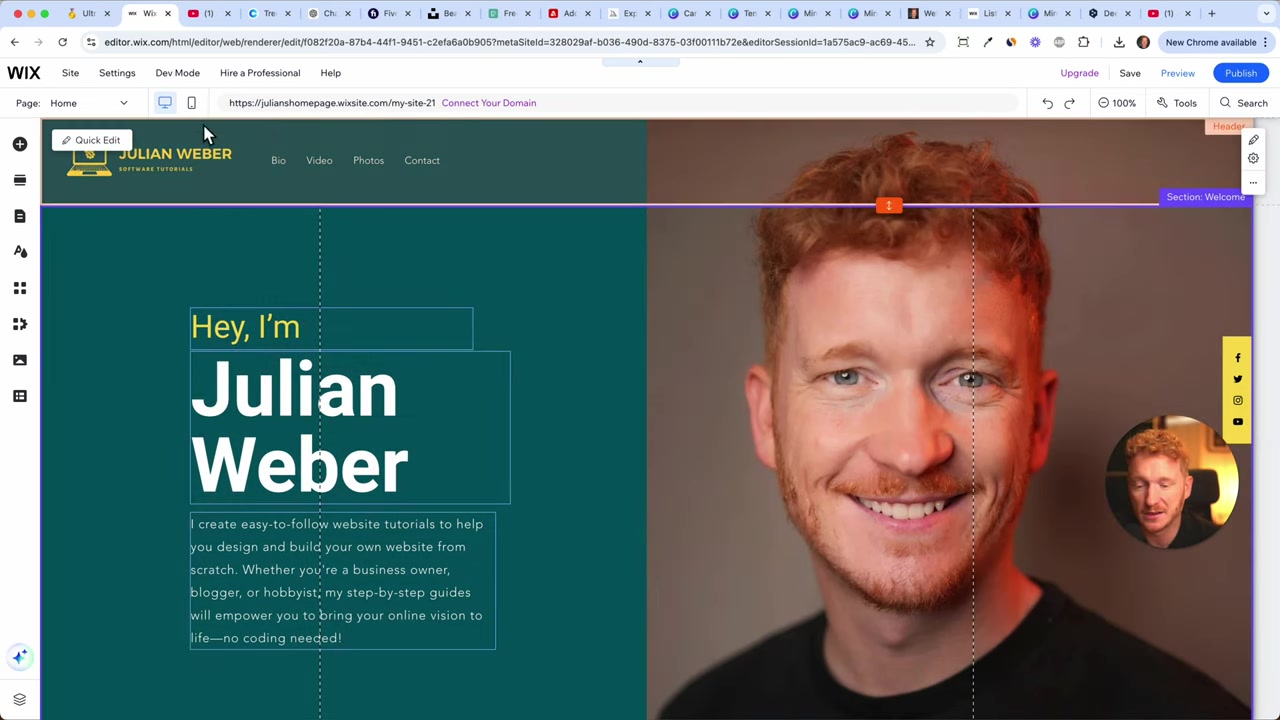
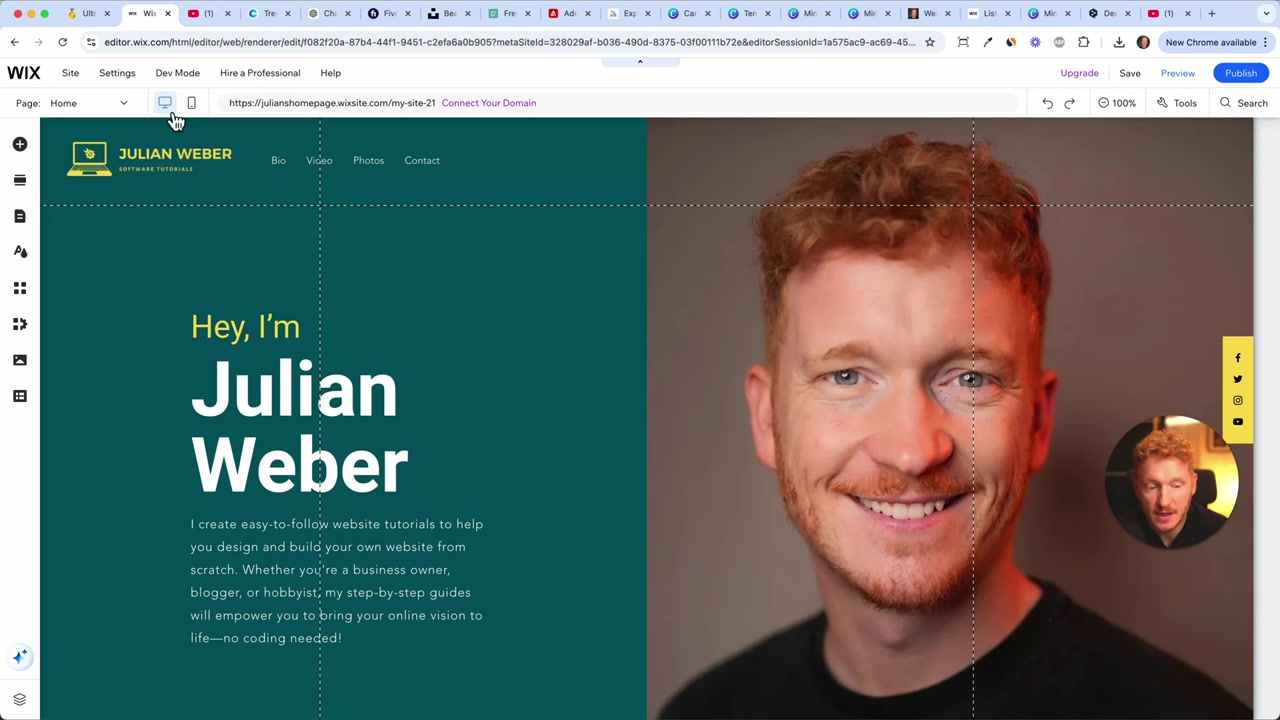
To get started, look for the mobile icon in the Wix editor toolbar. Clicking it switches you from the desktop view to the mobile editor.
You'll immediately see a preview of how your site looks on a smartphone screen. Wix has already done the heavy lifting by auto-generating a mobile layout — but it's worth going through each section to polish the details.
3. Hide Elements That Don't Work on Mobile
Some elements that look great on desktop can clutter a mobile screen. Wix lets you hide specific elements on mobile only — without removing them from your desktop site.
For example, a social bar at the top of the page might feel heavy on a small screen. Simply click the element and choose the option to hide it on mobile. Clean and simple.
Think about which elements genuinely add value on a small screen. Less is often more when it comes to mobile UX.
4. Adjust Text, Images, and Buttons for Mobile
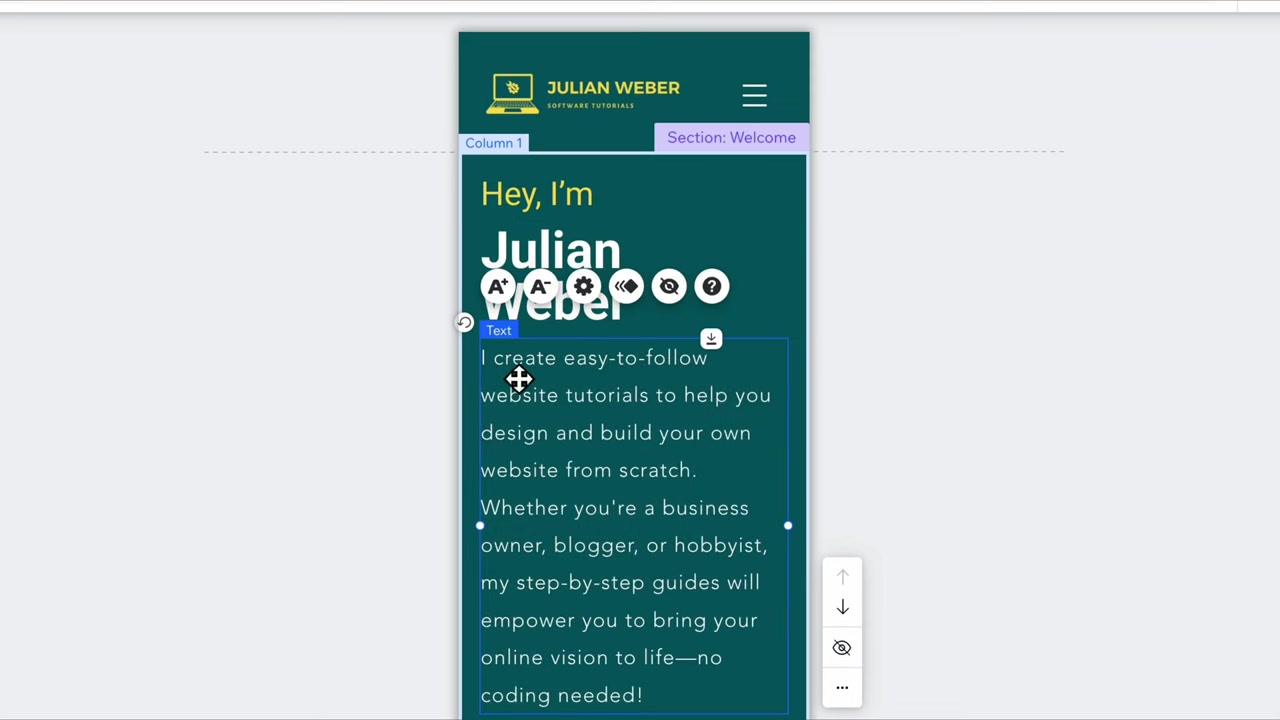
Text that looks perfect on a 27-inch monitor can easily feel overwhelming on a phone. In the mobile editor, click any text block and resize it to fit the smaller screen naturally.
The same goes for images and buttons. You can reposition them by dragging, and resize them to fill the screen width properly.
Don't be afraid to make things bigger or give sections more breathing room — spacing is everything on mobile.
5. Rearrange Your Mobile Layout Section by Section
Go through your page top to bottom and review each section. Move elements like logos, hamburger menus, icons, and maps to positions that feel natural on a phone.
For example, a hamburger menu icon — the three-line menu button — should sit in a visible, tappable spot. When visitors tap it, they'll see all the pages on your site, which makes navigation easy.
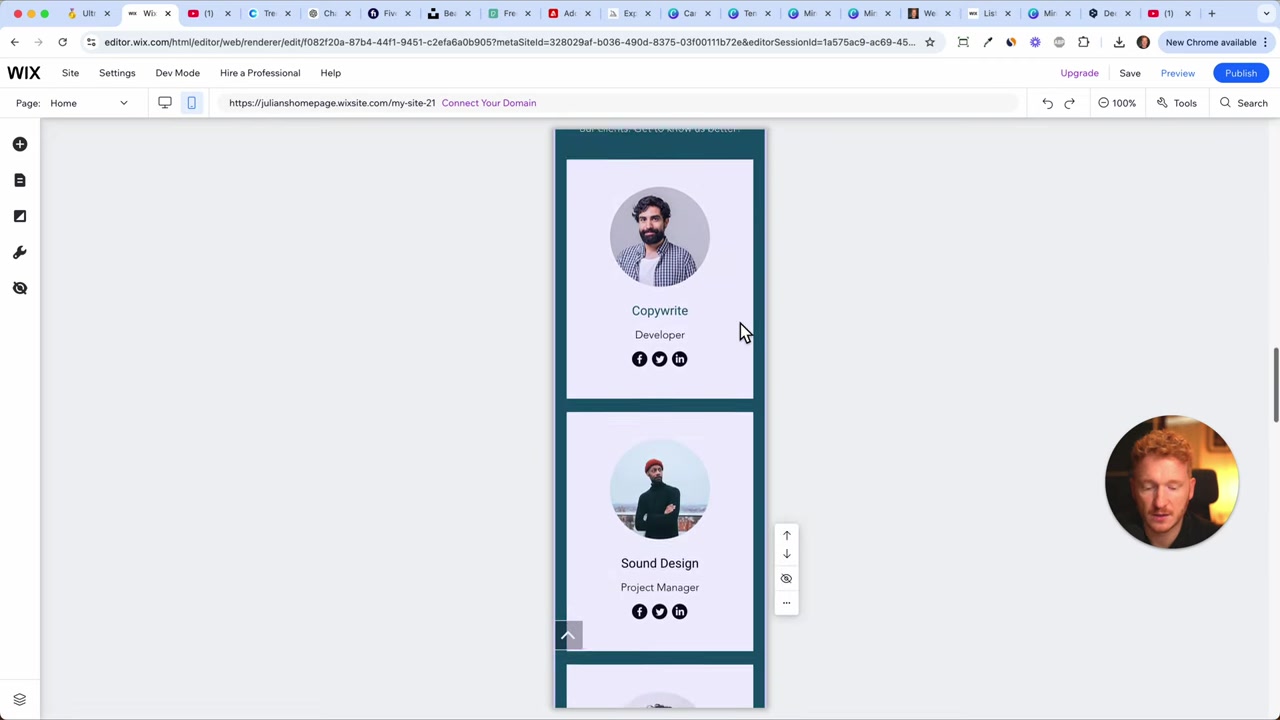
If a section like a 'Team' block feels unnecessary on mobile, you can hide it entirely to keep the experience focused and fast.
6. Fix Broken Sections and Give Elements More Space
As you scroll through the mobile preview, you may notice some sections that look slightly broken — for instance, a map that was resized on desktop may need to be repositioned on mobile.
This is completely normal. Simply drag the element down, give it a bit more space, and resize it to fit. It sounds tedious, but Wix's drag-and-drop interface makes it quick once you get the hang of it.
A few minutes of cleanup can make a huge difference in how professional your site feels on a phone.
7. Publish Your Mobile-Ready Wix Website
Once you're happy with how everything looks in the mobile editor, it's time to go live. Click the Publish button in the Wix editor to make your site accessible to the world.
Your desktop and mobile versions will both be published together. Visitors on smartphones will automatically see the mobile-optimized layout.
Not on Wix yet? You can get started with Wix for free and build your first site today.
8. Why Mobile Optimization Matters for Your Wix Site
A mobile-friendly website isn't just about looks — it directly affects your SEO rankings. Google uses mobile-first indexing, meaning it evaluates the mobile version of your site when deciding where to rank you in search results.
Beyond SEO, a smooth mobile experience keeps visitors on your site longer and makes them more likely to take action — whether that's contacting you, buying a product, or signing up for a newsletter.
Spending 10–15 minutes in the Wix mobile editor is one of the highest-impact things you can do before launching.
9. Wix Mobile Editor vs. Competitors
Compared to other website builders, Wix stands out because it offers a fully separate mobile editing mode. Many competing platforms only offer responsive design — meaning the layout automatically scales down, but you have limited control over how it looks.
With Wix, you get the best of both worlds: an auto-generated mobile layout as a starting point, plus the ability to manually tweak every element. That level of control is rare at this price point.
If you're comparing Wix to other builders, the mobile editor is one feature that consistently gives Wix an edge.
10. Is Wix Good for Mobile Websites?
Absolutely. Wix is one of the most beginner-friendly tools for building mobile-optimized websites without writing a single line of code.
The automatic mobile layout generation saves a ton of time, and the manual editor gives you full control when you need it. Whether you're building a portfolio, a small business site, or a blog, Wix handles mobile well.
For anyone just getting started, it's hard to beat the combination of ease-of-use and flexibility that Wix offers.
Frequently Asked Questions
How do I switch to mobile view in Wix?
Will changes in the Wix mobile editor affect my desktop site?
Can I hide elements on mobile in Wix?
Does Wix automatically create a mobile version of my site?
How do I make text smaller on my Wix mobile site?
Does mobile optimization affect my Wix site's SEO?
How long does it take to optimize a Wix site for mobile?
Can I reorder sections in the Wix mobile editor?
11. Disclosure
Some links in this post may be affiliate links. If you make a purchase through them, I may earn a commission at no extra cost to you. All content is provided for informational purposes only and comes without any guarantee. This post does not constitute financial, legal, tax, or investment advice.
Related Articles

28 Apr 2025
How to Create a WordPress Website with Hostinger and AI in Under 10 Minutes
Want to build a WordPress website but don't know where to start? With Hostinger's built-in AI tools, you can go from zero to a fully designed website in under 10 minutes — no coding required. In this ...

15 Dec 2025
Wix Promo Code 2026 – How to Save on Wix Premium Plans
If you've been thinking about upgrading to a Wix premium plan, timing your sign-up the right way can make a real difference. In this guide, I'll walk you through the exact method to access the best av...

28 Oct 2025
How to Create a TikTok Ads Account in 2026
Want to run ads on TikTok but not sure where to start? Setting up your TikTok Ads Manager account is easier than you think — and it only takes a few minutes. In this guide, I'll walk you through the e...