How to Create a WordPress Website with Hostinger and AI in Under 10 Minutes
Want to build a WordPress website but don't know where to start? With Hostinger's built-in AI tools, you can go from zero to a fully designed website in under 10 minutes — no coding required. In this tutorial, Julian Weber walks you through the entire process, from picking a plan to customizing your pages with AI-generated content.
1. What is Hostinger WordPress Hosting?
Hostinger is one of the most popular web hosting providers in the world, known for its affordable pricing and beginner-friendly tools. Their WordPress hosting plans come with a one-click WordPress installer, a free domain, and — on the Plus plan and above — a powerful AI website builder.
The AI builder writes your content, generates pages, and structures your entire site based on a short description you provide. It's genuinely impressive how much it can do with just one sentence of input.
2. Choose the Right Hostinger Plan for WordPress
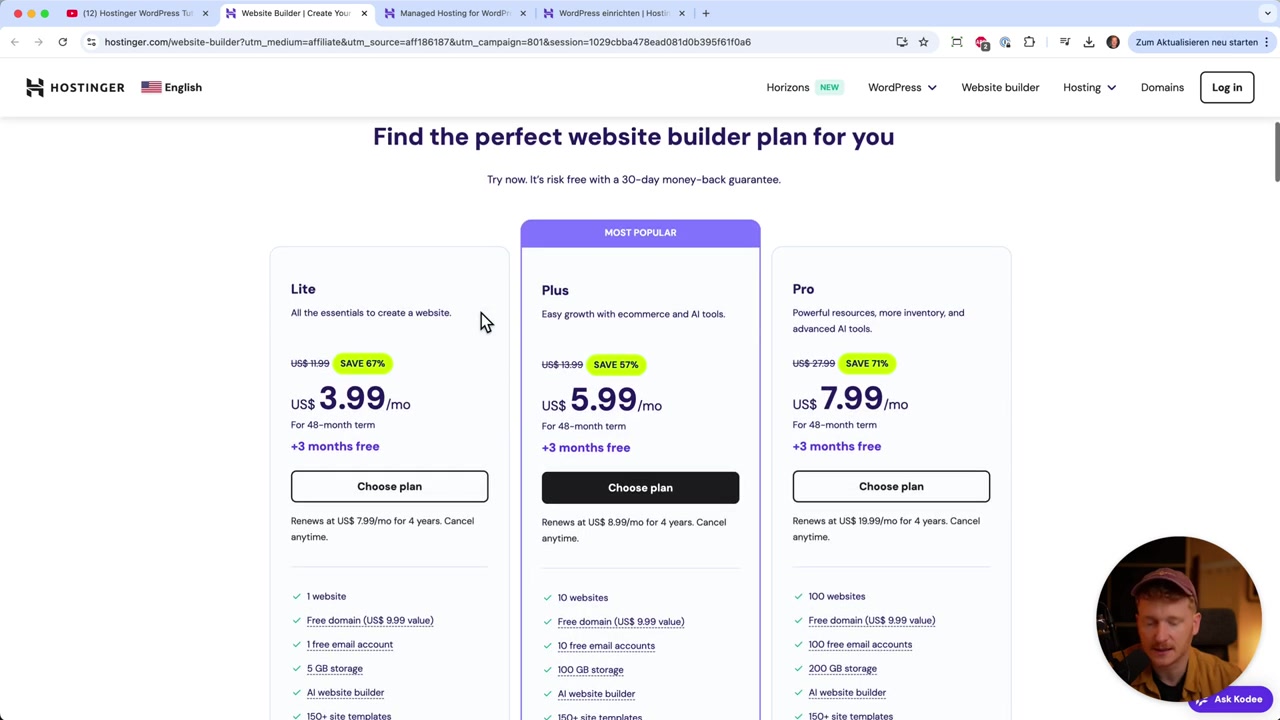
Head to Hostinger using the affiliate link in the video description. Once you land on the WordPress hosting page, you'll see several plan options.
Make sure you select the Plus plan — this is the tier that includes the AI tools. Without it, you won't have access to the AI website builder that makes this whole process so fast.
When choosing your subscription length, keep in mind that longer plans offer better value. The tutorial uses a 24-month plan. At checkout, enter the coupon code JULIANWEBER to get an extra 10% off your order.
3. Set Up Your Account and WordPress Login
After selecting your plan, you can sign in with Google or create an account with your email address and a password. Once logged in, Hostinger walks you through a quick setup guide.
You'll be asked to:
- Choose your preferred language
- Enter an email address and password for your WordPress admin login
Click Next to continue. On the following screen, make sure you select the AI option — this is the key step that unlocks the automated website builder.
4. Pick Your Domain Name
Now it's time to choose a domain. If you already have a name in mind, type it in and Hostinger will check whether it's available. One domain is included for free in your plan.
If you're just experimenting or following along with this tutorial, you can use a temporary domain instead and connect your real domain later. Hostinger handles the domain-to-site connection automatically, so you don't need to touch any DNS settings manually.
5. Let Hostinger AI Build Your WordPress Site
Once your domain is set, Hostinger installs WordPress in the background. This only takes a minute or two. When it's done, you'll be prompted to describe your website to the AI.
You'll enter:
- Your brand name — for example, "Julian's Tutorials"
- Your website type — portfolio, business, blog, etc.
- A short description — one sentence is enough, but the more detail you give, the better the result
Then hit Create and watch the AI generate a complete multi-page website for you.
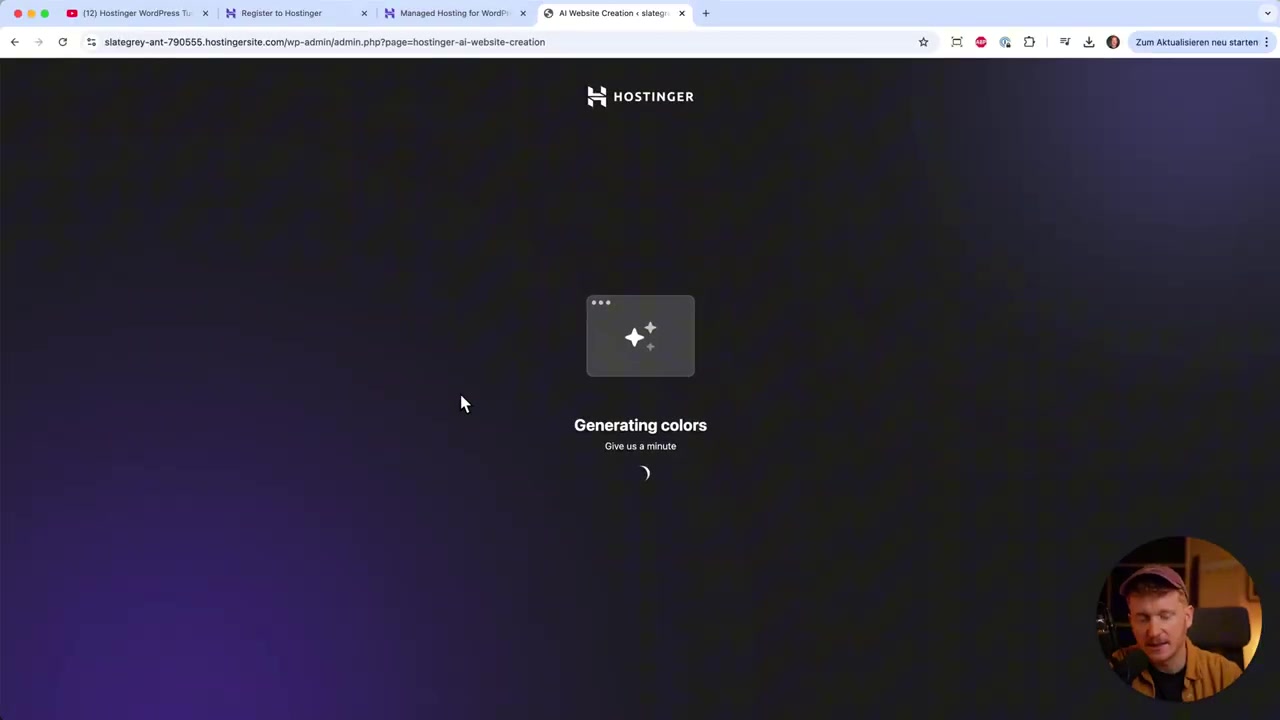
The AI typically produces a homepage, a portfolio or services page, a blog/tutorial section, and a contact area — all pre-filled with relevant placeholder content. If you're not happy with the result, you can regenerate it. Otherwise, click Confirm and Edit to jump into the site builder.
6. Customize Your Website in the WordPress Editor
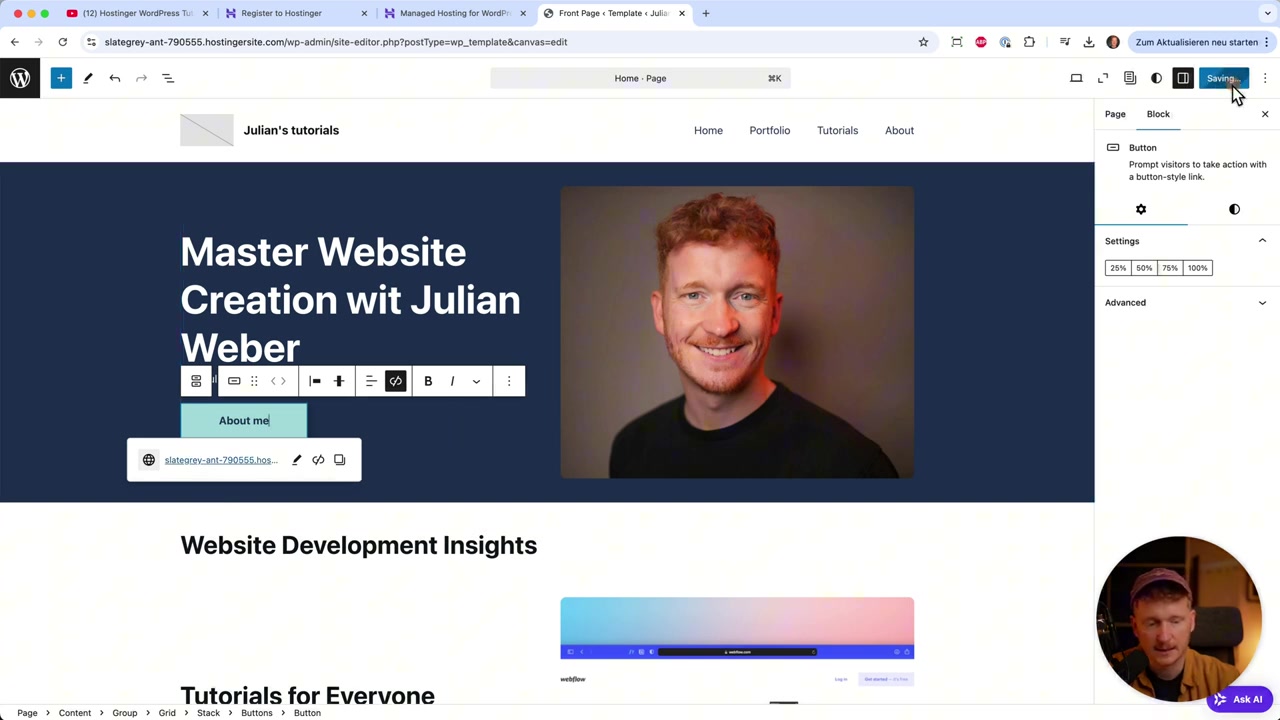
Inside the editor, you'll use the WordPress Gutenberg block builder — the same one used by millions of WordPress sites worldwide. Editing is straightforward: click on any element to update it.
Here's what you'll typically do on each page:
- Replace the headline with your own text
- Swap the placeholder image by clicking "Replace" and uploading from your desktop
- Update the button link to point to the correct page (e.g., your About page)
- Add or remove blocks using the + button
You can also embed videos directly on any page. Click the + button, browse all blocks, and add the video block. You can either upload a video file to your server or paste a YouTube URL using the "Insert from URL" option — a great way to showcase your work without extra storage costs.
7. Mobile Optimization — Already Done for You
One of the best things about this setup is that your site is automatically optimized for desktop, tablet, and mobile. Any edits you make on the desktop view are reflected across all screen sizes.
You can use the zoom-out feature in the editor to preview how your site looks on a mobile device. No extra work needed — Hostinger and WordPress handle the responsive layout for you.
8. Manage Blog Posts and Pages from the WordPress Dashboard
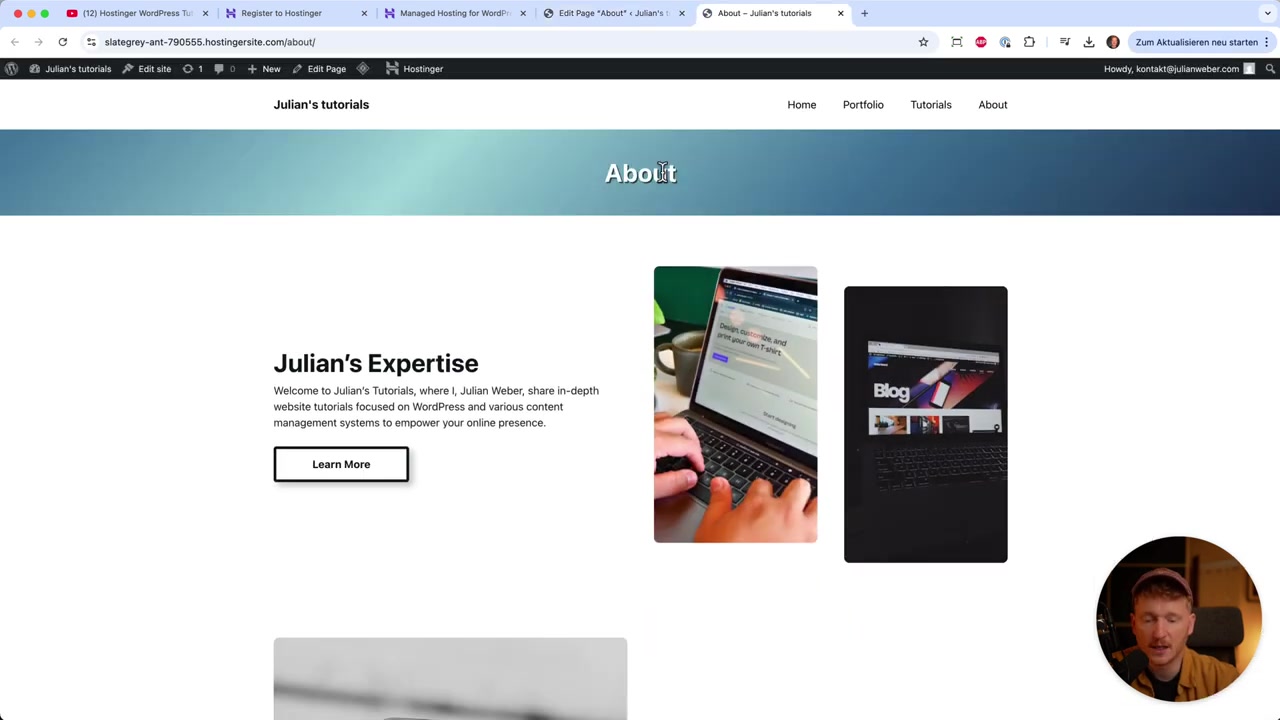
To edit blog posts (as opposed to pages), click Edit Post when viewing a post on the front end. This opens the same Gutenberg editor, but scoped to that specific post.
For broader site management, click the WordPress logo in the top-left corner of the editor to go to the WordPress dashboard. From here you can:
- Manage all your pages and posts
- Install additional plugins
- Moderate and reply to comments
The dashboard is only visible to you as the site admin — your visitors only ever see the polished front end.
9. Publish Your WordPress Website Under Your Own Domain
Once you're happy with your content, Hostinger automatically connects your site to your domain. There's no manual configuration required — it just works.
Your plan also supports up to 100 different websites, so you have plenty of room to grow. Whether you're building a portfolio, a blog, or a client site, everything can live under a single Hostinger account.
If you're ready to get started, use the link below and enter code JULIANWEBER at checkout for an extra discount.
10. Is Hostinger Good for WordPress Beginners?
Absolutely. Hostinger is one of the most beginner-friendly hosting providers available. The guided setup, AI website builder, and drag-and-click Gutenberg editor mean you don't need any technical experience to get a professional-looking site online.
The AI handles the heavy lifting — writing placeholder content, creating page structures, and even suggesting layouts — so you can focus on customizing rather than building from scratch.
11. Hostinger vs Other WordPress Hosts
Compared to hosts like Bluehost, SiteGround, or WP Engine, Hostinger stands out for its competitive pricing and the inclusion of AI tools at a low price point.
WP Engine is aimed at enterprise users and costs significantly more. SiteGround offers excellent performance but is also more expensive. Hostinger hits a sweet spot for beginners and small businesses who want solid performance, ease of use, and built-in AI assistance — all without a large upfront investment.
12. How Much Does Hostinger WordPress Hosting Cost?
Hostinger's WordPress plans start at a very low monthly rate, especially when you commit to a longer billing cycle (12 or 24 months). The Plus plan — the one you need for AI tools — is still very affordable compared to similar offerings from competitors.
Prices vary by region and promotion, so check the current pricing page for the most up-to-date numbers. Don't forget to use coupon code JULIANWEBER to get an extra 10% off at checkout.
Frequently Asked Questions
Do I need coding skills to build a WordPress site with Hostinger?
What is the coupon code for Hostinger?
Can I use my own domain with Hostinger?
How long does it take to build a WordPress site with Hostinger AI?
Can I add my own images and videos to the Hostinger WordPress site?
Is the WordPress site mobile-friendly?
How many websites can I host on one Hostinger plan?
What is the Gutenberg editor in WordPress?
13. Disclosure
Some links in this post are affiliate links. If you make a purchase through them, a commission may be earned at no extra cost to you. All content is provided for informational purposes only and no guarantee is given regarding outcomes or results. This post does not constitute financial, legal, tax, or investment advice.
Related Articles

28 Oct 2025
How to Create a TikTok Ads Account in 2026
Want to run ads on TikTok but not sure where to start? Setting up your TikTok Ads Manager account is easier than you think — and it only takes a few minutes. In this guide, I'll walk you through the e...

15 Dec 2025
Wix Promo Code 2026 – How to Save on Wix Premium Plans
If you've been thinking about upgrading to a Wix premium plan, timing your sign-up the right way can make a real difference. In this guide, I'll walk you through the exact method to access the best av...

3 May 2025
Como Criar um Site WordPress com Inteligência Artificial – Tutorial Hostinger
Quer criar um site WordPress profissional sem precisar saber programar? Neste tutorial, você vai ver como construir um site completo do zero — com a ajuda da inteligência artificial — em menos de 10 m...