How to Make a Wix Portfolio Website (New Tutorial 2026)
Want to showcase your work online but not sure where to start? In this tutorial, we walk through exactly how to build a professional portfolio website with Wix — from choosing the right template to publishing under your own domain. Whether you're a photographer, designer, actor, or artist, Wix makes the whole process surprisingly quick. You can try Wix for free and follow along step by step.
1. What Is Wix and Why Use It for a Portfolio?
Wix is a drag-and-drop website builder that lets you create a professional-looking site without any coding knowledge. It's especially popular among creatives because it offers a huge library of polished, ready-made templates.
For portfolio websites specifically, Wix stands out because its templates are mobile-optimized out of the box and designed by professional designers. That means your site will look great on every device without extra effort on your part.
2. Create Your Wix Account
Head over to Wix using this link and sign up with your email address. You can start with a free trial — no credit card required right away.
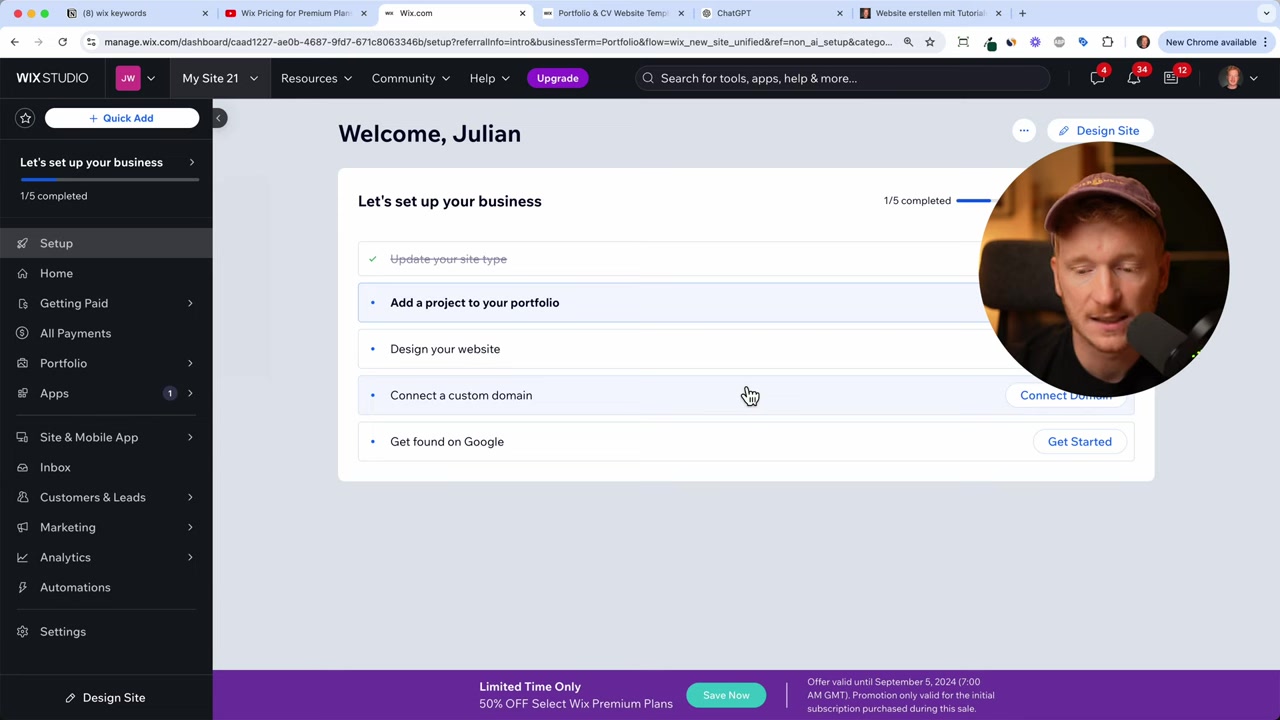
Once you're logged in, you'll land on the Wix dashboard. This is your control center: you'll find your website settings, analytics, and message inbox all in one place.
3. Choose the Best Wix Template for Your Portfolio
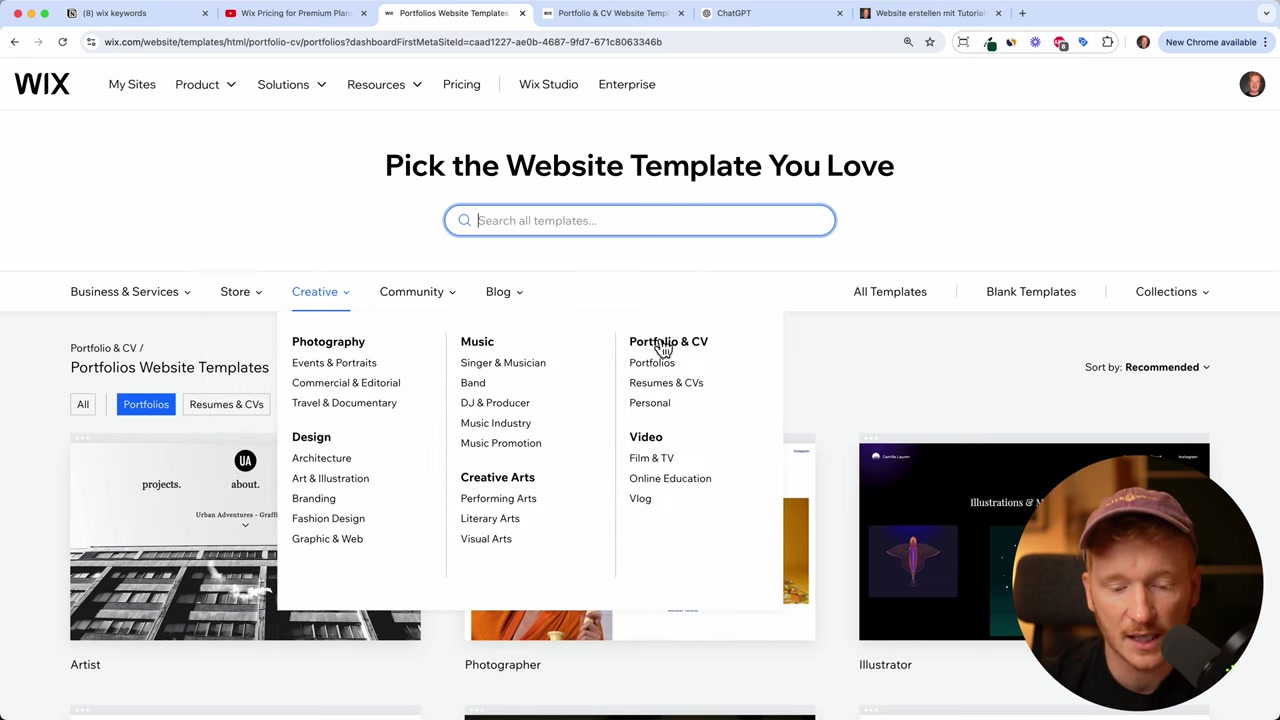
From the dashboard, click Design Site → Pick a Template. You'll see categories for businesses, online stores, and the creative niche. Head to the Portfolio & CV section.
Wix has templates for photographers, designers, DJs, architects, and more. Browse through the options — you can click View on any template to preview it before committing.
For example, the acting resume template is clean and minimal: your name on the left, a portrait photo on the right, and a video sample section below. Find the one that fits your style, then click Edit Site.
4. Use the Wix AI Content Generator
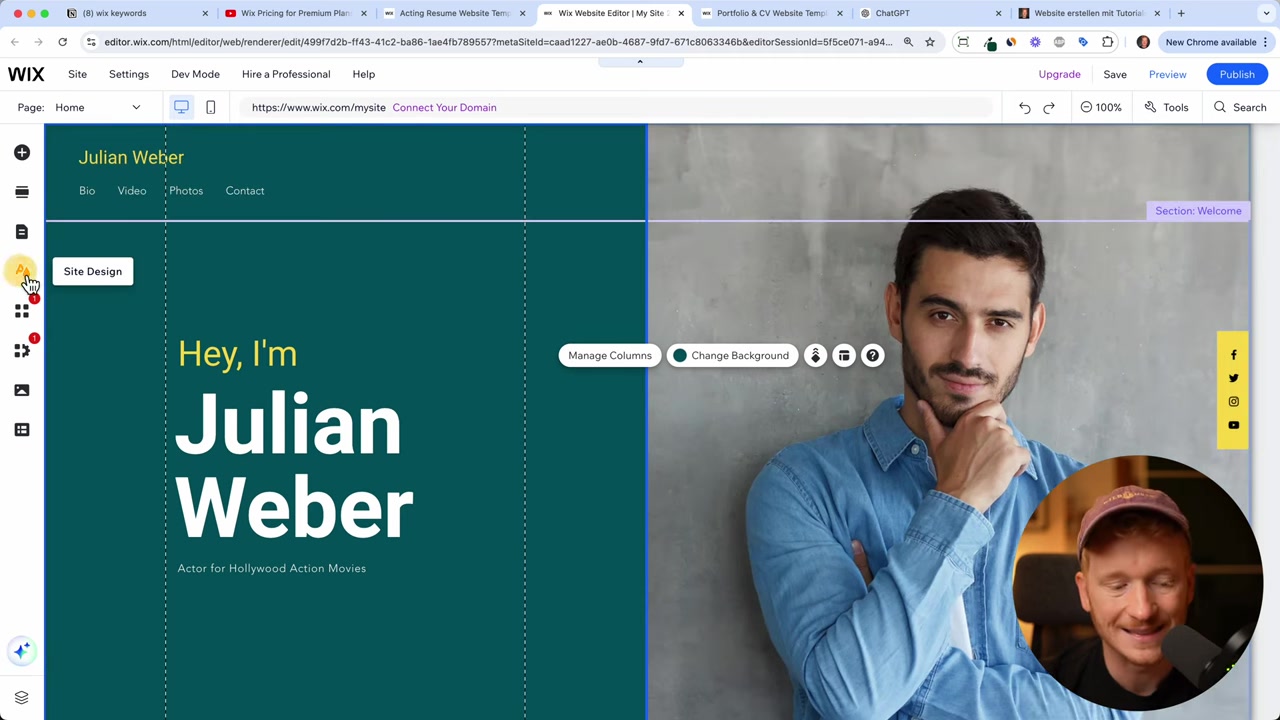
When the editor opens, Wix will prompt you to use its AI content generator. Type a short description of yourself — for example, "I'm Julian and I'm an actor for Hollywood action movies. I speak English and German." — then hit Generate Website Text.
The AI will populate your template with custom text based on what you wrote. You can always edit it afterward, but it's a great starting point. ChatGPT is another handy tool if you want to craft a more detailed bio.
5. Customize the Design of Your Portfolio Website
Wix is a full drag-and-drop editor, so you can move elements around freely. That said, resist the urge to change every font and color — a professional Wix designer already tuned the template to look great on every screen.
If you do want to update the color scheme, go to Design Settings and change the Color Theme. Enter a hex code, RGB, or HSB value and the new color will apply site-wide instantly. Same goes for the global font settings.
Use the undo button liberally while experimenting — it's easy to revert changes if something doesn't look right.
6. Replace the Background Image with Your Own Photo
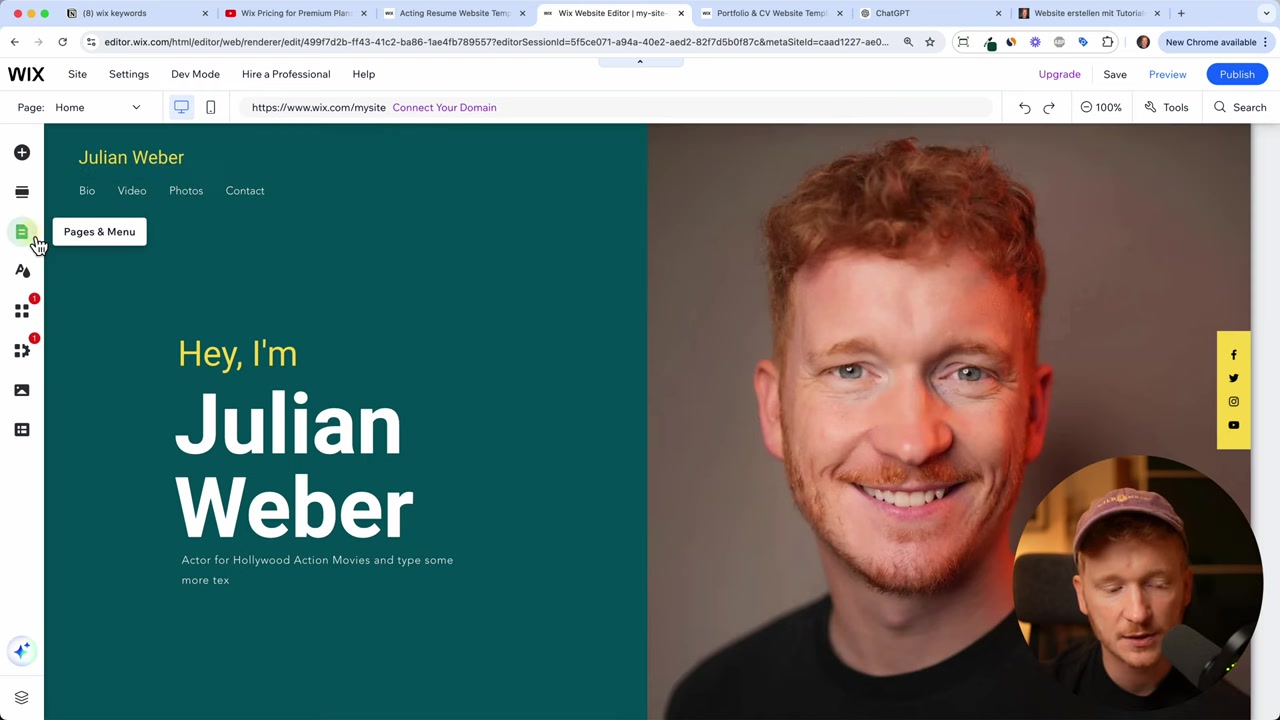
Click the background section of your homepage and select Change Background Image. You can upload your own photo, generate an AI image, or even add a background video.
Keep file sizes reasonable so your page loads fast. Once uploaded, your homepage header is already personalized — a huge visual step toward making the site feel like yours.
7. Add and Link Multiple Pages to Your Portfolio
A one-page portfolio works fine, but you can add more pages too. Click Pages in the editor and select Add Page. Wix provides page templates for things like Services, Projects, and About Me.
For example, add an About Me page and position it second in the navigation menu. Then go back to your homepage, select a button, click Link, choose Page, and point it to your new About Me page.
This creates a smooth flow: a visitor reads your homepage, clicks the button, and lands on your full story.
8. Add Videos to Your Wix Portfolio
Click any video block and select Manage Video. You can either upload your own video files or paste a URL from YouTube, Facebook, or Vimeo.
This is perfect for actors showing a reel, designers showing a process video, or photographers showcasing a slideshow. It keeps everything in one place without needing a separate hosting service.
9. Check the Mobile Version of Your Portfolio
Wix automatically optimizes your site for mobile — but it's worth checking the mobile preview manually. Switch to the mobile view inside the editor and scan through each section.
If something looks off (too much whitespace, oversized elements), you can tweak it directly in mobile view without affecting the desktop layout.
10. Publish Your Wix Portfolio Website
When you're happy with the result, click Publish. Wix will immediately publish your site under a free subdomain like yourname.wixsite.com.
This is great for testing, but for a professional portfolio you'll want your own domain name. Click Connect Your Own Domain, type in the domain you want, and Wix will walk you through the upgrade process.
11. Wix Pricing for Portfolio Websites
For a portfolio site, the Light plan is a solid choice. It includes two collaborators, 2 GB of storage, and a free domain for the first year — more than enough for most portfolios.
If you want to accept payments — for example, for booking sessions or selling prints — you'd need to step up to the Core plan, which adds basic e-commerce features. But for a pure portfolio, the Light plan covers everything you need.
You can check out a detailed breakdown of all Wix plans in this post: Wix Promo Code 2026 – How to Save on Wix Premium Plans.
Frequently Asked Questions
Can I build a portfolio website with Wix for free?
Which Wix plan is best for a portfolio website?
Do I need coding skills to build a Wix portfolio website?
Can I add videos to my Wix portfolio?
Is Wix mobile-friendly for portfolio websites?
How long does it take to publish a Wix portfolio website?
Can I use the Wix AI to help write my portfolio content?
What types of portfolios can I build with Wix?
12. Disclosure
Some links in this post may be affiliate links. If you make a purchase through them, I may earn a small commission at no extra cost to you. All content is provided for informational purposes only — no guarantees are made regarding results. This post does not constitute financial, legal, tax, or investment advice.
Related Articles

15 Dec 2025
Wix Promo Code 2026 – How to Save on Wix Premium Plans
If you've been thinking about upgrading to a Wix premium plan, timing your sign-up the right way can make a real difference. In this guide, I'll walk you through the exact method to access the best av...

30 Jul 2025
SiteGround Website Builder Tutorial 2026 – Everything You Need to Know!
SiteGround has long been one of the most trusted names in web hosting — but did you know they now have their own website builder? In this tutorial, you'll learn exactly how to create a professional we...

28 Jul 2025
SiteGround WordPress Tutorial – How to Setup Your WordPress Website in 2026
Setting up a WordPress website doesn't have to be complicated. In this tutorial, you'll learn exactly how to get your site live on SiteGround — one of the most popular and reliable WordPress hosting p...