SiteGround Website Builder Tutorial 2026 – Everything You Need to Know!
SiteGround has long been one of the most trusted names in web hosting — but did you know they now have their own website builder? In this tutorial, you'll learn exactly how to create a professional website using SiteGround's built-in builder, step by step, with no coding required.
Whether you're a complete beginner, a business owner, or just looking to get online fast, this guide covers everything: picking a template, customizing your pages, setting up navigation, and finally pushing your site live.
1. What Is the SiteGround Website Builder?
SiteGround is best known for its WordPress hosting, but they've expanded into the website builder space with a drag-and-drop editor that lets anyone create a site without touching a single line of code.
The builder is fully integrated into the SiteGround dashboard, which means you get hosting, editing tools, SEO settings, and analytics all in one place.
It's a solid option for small businesses, freelancers, and anyone who wants a clean, professional site up and running quickly.
2. Sign Up and Get Started with SiteGround
To get started, head over to SiteGround and click Start for Free. Create your account and follow the setup steps.
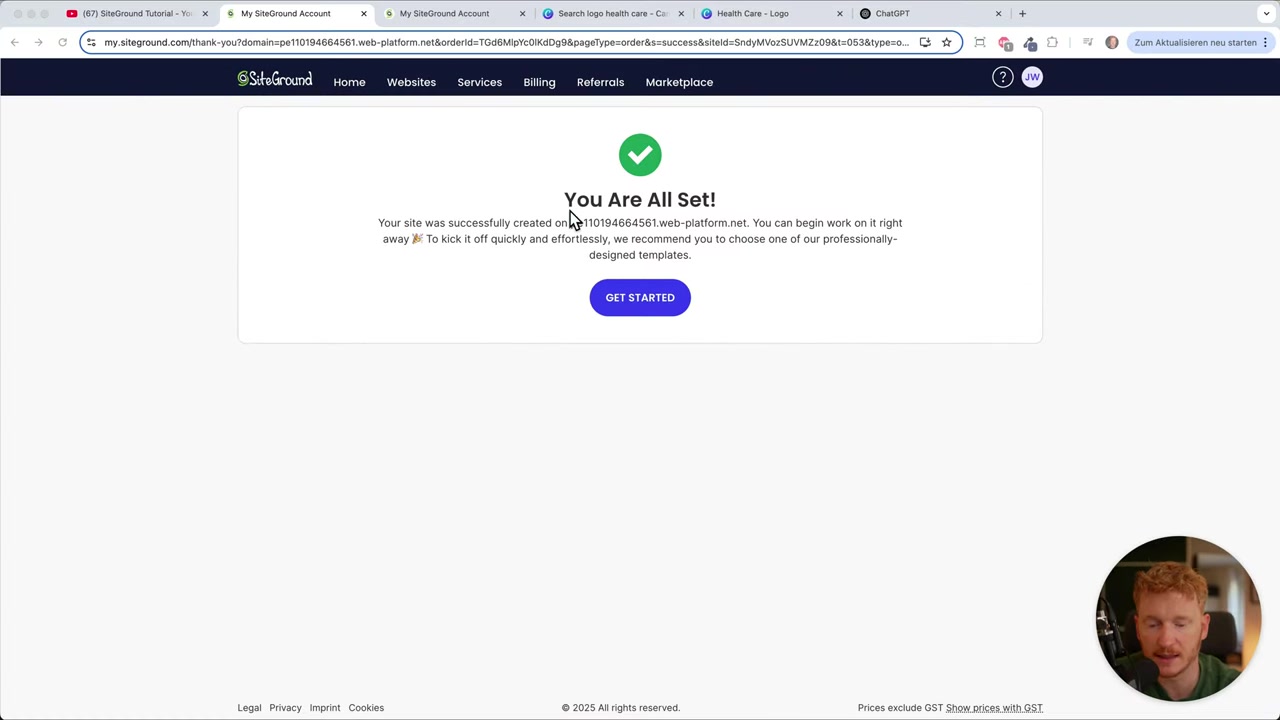
Once you've signed up, you'll land on a confirmation screen that says you're all set and have a demo site ready to launch. From there, the fun begins.
3. Choose a Template for Your SiteGround Website
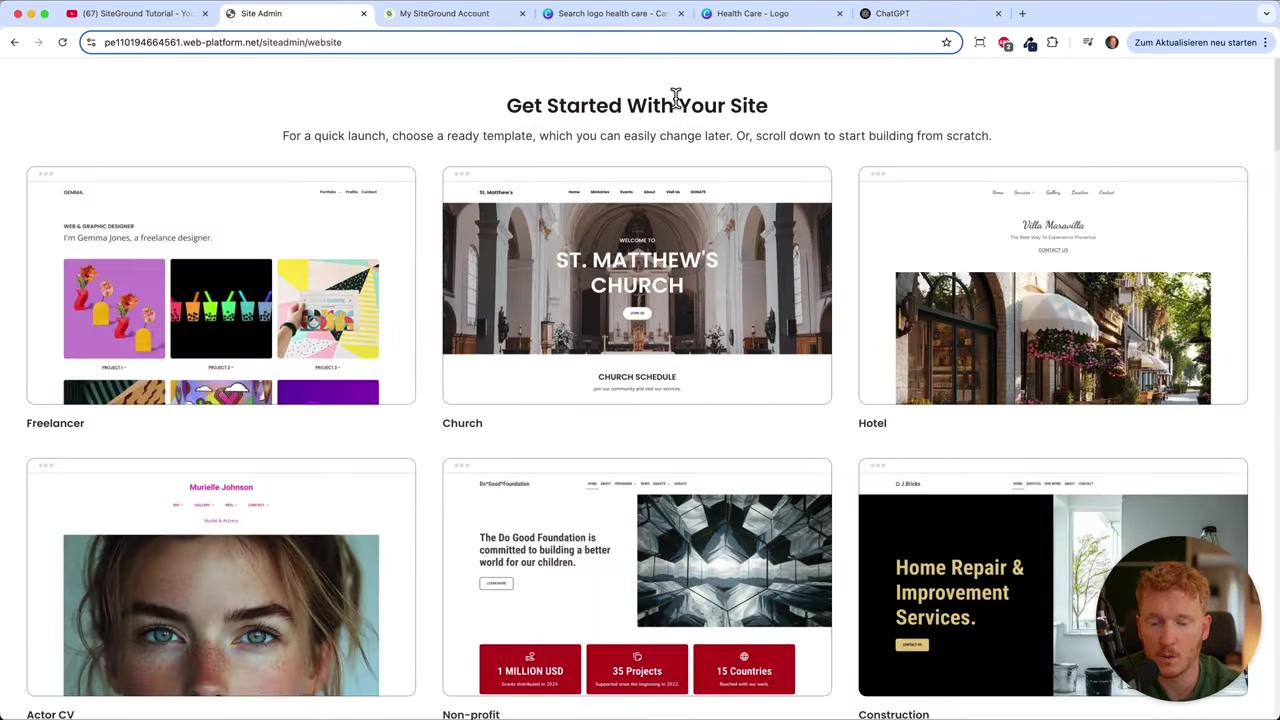
SiteGround offers a focused selection of templates — not hundreds, which is actually a good thing. Fewer choices means less decision fatigue.
Browse through the available templates and click Preview to see what a template looks like before committing. The layouts are clean and well-organized, and the preview even shows you how the site looks on mobile.
Once you've found a design you like, click Apply to load it into your editor. Don't worry — you can always change the template later.
4. Explore the Dashboard and Site Settings
After applying your template, you'll land in the site admin dashboard. This is your control center for everything beyond editing.
From here you can set up marketing tools like Google Tag Manager, configure on-page SEO, and view analytics — including visitor counts, sessions, and the keywords people used to find your site.
Under Settings, make sure to set your timezone and site language before moving on.
5. Edit Text, Images, and Links in the Website Builder
Click Customize from the dashboard to enter the live editor. This is where you'll spend most of your time building your site.
Updating images is simple: click on any image and hit Update, then either choose from the built-in Unsplash gallery or upload your own file. Unsplash gives you access to thousands of free professional photos — just search by keyword and pick what fits.
Editing text is just as easy. Click any text block and start typing. You can change the heading level, font size, and style directly from the toolbar. For subheadings and body copy, just hit Enter and adjust the formatting as needed.
Adding links works for both text and buttons. Highlight any word or phrase, click the link icon, and choose from:
- A page on your website
- A custom external URL
- An email address
- A phone number
- A file download
For buttons, the same options apply. Linking your Contact button directly to the contact page, for example, is a quick win that improves the user experience immediately.

6. Customize Colors, Fonts, and Shapes
Before you start changing individual text colors or backgrounds, take a look at the Style panel first. Under Colors, you can apply a cohesive color theme to your entire site in one click.
This keeps your site looking consistent without manually adjusting every element. The same principle applies to fonts — pick one that fits your brand and apply it globally.
You can also choose between round or sharp button shapes depending on the feel you want. These small details add up to a much more polished result.
7. Set Up Your Header, Logo, and Favicon
Click on the Header section to choose a layout. You can position your logo on the left and menu on the right, or experiment with centered layouts.
To add your logo, click the logo area and upload your own image file. If you don't have a logo yet, Canva is a great free tool — just search for your industry and you'll find dozens of professional logo templates to customize.
For the best results, use a horizontal logo rather than a vertical one — it fits the header layout much better.
Don't forget the favicon — that tiny icon that appears in the browser tab. SiteGround lets you upload a custom favicon directly from the header settings.
For favicons, use just the icon or symbol from your logo, without any text, since text would be unreadable at that small size. Download a square version of your icon with a transparent background and upload it here.
8. Configure the Footer with Social Links and Policies
Scroll down to the Footer section to customize it. You can add your logo or business name, and include social media icons for Instagram, YouTube, LinkedIn, and more.
For each social icon, paste in the link to your profile so visitors can click straight through. You can also toggle off the "Powered by SiteGround" credit link — since you're paying for the service, there's no need to advertise it.
For legal pages like Privacy Policy and Terms of Service, SiteGround lets you manage these under Policy Settings in the admin area. Add the text from your lawyer and they'll appear automatically in the footer.
9. Edit Inner Pages: Contact, About, and FAQ
Click Content in the sidebar to see all your site's pages. By default, your template likely includes an About page, a Contact page, a Services page, and an FAQ page.
Contact page tip: Link your phone number using the phone link option — when a mobile visitor taps it, their phone app will open and dial the number automatically. Do the same for your email address so it opens directly in Gmail or Outlook.
The contact form lets visitors send messages directly to your email. Just update the Send to field with your own email address, and customize the thank-you message they see after submitting.
The FAQ page is easy to expand. Just click into any item, update the question and answer, and click the Add Item button to create new entries.
For your About page, upload your own team photos and write your story, mission, and values. If you don't need a particular page, you can simply delete it — it will be removed from the navigation automatically.
10. Add New Pages and Configure SEO Settings
To add a new page, click Add New Page in the Content panel. SiteGround offers several page templates to choose from — pick one that fits your needs.
When creating a new page, you'll be asked to set:
- Page name (e.g., "About Us")
- URL slug (e.g.,
/about-us) - SEO title and description — include your main keywords here so Google can find your page
- Social media image — the thumbnail shown when someone shares the page on WhatsApp or social media
Once your page is ready, toggle it to Live and click Publish.
11. Manage Navigation and Submenus
New pages don't appear in the menu automatically — you have to add them manually. Go to Navigation in the sidebar and click Add New Item.
Name the item (e.g., "About Us"), select the corresponding page, and click Add Item. You can then drag and drop items to reorder them.
To create a submenu, drag a page item slightly to the right beneath another item. It will nest under the parent as a dropdown. If you change your mind, drag it back out to make it a top-level menu item.
12. Publish Your SiteGround Website and Connect a Domain
Once you're happy with your site, click Update and then Confirm. SiteGround will push all your changes live — this includes every page, the header, footer, and navigation.
Changes are auto-saved as you edit, but you need to hit Update to actually publish them to your live site.
If you don't have a domain yet, go to Change Domain in the admin area. Type in your desired domain name and search for availability. To connect a custom domain, you'll need to upgrade to a paid plan — but you can test and build everything for free before committing.
13. Is SiteGround Website Builder Good for Beginners?
Yes — the SiteGround website builder is genuinely beginner-friendly. You don't need any technical knowledge, design experience, or coding skills to create a professional-looking site.
The interface is clean and intuitive, and the drag-and-drop editor makes customization straightforward. Everything from templates to SEO settings is accessible in just a few clicks.
For beginners who want a no-fuss way to get online quickly, it's a strong choice.
14. SiteGround Website Builder vs Wix
Both SiteGround and Wix are solid options for building a website without coding, but they serve slightly different audiences.
SiteGround is a great pick if you're already using their hosting, want tight integration between your builder and hosting, or prefer a simpler template selection with less overwhelm.
Wix offers more design flexibility, a larger app marketplace, and more advanced customization options. If you want maximum creative control and access to hundreds of templates, Wix may be the better fit. You can learn more about Wix in our Wix Promo Code guide.
15. SiteGround Website Builder Pros and Cons
Pros:
- Free to test before committing to a paid plan
- Clean, fast-loading templates
- Built-in Unsplash photo library
- Integrated SEO settings and analytics
- Automatic mobile optimization
- No coding required
- Everything (hosting + builder) in one place
Cons:
- Fewer templates compared to some competitors
- Advanced customization is more limited than dedicated builders like Wix
- Custom domain requires a paid upgrade
- Smaller app/plugin ecosystem than WordPress
Frequently Asked Questions
Can I use SiteGround's website builder for free?
Do I need coding skills to use the SiteGround website builder?
Can I change my template after I start building my site?
Does SiteGround automatically optimize my site for mobile?
How do I add my own logo to a SiteGround website?
Can I add a contact form to my SiteGround website?
How do I add new pages to the navigation menu in SiteGround?
Does SiteGround have SEO tools built in?
16. Disclosure
Some links in this post are affiliate links, which means a commission may be earned at no extra cost to you. All content is provided for informational purposes only, and no guarantees are made regarding results. This post does not constitute financial, legal, tax, or investment advice.
Related Articles

15 Dec 2025
Wix Promo Code 2026 – How to Save on Wix Premium Plans
If you've been thinking about upgrading to a Wix premium plan, timing your sign-up the right way can make a real difference. In this guide, I'll walk you through the exact method to access the best av...

28 Oct 2025
How to Create a TikTok Ads Account in 2026
Want to run ads on TikTok but not sure where to start? Setting up your TikTok Ads Manager account is easier than you think — and it only takes a few minutes. In this guide, I'll walk you through the e...

26 May 2026
How to Add Signature in Gmail (Tutorial 2026)
Want to make your emails look polished and professional? A well-designed Gmail signature can make a huge difference. In this tutorial, Julian Weber walks you through everything — from creating a basic...