SiteGround WordPress Tutorial – How to Setup Your WordPress Website in 2026
Setting up a WordPress website doesn't have to be complicated. In this tutorial, you'll learn exactly how to get your site live on SiteGround — one of the most popular and reliable WordPress hosting providers out there. We'll cover everything from picking a plan and installing WordPress, to editing pages, writing blog posts, managing menus, and installing plugins. Whether you're building a blog, portfolio, or business site, this guide has you covered.
1. What is SiteGround?
SiteGround is a web hosting provider that specializes in WordPress websites. It's trusted by over 3 million domain owners and holds a 4.8 rating on Trustpilot with more than 22,000 reviews.
It's known for being fast, secure, and beginner-friendly. SiteGround handles the technical side so you can focus on building and growing your site.
2. Choose the Right SiteGround Hosting Plan
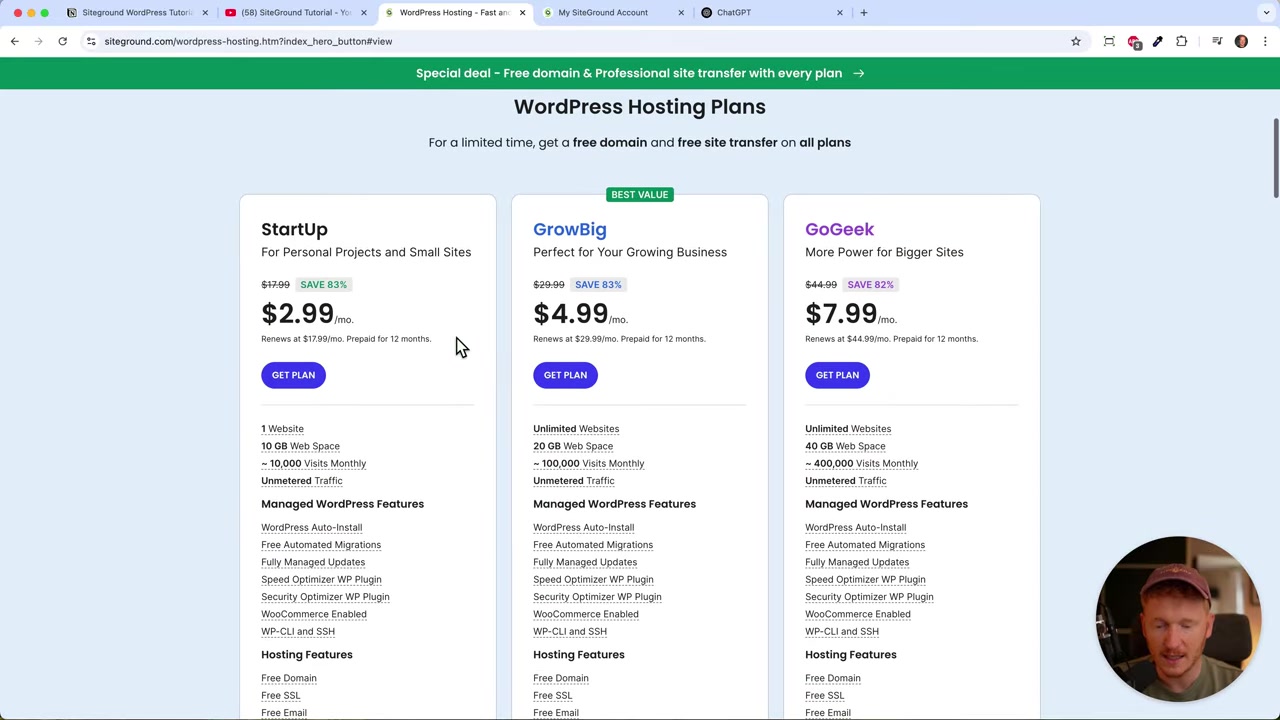
Once you click the affiliate link and land on the SiteGround website, click Start Now to choose your plan. For most beginners, the StartUp plan is all you need.
Here's what the StartUp plan includes:
- 1 website with 10 GB of web space
- Free domain for the first year (on annual plans)
- Free SSL certificate (HTTPS encryption)
- Free domain email (e.g. [email protected])
You can always upgrade to the GrowBig or GoGeek plan later if you need to host multiple websites. But for the start, the entry-level plan is a great deal.
3. Install WordPress on SiteGround
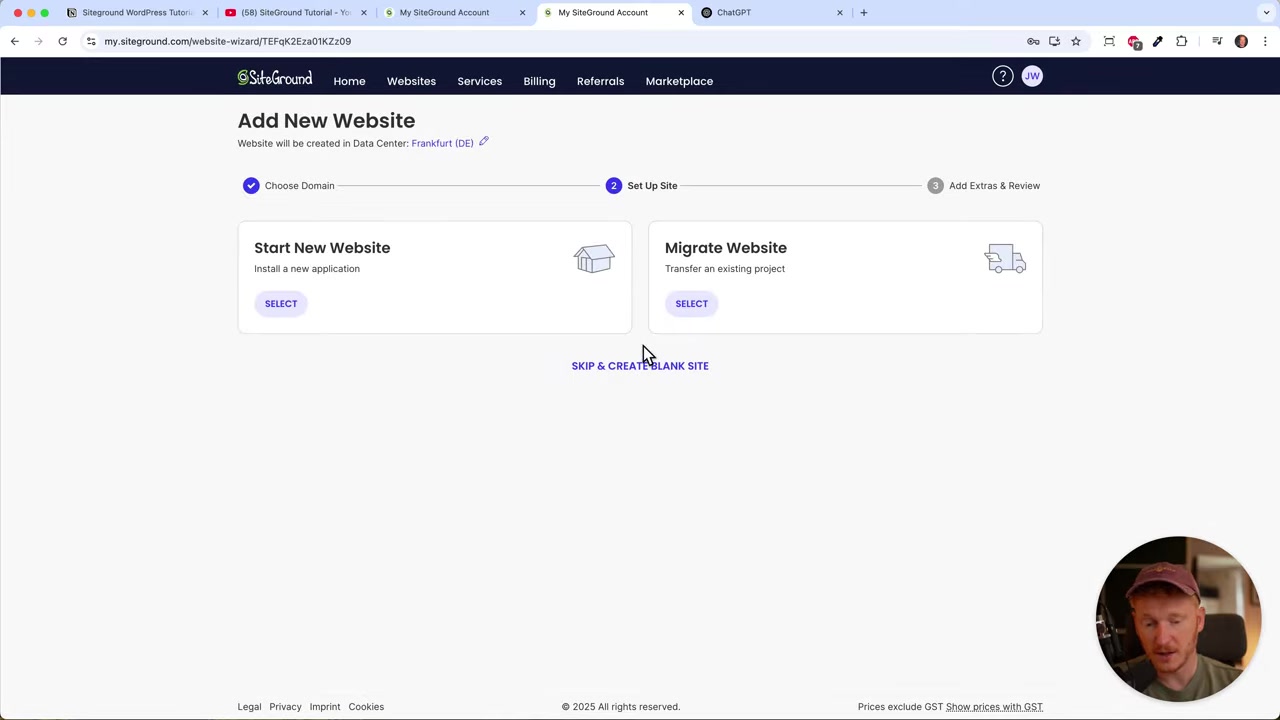
After checkout, you'll land on the setup screen. Click Setup Site to begin. You'll be asked to choose a domain — you can:
- Use a domain you registered at checkout
- Register a new domain
- Transfer an existing domain
- Select a temporary domain (great if you haven't decided yet)
Next, choose your data center location. This is important — pick the one closest to your target audience. For example, if you're targeting US visitors, choose a US data center like Texas for the fastest load times.
Then select Start New Website and choose WordPress as your platform. WordPress is by far the most popular content management system in the world and gives you the most flexibility.
You'll need to create a secure WordPress login (username and password). This lets you log in directly at yourdomain.com/wp-admin without going through SiteGround every time. Use a strong password — this protects your site from being hijacked.
The whole installation only takes about 2 minutes and is fully automatic. Once it's done, click Manage Site to enter your WordPress dashboard.
4. Navigate the WordPress Dashboard
After installation, you'll land inside the WordPress admin area — also called the dashboard. This is the back end of your website where you manage all your content.
Here's a quick overview of the main menu items on the left:
- Posts — your blog articles
- Pages — static pages like Home, About, Contact
- Media — uploaded images and videos
- Comments — reader comments on your posts
- Appearance — themes and menus
- Plugins — add-ons that extend functionality
SiteGround's setup wizard will also offer you a quick tour. It's beginner-friendly and walks you through selecting a design template and installing basic plugins.
5. Choose a Theme and Template for Your WordPress Site
The setup wizard lets you pick a template based on your website type — for example, a photography website, business site, or portfolio. Browse the available designs and select one you like.
SiteGround pre-installs the Nef theme with the Otter Builder page editor. This is a solid starting point — easy to use and great for beginners.
If you want more design flexibility later, popular theme options include:
- Hello Elementor (pairs with the Elementor page builder)
- Astra
- Cadence
- OceanWP
These are more advanced, so it's recommended to start with Nef and switch themes once you're comfortable. Changing your theme will affect the entire look and feel of your site, so do it sooner rather than later.
6. Install Plugins for Your WordPress Website
Think of WordPress plugins like apps on your phone — they add functionality to your website. The key rule: don't install too many. Too many plugins slow your site down and create security risks.
Here are some widely used plugins worth considering:
- Elementor — the most popular page builder for WordPress
- Yoast SEO — helps your site rank on Google (better than All in One SEO)
- WooCommerce — adds a full online store to your site
- Contact Form 7 — easy contact forms
- Google Analytics plugin — tracks your website visitors
To add plugins, go to Plugins → Add New in your dashboard. Search by name or browse popular plugins. Only install what you actually need — less is more when it comes to plugins.
7. Create and Edit Blog Posts in WordPress
WordPress was originally built for blogging, so creating posts is very intuitive. Go to Posts in your dashboard to see all existing posts or add new ones.
Inside the post editor, you can:
- Type your text and press Enter to start a new paragraph
- Use
/headingto insert a headline - Upload images directly from your desktop
- Add buttons, galleries, quotes, and audio blocks
- Set a thumbnail image (featured image) for the post preview
Once you're done, click Publish to make it live — or use the Schedule option to publish it automatically at a later date or time. This is especially useful if you want to batch-write content in advance.
Tip: If writing isn't your strong suit, use ChatGPT to help draft your content. Just type in what you want to say, refine the output, and paste it into your post editor.
8. Build and Edit Pages on Your WordPress Website
Pages are different from posts. They contain static content that rarely changes — like your homepage, About page, or Contact page. You create them once and update them occasionally.
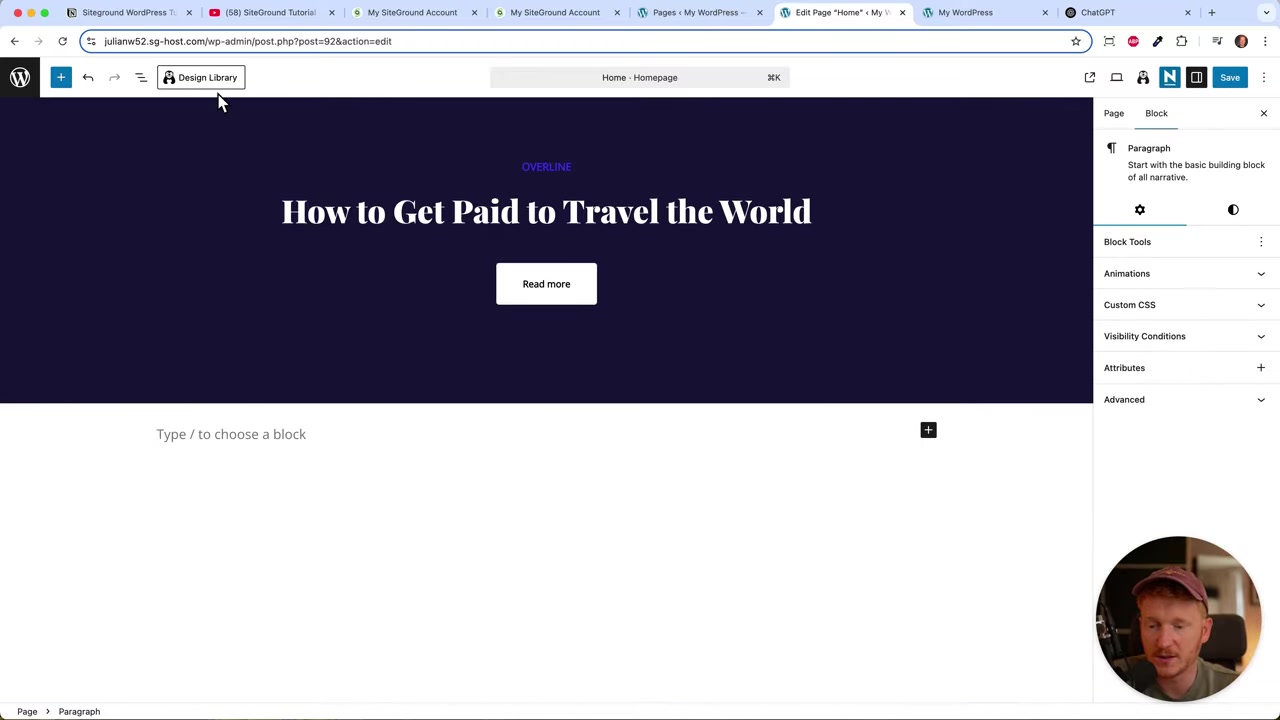
To edit your homepage, go to Pages, find it in the list, and click Edit Page. From there you can:
- Replace placeholder images with your own photos
- Edit text sections
- Use the Design Library in Otter Builder to insert pre-made sections like contact forms, galleries, team sections, and quotes
To add a new section manually, type / anywhere in the editor and choose from layout options like full-width, 50/50 split, or 1/3 and 2/3 columns. Fill each column with images, text, or other blocks.
The Design Library has both free and premium templates. For beginners, the free ones are more than enough to build a professional-looking page.
9. Manage Your Website Menu in WordPress
Once you've created your pages, you'll want to add them to your navigation menu. Go to Appearance → Menus in your WordPress dashboard.
Here you can:
- Add existing pages to your menu
- Rename menu items
- Create dropdown submenus by dragging items slightly to the right under a parent item
- Save your changes and preview the result on your live site
For example, if you created a "Picture Project New York" page, you can add it under a "My Projects" menu item as a submenu. This keeps your navigation clean and organized.
Always remember to click Save Menu after making changes, then click View Site to see how it looks on the front end.
10. Connect a Custom Domain to SiteGround
If you signed up with a temporary domain during setup, you'll want to connect a real domain later. You can purchase a domain directly through SiteGround, or use a domain registrar like Ionos and point it to your SiteGround hosting.
Your domain is your brand's address on the internet — choose something short, memorable, and relevant to your niche. Once connected, update your WordPress settings to reflect the new domain.
11. Is SiteGround Good for Beginners?
Yes — SiteGround is one of the most beginner-friendly WordPress hosts available. The one-click WordPress installation, setup wizard, and pre-built templates make it easy to get started without any technical knowledge.
The included Otter Builder and Nef theme give you a solid foundation right out of the box. And if you run into issues, SiteGround's support team is available 24/7.
12. How Much Does SiteGround Cost?
SiteGround's StartUp plan starts at $2.99/month for the first 12 months when billed annually. This includes one website, 10 GB of storage, a free domain, free SSL, and a free email address.
If you need to host more websites or need more resources, you can upgrade to the GrowBig or GoGeek plans at any time. For most beginners and small businesses, the StartUp plan is the perfect entry point.
13. SiteGround vs Other WordPress Hosts
SiteGround is often compared to hosts like Hostinger, Bluehost, and WP Engine. Here's a quick breakdown:
- SiteGround vs Hostinger — Hostinger is cheaper, but SiteGround offers better support and more managed WordPress features.
- SiteGround vs Bluehost — Both are officially recommended by WordPress.org. SiteGround generally gets higher marks for speed and customer service.
- SiteGround vs WP Engine — WP Engine is a premium managed host aimed at developers. SiteGround is more affordable and still very capable for small to medium sites.
For beginners who want reliability, ease of use, and solid performance without a steep learning curve, SiteGround is a top choice.
14. SiteGround WordPress Pros and Cons
Pros:
- Easy one-click WordPress installation
- Free SSL, domain, and email included
- Fast loading speeds with global data centers
- Excellent 24/7 customer support
- Strong security features built in
- Beginner-friendly setup wizard
Cons:
- Renewal prices are higher than the introductory rate
- StartUp plan limits you to one website
- Storage (10 GB) may not be enough for very media-heavy sites
Frequently Asked Questions
Do I need technical skills to use SiteGround with WordPress?
Can I use my own domain with SiteGround?
What is the difference between WordPress posts and pages?
Which plugins should I install first on WordPress?
What is the Otter Builder in SiteGround WordPress?
How do I add a new page to my WordPress menu?
Can I switch themes on WordPress after my site is built?
Is WordPress free on SiteGround?
15. Disclosure
Some links in this post may be affiliate links. If you make a purchase through them, I may earn a small commission at no extra cost to you. All content is provided for informational purposes only — no guarantees are made regarding results. This content does not constitute financial, legal, tax, or investment advice.
Related Articles

15 Dec 2025
Wix Promo Code 2026 – How to Save on Wix Premium Plans
If you've been thinking about upgrading to a Wix premium plan, timing your sign-up the right way can make a real difference. In this guide, I'll walk you through the exact method to access the best av...

28 Oct 2025
How to Create a TikTok Ads Account in 2026
Want to run ads on TikTok but not sure where to start? Setting up your TikTok Ads Manager account is easier than you think — and it only takes a few minutes. In this guide, I'll walk you through the e...

26 May 2026
How to Add Signature in Gmail (Tutorial 2026)
Want to make your emails look polished and professional? A well-designed Gmail signature can make a huge difference. In this tutorial, Julian Weber walks you through everything — from creating a basic...