Wix Free Website Tutorial - How to Make a Free Portfolio Website with Wix
Want to build a free portfolio website but not sure where to start? In this tutorial, we walk through the entire process of creating a professional-looking website with Wix — completely for free.
Whether you're a freelancer, photographer, designer, or just someone who wants an online presence, Wix makes it surprisingly easy. You can get started with Wix for free here and follow along with the steps below.
1. What Is Wix and Is It Really Free?
Wix is a drag-and-drop website builder that lets you create and publish a website without writing a single line of code. It's one of the most popular website builders in the world, and yes — there is a genuinely free plan.
On the free plan, Wix gives you a subdomain (like yourname.wixsite.com/site), access to hundreds of templates, and the ability to publish your site publicly. You don't need a credit card to get started.
The free plan does have some limitations — you can't connect a custom domain or accept payments without upgrading. But for a portfolio or personal website, it's more than enough to get started.
2. Sign Up for Your Free Wix Account
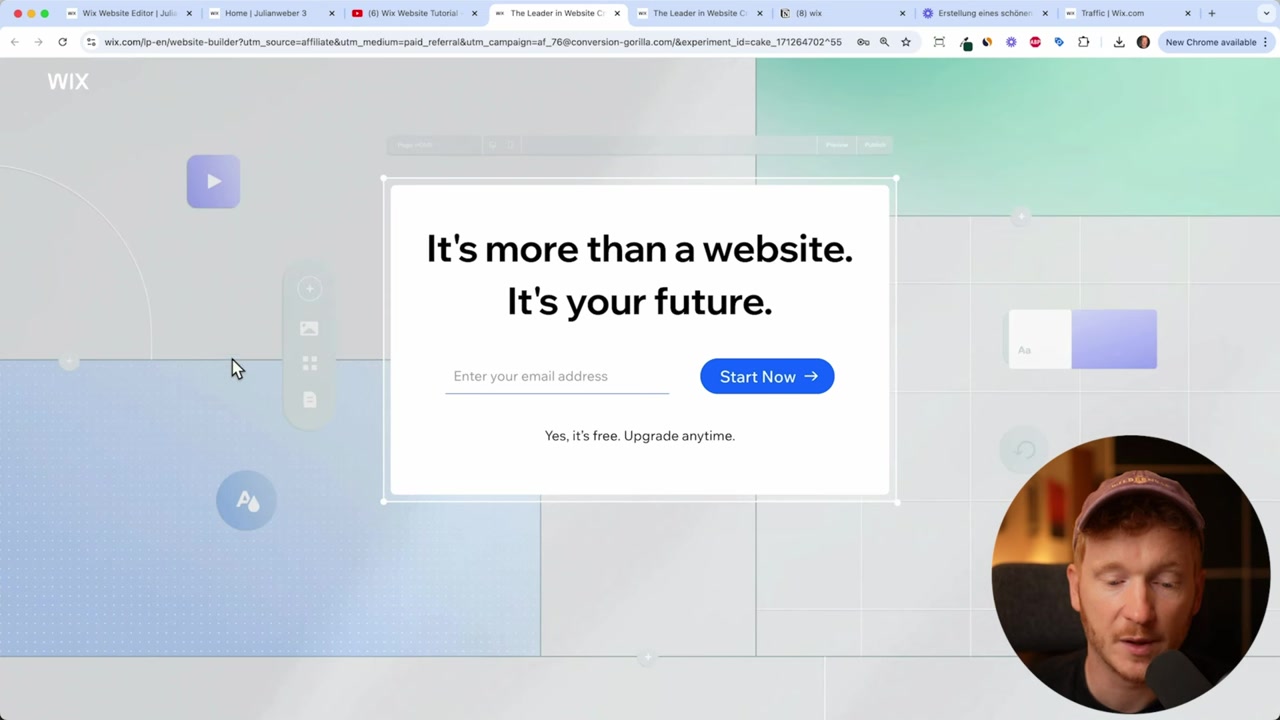
The first step is creating a free Wix account. Head over to Wix via this link and click Start Now. You can sign up with your email address in just a few seconds.
Once you're signed in, Wix will greet you with its AI assistant. The AI can help set up your website through a short chat — it usually takes 3–5 minutes. For this tutorial, we'll skip the AI setup and choose a template manually instead.
3. Choose the Right Template for Your Portfolio Website
After signing up, click Design Site from your Wix dashboard. You'll be asked what kind of website you want to build — choose Portfolio for a personal or creative site.
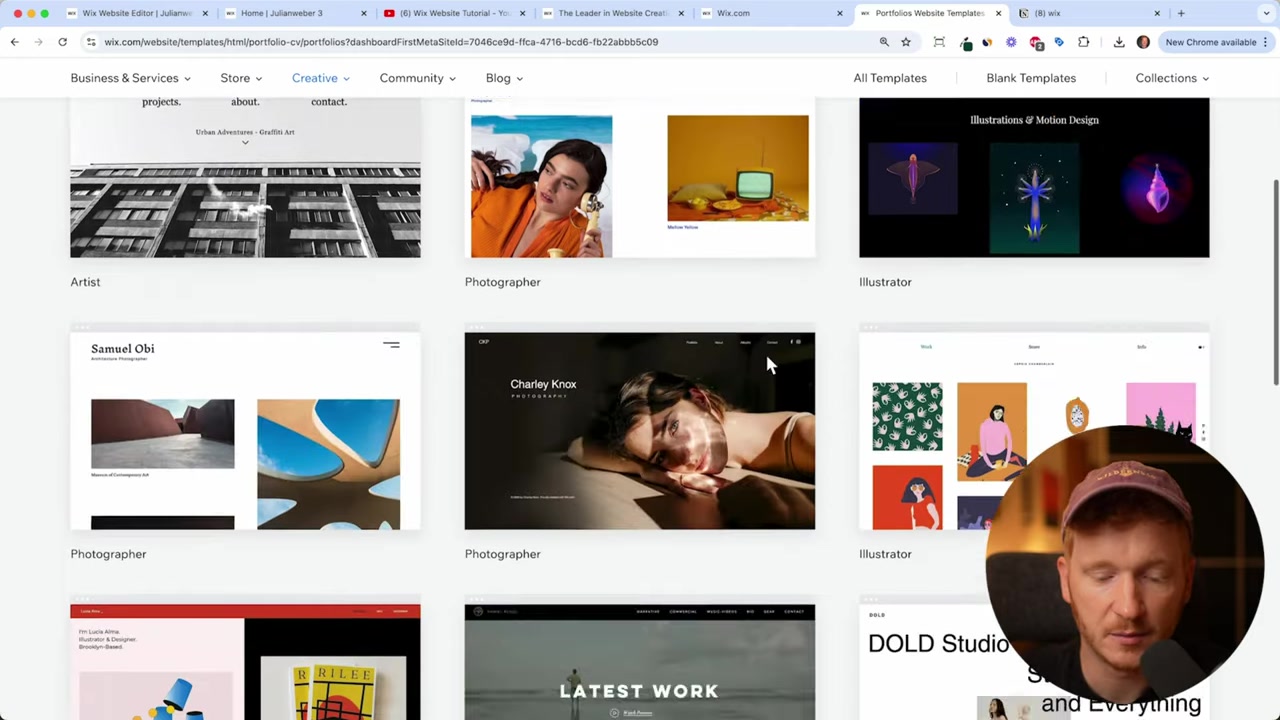
Wix will show you a library of templates organized by category. Under the Creative section, you'll find templates designed for photographers, designers, musicians, and more.
Browse through the options and click View on any template to preview it. When you find one you like, click Edit Site to open it in the Wix editor.
4. Customize Your Wix Portfolio Website
The Wix editor is where all the magic happens. It's a drag-and-drop interface — click on any element to edit it directly.
Edit Text and Headlines
Click on the headline at the top of your page and type your name or business name. Then click the paragraph text beneath it and describe what you do in a sentence or two.
You can type manually or use Wix's built-in AI text generator. Just give it a short prompt and it'll write a draft for you — great if you're not sure what to say.
Change Your Background Image
To replace the default background photo, click the background area and select Image. From there you can upload your own photo, or browse free stock images from Wix's media library or Unsplash.
Once you've chosen your image, click Change Background and it will update instantly.
Update the About Me, Video, and Photo Sections
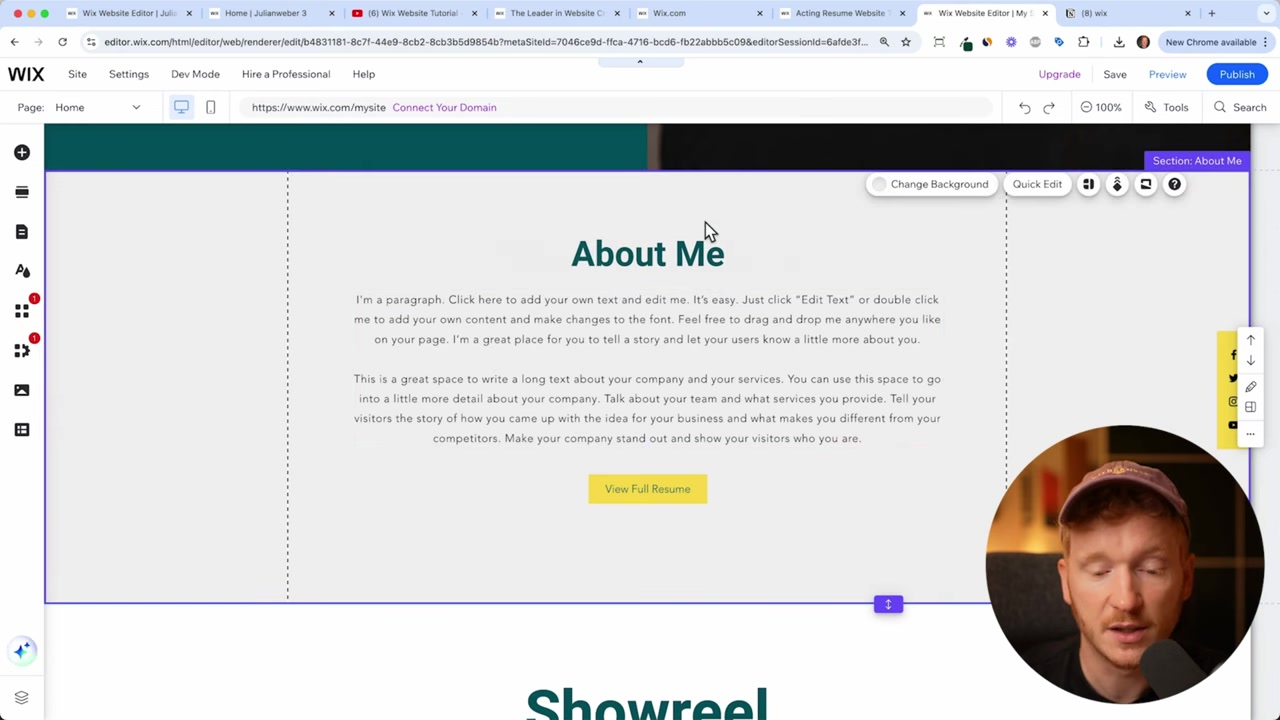
Scroll down the page and you'll find pre-built sections for an About Me bio, a video, and a photo gallery. Each one is fully editable.
For the video section, you can paste a YouTube link or upload a video directly. For the photo gallery, click Manage Media and upload your own images.
5. Add a Contact Form to Your Website
Every professional portfolio should make it easy for people to get in touch. To add a contact form, click Add Element in the left panel, then select Contact Forms.
Drag the form onto your page and drop it into the contact section. You can customize the fields, colors, and layout to match the rest of your design.
This form connects directly to your Wix inbox, so you'll get notified whenever someone sends you a message.
6. Add New Pages to Your Wix Website
A single homepage is great to start with, but you might want a dedicated About Me page, a Services page, or a Projects page.
To add a new page, click on the pages menu at the top of the editor, then select Add Menu Item and choose New Page. Wix will show you a selection of page templates — pick one that fits your needs.
Once the page is added, go back to your homepage and link your buttons to the new page. That way visitors can navigate between pages seamlessly.
7. Extend Functionality with the Wix App Market
Need more than the basics? Wix has an App Market with dozens of add-ons that extend your website's functionality.
For example, you can add Wix Chat to let visitors message you in real time, install a blog, set up an online store, or add a restaurant menu. Think of it like an app store for your website — browse and install what you need.
8. Preview on Mobile and Publish Your Wix Site
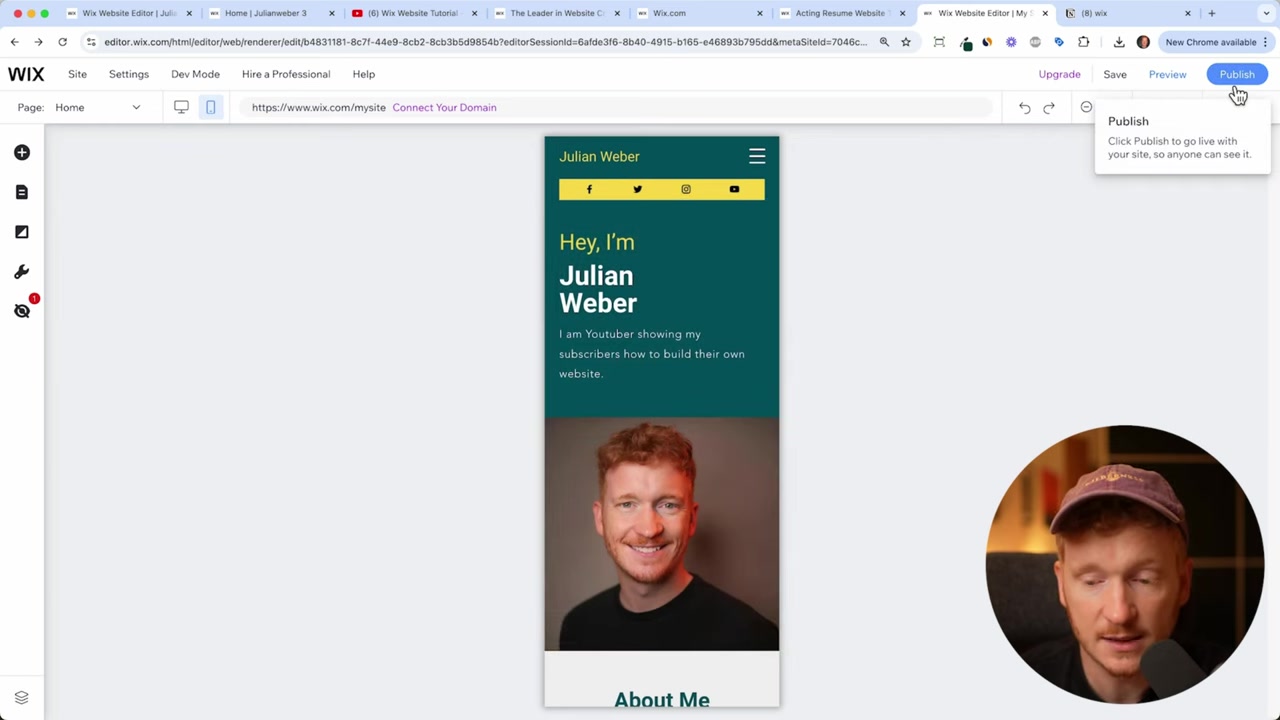
Before publishing, always check how your site looks on mobile. In the Wix editor, click the mobile icon at the top to switch to the mobile view. Wix automatically adapts your layout for smaller screens, so it usually looks great without any extra work.
When you're happy with everything, click Publish. Your site will go live on your free Wix subdomain immediately.
9. Free Domain vs. Custom Domain on Wix
On the free plan, your website address will look something like yourname.wixsite.com/site-26. You can customize the last part of the URL in your Wix settings.
If you want a clean, professional domain like yourname.com, you'll need to connect a custom domain — which requires a paid Wix plan. The Light plan starts at around €13/month and lets you connect your own domain.
That said, the free subdomain is perfectly usable. You can share it on Instagram, link it in your YouTube bio, or use it while you're getting started. Many people run on the free plan for months before deciding to upgrade.
Curious about Wix pricing in more detail? Check out our post on Wix promo codes and premium plans.
10. Is Wix Good for Beginners?
Absolutely. Wix is one of the most beginner-friendly website builders available. The drag-and-drop editor means you don't need any coding knowledge — if you can use a mouse, you can build a website.
The template library makes it easy to start with a professional design. And with the AI tools built in, even writing your website copy is faster than ever.
If you're just starting out — whether as a freelancer, actor, creative, or small business owner — Wix gives you everything you need to launch a real website at zero cost.
11. Wix Pros and Cons
Pros:
- Completely free to start — no credit card required
- Hundreds of professional templates
- Built-in AI for content and design suggestions
- Drag-and-drop editor — no coding needed
- App Market for extra features
- Mobile-responsive layouts out of the box
Cons:
- Free plan includes a Wix-branded subdomain
- Custom domain requires a paid plan
- Payment processing and online store features are behind a paywall
- Once you pick a template, switching to a different one requires rebuilding your site
Frequently Asked Questions
Can I really build a Wix website for free?
Do I need to know how to code to use Wix?
What types of websites can I build with Wix?
How do I get a custom domain on Wix?
Can I use Wix on my phone?
How long does it take to build a Wix website?
What is the Wix App Market?
Is Wix free better than other free website builders?
12. Disclosure
Some links in this post may be affiliate links, meaning a small commission may be earned at no extra cost to you. All content is provided for informational purposes only, and no guarantees are made regarding results. This post does not constitute financial, legal, tax, or investment advice.
Related Articles

16 Dec 2024
Build a Free Wix Website – Is It Really Free?
Can you really build a website with Wix for free? The short answer is yes — and in this post, you'll learn exactly how it works, what the free plan includes, and how to make your free Wix URL look as ...

15 Dec 2025
Wix Promo Code 2026 – How to Save on Wix Premium Plans
If you've been thinking about upgrading to a Wix premium plan, timing your sign-up the right way can make a real difference. In this guide, I'll walk you through the exact method to access the best av...

28 Oct 2025
How to Create a TikTok Ads Account in 2026
Want to run ads on TikTok but not sure where to start? Setting up your TikTok Ads Manager account is easier than you think — and it only takes a few minutes. In this guide, I'll walk you through the e...