How to Add Payment Methods to Your Wix Store
Getting paid is the whole point of running an online store. In this guide, you'll learn exactly how to add payment methods to your Wix store — including credit cards, PayPal, Apple Pay, Google Pay, and even manual options like bank transfers. Whether you're launching a brand-new store or upgrading an existing one, try Wix for free and follow along to get your checkout ready for real customers.
1. What Is Wix Payments?
Wix Payments is Wix's built-in payment processor, powered by Adyen and Stripe under the hood. It lets you accept credit and debit cards, Apple Pay, and Google Pay without connecting any third-party gateway.
It's the fastest way to start accepting payments on your Wix store because everything is managed from inside your Wix dashboard. No separate accounts or API keys needed.
2. Connect Wix Payments to Your Store
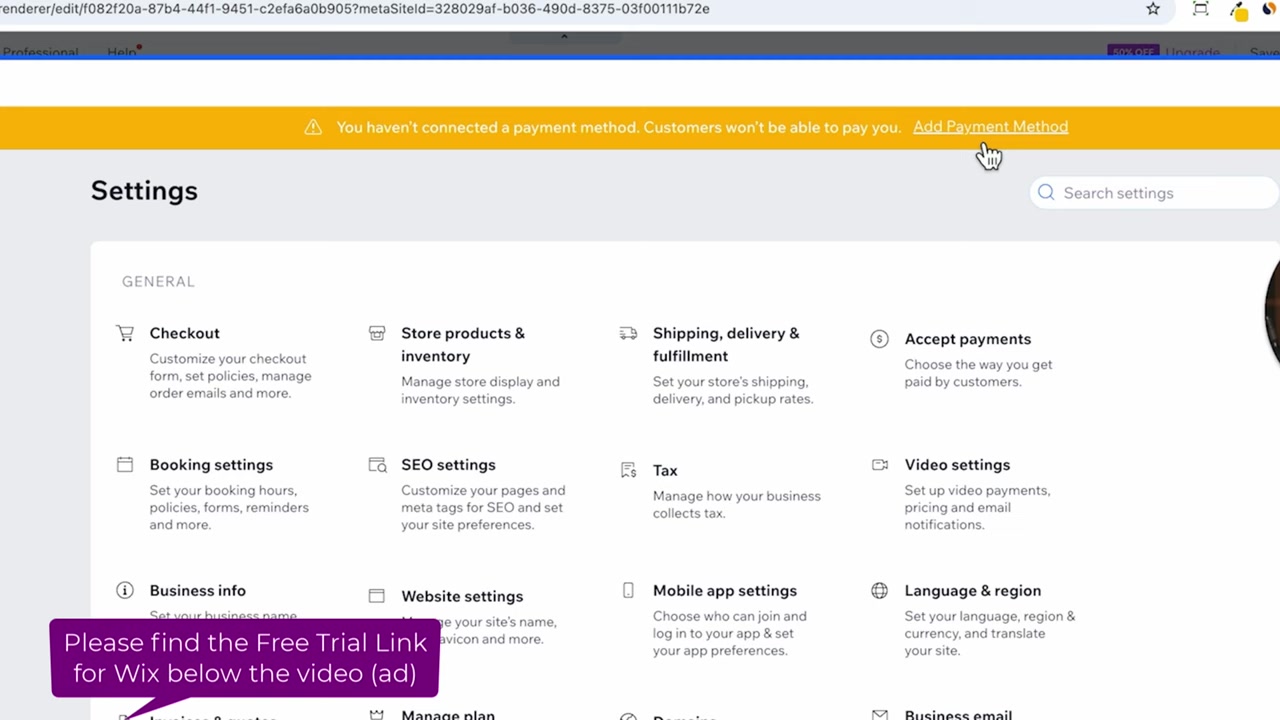
When you first set up your store, Wix will show a banner at the top of your dashboard prompting you to add a payment method. Click Add Payment Method to get started.
Select your country (for example, United States) and Wix will display the payment methods available in your region. You'll immediately see options for:
- Visa, Mastercard, American Express
- Apple Pay & Google Pay
- PayPal
- Buy-now-pay-later options like Klarna and Afterpay
Click through the credit card setup, confirm you're not selling prohibited products, and accept the terms. Wix Payments will be connected almost instantly.
3. Complete Your Wix Payments Profile
After connecting, you'll need to complete a verification form before Wix can pay out your earnings. You'll be asked for:
- Whether you're an individual or a business
- Your full name and date of birth
- Your address and business description
- Your bank account details for payouts
The good news: Wix lets you skip this and complete it later. But the earlier you fill it out, the sooner you'll receive your first payout when sales start coming in.
4. Add PayPal to Your Wix Store
PayPal is one of the most trusted payment methods worldwide, so adding it can meaningfully boost your conversions. To connect it, find the PayPal option in your payment settings and enter your PayPal email address.
It's strongly recommended to use a PayPal Business account rather than a personal one. Once connected, customers will see both a standard PayPal option and a Pay Later option at checkout.
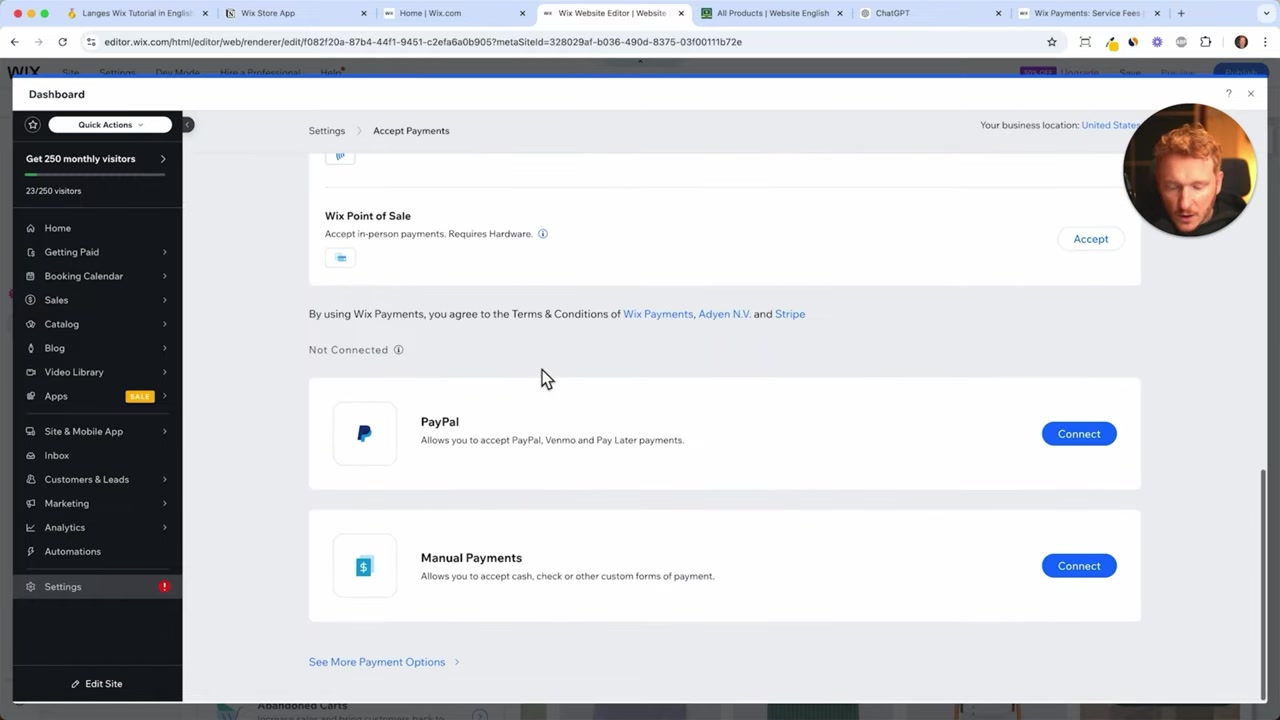
Just like Wix Payments, PayPal will require you to verify your identity by submitting your address and ID — but you can set all of this up from within the Wix dashboard.
5. Set Up Manual Payment Methods
Not every customer wants to pay by card or PayPal. Wix also supports manual payment methods such as:
- Cash on delivery — great for local or in-person sales
- Bank transfer / wire transfer — customers send money directly to your bank account
These options are easy to enable from the same payments section in your Wix dashboard and give your store maximum flexibility.
6. Bonus: Accept Cryptocurrency Payments
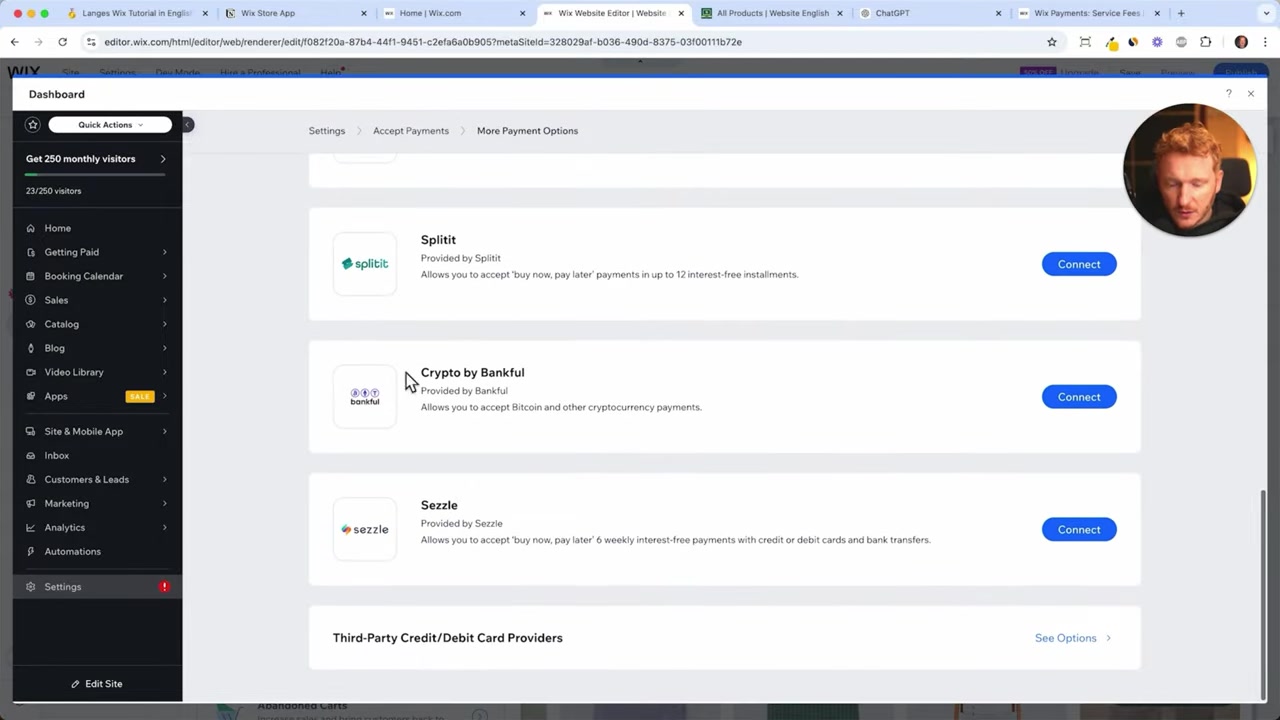
Wix even supports crypto payments through Bankful, allowing you to accept Bitcoin and Ethereum in your store. This is an optional add-on, but it's a nice differentiator if your audience is crypto-savvy.
7. Understanding Wix Payment Fees
Every payment processor charges transaction fees, and it's important to factor these into your pricing. Here's what to expect in the United States:
| Payment Method | Fee |
|---|---|
| Credit/Debit Cards | 2.9% + $0.30 per transaction |
| Apple Pay / Google Pay | 2.9% + $0.30 per transaction |
| PayPal | 2.9% + $0.30 per transaction |
That means if you sell a 100 product, roughly **3 goes to the payment processor**. If you're selling low-ticket items (like a 5 product), the fixed 0.30 fee becomes a significant percentage of the sale.
Fees in Europe are slightly lower — roughly 1% less — so it's worth checking the Wix payment service fees page for the exact rates in your region.
8. What the Checkout Looks Like for Your Customers
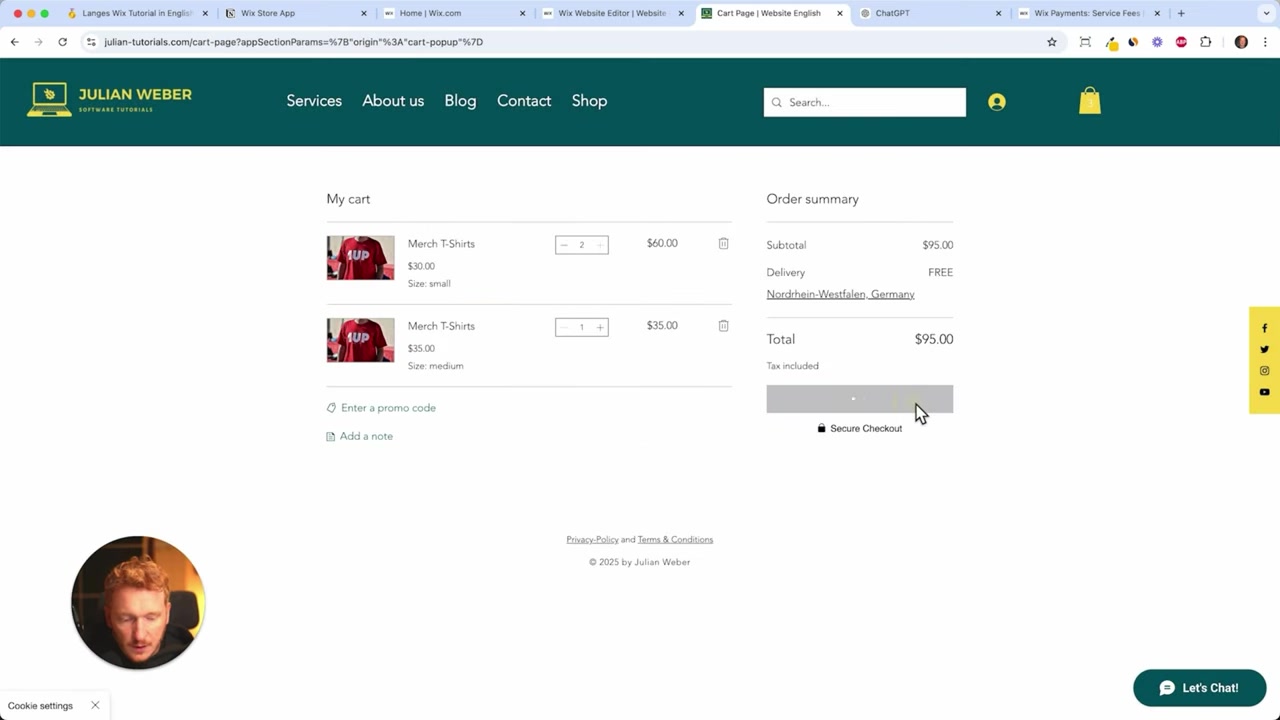
Once everything is connected, your customers get a clean, professional checkout experience. They can use Express Checkout with Google Pay in one tap, or fill in their delivery details manually.
Once they enter their shipping info, the payment section opens automatically showing Visa, Mastercard, and PayPal options side by side. It looks and feels like a proper e-commerce checkout — because it is.
9. Is Wix Good for E-Commerce Beginners?
Absolutely. Wix is one of the most beginner-friendly ways to launch an online store. The payment setup takes just a few minutes, requires no coding, and supports all the major gateways your customers expect.
If you want to go deeper into setting up your store, check out the guides on adding products to your Wix store and setting up product categories — both are great next steps after getting payments live.
Frequently Asked Questions
How do I add a payment method to my Wix store?
Does Wix charge transaction fees?
Can I use PayPal on my Wix store?
Do I need to verify my identity to use Wix Payments?
Can I accept cash or bank transfers on my Wix store?
Does Wix support cryptocurrency payments?
Can I use Stripe with Wix?
What payment methods do customers see at checkout?
10. Disclosure
Some links in this post may be affiliate links. If you make a purchase through them, I may earn a small commission at no extra cost to you. All content is provided for informational purposes only and comes without any guarantee. Nothing in this post constitutes financial, legal, tax, or investment advice. Always consult the official Wix documentation and a qualified professional if needed.
Related Articles

8 Apr 2025
How to Add a New Product to Your Wix Store – Step-by-Step Guide
Ready to start selling on Wix? Adding a new product to your Wix store is straightforward once you know where everything lives. In this guide, we walk through every step — from uploading images and wri...

9 Apr 2025
Wix Product Categories Explained – How to Organize Your Store
If your Wix store is starting to fill up with products, organizing them into categories is one of the smartest things you can do. Good category structure makes navigation easier, helps customers find ...

7 Apr 2025
Wix Online Store: How to Set Up Shipping Regions
Getting shipping right in your Wix store is one of those things that makes a huge difference at checkout. In this tutorial, you'll learn how to define shipping regions, set flat rates, offer free ship...