Wix Online Store Tutorial 2026 – Create a Professional eCommerce Website
Want to launch your own online store but not sure where to start? In this step-by-step tutorial, you'll learn how to build a professional eCommerce website using Wix — no coding required. We'll cover everything from setting up your account and choosing a template, to adding products, configuring payments, and publishing your store under your own domain. Whether you want to sell T-shirts, handmade pottery, or anything in between, Wix has you covered.
1. Sign Up and Set Up Your Wix Store
Head to Wix using the link and create a free account. You can sign up with your email address or connect via Google or Facebook — it only takes a minute.
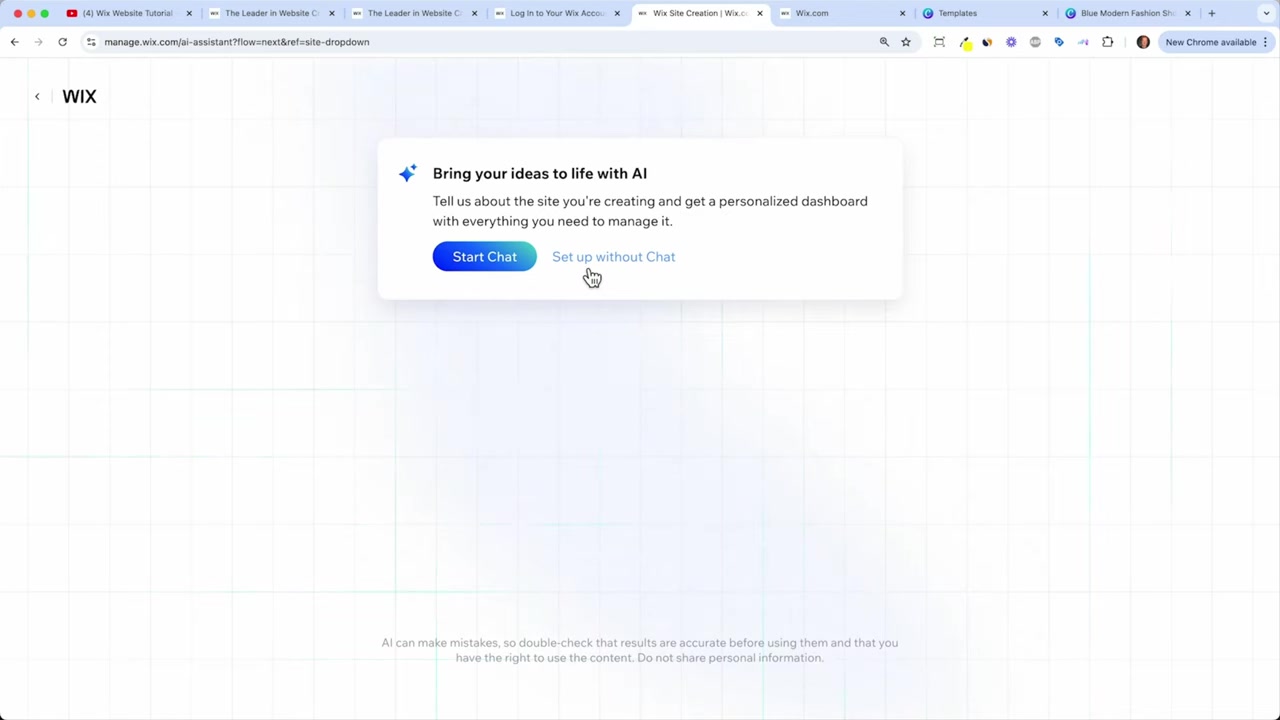
Once you're logged in, Wix will greet you with its AI setup assistant. You can chat with the AI to generate your store automatically, or click "Set up without chat" to go the manual route — which is what this tutorial covers.
Choose "Online Store" as your website type, give your store a name (e.g., Julian's T-Shirt Shop), and briefly describe what you sell. Then select your business goals — selling products, booking services, hosting events — and click Continue.
2. Choose a Template for Your Wix eCommerce Website
After setup, Wix will offer you three options: let the AI generate a design, use an AI-generated store, or browse custom templates. Templates are a proven choice — they're optimized for eCommerce and completely free with any Wix plan.
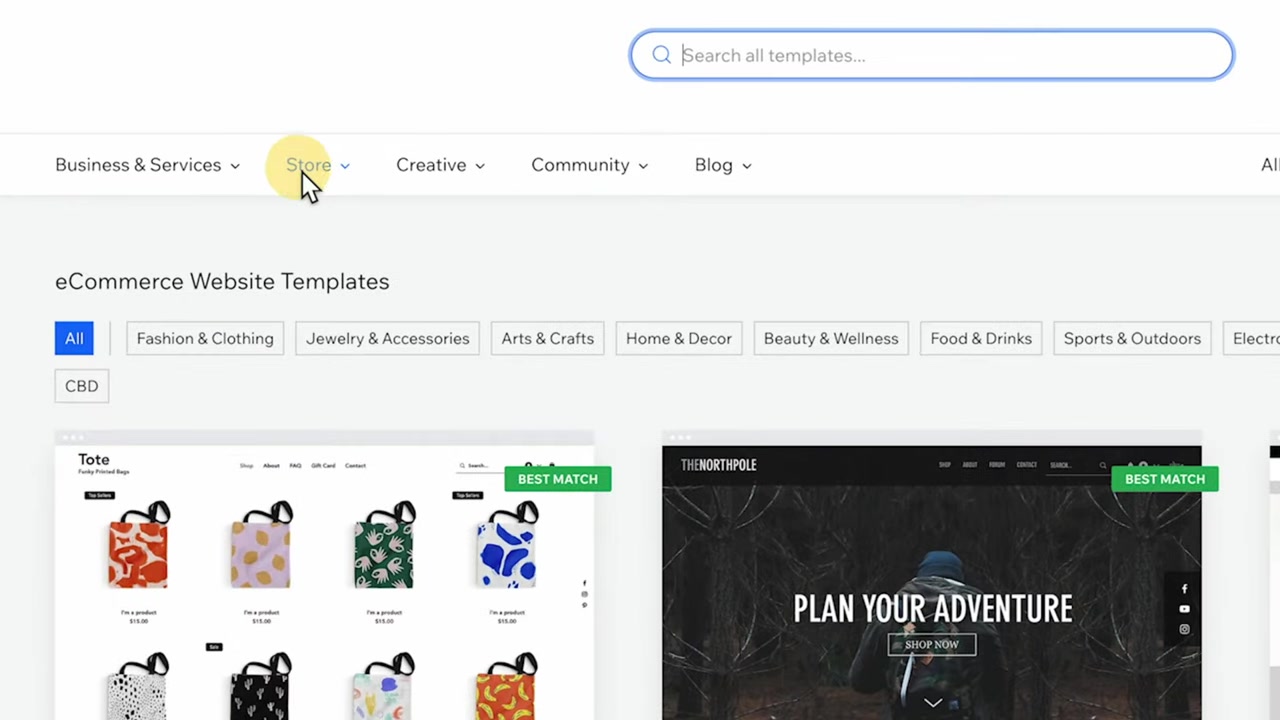
Navigate to the Stores category and browse templates sorted by niche: Fashion & Clothing, Jewelry, Home & Decor, Food & Drinks, Sports & Outdoor, and more. Click any template to preview it — you can even browse products and category pages before committing.
Once you find one you like, click "Edit this site" to open it in the Wix editor. The AI will prompt you to describe your business so it can pre-populate text — the more specific you are, the better the results.
3. Overview of the Wix Editor
The Wix editor is a drag-and-drop builder. On the left panel you'll find tools to add individual elements like headlines, buttons, images, and videos — or insert entire pre-designed sections into your page.
The top navigation lets you switch between pages, preview your site, and access the dashboard. It's an intuitive workspace that feels similar to working in PowerPoint or Google Slides.
4. Change the Global Design Settings
Before editing individual elements, visit the Global Design Settings first. This is where you set the color palette and fonts for your entire website in one go — saving you from manually updating every button, heading, and section individually.
If you already have brand colors, enter your hex or RGB code to get a pixel-perfect match. You can also change the font family here. These settings cascade across every page of your site automatically.
Tip: If you're using a template that doesn't already include a store, scroll down in the design panel to find the Wix App Market. Search for "Online Store", find the Wix Store app, and click Add — it installs eCommerce functionality onto any template instantly.
5. Edit Text, Headlines, and Your Store Logo
Click any text on the page to edit it directly. You can change the font, size, color, and alignment — just like in a word processor. For your main headline, simply click and type your store name.
Don't have a logo yet? Canva is a great free option. Search for T-shirt shop logo templates, customize the colors and text, download it as a PNG with a transparent background, and upload it directly to Wix using the Add Image option.
Once uploaded, you can drag your logo anywhere on the page — replace the default text in the header or place it in the hero section. Wix's drag-and-drop makes repositioning elements effortless.
6. Upload Images to Your Wix Store
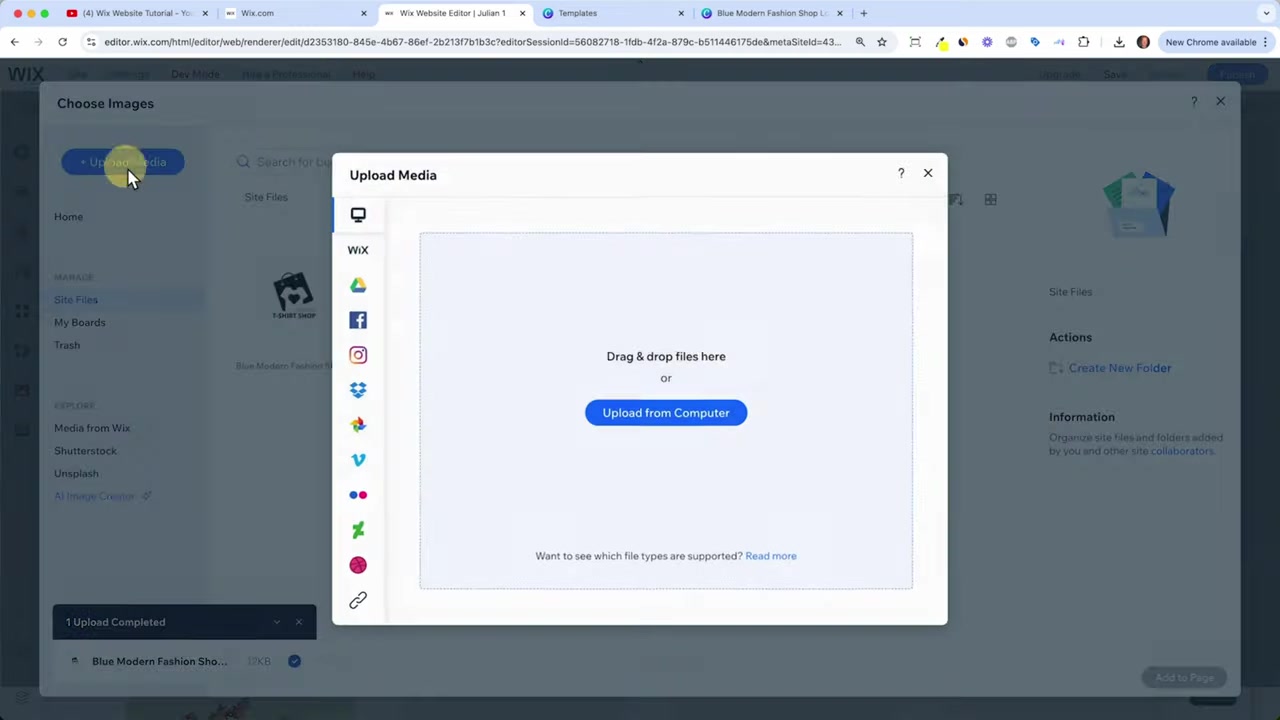
Click on any image in your template, then select "Manage Media" to swap it with your own photos. You can upload images directly from your computer, or browse Wix's built-in stock photo library.
The built-in media library is connected to Shutterstock and Unsplash (free), so you'll find professional-quality images even if you don't have your own yet. There's also an AI image generator if you want something completely custom.
7. Edit and Add Sections to Your Homepage
Your homepage is made up of independent sections stacked on top of each other. You can reorder them by dragging, delete ones you don't need, or add new sections by clicking the "Add Section" button between any two existing sections.
Choose from ready-made section types: team introductions, contact forms, newsletter sign-ups, testimonials, and more. Just drop them in and customize the content.
You can also add individual elements (text, buttons, images, videos) to any section via the left panel. For a blank canvas, insert a Blank Section first, then drag your elements into it.
8. Add New Pages to Your Wix Store
Every Wix eCommerce template comes with multiple pages pre-built: Homepage, About, FAQ, and a Member Area for customers who have made purchases. You don't need to design these from scratch.
To add a new page, click Pages & Menu in the left panel, then "Add Menu Item" → "Add New Page". For example, adding a Contact page is a great way to let customers find your store address and reach out with questions.
Wix offers ready-made templates for each page type. Pick one you like, click Add Page, then reorder it in the menu to where it makes sense — for example, placing the Contact page at the very end.
9. Add Your First Product to the Wix Online Store
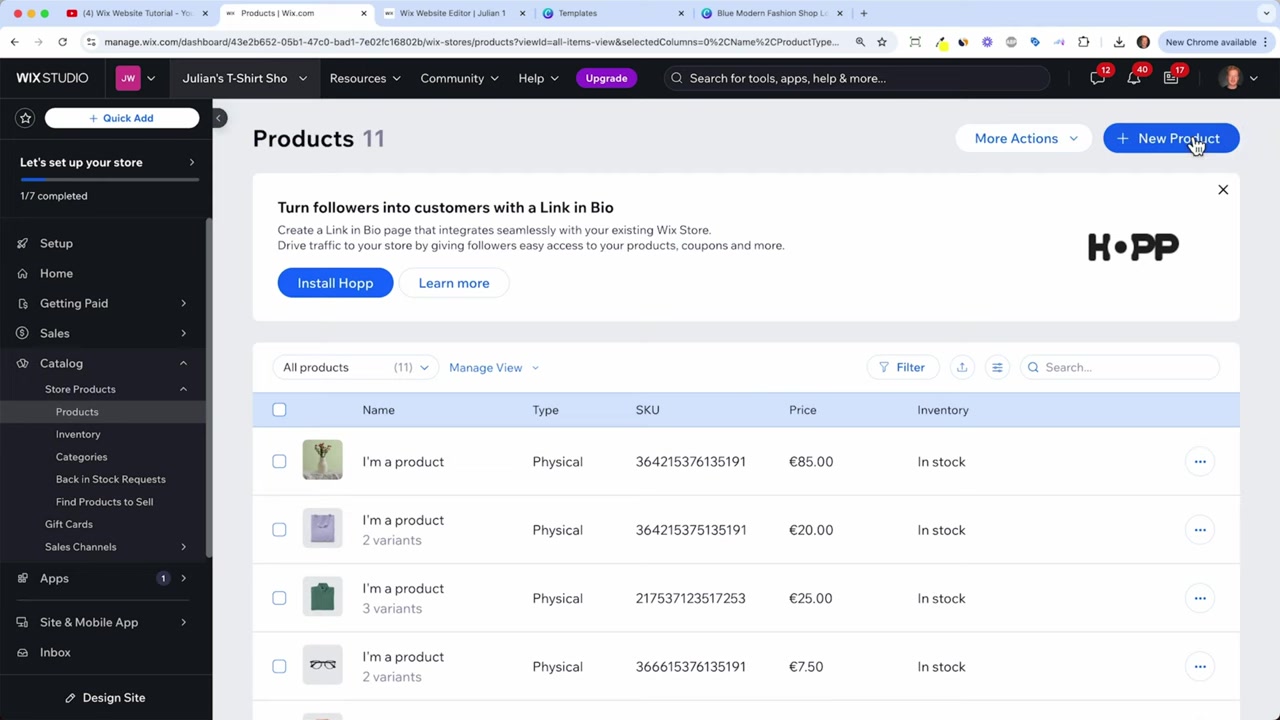
Now for the exciting part — adding your actual products. From the editor, click "Exit Editor" to return to the Wix dashboard, then select "Add Product" from the to-do list.
You can add physical products (like T-shirts) or digital products (like downloadable files or courses). Choose the type that fits your business.
Here's what to fill in for each product:
- Product name — e.g., My First T-Shirt
- Images/videos — upload multiple photos or use Wix stock photos
- Ribbon — tag it as New Arrival or On Sale
- Description — write your own or use the AI generator
- Price — set the base price and optionally add a sale price
- Custom text fields — useful if customers can personalize the product (e.g., add a company name)
- Variants — manage sizes (S, M, L, XL) or colors, with individual pricing if needed
- Inventory tracking — monitor stock levels per size or variant
- Shipping weight — Wix uses this to calculate shipping costs automatically
- Pre-orders & subscriptions — great for product drops or recurring items like coffee
Assign each product to a category (e.g., Men's Shirts) before saving. This powers your category pages and helps customers browse more easily.
10. Set Up Categories in Your Store
Product categories are essential for organizing your store. In the dashboard's catalog section, you can create categories like Men's Shirts and Women's Shirts and assign products to them.
Categories power your dedicated shop pages — when a visitor clicks "Women" in the navigation, they land on a filtered page showing only women's products. This dramatically improves the shopping experience.
11. Connect Payment Methods: Credit Card and PayPal
Back in the dashboard, click "Set Up Payments". Select your country first — available payment methods vary by location. In most regions, Wix Payments lets you accept Visa, Mastercard, American Express, PayPal, and Google Pay all in one place.
To activate Wix Payments, click Connect, confirm you're not selling restricted items, and complete the verification form. You'll need to provide your name, address, a government-issued ID, and your bank account details. The whole process takes about 5–10 minutes.
To add PayPal as a separate option, click Connect next to PayPal, enter your PayPal business email, and follow the prompts to link your account. Offering both card payments and PayPal gives your customers maximum flexibility at checkout.
12. Set Up Your Delivery Options
Click "Set Up Shipping" in the dashboard to configure how you'll deliver orders. You can define multiple shipping regions — for example, domestic delivery and international shipping to specific countries.
For each region, choose a shipping method:
- Free shipping — no charge regardless of order size
- Flat rate — a fixed fee per order (e.g., $5 standard shipping)
- Rate by weight — calculated based on product weight
- Rate by price or product — flexible rules for different scenarios
Give each shipping option a clear name (e.g., Standard Shipping – 2-3 Business Days) and set the rate. Customers will see these options at checkout and can choose accordingly.
13. Create a Category Page
In the Wix editor, go to Pages & Menu and click "Add Shop Page". Name it something like Men or Women, then use the category filter to show only the relevant products on that page.
Add a headline to the page (e.g., Men's T-Shirts) so visitors immediately know where they are. Then link it from your main navigation menu: click the three dots next to the menu item, select Change Link, and point it to your new category page.
Use Preview to verify everything works. Clicking "Men" in the nav should take visitors directly to the filtered men's category page, where they can browse products, select a size, and add items to their cart.
14. Upgrade to a Paid Plan and Connect Your Own Domain
To accept real payments, you need to upgrade from the free plan. Wix recommends the Core plan as the starting point for eCommerce — it unlocks payment processing, removes Wix branding, and gives you a custom domain.
Wix offers a 14-day money-back guarantee, so there's minimal risk when upgrading. You also get 24/7 customer support included. If your store grows, you can always upgrade to a higher plan later.
During the upgrade flow, you'll be prompted to connect a domain. Search for a .com or .shop domain that fits your brand. Once purchased, Wix handles the connection automatically — it typically goes live within 24 hours.
Want to understand all available Wix plans before committing? Check out the Wix Promo Code guide for a detailed breakdown of plans and how to get the best deal.
15. Publish Your New Wix Store
Before connecting your custom domain, Wix gives you a free subdomain (e.g., yourname.wixsite.com/yourstore). You can share this with co-founders or colleagues to collect feedback before the official launch.
Once everything looks good — products are added, payments are connected, shipping is configured — hit Publish. Your store goes live and customers can start browsing and buying.
Your post-launch checklist:
- ✅ Add all products with descriptions, images, and prices
- ✅ Set up Wix Payments and PayPal
- ✅ Configure shipping regions and rates
- ✅ Connect your custom domain
- ✅ Publish your store
16. What Is Wix eCommerce?
Wix eCommerce is the online store functionality built into the Wix website builder. It lets anyone — regardless of technical skill — create, manage, and grow a fully functional online shop.
Key features include a drag-and-drop editor, built-in payment processing, shipping management, inventory tracking, product variants, discount codes, and marketing integrations (Facebook Ads, Google Ads, email marketing).
Wix powers millions of online stores worldwide and is a particularly strong choice for small businesses, creators, and entrepreneurs launching their first eCommerce venture.
17. How Much Does Wix eCommerce Cost?
Wix has a free plan that lets you build and preview your store, but to accept payments you need a paid plan. The Core plan is the entry-level eCommerce option and includes payment processing and basic store features.
Higher-tier plans (Business, Business Elite) add features like automated sales tax, advanced shipping, subscriptions, and priority support. You can always start with Core and upgrade as your store grows.
For a full breakdown of what's included at each price point, see the Wix Promo Code guide.
18. Is Wix Good for Beginners Starting an Online Store?
Yes — Wix is one of the most beginner-friendly eCommerce platforms available. The drag-and-drop editor requires zero coding knowledge, and the pre-built templates mean you don't need to design anything from scratch.
The built-in AI assistant can generate store content, product descriptions, and even design suggestions based on your business. If you ever get stuck, Wix has extensive help documentation and 24/7 live support.
19. Wix eCommerce Pros and Cons
Pros:
- ✅ No coding required — fully visual editor
- ✅ Beautiful, mobile-optimized templates
- ✅ Built-in payment processing (Wix Payments + PayPal)
- ✅ AI content and design tools
- ✅ Inventory, shipping, and order management in one dashboard
- ✅ Sell physical products, digital goods, and subscriptions
- ✅ 14-day money-back guarantee on paid plans
Cons:
- ❌ Free plan doesn't support real payments
- ❌ Switching templates after setup requires rebuilding content
- ❌ Advanced automation features are limited on lower-tier plans
20. Wix vs Shopify for Online Stores
Both Wix and Shopify are solid eCommerce platforms, but they serve slightly different audiences.
Wix is better if you want an all-in-one website builder with a store attached. It's more flexible for building general websites, portfolios, and service pages alongside a shop. The editor is more visual and creative.
Shopify is purpose-built for eCommerce and excels at high-volume selling, complex inventories, and third-party app integrations. It's generally preferred by stores with hundreds of SKUs or significant transaction volume.
For most small businesses and first-time sellers, Wix is the easier and more cost-effective starting point.
Frequently Asked Questions
Can I sell products for free on Wix?
Does Wix charge transaction fees?
Can I sell digital products on Wix?
How do I add product variants like size and color in Wix?
Can I use my own domain with Wix?
Can I import products from another platform to Wix?
Does Wix support dropshipping?
What shipping carriers does Wix support?
21. Disclosure
Some links in this post are affiliate links. If you make a purchase, I may earn a commission at no extra cost to you. All content is provided for informational purposes only, without any guarantee of accuracy or completeness, and does not constitute financial, legal, tax, or investment advice.
Related Articles

15 Dec 2025
Wix Promo Code 2026 – How to Save on Wix Premium Plans
If you've been thinking about upgrading to a Wix premium plan, timing your sign-up the right way can make a real difference. In this guide, I'll walk you through the exact method to access the best av...

28 Jul 2025
SiteGround WordPress Tutorial – How to Setup Your WordPress Website in 2026
Setting up a WordPress website doesn't have to be complicated. In this tutorial, you'll learn exactly how to get your site live on SiteGround — one of the most popular and reliable WordPress hosting p...

20 Aug 2025
Flippa Review – Is It Legit or a Scam? Full Breakdown
Thinking about buying or selling an online business? Flippa is one of the most well-known marketplaces for digital assets — but is it actually legit, or should you be worried about scams? In this hone...