How to Make a Logo for Your Wix Website – Step-by-Step Guide
A great logo is one of the fastest ways to make your Wix website look polished and professional. In this tutorial, you'll learn how to design your own logo from scratch using Canva — no design experience needed — and then add it directly to your Wix site. You'll also learn how to create a favicon, handle transparent backgrounds, and when it might be worth hiring a designer instead.
Ready to build your brand? Let's dive in. 👇
1. What You'll Need Before Starting
To follow this tutorial, you need two things:
- A Canva account — try Canva here (Pro trial available)
- A Wix website — start your Wix site here
You technically can use Canva's free plan, but the Pro plan unlocks transparent background downloads — which is essential for a logo that looks clean on any background color or header.
With a transparent PNG, the website background shows through your logo instead of a white or colored box. Trust me, it makes a huge difference.
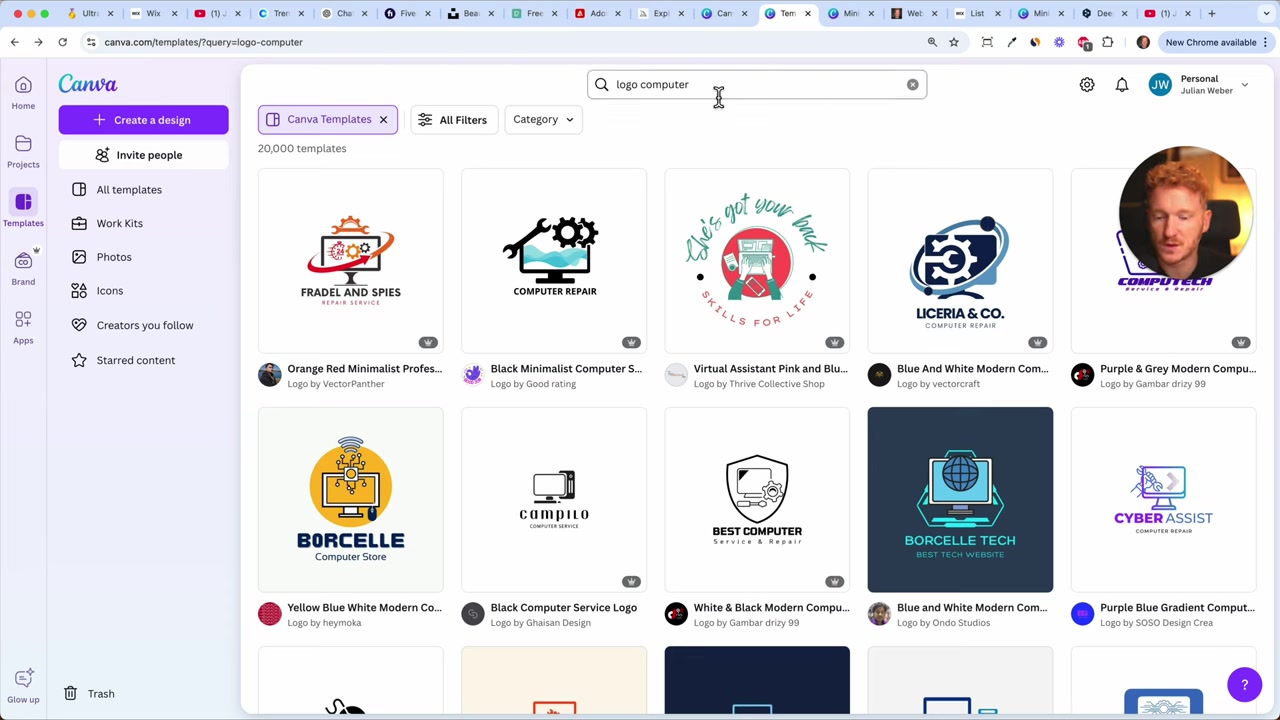
2. Find a Logo Template in Canva
Once you're inside Canva, search for a logo style that matches your niche. For example:
- Type "computer logo" for a tech or software brand
- Type "yoga logo" for a wellness or fitness site
- Type your own keyword to browse hundreds of matching templates
Canva will show you a wide selection of pre-designed logos. Pick one that feels close to your vision — you don't need to love every detail, because you'll customize it in the next step.
Click "Customize this template" to open it in the Canva editor.
3. Customize Your Logo Design in Canva
The Canva editor works a lot like Wix — you can click any element and move, resize, or edit it.
Here's a quick workflow to make the template your own:
- Move and resize elements — click and drag text or icons to reposition them
- Update the text — replace the placeholder name with your own brand name
- Adjust alignment — align text left, center, or right to match your style
- Delete anything you don't need — select an element and press Backspace
The whole customization process should only take a minute or two. That's the beauty of working with a template.
4. Match Your Logo Colors to Your Wix Website
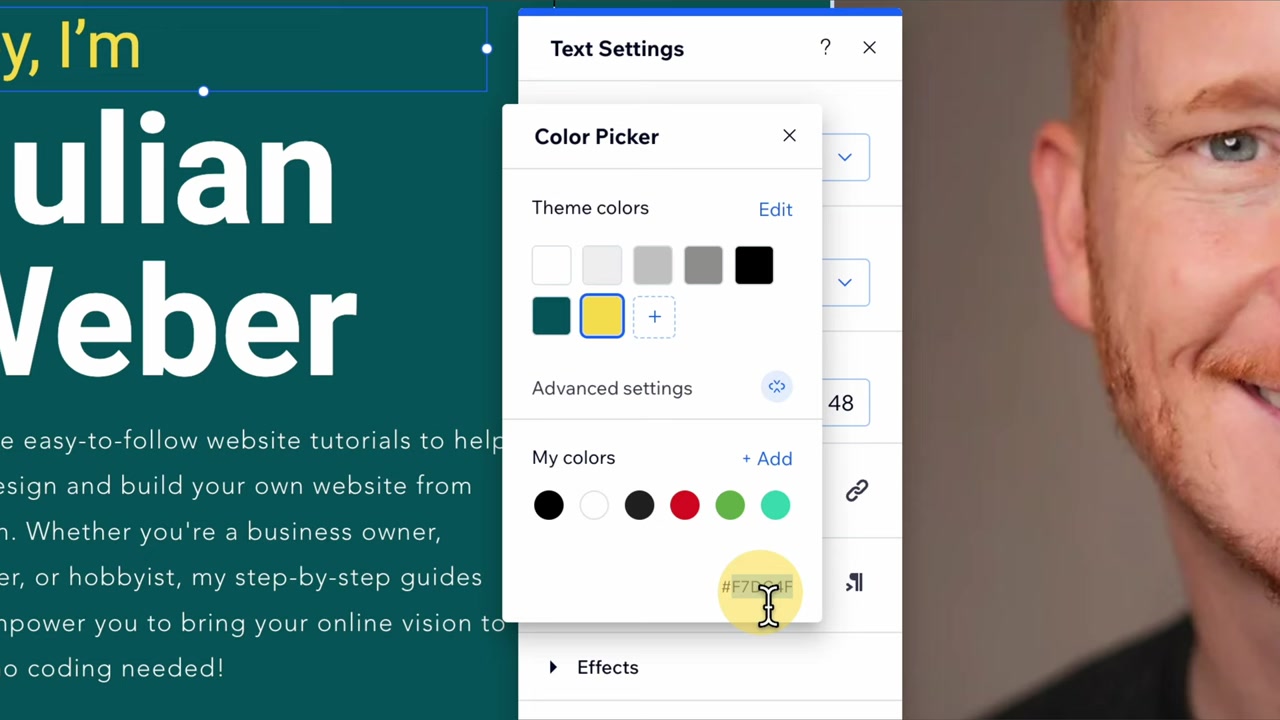
For a cohesive brand, your logo colors should match your website's color scheme. Here's how to do it:
- Open your Wix site in another tab
- Click on a text element or button with your brand color
- Copy the hex color code (e.g.,
#F5C518) - Go back to Canva, select your text or icon
- Click the color swatch, then Add a new color
- Paste the hex code
Repeat this for each icon or text element in your logo. It only takes a few clicks and instantly makes the logo feel like it belongs to your site.
5. Create a Favicon Version of Your Logo
Before you download, take 30 seconds to create a favicon version of your logo.
A favicon is the tiny icon that appears in the browser tab next to your website's title. Think of the little blue 'C' for Canva, or the icon you see on your own favorite websites.
Here's how to prepare it:
- Duplicate your logo page in Canva
- Delete the text from the duplicated page
- Make the icon larger so it fills most of the canvas
You'll now have two versions ready to download: the full logo and the favicon icon. You'll need both when setting up your Wix header and site settings.
6. Download Your Logo with a Transparent Background
This is where the Canva Pro plan really earns its place.
When downloading, select PNG format and check the "Transparent background" option. This removes any white or colored fill behind your logo, so it blends seamlessly into whatever header color your Wix site uses.
If you're on the free plan, you can still choose a white background — just make sure your Wix header is also white. It works, but it limits your design options.
Once downloaded, you're ready to add the logo to your Wix site.
7. Add Your Logo to Your Wix Website
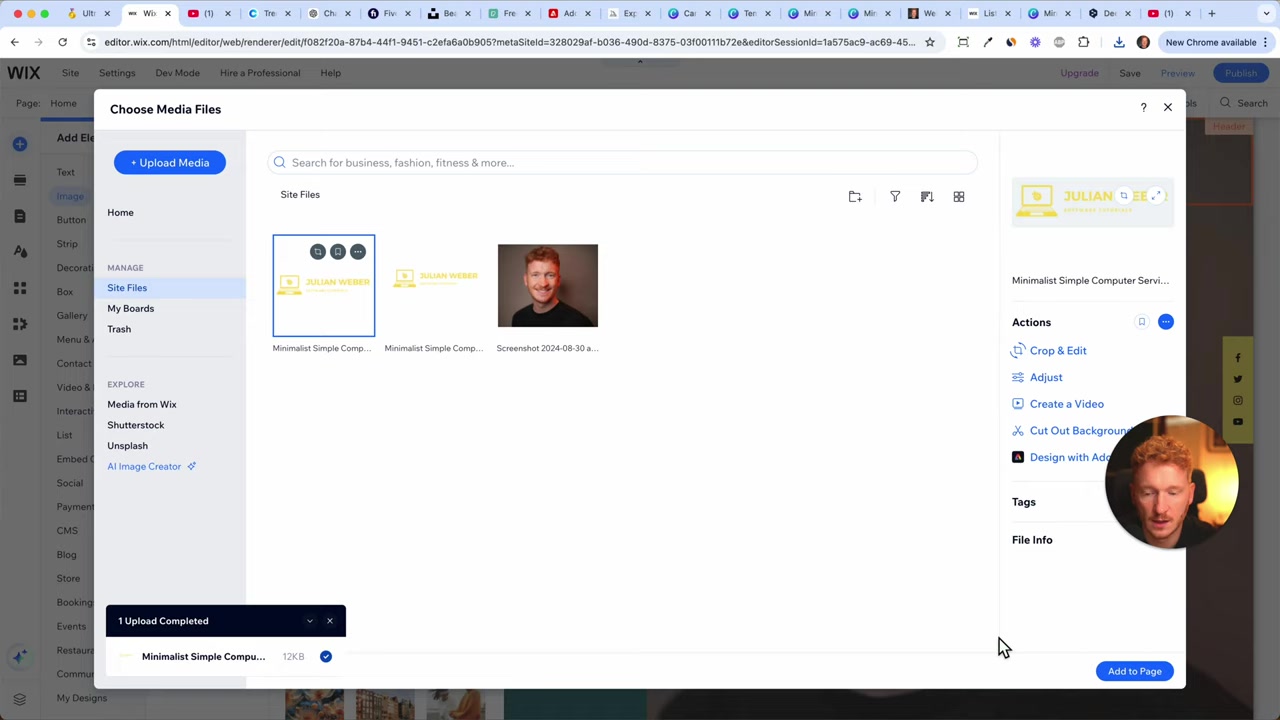
Now head back to your Wix editor. Here's how to place your new logo in the header:
- Delete the existing text in your Wix header
- Click Add Element → Image → Upload Image
- Select your downloaded logo PNG
- Once uploaded, click it and choose Crop to remove any extra whitespace
- Click Save, then add the image to the page
- Resize and reposition it in the header area
You can also move the navigation menu to create more space for your logo. Play around with the placement until it feels balanced — your logo should be immediately visible without overpowering the rest of the header.
8. When to Hire a Logo Designer Instead
Canva is fantastic for most logos, but some styles are simply beyond what a template tool can do.
If you want a highly detailed or illustrative logo — think hand-drawn animals, custom typography, or complex illustrations — it might be worth hiring a professional designer.
Fiverr is a great place to find logo designers at a range of budgets. Prices typically start around 10–15 for simpler designs and can go up to a few hundred dollars for more complex work.
That said, for most websites just getting started, a well-customized Canva logo is more than enough. You can always rebrand later once the business takes off.
9. Wix Logo Maker vs Canva – Which Is Better?
Wix does offer a built-in Logo Maker tool, but Canva tends to give you more flexibility and a wider template library.
Here's a quick comparison:
| Wix Logo Maker | Canva | |
|---|---|---|
| Template variety | Limited | Very large |
| Customization | Basic | Advanced |
| Transparent background | Yes (paid) | Yes (Pro) |
| Integration with Wix | Seamless | Manual upload |
| Price | Free / paid | Free / Pro |
For most users, Canva wins on template variety and ease of customization. But if you want a one-stop solution entirely within Wix, the built-in Logo Maker is still a solid option worth exploring.
10. Is Canva Free to Use for Logo Design?
Yes — Canva has a generous free plan that includes access to thousands of templates, including many logo templates.
The main limitation on the free plan is that you cannot download with a transparent background, which is a PNG-only Pro feature.
If you plan to use your logo on a Wix site with a colored or image-based header, the transparent background makes a noticeable difference. The Canva Pro trial lets you try all Pro features before committing to a paid plan.
Frequently Asked Questions
Do I need design skills to create a logo in Canva?
Why do I need a transparent background for my Wix logo?
Can I use Canva's free plan to make a logo for my Wix site?
What is a favicon and how do I create one?
How do I add a logo to my Wix website header?
What file format should I use when downloading my logo from Canva?
Is it worth hiring a logo designer instead of using Canva?
Can I change my logo later after publishing my Wix website?
11. Disclosure
Some links in this post are affiliate links, meaning a commission may be earned at no extra cost to you. All content is provided for informational purposes only without any guarantee of accuracy or completeness. This post does not constitute financial, legal, tax, or investment advice.
Related Articles

21 Apr 2025
Wix SEO Basics – What You Need to Do Before Publishing Your Wix Site
Want your Wix website to actually show up on Google? Before you hit publish, there are a few essential SEO settings you need to configure. In this guide, we'll walk through the Wix SEO basics — from t...

22 Apr 2025
How to Edit Your Wix Website for Mobile – Responsive Design Guide (2026)
If you've just finished building your Wix homepage, there's one more step before you hit publish: making sure it looks great on mobile. With most web traffic now coming from smartphones, a poorly opti...

15 Dec 2025
Wix Promo Code 2026 – How to Save on Wix Premium Plans
If you've been thinking about upgrading to a Wix premium plan, timing your sign-up the right way can make a real difference. In this guide, I'll walk you through the exact method to access the best av...