How to Create Invoices with Wix – Step-by-Step Tutorial
If you run a freelance business, agency, or small online store, getting paid on time is everything. The good news? Wix has a built-in invoicing and proposal system that handles the entire payment flow — from sending a proposal to collecting a signature to issuing the final invoice. No need for separate tools like DocuSign or HelloSign. In this tutorial, you'll see exactly how it works, step by step. You can try Wix for free and follow along right away.
1. What Is Wix Invoicing?
Wix Invoicing is a built-in feature inside the Wix dashboard that lets you request payments, send proposals, collect e-signatures, and issue invoices — all from one place.
It's designed for service-based businesses: freelancers, consultants, agencies, and anyone who bills clients for their work. You don't need any third-party invoicing software.
2. Find the Getting Paid Section in Your Wix Dashboard
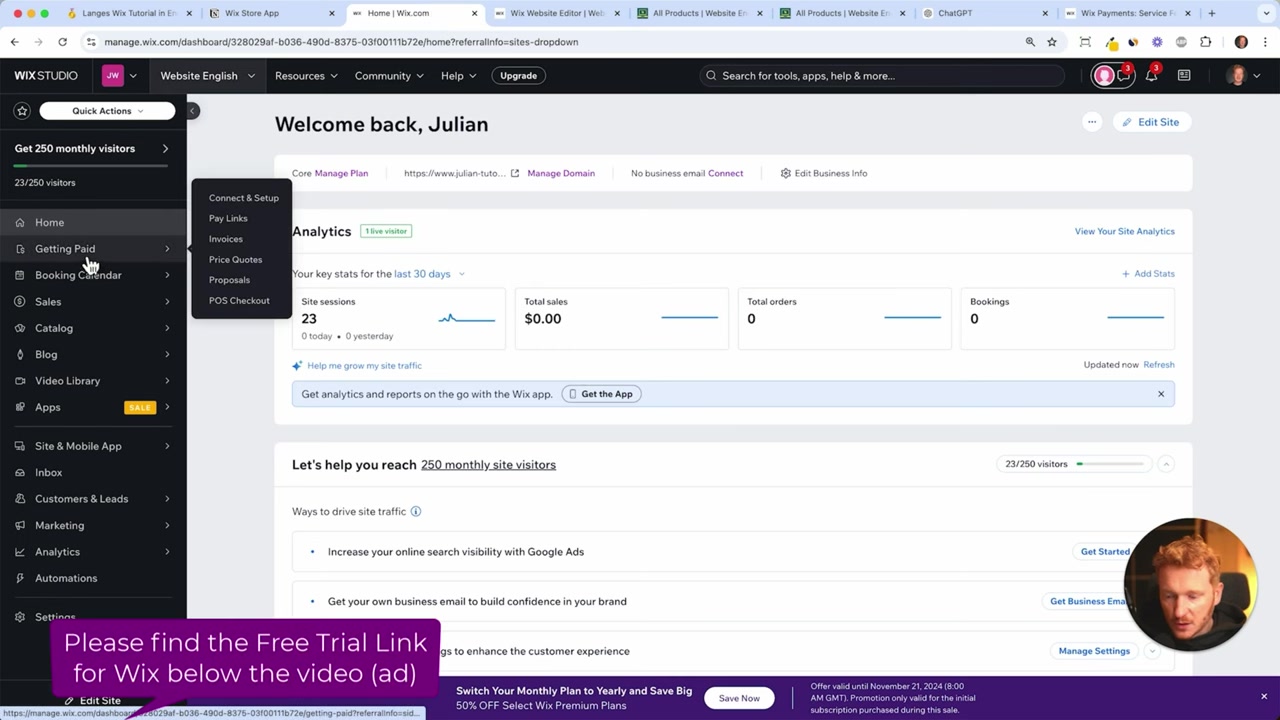
Log into your Wix dashboard and look for the Getting Paid section in the left sidebar. Click on it and you'll see several payment options:
- Request a payment — send a direct payment link for a fixed amount
- Sell in person — great for face-to-face transactions
- Payment link — share a URL that lets clients pay via Visa, Mastercard, or PayPal
- Proposals & Invoices — the feature we're focusing on today
3. Create a New Proposal in Wix
Click on Proposals & Invoices and create a new proposal. Start by giving it a name — for example, SEO Consultancy — and then select the client from your contact database.
If someone filled out a contact form on your site, they're already saved in your contacts automatically. That makes it very easy to pull up the right person without any manual data entry.
Next, set an expiry date for the proposal. The default is 30 days after sending, but you can customize this in Settings. Once the basics are in place, it's time to add your line items.
4. Add Line Items and Pricing to Your Wix Proposal
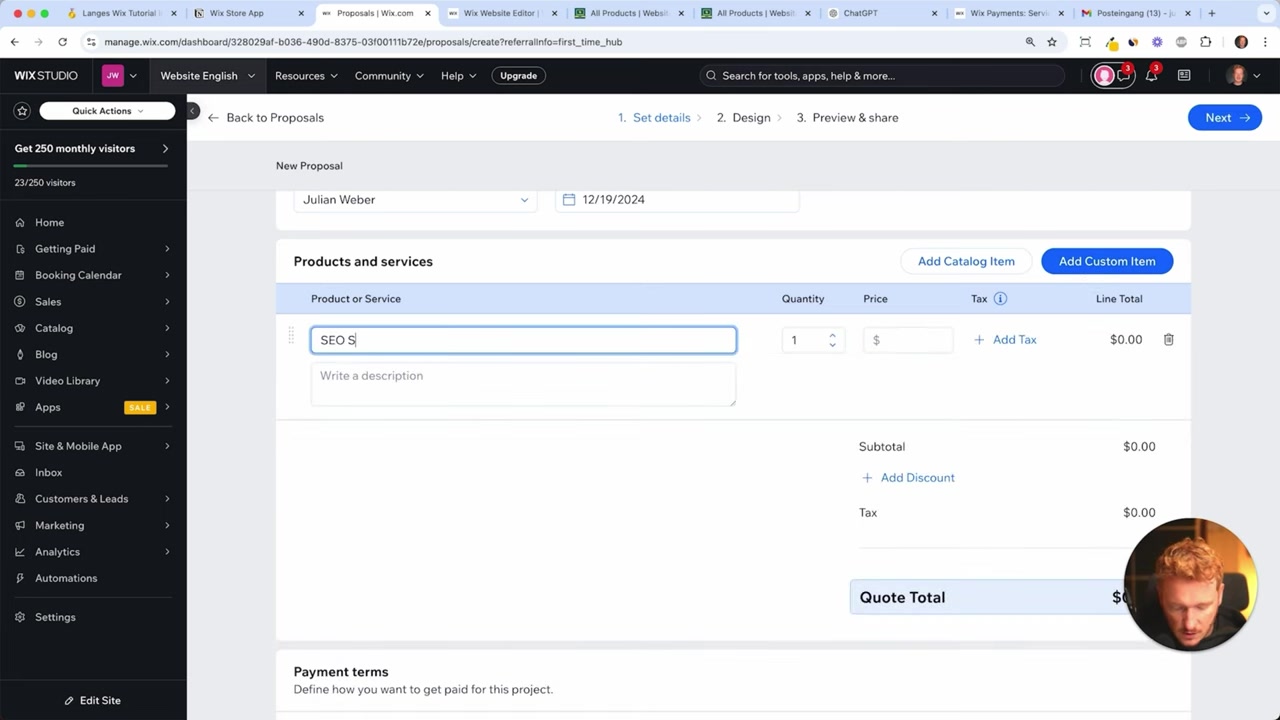
You can add items either from your Wix product catalog or create custom line items on the fly. For a service business, custom items work perfectly.
For example, add:
- SEO Services — quantity 1, price $1,200
- Website Creation — quantity 1, price $2,000
Wix will automatically calculate the total: $3,200. Each item can have its own description so your client knows exactly what they're paying for.
5. Set Up Payment Terms and Deposits
This is where Wix really shows its flexibility. You can:
- Charge the full amount as a one-time payment due in 30 days
- Require a deposit upfront (e.g. 20% before work begins)
- Split payments across multiple milestones
For higher-ticket projects, splitting the payment makes it much easier for clients to say yes. Setting a deposit also protects you before you start delivering work.
6. Enable Automated Invoices in Wix
Here's one of the best features: you can enable automated invoices directly inside the proposal setup. Once your client accepts and signs the proposal, Wix will automatically generate and send the invoice — no manual follow-up needed.
Toggle on the automated invoice option before sending, and the entire flow becomes hands-free after the client signs.
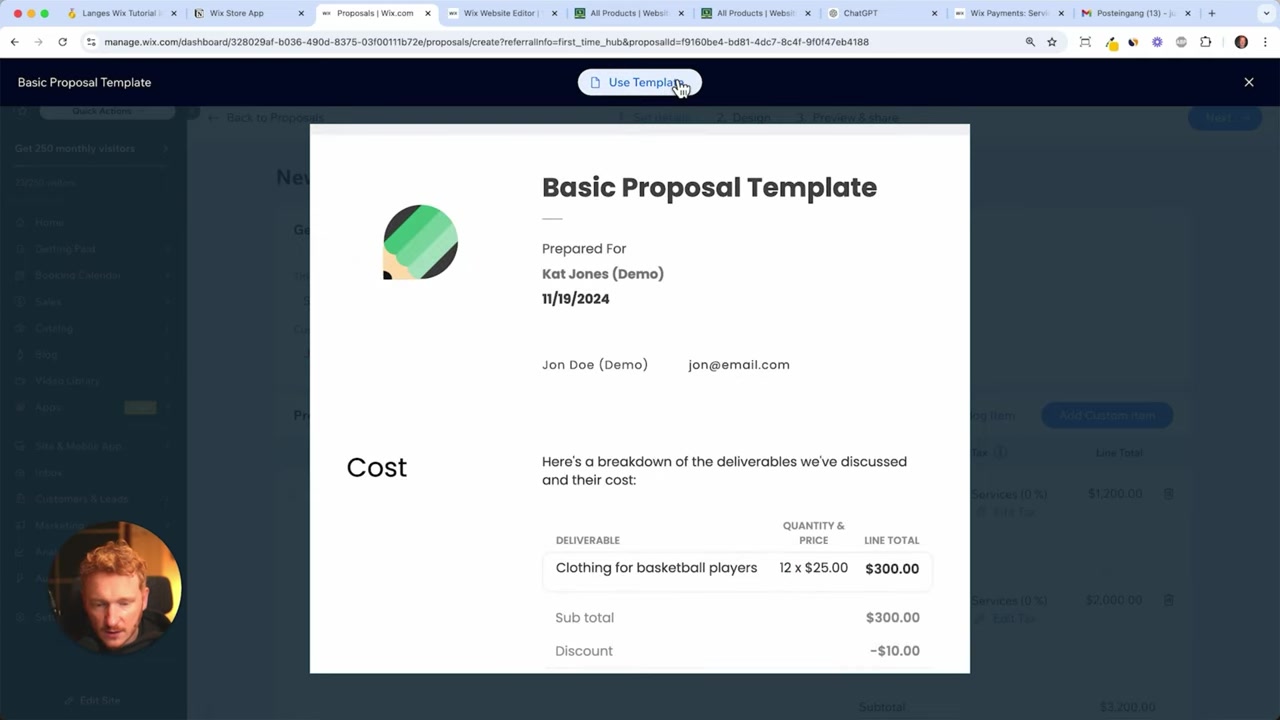
7. Choose a Proposal Template and Customize It
Wix offers several proposal templates to choose from: a basic template, a branded design template, an e-commerce proposal, and more. For most service businesses, the basic template works great.
Once you select a template, you can customize it with:
- Your business name and logo
- Section titles and descriptions
- Text blocks, dividers, galleries, and even images or videos of your product/service
- Tables for detailed breakdowns
It works like a simple drag-and-drop editor — very similar to the Wix email editor if you've used that before.
8. Send the Proposal to Your Client
When you're happy with the proposal, click Next to preview it, then choose how to send it:
- Share a link via your own email
- Send directly from Wix to the client's saved email address
Click Send Proposal and your client will receive an email with a link to view and sign the document. No login required on their end — they just click the button in the email.
9. How Clients Sign the Proposal Online
Your client opens the proposal link and can review everything before signing. They can even contact you directly from the proposal page if they have questions.
When they're ready, they click Sign, then either type their name or draw their signature with a mouse or touchscreen. Once signed, both parties have a copy — and the proposal is legally executed without needing DocuSign or HelloSign.
The client can also download a copy of the signed contract immediately after signing. Clean, professional, and completely handled inside Wix.
10. The Invoice Is Created and Sent Automatically
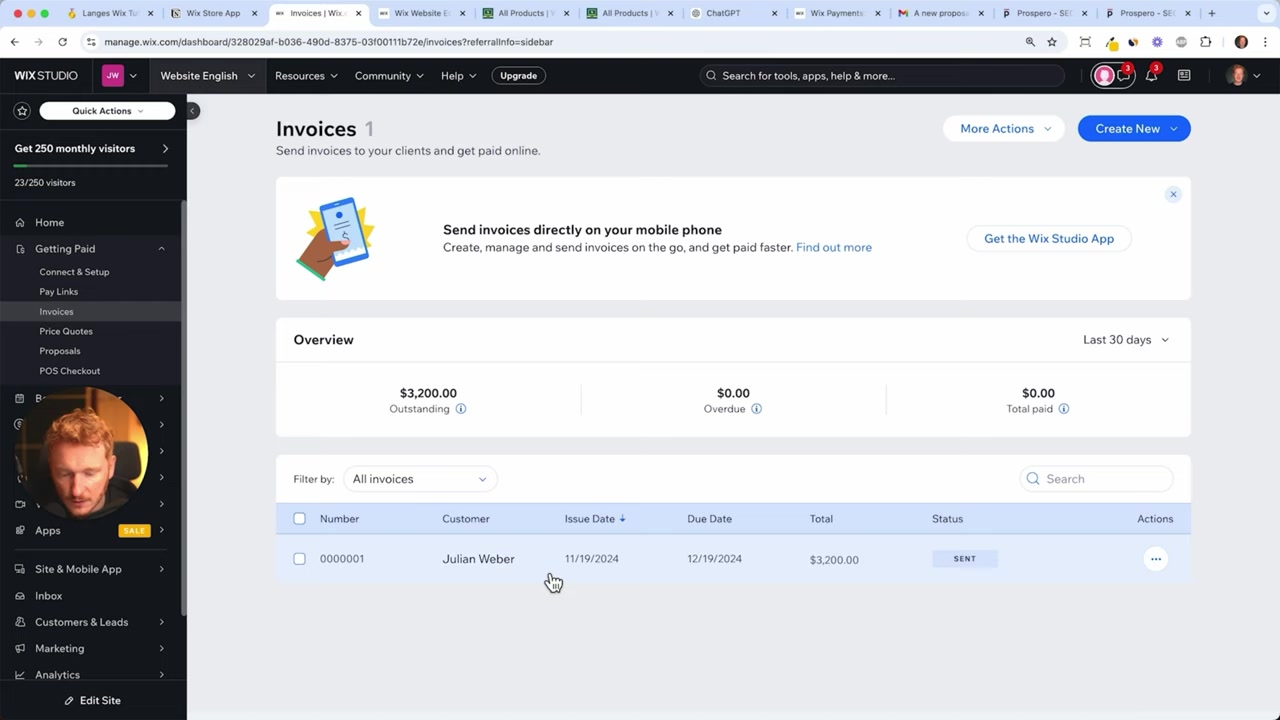
As soon as the proposal is accepted, Wix automatically creates and sends the invoice to your client. You don't have to lift a finger.
The client receives the invoice by email and can:
- View and download the invoice as a PDF
- Print it for their records
- Pay directly on your Wix site using a credit card or PayPal
11. Save on Payment Fees by Using Bank Transfer
Wix charges a payment processing fee of around 2.99% on card and PayPal transactions. On a 3,200 invoice, that's roughly 95 in fees.
For large invoices, it's worth including your bank account details directly in the invoice so clients can wire the money instead. For smaller amounts — say $200 — the convenience of card payment is usually worth the fee. Use your judgment based on the invoice size.
12. Manage Invoices from Your Phone with the Wix Studio App
You don't have to be at a desk to run your invoicing. The Wix Studio mobile app lets you manage your entire website, proposals, and invoices from your phone.
Send a proposal during a client meeting, check if an invoice has been paid while you're out, and track your revenue on the go. It's a genuinely useful feature for anyone running a service business.
13. Is Wix Good for Freelancers and Agencies?
Absolutely. The proposals and invoicing features in Wix are particularly well-suited for:
- Freelancers offering one-off or recurring services
- Social media marketing agencies (SMMAs) sending branded proposals
- Consultants who need to collect signatures before starting work
- Small businesses that want to keep everything under one roof
The ability to create professional proposals, collect e-signatures, auto-generate invoices, and take payments — all without additional software — is a genuine competitive advantage over platforms that just offer a website builder.
14. Wix Invoicing vs. Dedicated Tools Like FreshBooks or HoneyBook
Dedicated invoicing tools like FreshBooks, HoneyBook, or QuickBooks have more advanced accounting features — multi-currency support, profit/loss reports, tax categorization, and so on.
But if you're already using Wix for your website, the built-in invoicing covers 80% of what most freelancers and small agencies actually need. It saves you a monthly subscription fee and keeps everything in one dashboard.
For complex accounting needs, you'd still want a dedicated tool. But for proposal → signature → invoice → payment flows, Wix handles it elegantly.
Frequently Asked Questions
Can I send invoices with Wix without an online store?
Does Wix support e-signatures on proposals?
What payment methods can clients use to pay a Wix invoice?
Can I request a deposit before starting work?
Does Wix automatically send the invoice after a proposal is signed?
Is there a Wix app for managing invoices on mobile?
How much does Wix charge per transaction for invoice payments?
Can I customize the look of my Wix proposals?
15. Disclosure
Some links in this post may be affiliate links. If you make a purchase through them, I may earn a commission at no extra cost to you. All content is provided for informational purposes only without any guarantee of accuracy or completeness. Nothing in this post constitutes financial, legal, tax, or investment advice.
Related Articles

6 Apr 2025
How to Add Payment Methods to Your Wix Store
Getting paid is the whole point of running an online store. In this guide, you'll learn exactly how to add payment methods to your Wix store — including credit cards, PayPal, Apple Pay, Google Pay, an...

8 Apr 2025
How to Add a New Product to Your Wix Store – Step-by-Step Guide
Ready to start selling on Wix? Adding a new product to your Wix store is straightforward once you know where everything lives. In this guide, we walk through every step — from uploading images and wri...

5 Apr 2025
How to Set Up Taxes for Your Wix Store
Getting taxes right in your Wix store is not optional — it's a legal requirement for any serious business. In this guide, you'll learn how to access the Wix tax settings, choose between automatic and ...