How to Add a Favicon to Your Wix Website – Step-by-Step Guide
Want your Wix website to look more professional? One of the easiest wins is adding a favicon — that small icon you see in the browser tab. It might seem like a tiny detail, but it makes a real difference for your brand. In this guide, you'll learn exactly how to upload and set a favicon on your Wix site in just a few clicks. Try Wix for free and follow along!
1. What Is a Favicon and Why Does It Matter?
A favicon (short for "favorite icon") is the small image that appears in your browser tab, bookmarks bar, and sometimes in search results. It's one of the first visual cues visitors notice when they have multiple tabs open.
Without a favicon, browsers typically show a generic placeholder icon — which looks unfinished and unprofessional.
A well-designed favicon reinforces your brand identity and helps your site stand out. Think of how Canva uses a bright, clean icon that's instantly recognizable even at a tiny size — that's exactly what you're going for.
2. What Makes a Good Favicon for Your Wix Site?
Before you upload anything, it's worth thinking about what your favicon should look like. Here are a few tips:
- Keep it simple — complex logos become unreadable at small sizes
- Use a bright color — it needs to stand out in a crowded tab bar
- Use your initials, a logo mark, or a simplified icon — not your full logo
The best approach is to take your existing logo and either crop it down to just the icon portion, or create a dedicated square version. You can use a tool like Canva to design one quickly.
A good favicon size for Wix is 32×32 pixels or 64×64 pixels, saved as a PNG or ICO file.
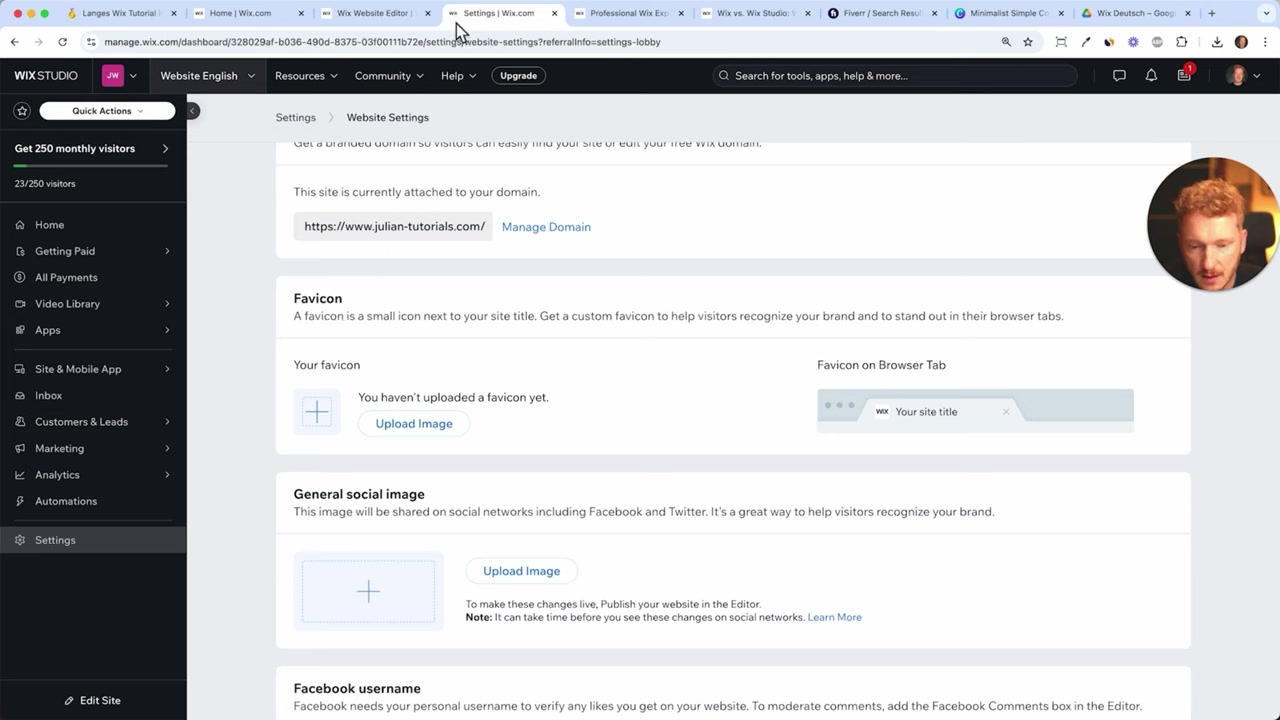
3. How to Add a Favicon to Your Wix Website
Here's the step-by-step process to upload your favicon in Wix:
- Prepare your favicon image — download or create your icon file (PNG recommended)
- Open your Wix dashboard and go to Settings
- Find the Favicon section inside Settings
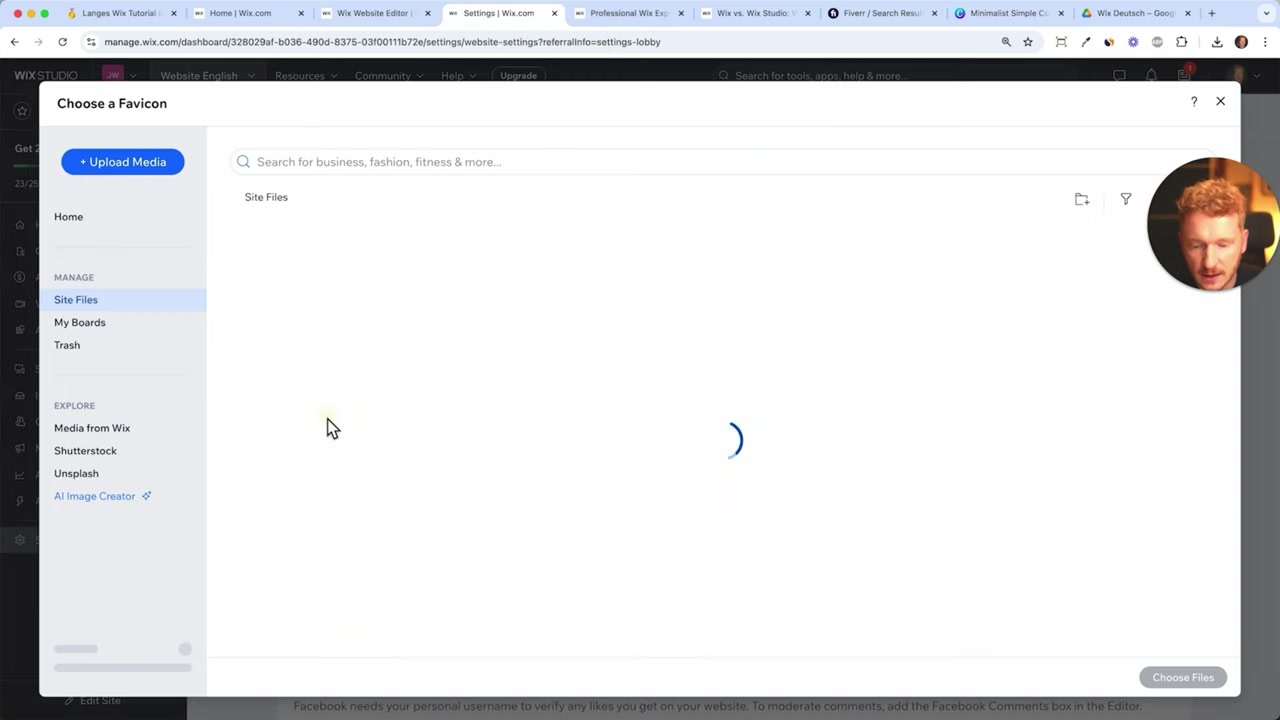
- Click to upload your image to your Wix media files
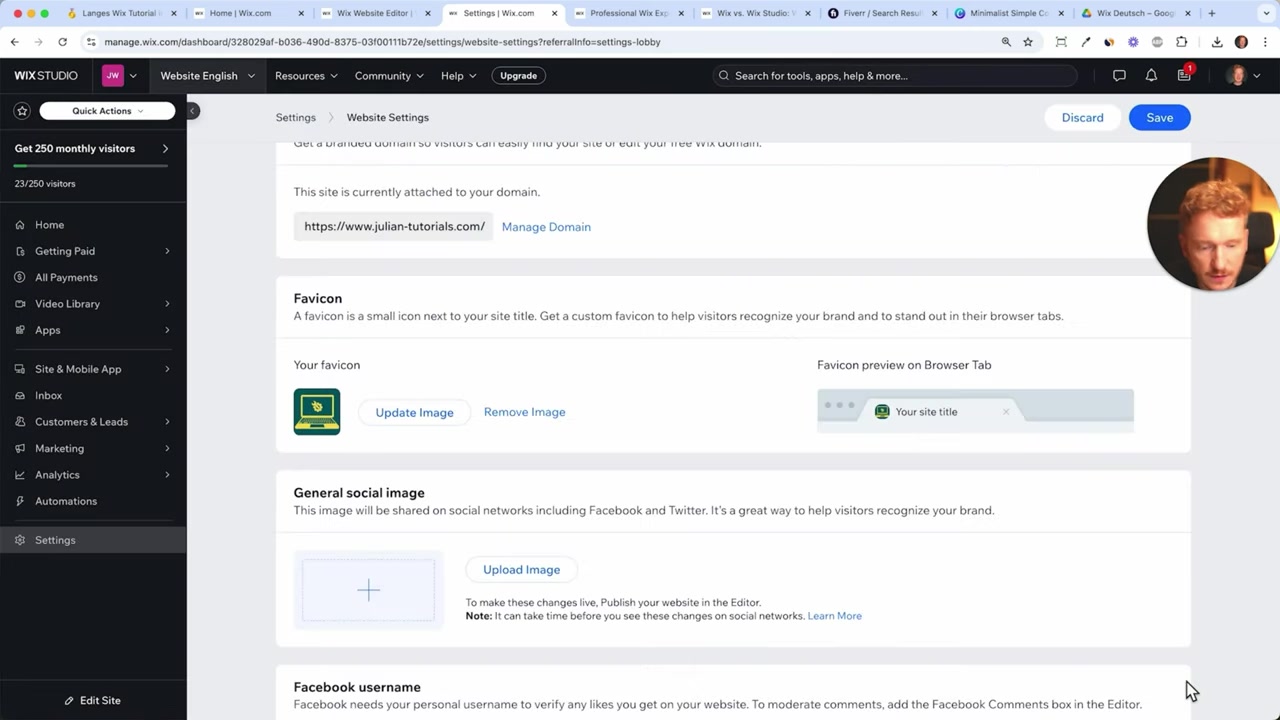
- Select the uploaded file — it will appear as a preview in the favicon slot
- Save your changes — your favicon is now live!
The upload is quick since favicons are very small files. Once you select the file from your media library, Wix displays a preview so you can confirm it looks right before saving.
4. Troubleshooting Common Wix Favicon Issues
Sometimes your favicon doesn't appear immediately after saving. Don't panic — this is almost always a browser caching issue. Try these fixes:
- Hard refresh your browser — press
Ctrl + Shift + R(Windows) orCmd + Shift + R(Mac) - Open an incognito/private browser window to see the favicon without cache
- Wait a few minutes — changes can take a moment to propagate
If the favicon still doesn't show up, double-check that you actually saved the settings in Wix after uploading. It's an easy step to miss.
5. Is Adding a Favicon Free on Wix?
Yes — adding a favicon is available on all Wix plans, including the free plan. You don't need a premium subscription just to upload a favicon.
That said, upgrading to a paid Wix plan removes the Wix branding from your site and gives you a custom domain, which is important for a truly professional look. You can get started with Wix here and choose the plan that fits your needs.
6. Wix Favicon vs Other Website Builders
Wix makes adding a favicon very straightforward compared to some other builders. The setting lives in one clear location (Settings → Favicon) and the upload process takes under a minute.
Other platforms like WordPress require you to navigate through theme settings or use plugins, which can be more confusing for beginners. On Wix, it's all handled in one simple step.
Frequently Asked Questions
What size should a favicon be for Wix?
Can I use my logo as a favicon on Wix?
Why is my Wix favicon not showing up?
Is adding a favicon to Wix free?
Where do I find the favicon setting in Wix?
What file format should I use for a Wix favicon?
How long does it take for a Wix favicon to appear?
7. Disclosure
Some links in this post may be affiliate links. If you purchase through them, a small commission may be earned at no extra cost to you. All content is provided for informational purposes only and comes without any guarantee. Nothing here constitutes financial, legal, tax, or investment advice.
Related Articles

15 Dec 2025
Wix Promo Code 2026 – How to Save on Wix Premium Plans
If you've been thinking about upgrading to a Wix premium plan, timing your sign-up the right way can make a real difference. In this guide, I'll walk you through the exact method to access the best av...

30 Jul 2025
SiteGround Website Builder Tutorial 2026 – Everything You Need to Know!
SiteGround has long been one of the most trusted names in web hosting — but did you know they now have their own website builder? In this tutorial, you'll learn exactly how to create a professional we...

28 Jul 2025
SiteGround WordPress Tutorial – How to Setup Your WordPress Website in 2026
Setting up a WordPress website doesn't have to be complicated. In this tutorial, you'll learn exactly how to get your site live on SiteGround — one of the most popular and reliable WordPress hosting p...