How to Install the Wix Chat App – Live Chat Setup Guide
Want to chat with your website visitors in real time? Adding a live chat to your Wix site is one of the easiest ways to boost customer engagement and build trust. In this guide, you'll learn exactly how to install the Wix Chat App, customize it to match your brand, and manage incoming messages — all from one place.
If you haven't built your Wix site yet, you can get started with Wix for free and follow along.
1. What Is the Wix Chat App?
The Wix Chat App is a native live chat tool built by Wix. It adds a chat widget — typically in the bottom-right corner of your website — so visitors can reach you instantly.
Unlike a contact form, chat feels more conversational and personal. Visitors are more likely to engage when they can type a quick message rather than fill out a formal form.
2. Install Wix Chat from the App Market
Getting the app onto your site takes just a few clicks:
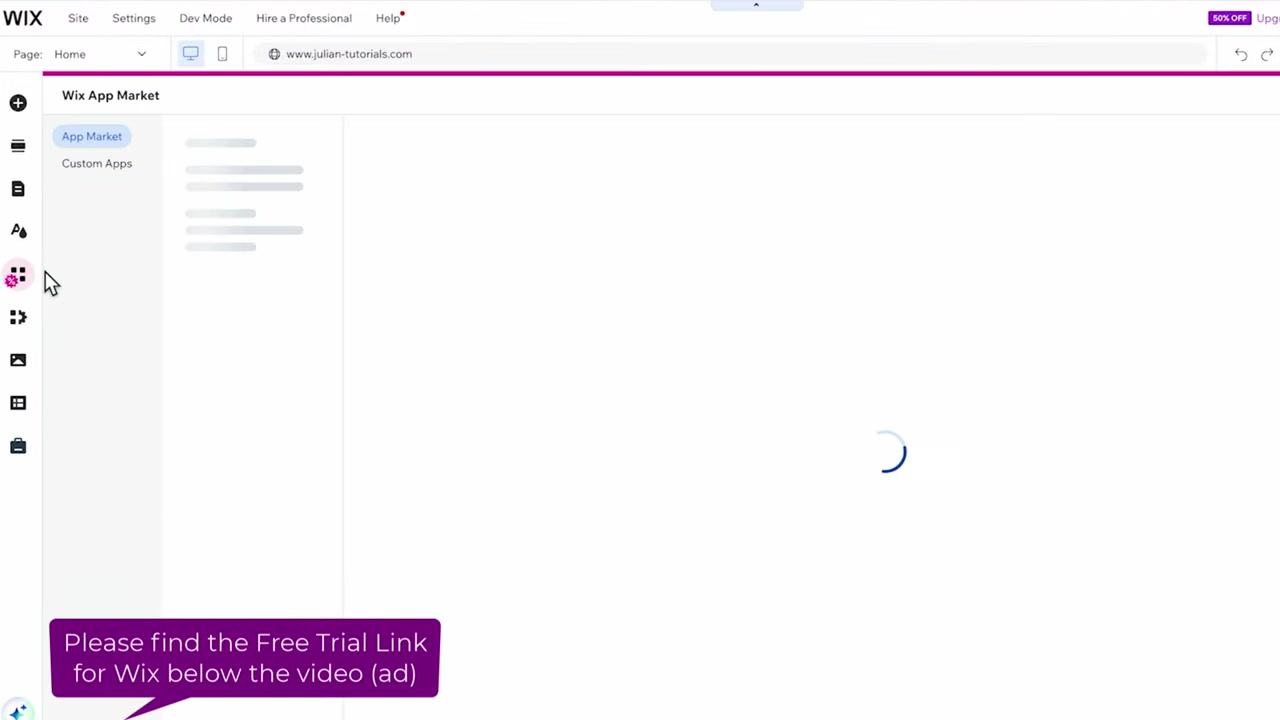
- Open your Wix Editor
- Navigate to the Wix App Market
- Type "Chat" in the search bar
- Select the Wix Chat app from the results
- Click Add to Site
The app installs in seconds. Once it's added, you'll see a chat icon appear at the bottom of your page preview.
3. Customize the Wix Chat Widget
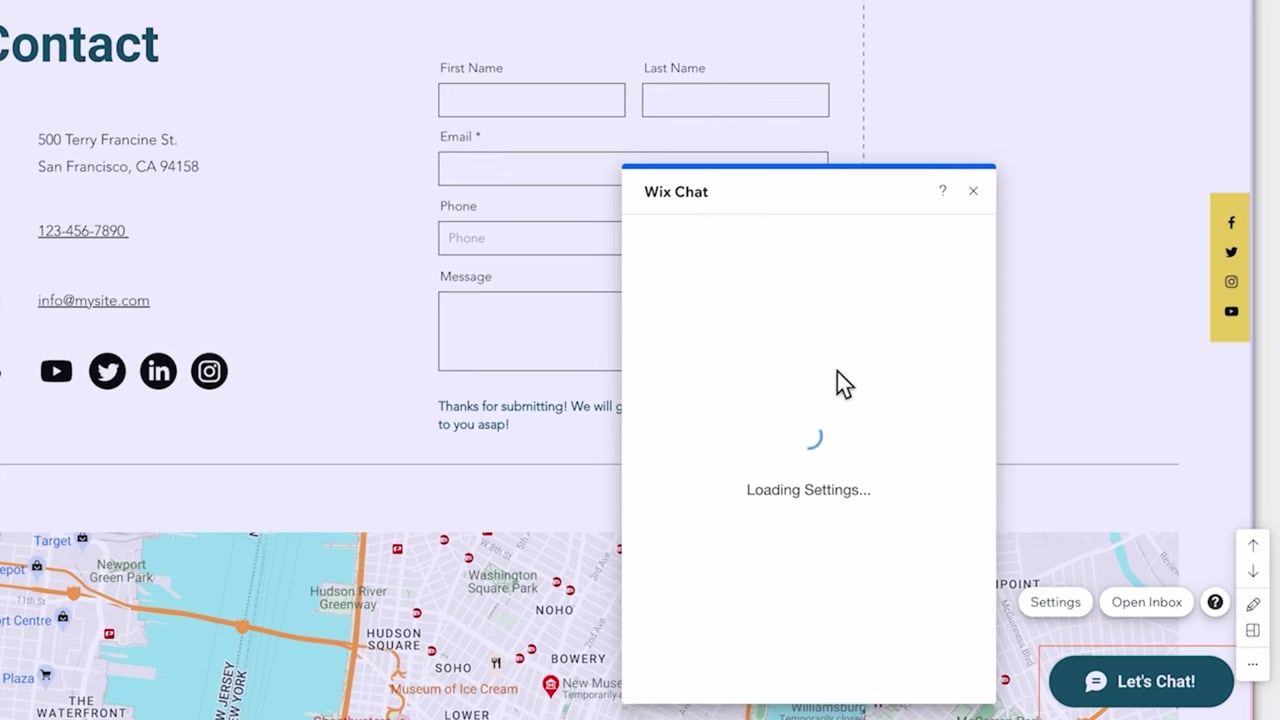
After installation, click Settings on the chat widget to open the customization panel. You have several options:
- Position — bottom-right or bottom-left
- Behavior — auto-open the chat or show a collapsed bubble notification
- Design — upload your logo and choose colors
- Text — set your company name and the message displayed inside the chat bubble
Spend a few minutes clicking through these options to make the chat feel like a natural part of your brand.
4. Set Up Automated Messages and Notifications
One of the most useful features is the ability to send automatic replies when you're offline. You can configure a message like: "We're not here right now, but we'll get back to you within 24 hours."
You can also set up a notification so you receive an alert every time someone sends a message via chat. This way, you never miss an inquiry — even when you're away from your desk.
These automations are built right into the settings panel and require no coding.
5. Publish Your Site and See the Wix Chat in Action
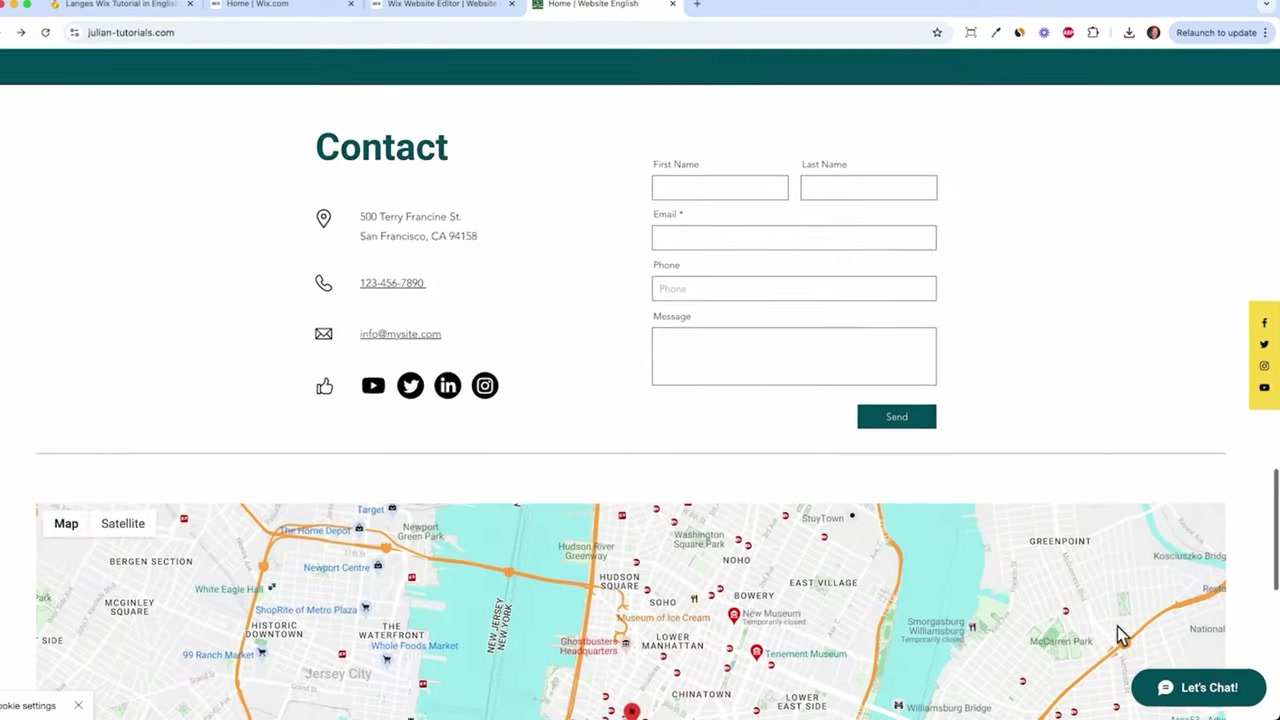
Once you've customized the chat, go back to your homepage and click Publish. Then open your live site and refresh the page.
You'll see the chat widget appear in the corner you selected. Visitors can click it, type a message, and — if you're not available — leave their name and email address so you can follow up.
6. Manage Conversations in the Wix Inbox
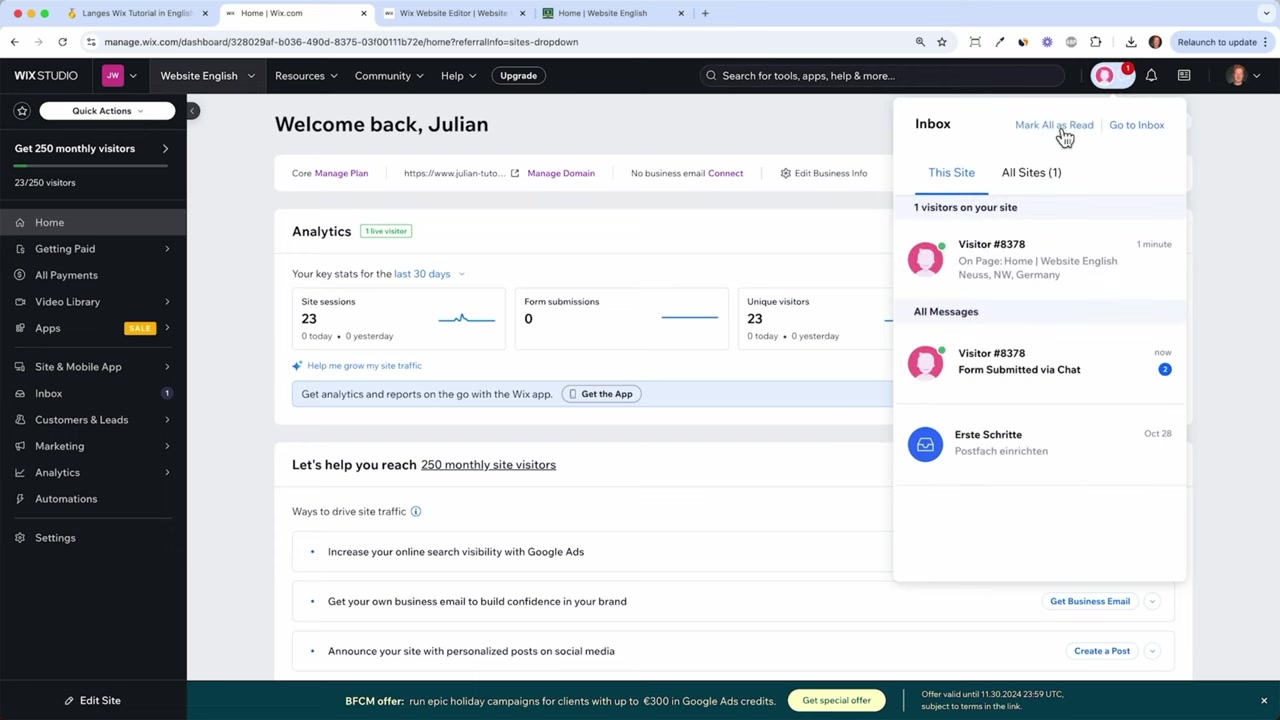
All incoming chat messages land in your Wix Inbox on the dashboard. You can view and reply to every conversation from there.
If a visitor is still on your site, you'll see a green bubble next to their icon — meaning you can reply in real time. If they've left, your response is automatically sent to them as an email.
You can also send saved replies, attach files, or even include offers and invoices directly from the inbox. It works a lot like Gmail, so it's easy to get the hang of quickly.
7. Wix Chat vs. Contact Form — Which Should You Use?
Both tools are available on your Wix site, and they serve slightly different purposes.
Wix Chat is ideal for quick, real-time conversations. It feels informal and approachable — great for e-commerce, service businesses, or anyone who wants to be available to visitors instantly.
Contact Forms are better for structured inquiries where you need specific information upfront (like a name, phone number, and detailed message). They feel more official and are useful when you don't need to reply immediately.
Many Wix site owners use both — the chat for quick questions and a contact form for detailed requests.
8. Is Wix Chat Good for Your Business?
If your site gets regular traffic, having a live chat can meaningfully improve conversions. Visitors who get a quick answer to their question are far more likely to become customers.
Wix Chat is free to use and integrates seamlessly with the rest of your Wix dashboard. For most small businesses, it's a no-brainer addition.
For more ways to optimize your Wix site, check out the guide on Wix SEO basics and make sure your site is discoverable before you start driving traffic.
Frequently Asked Questions
Is the Wix Chat App free?
Can I use Wix Chat on mobile?
What happens if I'm offline when someone sends a chat message?
Can I customize the look of the Wix Chat widget?
Where do Wix Chat messages appear?
Can I send automated replies with Wix Chat?
Can I attach files or send offers through Wix Chat?
Do I need a premium Wix plan to use Wix Chat?
9. Disclosure
Some links in this post may be affiliate links. If you click through and make a purchase, a small commission may be earned at no extra cost to you. All content is provided for informational purposes only and comes without any warranty. This post does not constitute financial, legal, tax, or investment advice.
Related Articles

21 Apr 2025
Wix SEO Basics – What You Need to Do Before Publishing Your Wix Site
Want your Wix website to actually show up on Google? Before you hit publish, there are a few essential SEO settings you need to configure. In this guide, we'll walk through the Wix SEO basics — from t...

18 Apr 2025
How to Create a Sales Page with Wix (2026 Tutorial)
Want to build a professional sales or service page with Wix that actually converts visitors into clients? In this tutorial, you'll learn exactly how to do that — from picking the right template and fi...

22 Apr 2025
How to Edit Your Wix Website for Mobile – Responsive Design Guide (2026)
If you've just finished building your Wix homepage, there's one more step before you hit publish: making sure it looks great on mobile. With most web traffic now coming from smartphones, a poorly opti...