Wix AI Website Builder Tutorial 2026 🚀
Want to build a professional website without any coding or design experience? The Wix AI Website Builder makes it surprisingly simple. In this step-by-step tutorial, you'll learn exactly how to use Wix's AI to generate a fully designed website — complete with text, images, and features — in just a few minutes. Try Wix for free and follow along.
1. What is the Wix AI Website Builder?
The Wix AI Website Builder is a conversational AI tool built directly into Wix. Instead of picking a template and filling in blanks, you simply chat with the AI and describe your website idea.
The AI asks you a series of questions — your business type, your name, the features you need — and then generates a fully structured website based on your answers.
This is a major step beyond the classic template approach. The AI handles the layout, the text, the color theme, and even suggests relevant features like blog feeds, video sections, or newsletter forms.
2. Start the Wix AI Chat and Describe Your Website
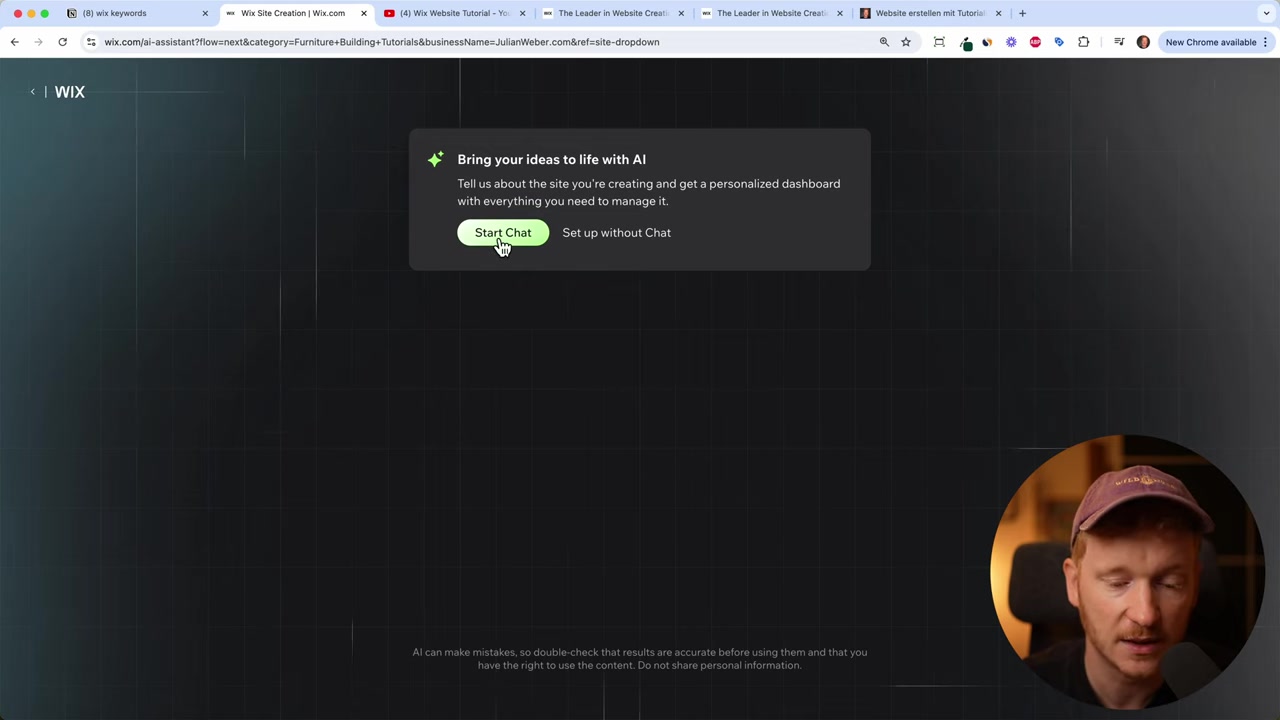
Once you've signed up for Wix, you'll land on a screen where Wix invites you to start a chat with the AI.
The first question is: "What type of website are you creating?" Be as specific as possible here. For example: "I'm a YouTuber and I need a portfolio website for my tech tutorials."
The AI will then ask follow-up questions, such as:
- What's the name of your website or brand?
- What topics do you cover?
- Do you need specific features like video embedding or newsletter forms?
The more detail you give the AI, the better your generated site will be. Don't rush through these prompts — take a moment to describe your unique selling point, your audience, and any specific features you want.
3. Let Wix AI Generate Your Website Design
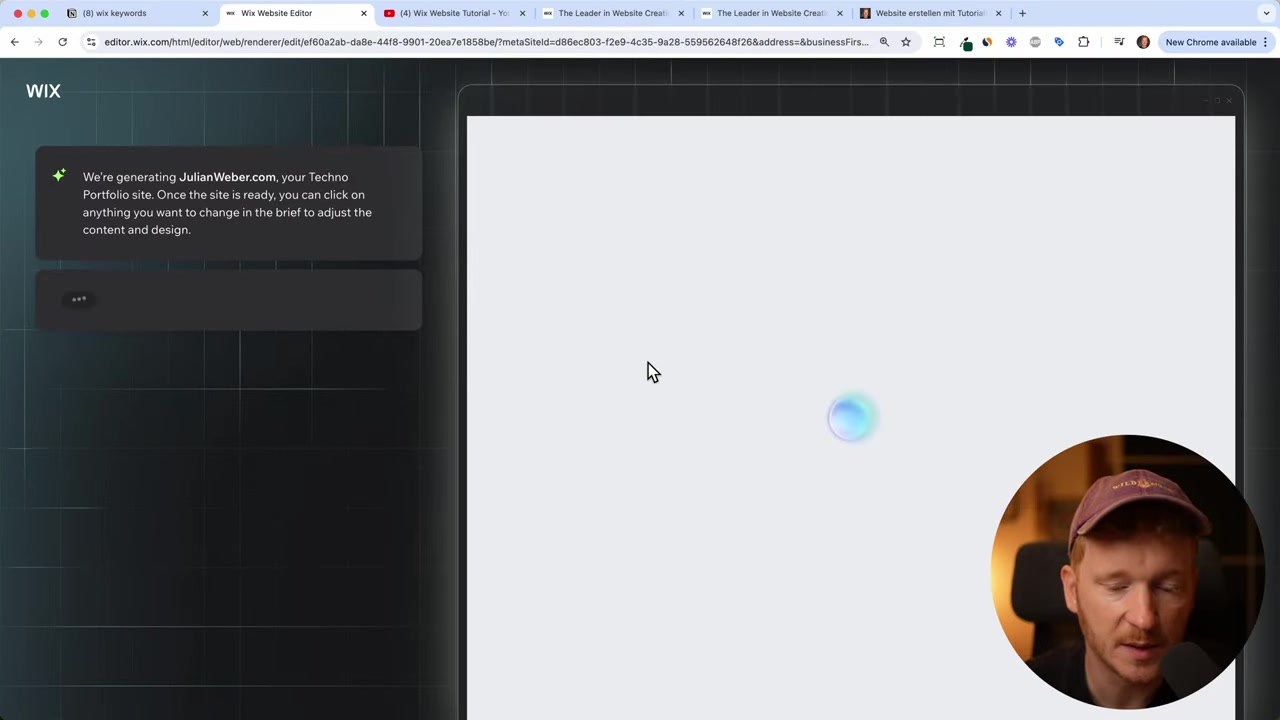
After you answer the AI's questions, Wix takes you to a dashboard where it starts building your site automatically. You'll see it populate sections in real time — text appears first, then images, then layout blocks.
The result is a fully structured homepage with sections like a hero banner, a portfolio or blog feed, a video showcase, a newsletter subscription form, and a footer with contact details.
It's not perfect on the first pass — you might notice the AI making assumptions (like adding a music section when you never asked for one) — but it gives you a solid starting point to refine.
4. Refine the Site Structure and Content
Once the AI has generated your site, you can edit the site profile — update your site name, description, logo, and contact info. Click "Apply" and the AI will regenerate the design incorporating your updates.
You can also adjust the site structure directly in the AI panel. For example, you can remove sections you don't want (like a music section) and add new ones like an About page, a Contact section, or a video gallery.
Every time you apply changes, the AI updates the live preview instantly.
5. Customize the Theme and Colors with Wix AI
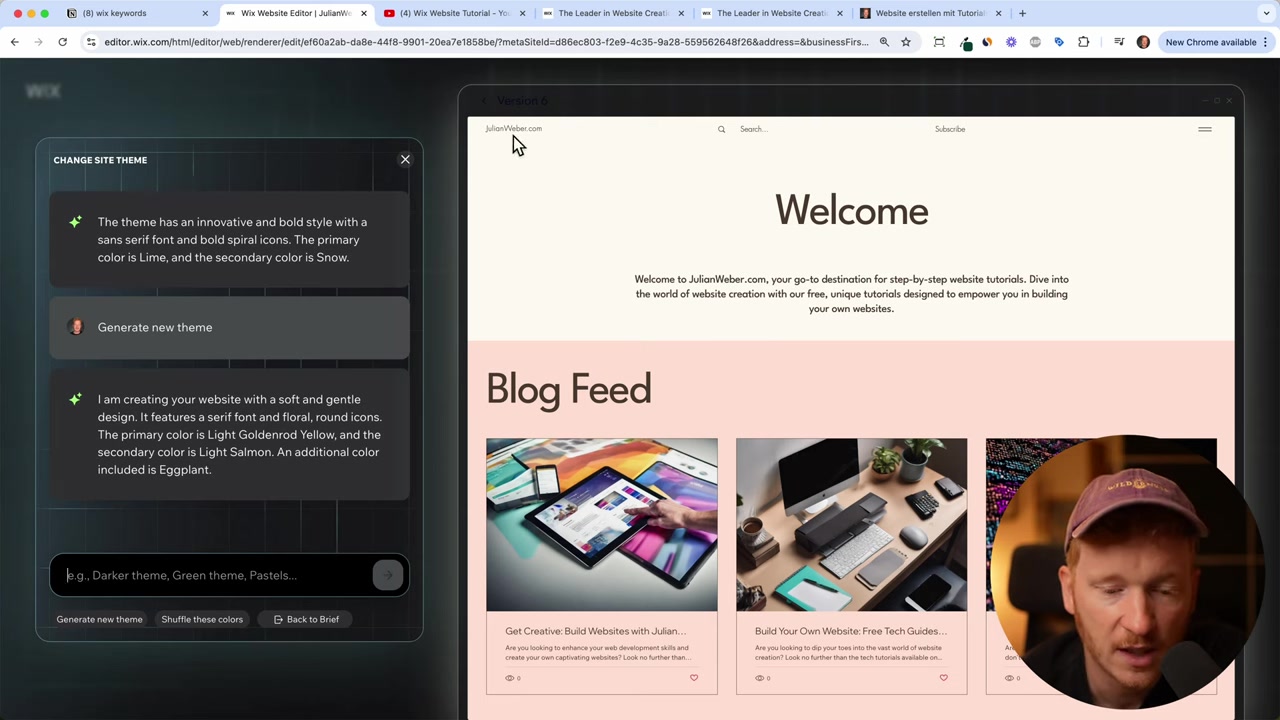
Don't like the color palette or font choices? You can have a direct conversation with the AI about the theme.
Try prompts like:
- "Generate a new theme"
- "Make it darker"
- "Shuffle the colors"
- "Use blue as the primary color"
The AI will generate a new version for you. You can browse through all previous versions at the top of the panel — version 1, version 2, version 3 — so you never lose a design you liked.
6. Continue to the Wix Editor and Fine-Tune Everything
Once you're happy with the AI-generated design, click "Continue with this design", give your site a name, and you'll be taken into the full Wix drag-and-drop editor.
Here you can:
- Edit any text directly on the page
- Swap out AI-generated images for your own photos
- Add real videos by pasting in a YouTube or Vimeo URL
- Write and publish blog posts
- Drag and drop sections to reorder them
The editor is very intuitive — even if you've never built a website before, you'll be able to find your way around quickly.
7. Publish Your Site and Connect a Custom Domain
When you're ready to go live, click Publish. Wix will give you a free subdomain like yourname.wixsite.com/yoursite straight away.
If you want a proper custom domain (like yourname.com), click "Connect Domain" in the dashboard. You can either purchase a new domain through Wix or connect one you already own.
To unlock a custom domain and remove Wix branding, you'll need to upgrade to a paid plan. You can compare all available plans on the Wix pricing page.
8. Is Wix AI Good for Beginners?
Absolutely. The Wix AI Website Builder was designed specifically to lower the barrier to entry for people with no design or coding background.
Instead of staring at a blank canvas, you simply answer a few questions in plain English. The AI does the heavy lifting and gives you a professional-looking starting point within minutes.
For beginners, this is arguably the fastest way to get a real website up and running. You can always refine it further once you're comfortable with the editor.
9. Wix AI Builder vs Classic Wix Templates
Wix has always offered a large library of pre-built templates — and those are still available. So what's the difference?
Classic templates give you full control from the start. You pick a design you like and customize it. This is great if you have a clear visual direction.
Wix AI Builder is better if you're starting from scratch with an idea but no design plan. The AI generates a custom site tailored to your specific business type, features, and brand name — not just a generic layout.
For most new users, the AI builder is the better starting point in 2026.
10. Wix Pros and Cons
Pros:
- Very beginner-friendly with AI-assisted setup
- No coding or design skills needed
- Drag-and-drop editor with hundreds of apps
- AI generates text, images, and layout automatically
- Free plan available to test everything out
Cons:
- Free plan includes Wix branding and a subdomain
- AI-generated images may not match your exact style
- Some advanced features require a paid plan
- Once you pick the AI builder path, switching to a different template structure can require starting over
Frequently Asked Questions
Is the Wix AI Website Builder free to use?
Do I need coding skills to use the Wix AI builder?
Can I edit my Wix AI-generated site after it's created?
How long does it take for the Wix AI to build a website?
Can I change the color theme after the AI generates my site?
What types of websites can I build with Wix AI?
Does Wix AI write the website text for me?
Can I connect my own domain to a Wix AI website?
11. Disclosure
Some links in this post are affiliate links. If you make a purchase through them, I may earn a small commission at no extra cost to you. All content is provided for informational purposes only, without any guarantee of accuracy or completeness. This post does not constitute financial, legal, tax, or investment advice.
Related Articles

2 Dec 2024
Creare un Sito Web con Wix AI: Tutorial Passo Passo
Vuoi creare un sito web professionale senza sapere programmare? Il costruttore AI di Wix rende tutto incredibilmente semplice. In questo tutorial ti mostro passo passo come usare Wix AI per generare u...

1 Dec 2024
Comment Créer un Site Wix avec l'IA – Tutoriel Complet 2024
Tu veux créer un site web professionnel sans avoir de compétences en design ni en code ? Le constructeur de site IA de Wix rend cela possible en quelques minutes. Dans ce tutoriel, on te guide pas à p...

15 Dec 2025
Wix Promo Code 2026 – How to Save on Wix Premium Plans
If you've been thinking about upgrading to a Wix premium plan, timing your sign-up the right way can make a real difference. In this guide, I'll walk you through the exact method to access the best av...