How to Start Your Own Webshop with Webador – Tutorial 2026
Want to launch your own online store without touching a single line of code? Webador makes it surprisingly simple — from adding your first product to connecting payment methods and configuring shipping. In this tutorial, we walk through everything you need to know to get your Webador webshop up and running from scratch. You can try Webador for free and test everything out before committing to a paid plan.
1. What is Webador?
Webador is an easy-to-use website builder designed for small businesses and entrepreneurs. It lets you create a website and a fully functional online store — all from one dashboard, with no coding required.
It's a great option if you want something simpler and more affordable than platforms like Shopify or WooCommerce. The Pro plan starts at around $17/month, which includes up to 10 products in your shop.
2. Activate the Shopping Cart in Webador
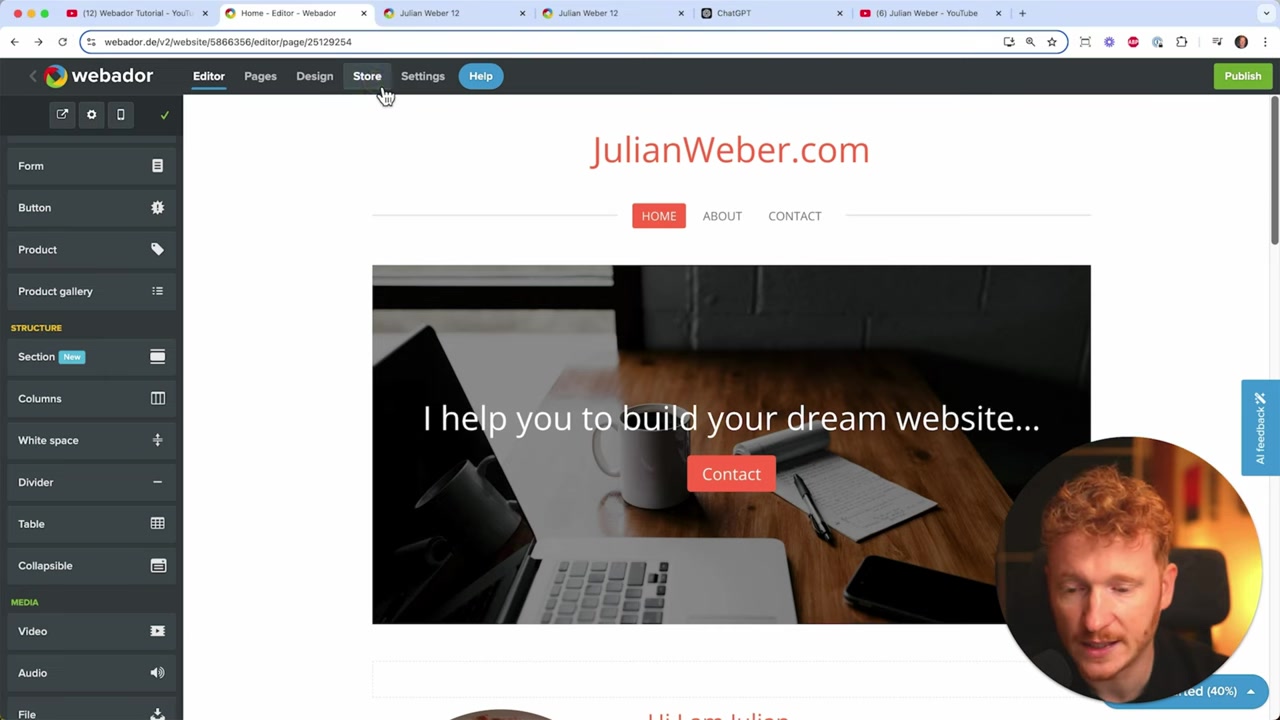
Before you can sell anything, you need to enable the store feature. Head to Settings in your Webador dashboard and toggle on the Shopping Cart option.
Don't forget to select your currency — for example, US dollars — and hit Save. You'll see a notice that selling online requires a Pro Plan upgrade, but you can set everything up first and upgrade when you're ready.
3. Add a Shop Page to Your Webador Website
Next, go to Pages and add a new page called "Shop". Make sure the SEO settings are filled in and that the page is set to appear in your navigation menu.
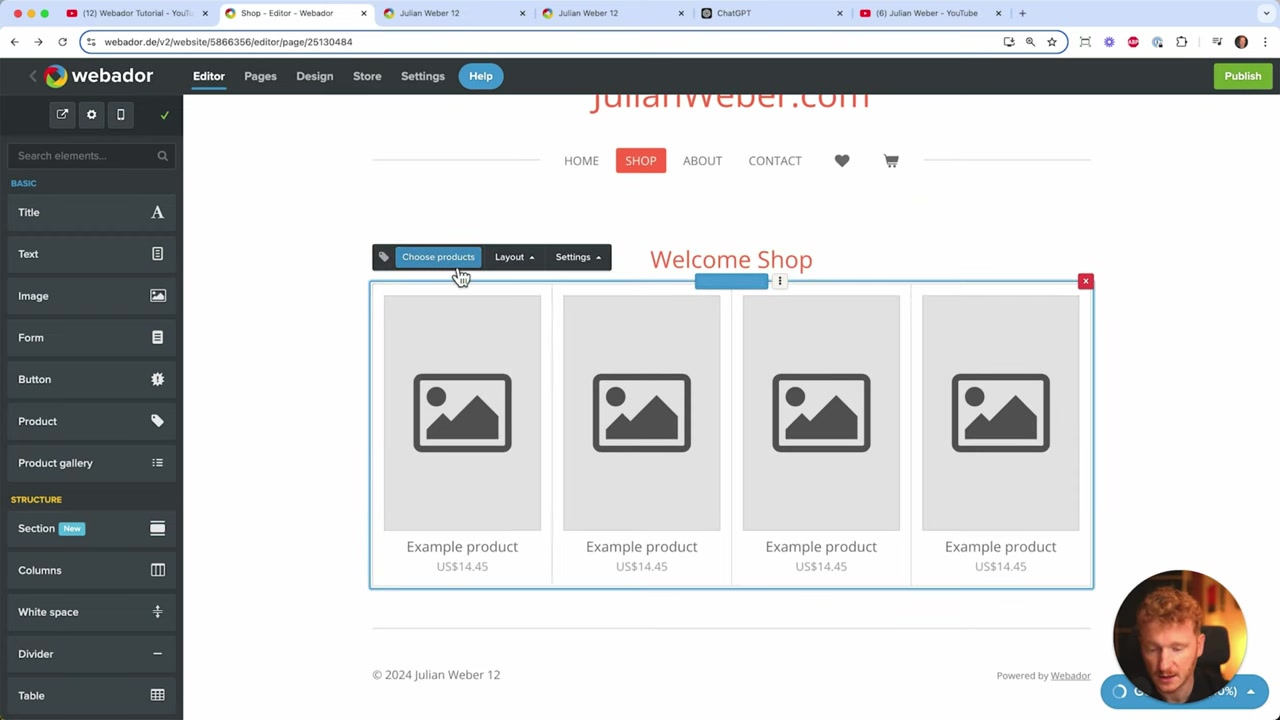
Position it right after the homepage so visitors can find it instantly. Once the page is created, delete the default banner and add a Product Gallery section. Give it a headline like "Welcome to Our Shop" and center it for a clean look.
4. Add Your First Product to the Webador Shop
Click inside the product gallery and select Product to create your first item. Fill in the product name, upload your images (aim for 4–5 photos, just like on Amazon), and write a compelling product description.
Set a regular price and, if the item is on sale, add a discounted price too. You can also manage inventory — for example, enter how many units you have in stock and Webador will automatically count down as orders come in.
For products like T-shirts, add size variants (S, M, L, XL, XXL). You can assign different prices and stock levels to each size, and even upload size-specific product images — for example, a plus-size model for XL options.
Under Advanced Options, you can add custom labels like "New Arrival" and set up custom fields — perfect for print-on-demand products where customers type in a name or message to be printed.
Each product also has its own SEO settings. Fill in a page title and meta description to give your products a chance to rank directly on Google.
5. Create Category Pages for Your Webador Store
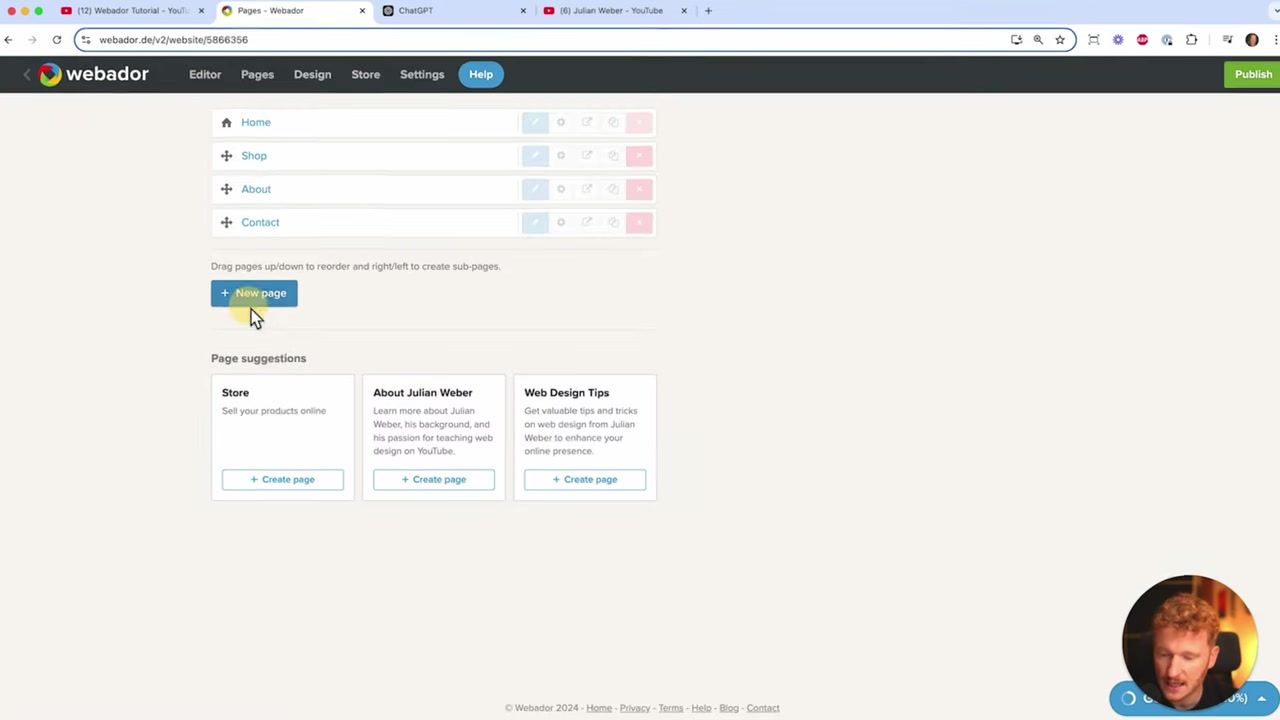
Once you have multiple products, organize them with category pages. Go to Pages, add a new page (e.g., "Tops"), then drag it slightly to the right under the Shop page to create a dropdown menu.
On each category page, delete the default banner, add a Product Gallery, and use Add Existing Product to pull in the relevant items. Repeat this for each category — Bottoms, Shoes, Men, Women, or whatever fits your store.
You can also manually reorder products within each category page, so your bestsellers appear first. This gives you full control over how your catalog is presented.
6. Connect Payment Methods in Webador
To actually start accepting orders, head to Store Settings and connect your payment providers. Webador supports Stripe (for credit card payments) and PayPal, as well as bank transfer, invoice, and in-store pickup.
You'll need to upgrade to a Pro Plan to connect Stripe or PayPal. The process is straightforward — you'll be asked for your name, email address, and bank account details. Make sure you have at least one payment method connected before going live.
7. Set Up Shipping Options
In the Shipping section of your store settings, you can configure multiple options: free shipping (for example, on orders over $100), flat-rate shipping fees, and even weight-based shipping for heavier products like protein powder or equipment.
You can also specify which countries or regions you ship to. Set up your shipping methods carefully — customers need to see clear shipping costs before they check out, or they'll abandon their cart.
8. Set Up Sales Tax for Your Webador Webshop
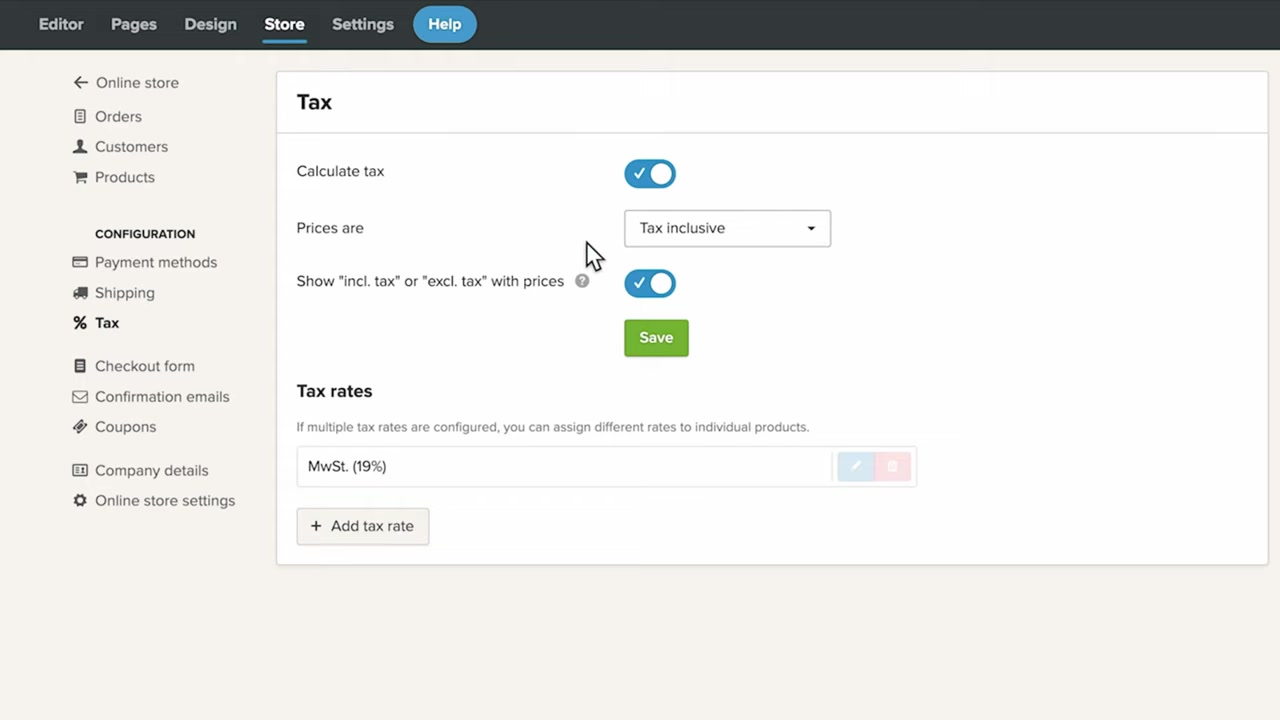
Go to Taxes in your store settings to configure your tax rates. You can choose whether tax is included in the listed price or added on top at checkout.
Webador lets you set different rates by country or even by US state. Tax rules vary widely — for example, Germany uses 19% VAT always included in the price, while US sales tax varies by state. Always consult a tax professional to get this right for your region.
9. Final Steps Before Going Live
Before you open your store to the public, run through this checklist:
- Upgrade your plan — you need at least the Pro Plan to accept payments
- Connect a payment method — Stripe or PayPal (or both)
- Configure shipping — set your rates and regions
- Set up taxes — according to your country or state
- Get your own domain — a custom domain looks professional and builds trust
- Review confirmation emails — Webador sends automated order and shipping confirmation emails, which you can customize in Store Settings
Once all of these are in place, your store is live. Customers can browse your products, choose sizes or variants, add items to their cart, and check out seamlessly. You'll see all incoming orders under Store → Orders in your dashboard.
10. How Much Does Webador Cost?
Webador offers a free plan that lets you build and test your website — including the store setup — before you commit. To actually sell products, you'll need to upgrade to a paid plan.
The Pro Plan (around $17/month) allows up to 10 products and covers the core webshop features including Stripe and PayPal. The Business Plan unlocks unlimited products and lets you sell digital products like online courses or downloadable files.
For most small stores starting out, the Pro Plan is more than enough — and at $17/month, it's one of the most affordable all-in-one webshop solutions on the market.
11. Is Webador Good for Beginners?
Absolutely. Webador is specifically designed for people who have no technical background. The interface is drag-and-drop, and every step — from adding products to setting up shipping — is guided and intuitive.
If you've never built a website before, Webador is one of the easiest ways to go from zero to a fully functioning online store. There's no coding, no complicated integrations, and no steep learning curve.
Frequently Asked Questions
Is Webador free to use?
How many products can I sell on Webador?
Can I sell digital products on Webador?
Which payment methods does Webador support?
Can I set up different shipping rates for different countries?
Does Webador handle sales tax automatically?
Can I add product variants like sizes and colors in Webador?
Do customers receive order confirmation emails from Webador?
12. Disclosure
Some links in this post are affiliate links. If you sign up through them, a small commission may be earned at no extra cost to you. All content is provided for informational purposes only and no guarantee is given regarding results. This post does not constitute financial, legal, tax, or investment advice.
Related Articles

28 Oct 2025
How to Create a TikTok Ads Account in 2026
Want to run ads on TikTok but not sure where to start? Setting up your TikTok Ads Manager account is easier than you think — and it only takes a few minutes. In this guide, I'll walk you through the e...

15 Dec 2025
Wix Promo Code 2026 – How to Save on Wix Premium Plans
If you've been thinking about upgrading to a Wix premium plan, timing your sign-up the right way can make a real difference. In this guide, I'll walk you through the exact method to access the best av...

20 Aug 2025
Flippa Review – Is It Legit or a Scam? Full Breakdown
Thinking about buying or selling an online business? Flippa is one of the most well-known marketplaces for digital assets — but is it actually legit, or should you be worried about scams? In this hone...