How to Upload Instagram Stories from PC, Laptop or Mac
Did you know Instagram doesn't let you post Stories from your desktop browser? It's one of those frustrating limitations that catches a lot of people off guard. The good news is there's a simple workaround — and it takes less than five minutes to set up.
In this guide, you'll learn exactly how to upload photos and videos to Instagram Stories from your PC, laptop, or Mac using a free tool called Storrito.
1. Why You Can't Post Instagram Stories from Desktop
Instagram's desktop website is intentionally limited. While you can scroll your feed and reply to DMs, posting Stories has always been a mobile-only feature in the official app.
This is a real pain if you're managing a brand account, working as a social media manager, or just prefer editing content on a bigger screen. Luckily, third-party tools fill that gap perfectly.
2. What Is Storrito?
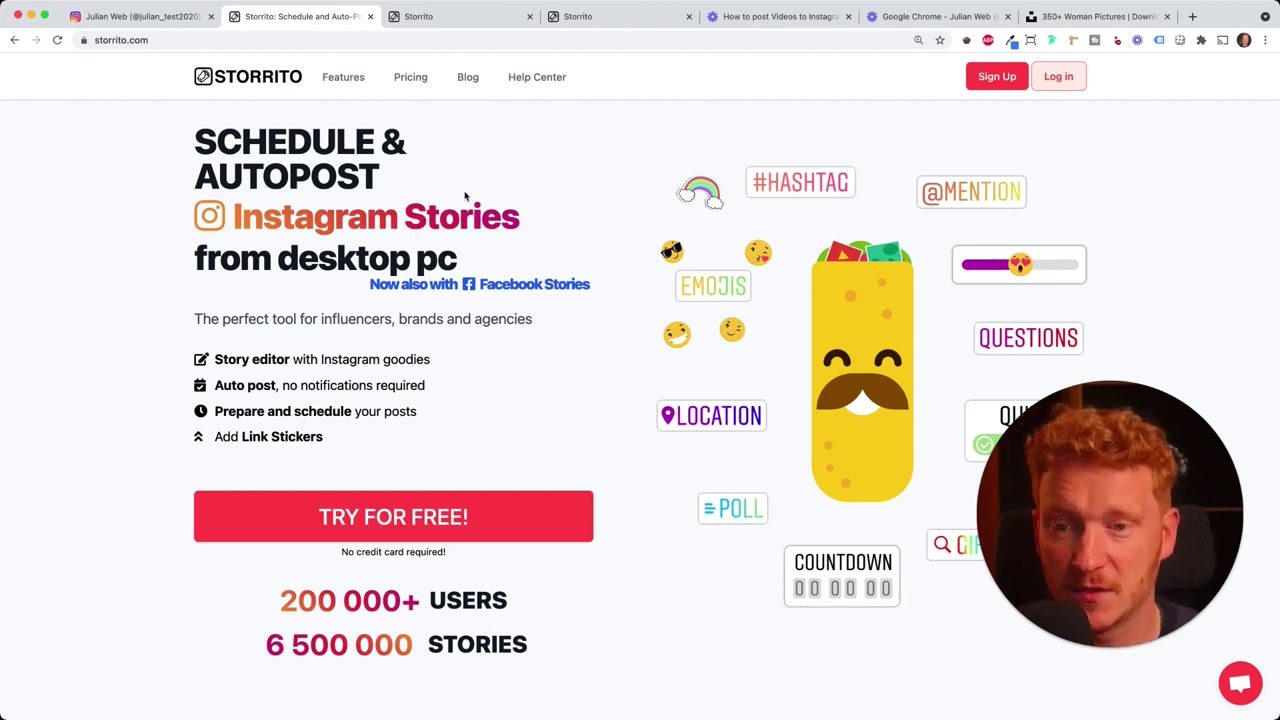
Storrito is a web-based app that lets you create, edit, and post Instagram Stories directly from your browser on any desktop or laptop — no phone required.
Beyond simply uploading content, it comes with a built-in editor that supports all the Instagram features you're used to on mobile: hashtags, location tags, user tags, polls, stickers, and GIFs.
You can also schedule Stories in advance, which makes it a powerful tool for anyone managing an Instagram presence at scale.
3. How to Sign Up for Storrito
Head over to Storrito.com and click "Try out for free". You can sign up quickly using your Google account or with an email address and password.
Once you're logged in, Storrito will prompt you to connect your Instagram account — that's the next step.
4. Connect Your Instagram Account to Storrito
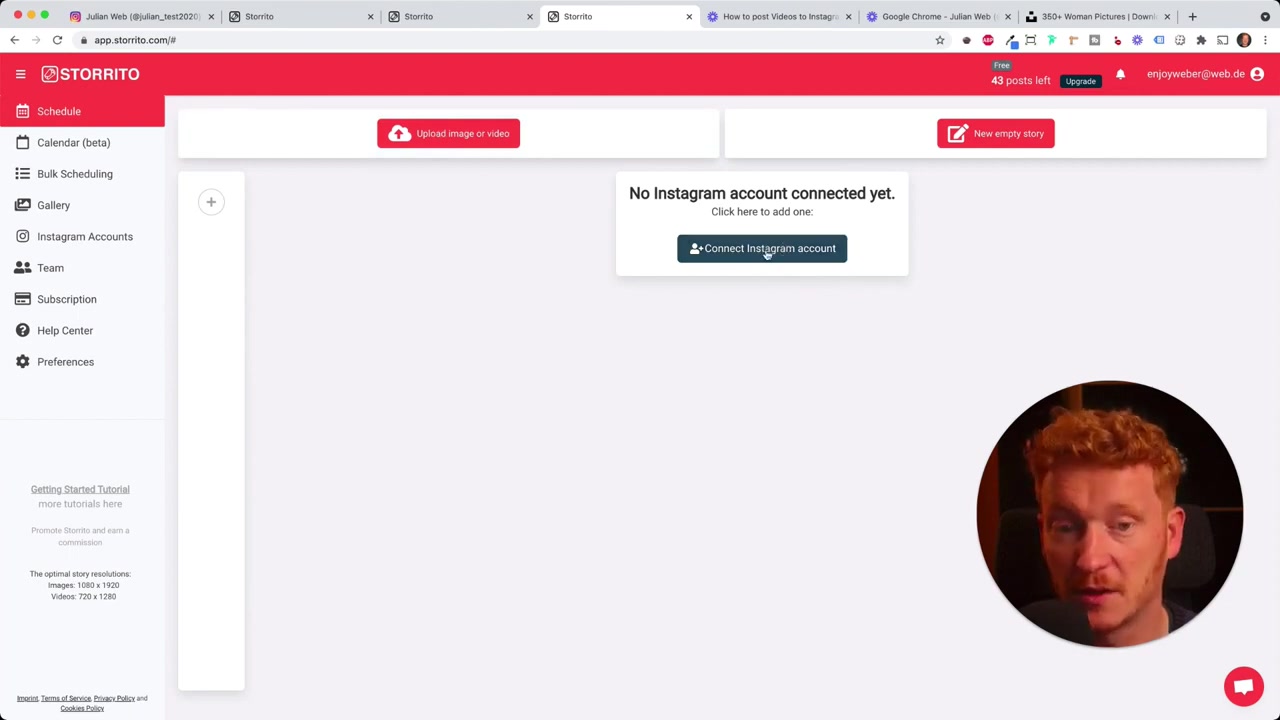
After signing in, you'll land on a screen asking you to connect your Instagram account. Click the connect button and enter your Instagram username and password.
You may also be asked to confirm your location. Once that's done, hit Save — your account is now linked and ready to use.
5. Upload a Photo or Video to Instagram Stories from Your PC
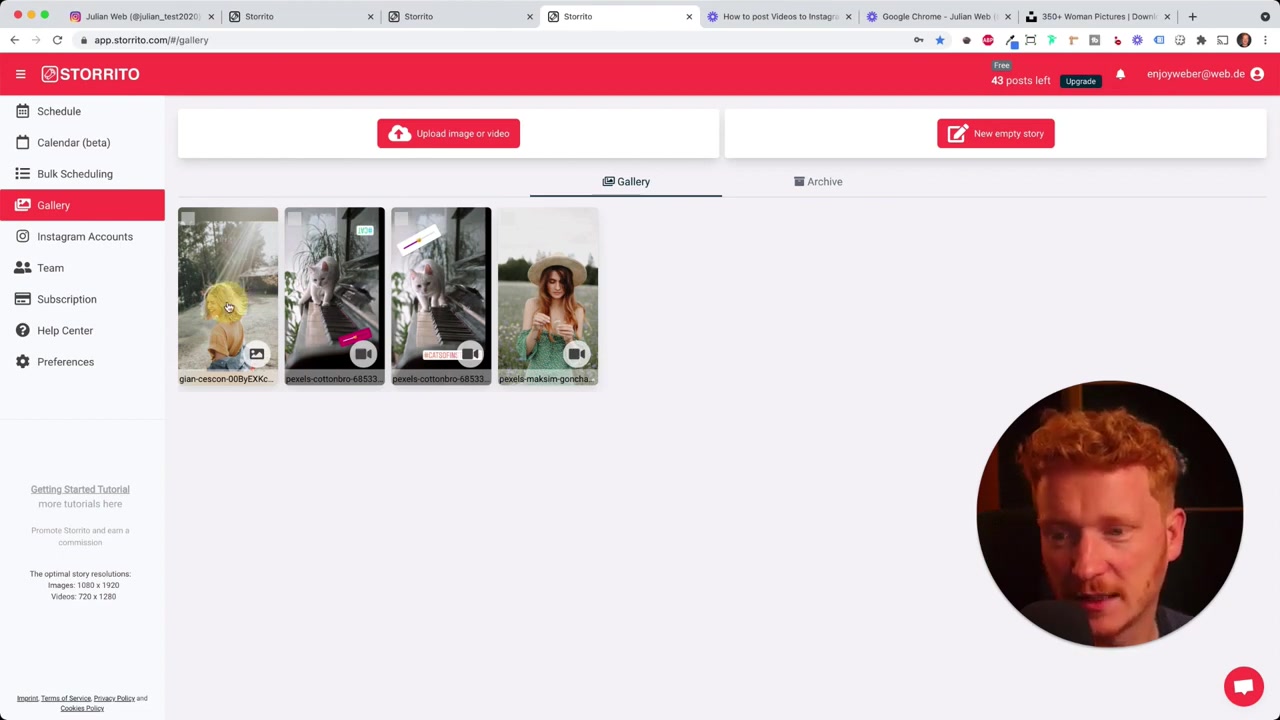
Navigate to the Schedule section in Storrito. From here, you can upload any image or video file straight from your computer.
Once uploaded, click on your file and you'll be presented with three options:
- Edit — open the built-in editor to add hashtags, polls, stickers, location tags, and more
- Post now — publish the Story immediately to your Instagram account
- Schedule — set a future date and time for the Story to go live automatically
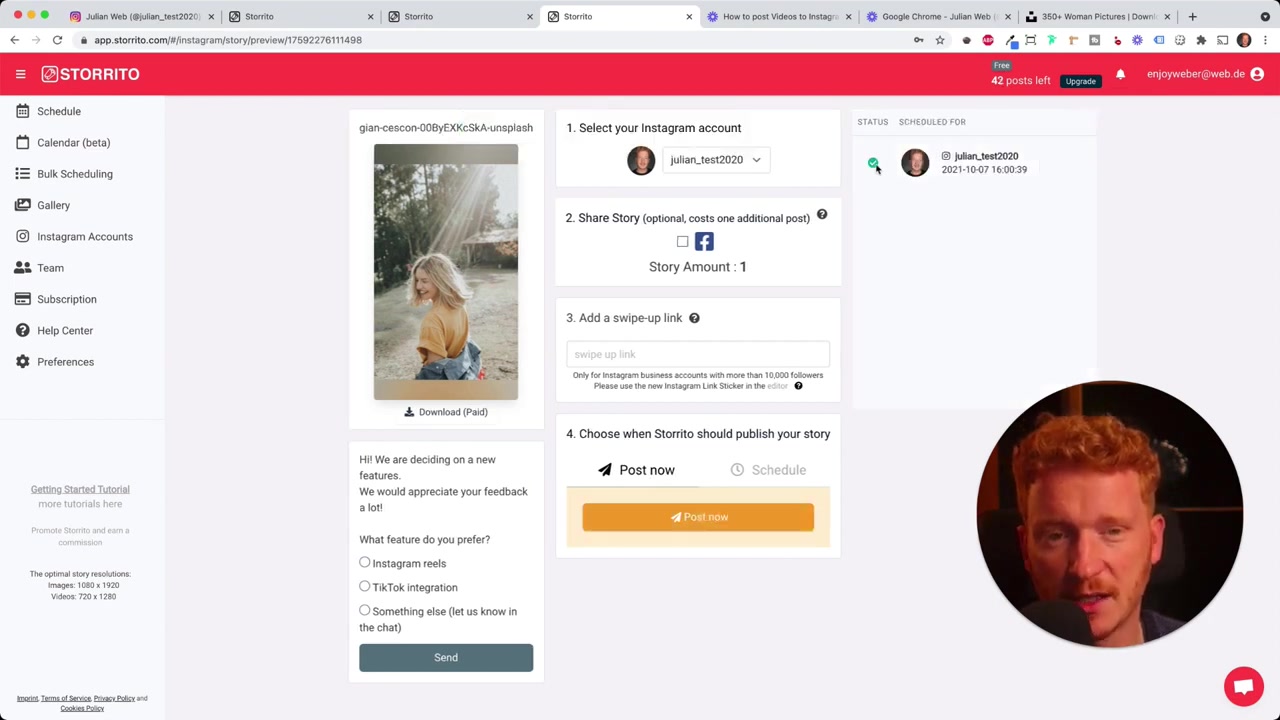
For a quick post, just select your Instagram account, optionally cross-post to Facebook, and hit Post Now.
6. Confirm Your Story Was Posted Successfully
After clicking Post Now, Storrito will show you a green checkmark to confirm the Story has been sent to Instagram.
Head back to your Instagram profile, refresh the page, and you'll see the Story live on your account — posted entirely from your desktop.
7. Schedule Instagram Stories Ahead of Time
One of Storrito's most valuable features is story scheduling. Instead of posting manually every day, you can batch-create your Stories and schedule them to go out at the best times for your audience.
This is especially useful for businesses, creators, and social media managers who need a consistent posting schedule without being glued to their phones.
8. Storrito Pros and Cons
Pros:
- Post Instagram Stories directly from a desktop browser
- Full access to Instagram features (hashtags, polls, stickers, GIFs, locations)
- Schedule Stories in advance
- Cross-post to Facebook
- Free to try
Cons:
- Requires connecting your Instagram credentials to a third-party service
- Free plan may have limitations on the number of posts or scheduled items
9. Is Storrito Safe to Use?
Storrito is a well-known tool in the Instagram marketing community and has been used by thousands of creators and businesses.
As with any third-party app, you're granting it access to your Instagram account. Always make sure you're comfortable with the permissions you're granting, and consider using a strong, unique password for your Instagram account.
Frequently Asked Questions
Can I post Instagram Stories from a PC without any app?
Is Storrito free to use?
Can I schedule Instagram Stories in advance with Storrito?
Does Storrito support hashtags, stickers, and polls?
Can I use Storrito on a Mac?
Can I post to Facebook and Instagram at the same time with Storrito?
Do I need to install any software to use Storrito?
10. Disclosure
Some links in this post may be affiliate links. If you click through and make a purchase, a small commission may be earned at no extra cost to you. All content is provided for informational purposes only — no guarantees are made regarding results. This post does not constitute financial, legal, tax, or investment advice.
Related Articles

28 Oct 2025
How to Create a TikTok Ads Account in 2026
Want to run ads on TikTok but not sure where to start? Setting up your TikTok Ads Manager account is easier than you think — and it only takes a few minutes. In this guide, I'll walk you through the e...

15 Dec 2025
Wix Promo Code 2026 – How to Save on Wix Premium Plans
If you've been thinking about upgrading to a Wix premium plan, timing your sign-up the right way can make a real difference. In this guide, I'll walk you through the exact method to access the best av...

3 May 2024
Come creare un sito web con IONOS – Tutorial 2026 – Costruttore di siti web AI
Vuoi creare un sito web professionale senza dover scrivere una riga di codice? In questo tutorial ti mostro come usare IONOS AI Website Builder per costruire un sito completo, passo dopo passo. Dall'a...