How to Transfer Money to Bank Account from Revolut (New Tutorial 2026)
Want to send money from Revolut to a bank account but not sure where to start? It's actually much simpler than you might think. In this step-by-step tutorial, you'll learn exactly how to do it in just a couple of minutes — whether you're sending money domestically or internationally.
Ready to get started? Sign up for Revolut using the link below and follow along.
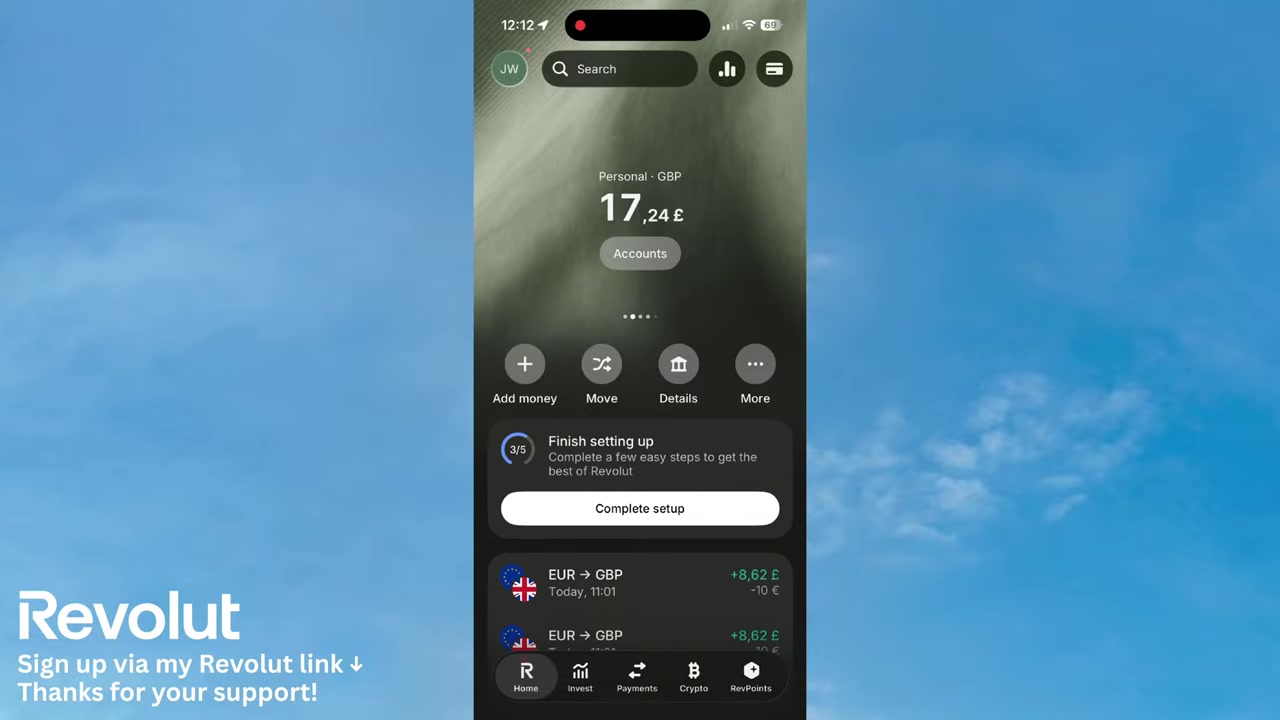
1. Open the Revolut App and Go to Payments
Start by opening the Revolut app on your phone. You'll land on the home screen by default.
At the bottom of the screen, tap Payments — it's the icon right in the middle of the navigation bar. This brings you to the payments overview.
2. Tap the Plus Icon to Start a New Transfer
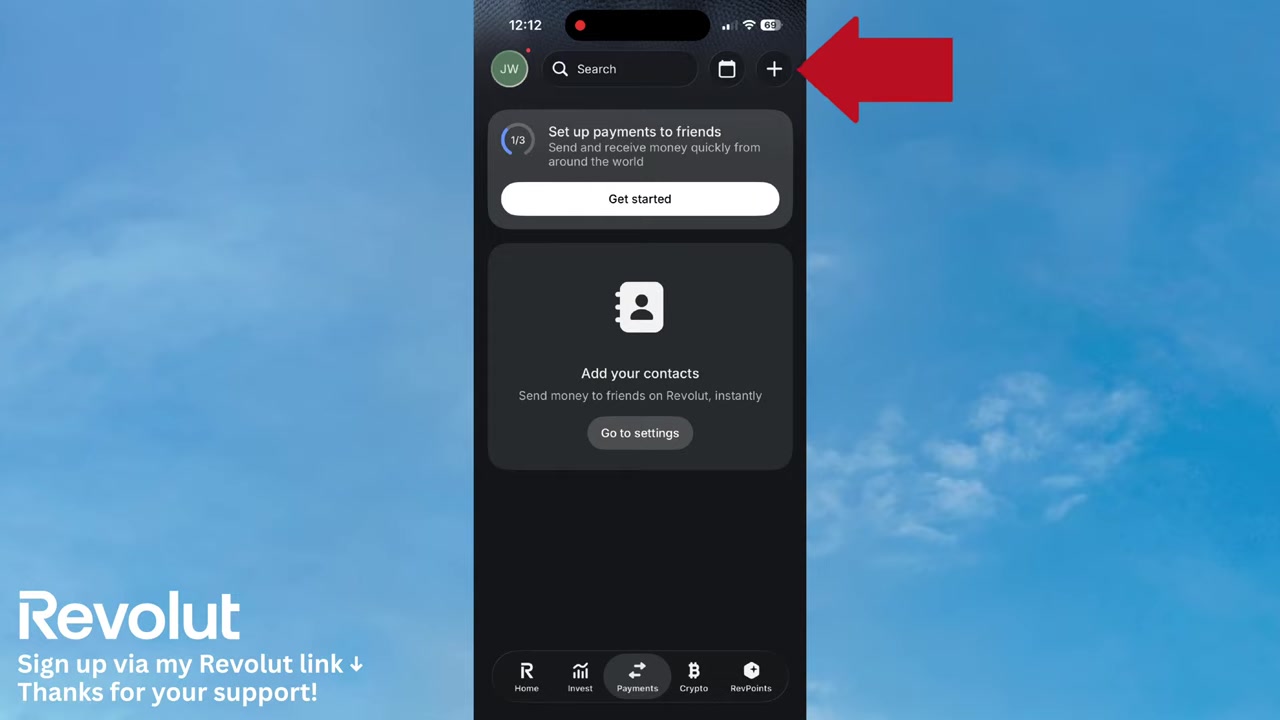
Once you're in the Payments section, look for the plus (+) icon in the upper right corner and tap it.
This opens the full list of payment options available to you. You'll see options to send money via RevTag (to other Revolut users), to a bank account, or directly to someone's card.
3. Select Bank Transfer and Enter the Recipient Details
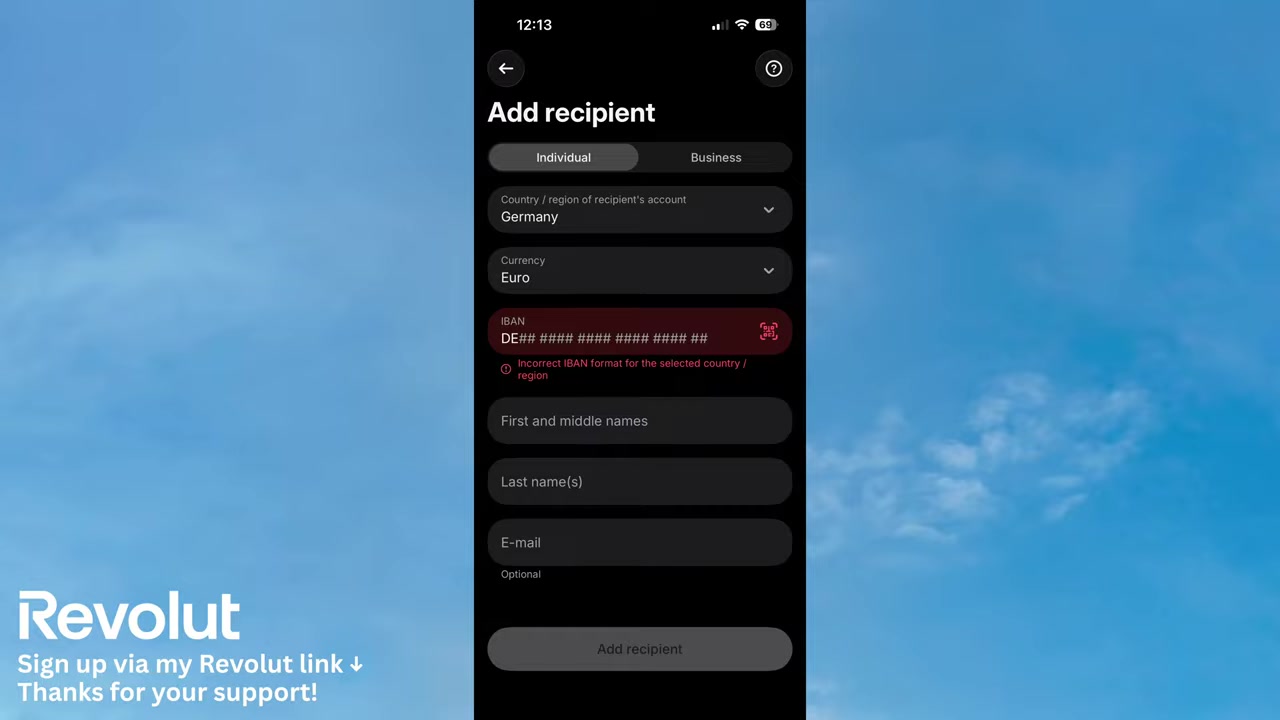
To send money to a bank account, simply tap Bank. You'll then be asked whether you're sending to an individual or a business — choose whichever applies.
Next, select the country you're sending money to (for example, Germany) and the appropriate currency (such as euros). Then fill in the required details:
- IBAN number of the recipient
- First name and last name of the recipient
- Email address (optional — the recipient gets a notification when the money arrives)
Once everything looks good, tap Add Recipient to save them.
Pro tip: If you're paying an invoice that has a QR code, tap the QR code icon to scan it. Revolut will automatically fill in the bank details for you — no manual typing needed.
4. Enter the Amount and Confirm the Revolut Transfer
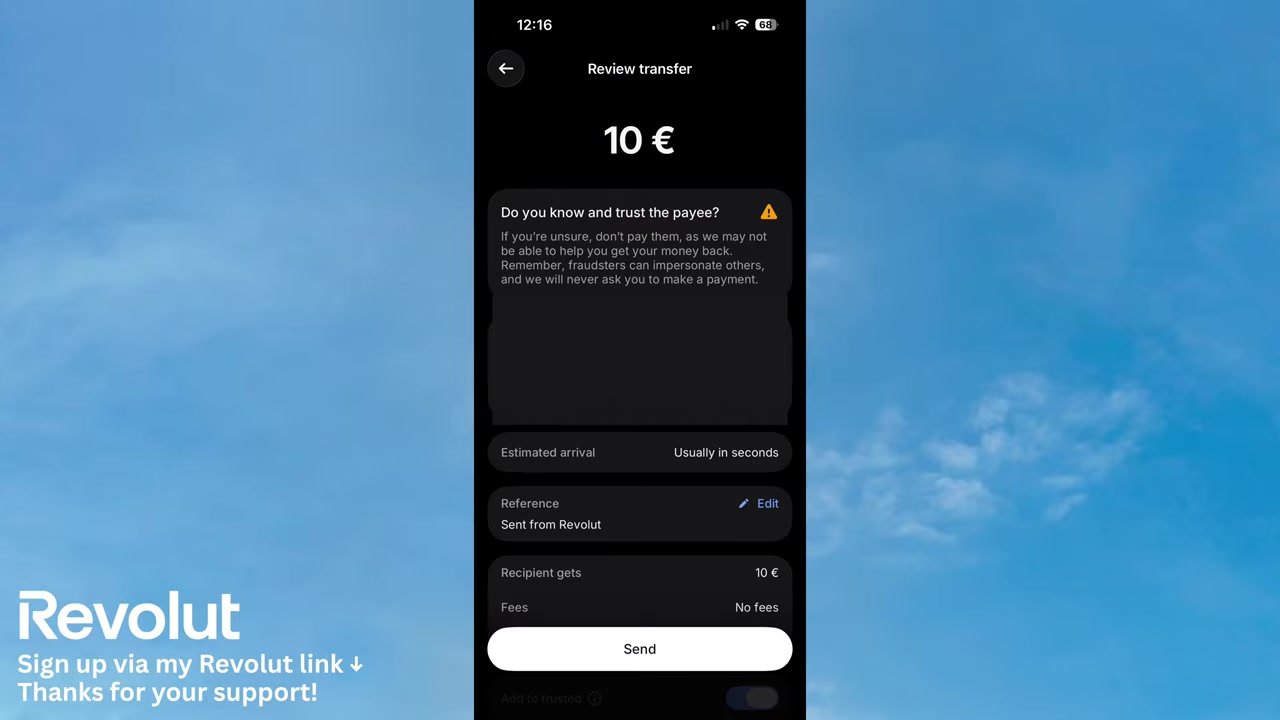
After adding the recipient, you'll be taken to the amount screen. Type in how much money you want to send — for example, €10.
Tap Continue to proceed to the review screen. Here you can double-check all the details of your transaction before it goes through.
When everything looks correct, tap Send — and your money is on its way to the bank account.
5. What is Revolut?
Revolut is a digital banking and financial app used by millions of people worldwide. It lets you hold, exchange, and send money in multiple currencies — often at better rates than traditional banks.
Beyond transfers, Revolut also offers features like budgeting tools, stock and crypto investing, savings vaults, and travel insurance depending on your plan.
If you haven't signed up yet, you can get started with Revolut here.
6. Does Revolut Charge Fees for Bank Transfers?
For most standard bank transfers within the same currency, Revolut does not charge a fee on paid plans, and free plan users also get a generous monthly allowance.
However, fees can apply in certain situations — for example, currency conversion, international SWIFT transfers outside the SEPA zone, or if you exceed your plan's free transfer limits.
Always review the fee summary shown on the review screen before confirming your transfer so there are no surprises.
7. Is Revolut Safe for Sending Money?
Yes, Revolut is a regulated financial institution licensed in multiple countries. Transfers are encrypted and protected, and you'll receive real-time notifications for every transaction.
That said, always double-check the recipient's IBAN before sending — bank transfers are generally irreversible once processed, so accuracy matters.
8. Revolut for Business Transfers
If you're running a business and need to send payments to suppliers, contractors, or employees, Revolut Business is worth looking into. It offers bulk payment features, multi-currency accounts, and business-grade expense management.
You can sign up for a business account using the link below.
Frequently Asked Questions
How do I transfer money from Revolut to a bank account?
Can I send money internationally with Revolut?
How long does a Revolut bank transfer take?
Does Revolut support IBAN transfers?
Can I scan a QR code to pay an invoice in Revolut?
Are Revolut bank transfers free?
Can I send money to a business bank account with Revolut?
What happens if I send money to the wrong IBAN?
9. Disclosure
Some links in this post are affiliate links. I may earn a commission if you sign up or make a purchase through them — at no extra cost to you. All content is provided for informational purposes only, without any guarantee of accuracy or results. Nothing in this post constitutes financial, legal, tax, or investment advice. Always do your own research and consult a qualified professional if needed.
Related Articles

20 Jun 2026
How to Invest on Revolut (2026)
Wondering how to invest your money directly inside Revolut? It's easier than you might think. This guide walks you through the entire process — from opening the Invest tab to placing your first stock ...
21 Jun 2026
How to Transfer Crypto to Wallet from Revolut (2026 New Tutorial)
Want to move your crypto out of Revolut and into your own wallet? It's simpler than you might think. In this tutorial, we'll walk you through exactly how to send cryptocurrencies from your Revolut acc...

22 Jun 2026
How To Send Money Internationally With Revolut In 2 Minutes!
Sending money abroad can feel complicated — but with Revolut, it takes just a couple of minutes. In this quick tutorial, you'll learn exactly how to make an international transfer with Revolut, step b...