How to Make a Website with Jimdo – Jimdo Website Builder Tutorial
Want to build a website without touching a single line of code? Jimdo is one of the easiest website builders out there, and in this tutorial you'll learn exactly how to get your site live — from signing up to hitting publish. Try Jimdo for free and follow along step by step.
1. What is Jimdo?
Jimdo is a beginner-friendly website builder that lets you create a professional-looking site in minutes — no coding required.
It comes with a drag-and-drop editor called Dolphin, built-in SSL certificates, and a free subdomain to get you started. Paid plans unlock a custom domain and more pages.
Jimdo is a great alternative to platforms like Wix or Squarespace if you want something fast and simple without a steep learning curve.
2. Sign Up and Start Your Jimdo Website for Free
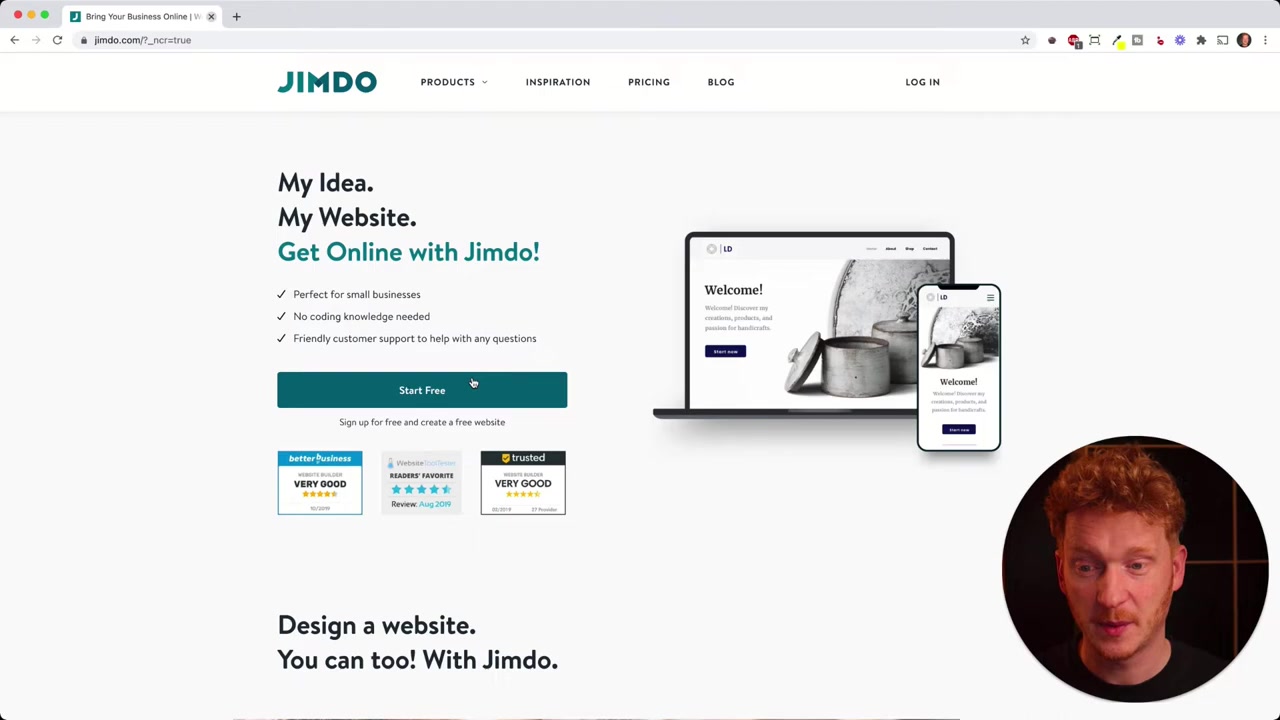
Head to Jimdo's website and click Start Free. You can sign up with Google, Facebook, Apple ID, or your email address.
Once you're in, Jimdo asks what you'd like to build: a regular website, an online shop, or a blog. For this tutorial, choose Website.
3. Choose the Dolphin Editor
Jimdo offers two editors: Dolphin (the modern drag-and-drop editor) and Creator (the older editor aimed at people who know HTML and CSS).
For beginners, always go with Dolphin. Click Start Now and you'll be taken through a short setup survey.
4. Answer the Setup Survey to Generate Your Design
Jimdo walks you through a few quick questions to auto-generate a design that fits your needs. Here's what it asks:
- Is this for yourself or a group?
- Is it a personal project or a business?
- What's the name of your website?
- What goals do you have (bookings, contact, promotion)?
- What industry or niche are you in?
- What visual style do you prefer?
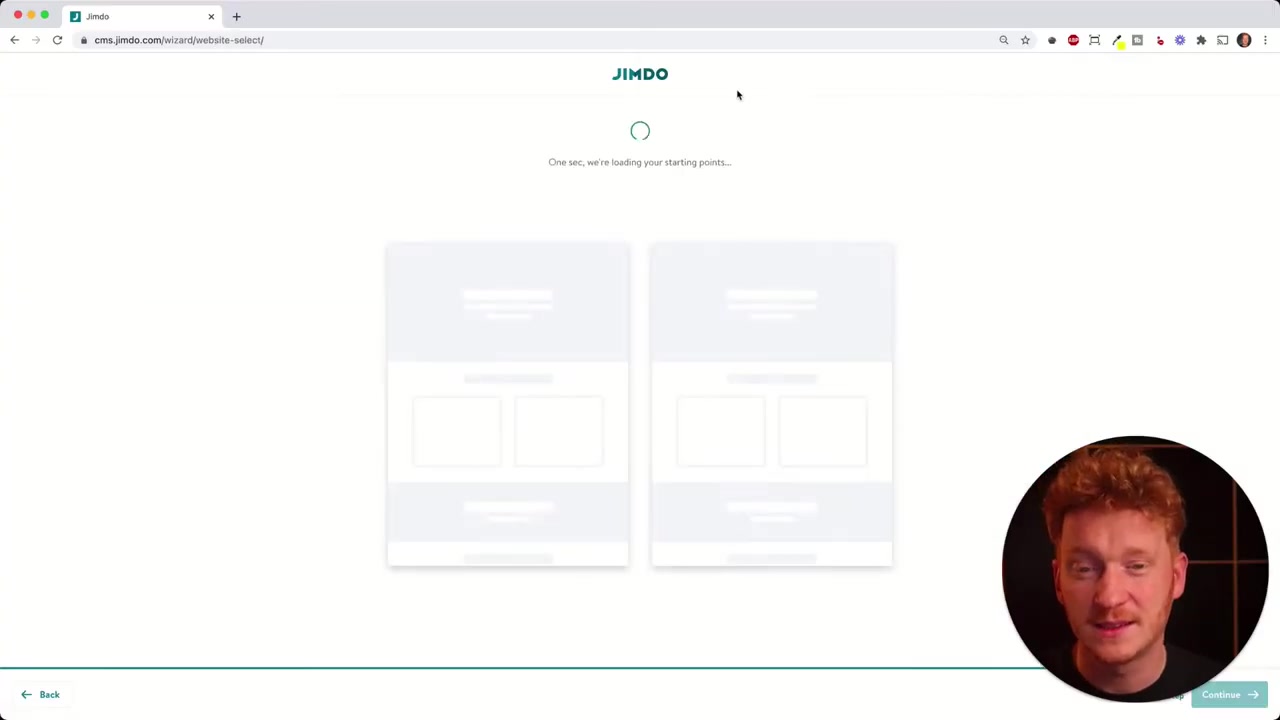
Don't stress about these answers — you can change everything later. Once you click through, Jimdo generates two design options: a dark version and a lighter version.
5. Pick a Domain for Your Jimdo Website
After choosing your design, Jimdo suggests a domain name based on your site name. You can accept the suggestion or search for your own.
On the free (Play) plan, your site gets a free Jimdo subdomain like yourname.jimdosite.com. If you want a custom domain like yourname.com, you'll need to upgrade to a paid plan.
6. Customize Colors, Fonts, and Buttons in the Jimdo Editor
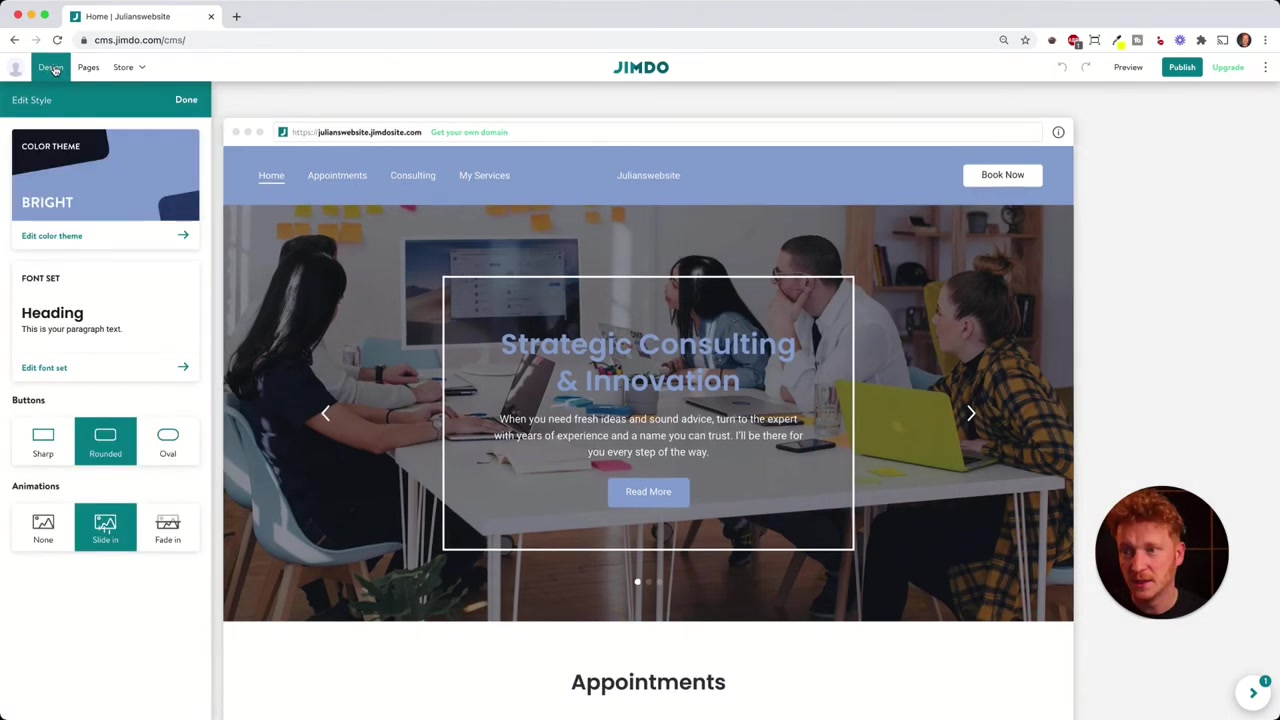
Once inside the Dolphin editor, click the Design tab at the top. Here you can choose your brand colors — either by typing in a hex code or picking from Jimdo's built-in color schemes.
You can also set your preferred fonts and choose whether buttons should be sharp or rounded. The beauty of these global settings is that you change everything at once — no need to edit each element individually.
Spend a few minutes here to get the look and feel right before you start editing content.
7. Edit Content Blocks on Your Website
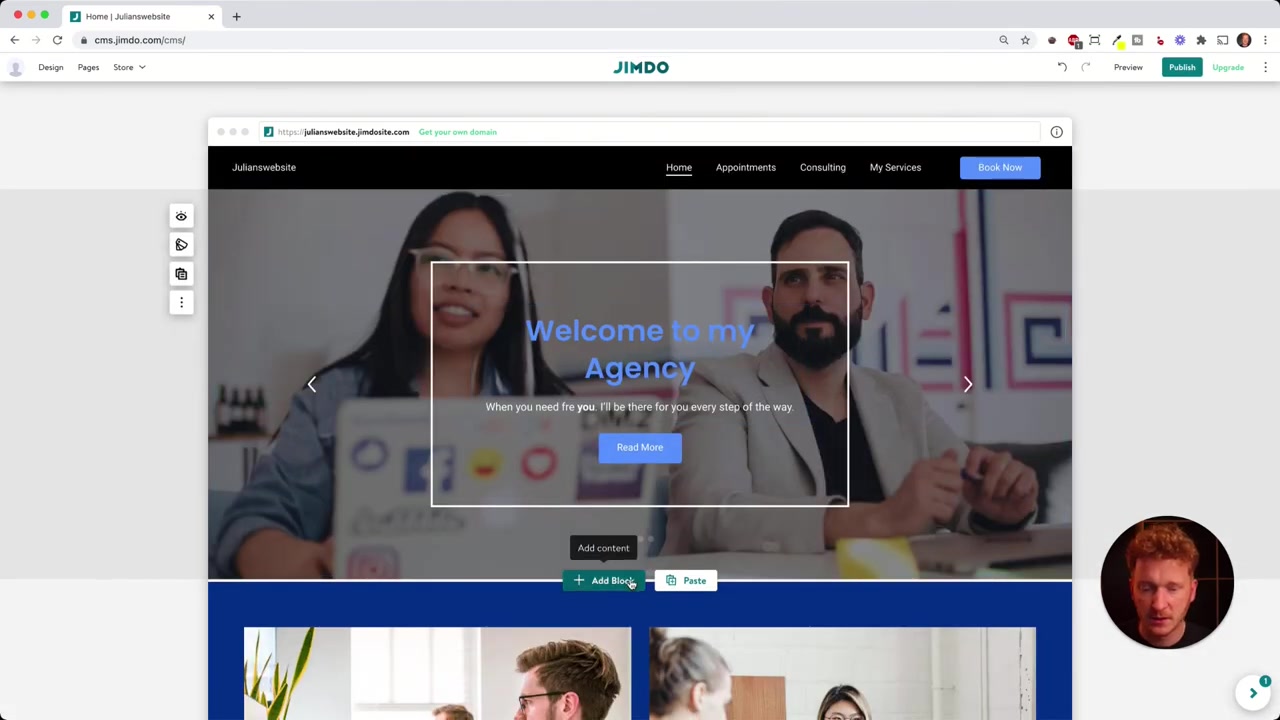
Jimdo builds your page from content blocks stacked on top of each other. Each block can contain text, images, buttons, and more.
To edit a text, simply click on it and start typing. To swap out an image, double-click it and either upload your own photo or choose from Jimdo's free stock image library — organized by category.
To link a button, click the link icon and connect it to an external URL, a booking service, or another page on your site.
8. Add, Move, and Delete Content Blocks
You can add a brand new content block at any time by clicking the Add Block button. Jimdo offers many block types including:
- About section
- Image or slideshow
- Banner
- Contact form with map
- Restaurant menu
- Booking widget
- Music player
To move a block, select it and use the up/down arrows. To remove it entirely, click Delete. You can also duplicate a block and paste it elsewhere on the page.
9. Manage Pages and Navigation in Jimdo
Click the Pages tab to manage your site structure. You can rename any page by clicking its name and typing a new one.
To add a new page, click Add Page, give it a name (like Pricing or Projects), and start adding blocks to it.
You can also drag pages to reorder them or nest one page under another to create dropdown menus — perfect for organizing a larger site.
10. Handle Legal Pages (Imprint, Privacy Policy, Cookie Settings)
Under System Pages, you'll find placeholders for your imprint, privacy policy, and cookie settings. These are legally required in many countries.
You can paste in your own legal text, or Jimdo offers an optional upgrade to a legal package that provides ready-made texts and cookie banners.
Always consult a qualified legal professional for advice on what your specific site requires — requirements vary by country and business type.
11. Preview and Publish Your Jimdo Website
Before going live, click Preview to see exactly how your site looks in a browser — both on desktop and on mobile.
Once you're happy, click Publish. Your site is now live! On the free plan, your URL will be your Jimdo subdomain. When you're ready to go professional, click Buy Your Domain directly from the editor.
12. Jimdo Pricing: How Much Does Jimdo Cost?
Jimdo offers a free Play plan that lets you build and publish a website with a Jimdo subdomain and limited pages. It's a great way to test the platform before committing.
Paid plans (like the Grow plan) unlock a free custom domain, more pages, and additional features. You pay on a yearly basis, which brings the monthly cost down significantly.
Check the latest pricing directly on Jimdo's website — plans and features can change over time.
13. Is Jimdo Good for Beginners?
Yes — Jimdo is one of the most beginner-friendly website builders available. The Dolphin editor's survey-based setup does most of the heavy lifting for you.
Because Jimdo uses fixed content blocks rather than a fully free-form canvas, you don't have to worry about layouts looking broken. Everything snaps into place automatically.
If you've ever felt overwhelmed by WordPress or found Wix too flexible, Jimdo's opinionated structure might be exactly what you need.
14. Jimdo vs Wix: Which Website Builder Should You Choose?
Wix gives you complete freedom to place elements anywhere on the page, which is powerful but can lead to design inconsistencies for beginners.
Jimdo uses structured content blocks, which limits flexibility but makes it much harder to accidentally create an ugly layout. For simple business sites and portfolios, Jimdo is often the faster choice.
If you need advanced features, a large app marketplace, or pixel-perfect design control, Wix may be the better fit. For speed and simplicity, Jimdo wins.
Frequently Asked Questions
Can I build a website with Jimdo for free?
Do I need to know how to code to use Jimdo?
How many pages can I have on the free Jimdo plan?
Does Jimdo include web hosting?
Does Jimdo include an SSL certificate?
Can I use my own domain with Jimdo?
Can I add an online shop to my Jimdo website?
How do I change the design of my Jimdo website after setup?
15. Disclosure
Some links in this post may be affiliate links. If you make a purchase through them, a small commission may be earned at no extra cost to you. All content is provided for informational purposes only and no guarantee is given regarding accuracy or results. Nothing in this post constitutes financial, legal, tax, or investment advice.
Related Articles

15 May 2024
Como hacer una página web con JIMDO
¿Quieres crear tu propia página web sin complicaciones? En este tutorial completo te mostramos cómo hacerlo con Jimdo, uno de los constructores de sitios web más fáciles de usar para principiantes. Si...

15 Dec 2025
Wix Promo Code 2026 – How to Save on Wix Premium Plans
If you've been thinking about upgrading to a Wix premium plan, timing your sign-up the right way can make a real difference. In this guide, I'll walk you through the exact method to access the best av...

28 Oct 2025
How to Create a TikTok Ads Account in 2026
Want to run ads on TikTok but not sure where to start? Setting up your TikTok Ads Manager account is easier than you think — and it only takes a few minutes. In this guide, I'll walk you through the e...