How to Install WordPress on Ionos | Ionos WordPress Tutorial 2026
Want to get a WordPress website up and running on Ionos — without any technical headaches? In this tutorial, Julian Weber walks you through the entire process step by step. From picking a hosting plan to navigating the WordPress dashboard, you'll have your site live in just a few minutes.
If you're ready to follow along, grab the Ionos link here and let's get started.
1. What is Ionos Managed WordPress Hosting?
Ionos is a popular web hosting provider that offers a Managed WordPress Hosting option. This is different from standard hosting because Ionos handles the technical setup for you automatically.
No manual file uploads. No fiddling with control panels. The system installs and configures WordPress on your server with just a few clicks.
This makes it an excellent choice for beginners and anyone who just wants to focus on building their website — not fighting with server configurations.
2. Choose the Right Ionos Hosting Plan for Your WordPress Site
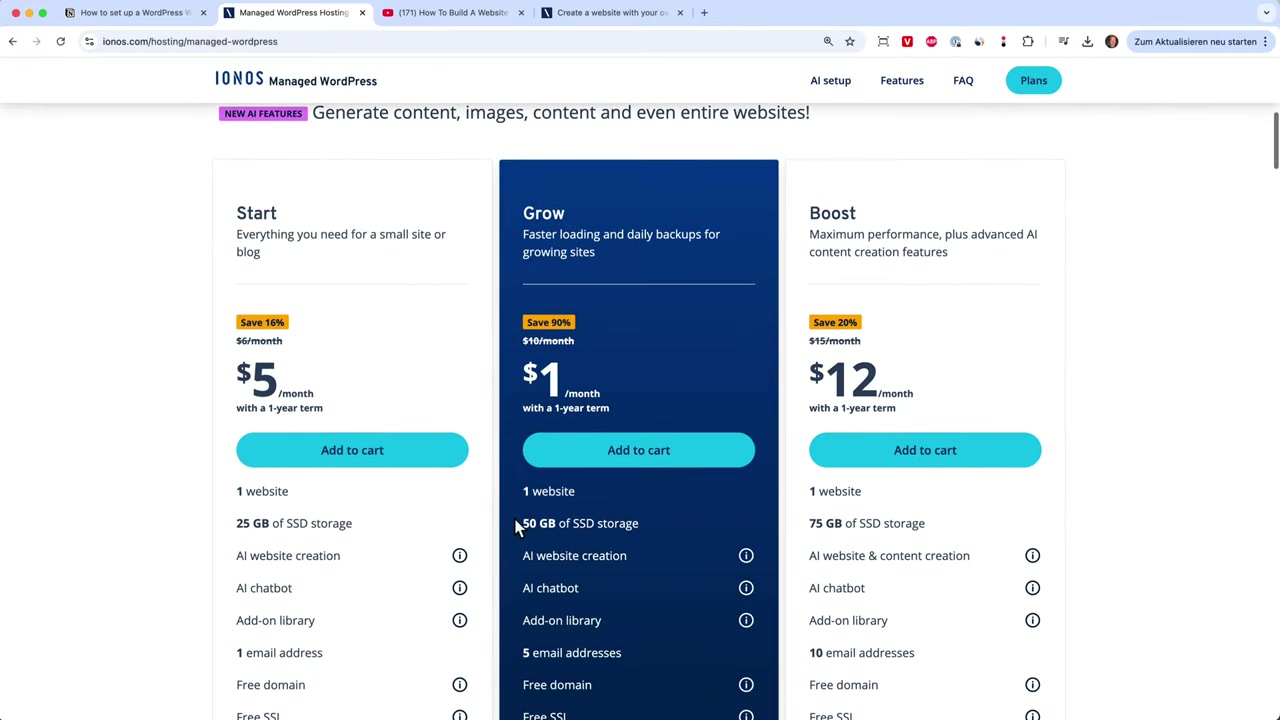
Once you land on Ionos, head to the Managed WordPress Hosting section. You'll see three main plans:
- Starter — best for most beginners, includes 1 website and 1 email address
- Grow — includes 5 email addresses
- Boost — more resources for growing sites
For most people starting out, the Starter plan is the smart choice. It's the most affordable option after the first year and still gives you everything you need to launch.
You can also choose to start with just a one-month subscription to test things out before committing long-term.
3. Pick a Domain Name for Your WordPress Website
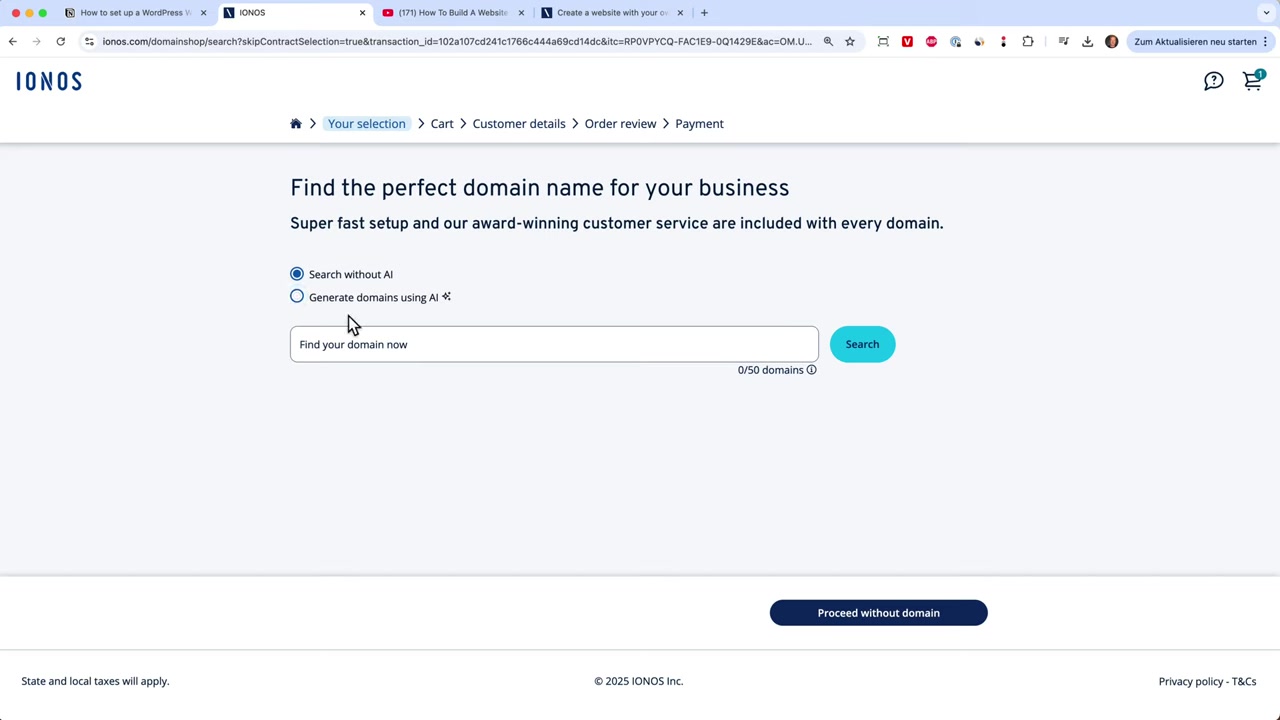
After selecting your plan, Ionos lets you search for a domain name. You can either type one in manually or use the AI-powered domain name generator.
Just describe what your website is about and the AI will suggest several relevant domain names. For example, entering a short description like "I do website tutorials on YouTube" quickly generates creative options.
Once you find a domain you like, add it to your cart. If you already own a domain elsewhere, you can connect it later instead.
4. Complete Your Ionos Checkout
After adding your domain, Ionos may offer extras like cloud storage or additional email accounts. You can skip these for now and click Continue.
Your cart will show your WordPress hosting package and your domain. Checkout is available via PayPal, Visa, Mastercard, or American Express.
Complete your payment details and confirm your order. You'll receive an order confirmation almost immediately.
5. Start the WordPress Installation on Ionos
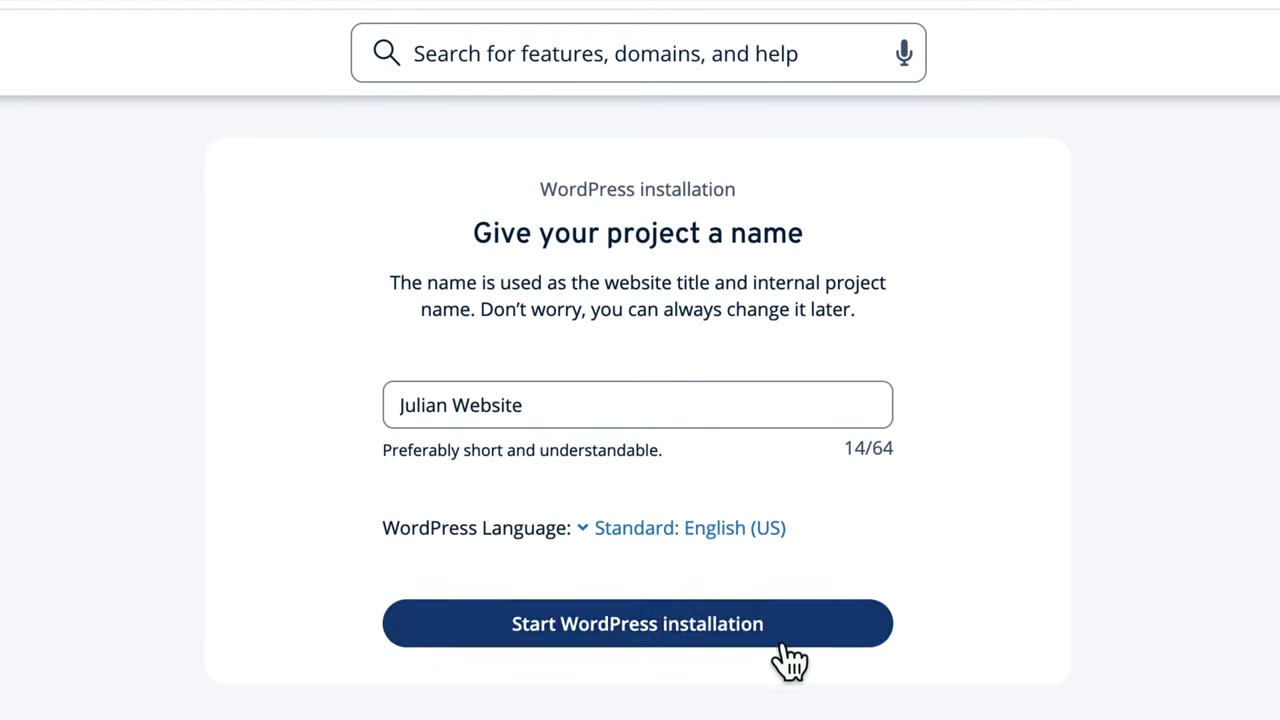
Once your order is confirmed, click Get Started. You'll be prompted to give your project a name — something like "Julian's Website" works fine.
Then click Start WordPress Installation and watch the magic happen. Ionos automatically sets up the entire WordPress environment on your server.
This is the real power of managed WordPress hosting. Back in the day, this process required serious technical knowledge. Now it takes about a minute or two — no effort required on your end.
6. Launch WordPress and Explore the Dashboard
After the installation completes, click Launch WordPress. You'll be asked whether you want to set things up with the AI assistant or do it yourself.
For this tutorial, we'll go with Do It Yourself — but Ionos's AI setup option is also available if you prefer a more guided experience.
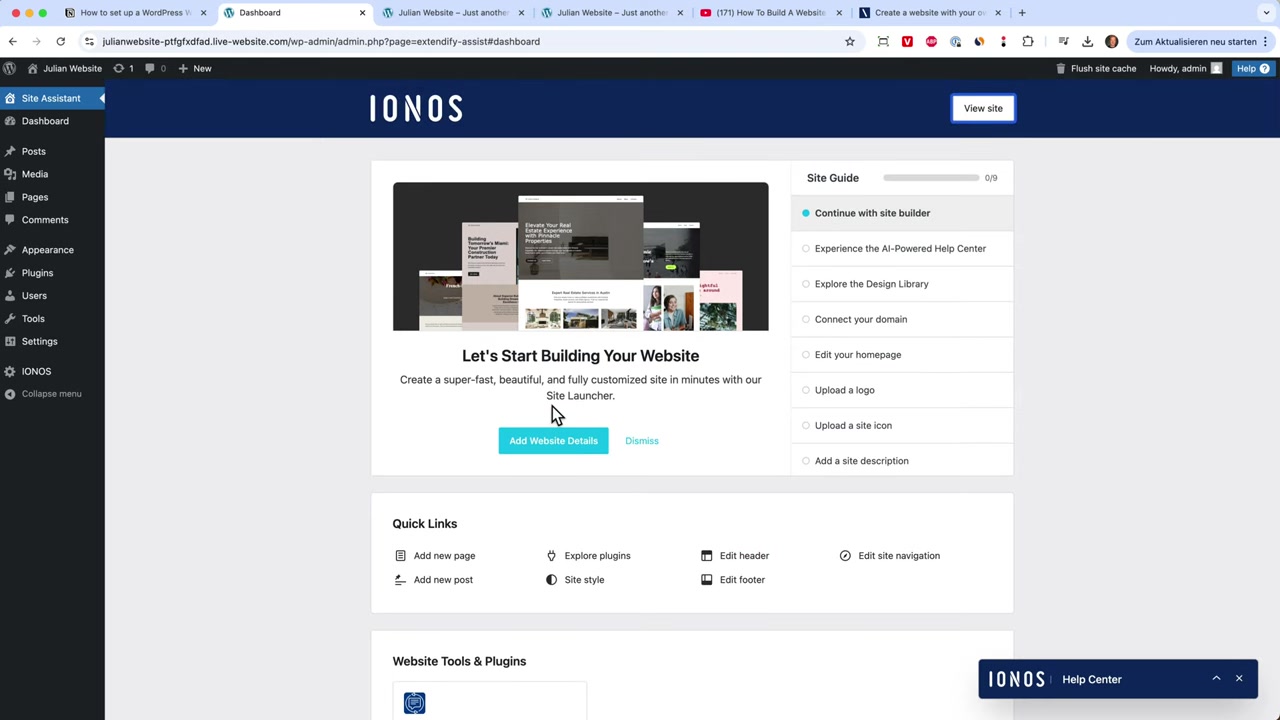
You're now inside the WordPress dashboard. Here's a quick overview of what you'll find on the left-hand menu:
- Pages — create your homepage, about page, contact page, and privacy policy
- Posts — publish blog articles and content
- Appearance → Themes — choose a visual design for your site
- Plugins — extend WordPress functionality with extra tools
7. Install a WordPress Theme and Page Builder
A fresh WordPress install uses a default theme that's pretty bare. To make your site look great, you'll want to install a proper theme.
Some popular options include:
- Astra
- Hello Elementor
- OceanWP
A highly recommended combination is the Hello Elementor theme paired with the Elementor page builder plugin. Go to Plugins → Add New Plugin, search for Elementor, and install it. This gives you a powerful drag-and-drop editor for building beautiful pages without any coding.
Ionos also comes with a few pre-installed plugins. Review them and remove any you don't need to keep your site lean and fast.
8. How to Access Your Ionos Account and WordPress Login
To manage your subscription, domain, and billing, log in at ionos.com and navigate to My Ionos. From there you can:
- Manage your subscription and contract
- View invoices
- Configure email and domain settings
- Access SSL settings
To get back into your WordPress dashboard at any time, either click Open WordPress from inside your Ionos account, or go directly to your domain followed by /wp-login in the browser.
You'll be prompted for your email and password, and you're in.
9. How Much Does Ionos WordPress Hosting Cost?
Ionos Managed WordPress Hosting starts at €1 per month for the introductory period on the Starter plan. After the first 12 months, the price increases slightly.
The Starter plan is the most affordable long-term option, while the Grow and Boost plans offer more email accounts and resources at a higher monthly cost.
Overall, Ionos is one of the more budget-friendly managed WordPress hosting options available, especially for beginners who don't need heavy-duty infrastructure right away.
10. Is Ionos Good for WordPress Beginners?
Yes — Ionos Managed WordPress Hosting is a great fit for beginners. The entire setup process is automated, so you don't need to know anything about servers, FTP, or databases.
The AI-powered setup wizard and domain name generator make it even easier to get started. And the built-in help center inside the WordPress dashboard gives you guided steps to finish your site.
If you're just starting your first WordPress website, Ionos removes a lot of the friction that used to make hosting intimidating.
Frequently Asked Questions
How long does it take to install WordPress on Ionos?
Do I need a domain name to use Ionos WordPress hosting?
Can I use Elementor with Ionos WordPress hosting?
How do I log into my WordPress dashboard on Ionos?
Can I cancel my Ionos WordPress hosting after one month?
What WordPress themes work best with Ionos hosting?
Does Ionos include email with WordPress hosting?
Do I need technical skills to set up WordPress on Ionos?
11. Disclosure
Some links in this post may be affiliate links, meaning a commission may be earned at no extra cost to you. All content is provided for informational purposes only, and no guarantees are made regarding results. This post does not constitute financial, legal, tax, or investment advice.
Related Articles
17 Mar 2025
Como instalar o WordPress no Ionos | Ionos WordPress Tutorial
Quer criar um site WordPress no Ionos mas não sabe por onde começar? Neste tutorial completo, vamos percorrer todo o processo — desde a escolha do plano de hospedagem até à configuração do painel do W...
16 Mar 2025
Come installare WordPress su Ionos | Ionos WordPress Tutorial
Vuoi creare un sito WordPress su Ionos ma non sai da dove iniziare? In questo tutorial ti mostro passo dopo passo come configurare il tuo hosting, installare WordPress e accedere alla dashboard — il t...
18 Mar 2025
Hur man installerar WordPress på Ionos | Ionos WordPress Tutorial
Vill du sätta upp en WordPress-webbplats på Ionos men vet inte var du ska börja? I den här guiden går vi igenom hela processen steg för steg – från att välja ett webbhotellspaket till att logga in på ...