How To Build A Website With IONOS – Tutorial 2026 – The AI Website Builder
Want to build a professional website without any coding skills? The IONOS AI Website Builder makes it surprisingly easy. In this step-by-step tutorial, we walk through everything — from signing up and letting the AI generate your first website, to editing content, adding pages, and finally connecting your own domain.
If you want to follow along, grab your account through the IONOS partner link — it supports this channel and helps keep these tutorials free.
1. What Is IONOS Website Builder?
IONOS is a well-established web hosting and website building platform. Their AI Website Builder is their newest feature, designed to help you create a full website in minutes using artificial intelligence.
Instead of starting from a blank canvas, you describe your business, and the AI generates a complete website — including copy, images, and layout — tailored to your needs.
It's a great option for freelancers, small businesses, and anyone who wants a good-looking site without hiring a designer.
2. Sign Up and Choose Your IONOS Plan
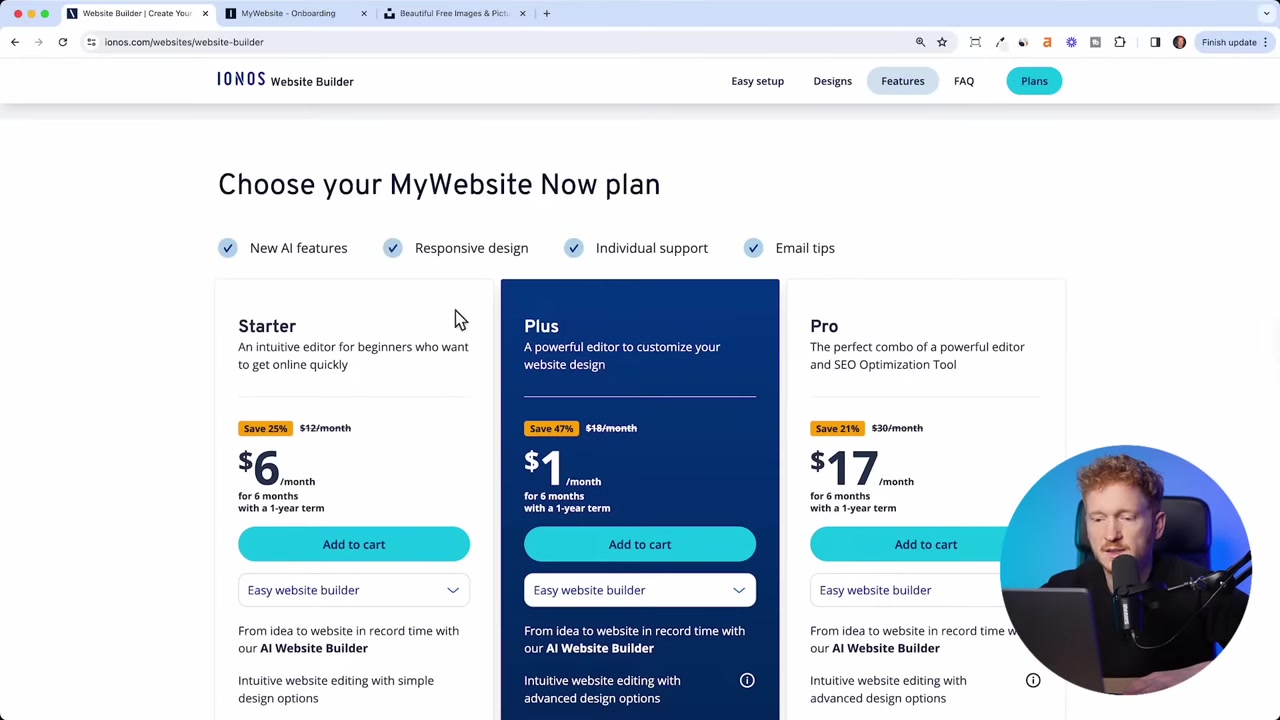
Head to the IONOS website and navigate to the Website Builder section. You'll see their plans listed on the page.
Start with the Starter Plan — it's the most affordable option and more than enough to get going. You can always upgrade later.
IONOS offers a 30-day money-back guarantee, so there's no risk in trying it out.
After selecting your plan, you'll be prompted to search for a domain name. Type in your preferred domain, check availability, and add it to your cart.
You may see some cross-sell offers for additional domains and email marketing tools. You can skip those for now and add them later if needed.
Finish checkout by entering your customer details and paying via credit card or PayPal.
3. Give the IONOS AI Instructions for Your Website
Once you're logged in, IONOS will prompt you to create your website with AI. This is where the magic starts.
First, enter your business name and select your category. For example: La Media Agency in the Marketing Agency category.
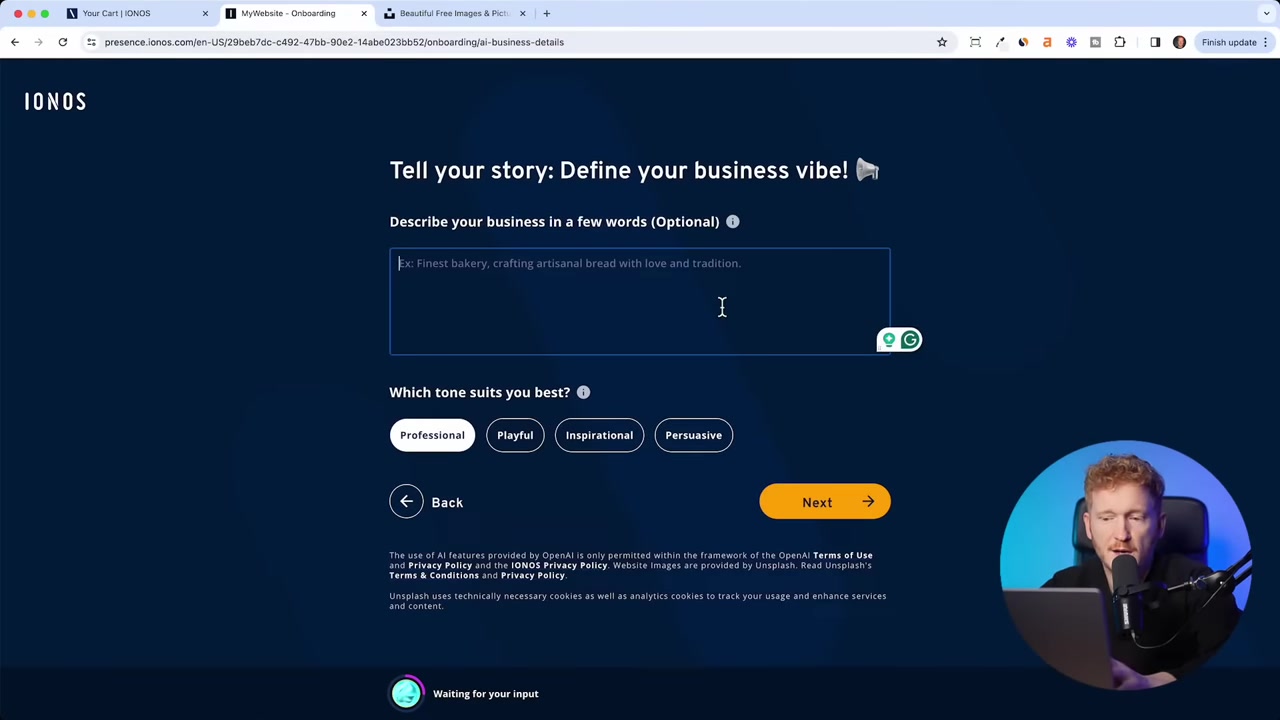
Next comes the most important step: the AI prompt. Think of it like ChatGPT — the more detail you provide, the better the result.
Describe what your business does, who you help, and what services you offer. For example:
"I want to help my clients grow their social media profiles such as Instagram, TikTok, and YouTube. I offer one-on-one consultancy and different packages tailored to their needs."
Be as specific as possible here. This single field has the biggest impact on how the AI builds your website.
After the prompt, you'll choose a tone (professional, playful, or inspirational), a design style (modern, classic, etc.), and a color template.
For a social media agency, Professional tone and Agency Gold color scheme work well. Don't worry — you can change everything later.
4. Review the AI-Generated Website Variations
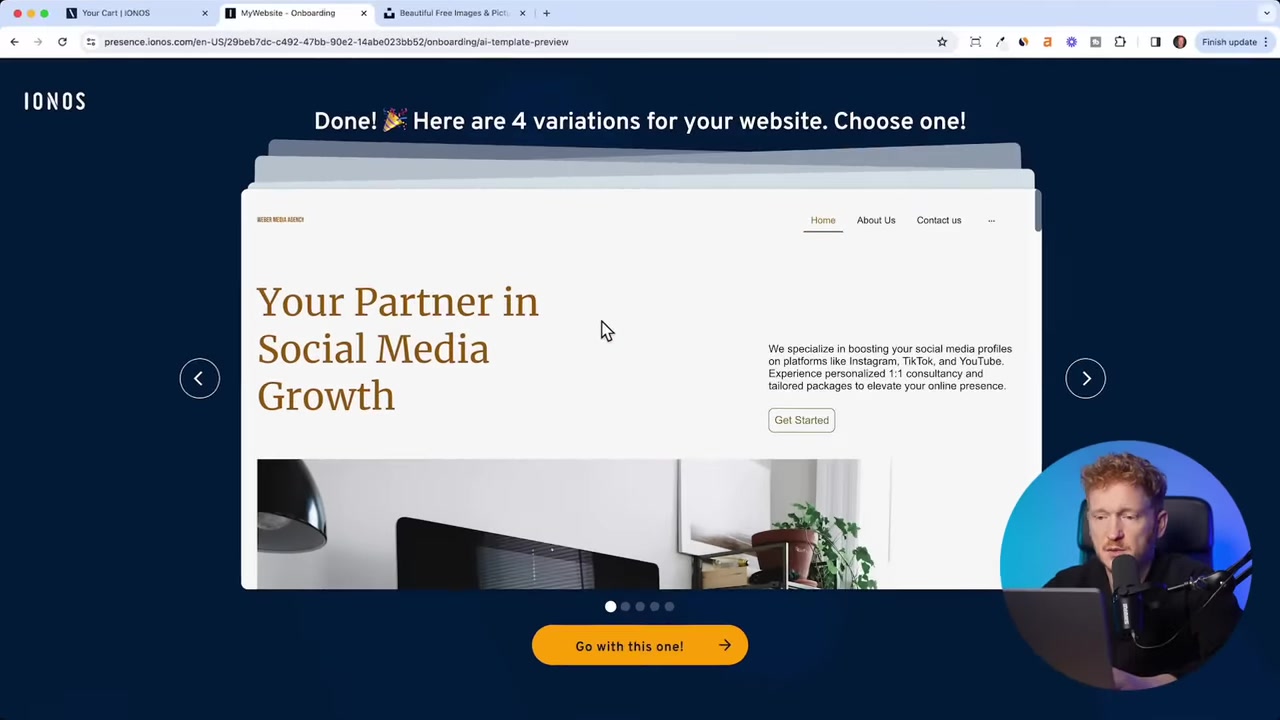
After a few seconds, IONOS presents four different website variations based on your inputs. Each one has a unique layout, imagery, and AI-written copy.
Take a moment to compare them. The first variation often looks the most polished — the AI picks fitting images and writes relevant headlines automatically.
Select the one you like best and click to proceed. IONOS will then finalize the website and drop you into the editor.
5. Explore the IONOS Dashboard
Before jumping into editing, take a quick look at your IONOS dashboard. This is your admin area — think of it as mission control for your website.
From here you can check your site stats, manage your website editor, set up local business listings (like Google Maps), and even launch email marketing campaigns.
There's also an e-commerce option if you want to sell products online — you'll need to upgrade to an e-commerce plan for that.
6. Edit Your Website Content in IONOS
Click Edit Website from the dashboard to open the visual editor. Your AI-generated website is ready and waiting.
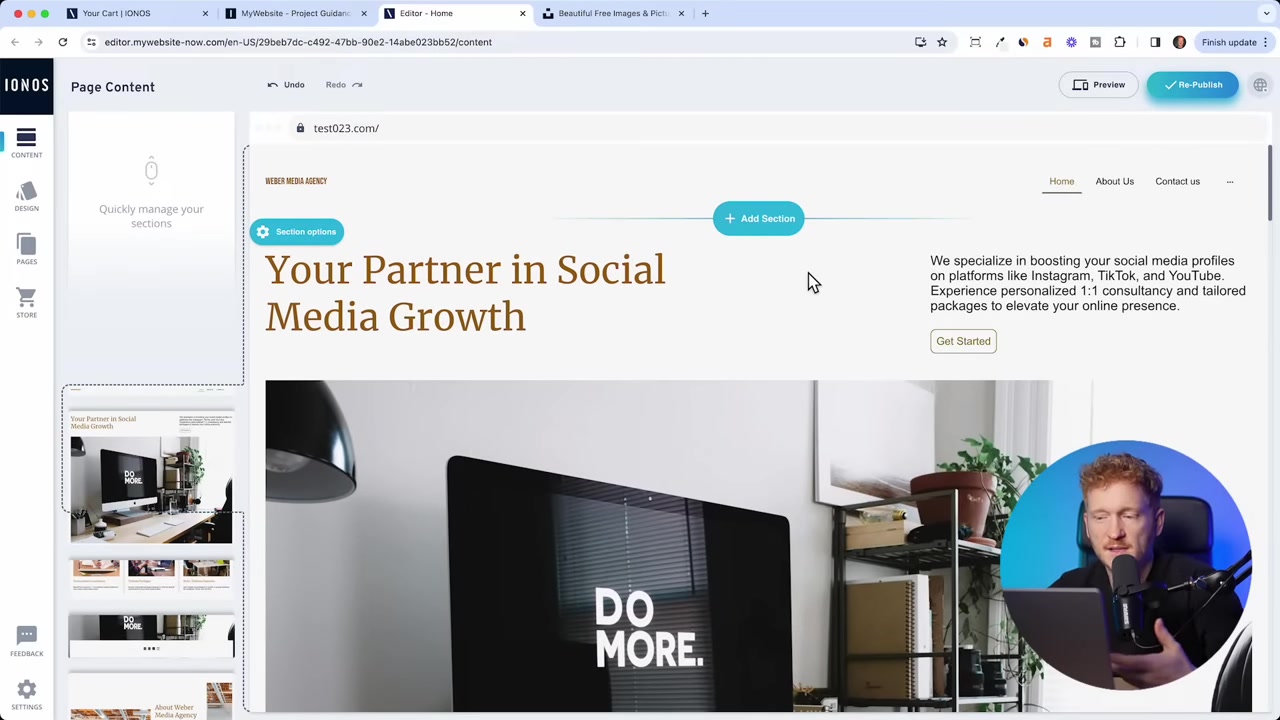
Every website in IONOS is built as a stack of sections — one on top of the other. Each section contains elements like headlines, paragraphs, buttons, and images.
Edit Headlines and Paragraphs
Click on any headline to edit it directly. You'll also see an AI text generator option — click it to ask the AI to rewrite the text in a different style.
For example, you can ask for something more trustworthy or more innovative. If you don't like the result, just hit undo to go back to the original.
For body text, select all the text and adjust the font size (e.g., 20px) to improve readability.
Edit Buttons and Links
Click any button to rename it and set its destination link. You can link to:
- Another page on your site (e.g., the Contact page)
- An external URL (e.g., your YouTube channel or shop)
- An email address so visitors can contact you directly
- A downloadable document
You can also change the button style. Switch from a ghost (transparent) button to a primary button for more visibility, and tweak the color to match your brand.
Replace Images on Your IONOS Site
Click any image and select Replace to swap it out. You can upload your own photo, pick from the IONOS image library, or use the AI image generator (powered by Midjourney/ChatGPT).
The AI image generator is a fun feature, though results can still be hit or miss — faces in particular can look a little off. For professional results, consider using Unsplash to find free high-quality images.
Just search for your topic (e.g., "agency"), download a free image, and upload it to your site.
Set Up the Contact Form
For the contact section, click Manage on the form and set the destination email address where submissions will be sent.
Also fill in your phone number and email address in the contact details. Make sure to link your email address so it becomes a clickable mailto link.
If you add your address, IONOS will automatically embed a Google Maps widget — a nice touch for local businesses.
7. Add New Sections to Your Website
To add a new section, hover between existing sections and click the Add Section button. IONOS gives you a wide library of section templates to choose from — image + text, galleries, maps, video embeds, text blocks, and more.
Pick the style you like and click to add it. Then edit the placeholder content with your own text and images.
Each section has a Section Options panel where you can:
- Enable/disable elements (headlines, paragraphs, buttons, images)
- Switch to Flexible Editing mode for drag-and-drop positioning of elements
- Change the background image or color
- Apply decorative section shapes at the top or bottom (rounded, wavy, dripping, cloudy)
The flexible editing mode is especially useful when you want to position elements precisely rather than sticking to the default grid layout.
8. Add New Pages to Your IONOS Website
Click on Pages in the editor to see all your site's pages. The AI already created several pages for you: Homepage, About Us, Contact, Legal Notice, and Privacy Policy.
To add a new page, click Add New, give it a name (e.g., Pricing), and click Add. The page starts empty, so click Edit Content and start adding sections from the template library.
You can drag and drop pages to reorder them in the navigation menu. You can also control how many pages appear directly in the menu — for example, set it to show four items so important pages are always visible, while legal pages stay tucked behind a dropdown.
From the style options, you can also adjust the menu font size and color to match your design.
9. Optimize Your Pages for SEO
In the Pages panel, each page has an SEO Title and SEO Description field. These are critical for showing up in Google search results.
For example, for a social media agency based in New York, your SEO title might be: Social Media Agency New York – Weber Media.
IONOS even includes an AI title and description generator here — click it and the AI will write an optimized meta description for you automatically.
Make sure to fill in SEO titles and descriptions for every important page — your homepage, services pages, and any content pages.
Skip it for the Privacy Policy and Legal Notice pages.
Also upload a social media preview image for your homepage. This is the thumbnail people see when your link is shared on WhatsApp, LinkedIn, or TikTok. You can create one easily using Canva.
10. Customize Your Website Design
Click Design from the editor to access global design settings. Here you can:
- Change the color palette — paste in your brand's hex color code for a perfect match
- Switch the typography/font — popular options like Poppins, Lato, and Montserrat are available
- Adjust spacing and hyphenation
If you have brand guidelines, this is where you bring them in. If you're starting fresh, the AI-chosen defaults are already a solid starting point.
You can also update your logo here. IONOS shows a text-based logo by default — you can resize and style the text, or upload a logo image file.
If you have a logo from Canva or another tool, simply upload it here. If not, a clean text logo works perfectly well while you're getting started.
11. Preview and Publish Your Website with IONOS
Before publishing, click Preview to see exactly how your site looks on desktop, tablet, and mobile. IONOS automatically makes your site responsive — no manual adjustments needed.
Once you're happy, click Publish. Your website will go live under a temporary test domain (e.g., test23.ionos.com) immediately.
To connect your own custom domain, go back to your IONOS dashboard and click on Connect Domain under Recommended Actions.
You can either search for a new domain or connect an existing one. If you purchased a domain during signup, it connects automatically. IONOS also enables the SSL certificate automatically, so your site will run on HTTPS straight away.
12. How Much Does IONOS Website Builder Cost?
IONOS offers several plans for their Website Builder, starting with a budget-friendly Starter Plan. All plans include hosting, and domain registration is typically free for the first year.
The platform also offers an e-commerce upgrade if you need to sell products online.
IONOS backs every plan with a 30-day money-back guarantee, so you can try it risk-free. For the latest pricing details, check the IONOS website directly.
13. Is IONOS Good for Beginners?
Yes — IONOS is one of the friendliest website builders for beginners. The AI setup wizard does most of the heavy lifting for you.
You don't need any design or coding knowledge. The editor is intuitive, and the AI generates a full working website from a simple text description.
The flexible section editing and built-in SEO tools also mean you can go beyond a basic site without ever touching a line of code.
14. IONOS vs Other Website Builders
Compared to other popular website builders, IONOS stands out for its AI-first approach and competitive pricing. The AI prompt system for generating your initial website is more advanced than what most competitors offer.
The platform covers hosting, domain, SSL, and website builder in one package — which simplifies things a lot compared to piecing together separate services.
If you're comparing IONOS to other tools like Wix, check out our Wix Promo Code guide for more context on that platform.
Frequently Asked Questions
Can I use the IONOS AI Website Builder for free?
Does IONOS include hosting with the website builder?
Can I add an online store to my IONOS website?
How do I connect my own domain to IONOS?
Can I change the design after the AI builds my website?
Does IONOS have mobile-responsive templates?
Can I use my own images on IONOS?
Does IONOS include SEO tools?
15. Disclosure
Some links in this post are affiliate links. If you make a purchase through them, a small commission may be earned at no extra cost to you. All content is provided for informational purposes only — no guarantees are made regarding results. This post does not constitute financial, legal, tax, or investment advice.
Related Articles

28 Oct 2025
How to Create a TikTok Ads Account in 2026
Want to run ads on TikTok but not sure where to start? Setting up your TikTok Ads Manager account is easier than you think — and it only takes a few minutes. In this guide, I'll walk you through the e...

15 Dec 2025
Wix Promo Code 2026 – How to Save on Wix Premium Plans
If you've been thinking about upgrading to a Wix premium plan, timing your sign-up the right way can make a real difference. In this guide, I'll walk you through the exact method to access the best av...

3 May 2024
Come creare un sito web con IONOS – Tutorial 2026 – Costruttore di siti web AI
Vuoi creare un sito web professionale senza dover scrivere una riga di codice? In questo tutorial ti mostro come usare IONOS AI Website Builder per costruire un sito completo, passo dopo passo. Dall'a...