How to Add Instagram Stories From PC or Mac – Best Method
Posting Instagram Stories from your desktop PC or Mac sounds simple — but anyone who has tried it knows Instagram doesn't make it easy. By default, you simply can't upload stories from a browser. Fortunately, there's a clean solution: Storrito.com. This web-based tool lets you upload, edit, and even schedule Instagram Stories right from your computer — no phone required.
1. Why You Can't Post Instagram Stories From a PC by Default
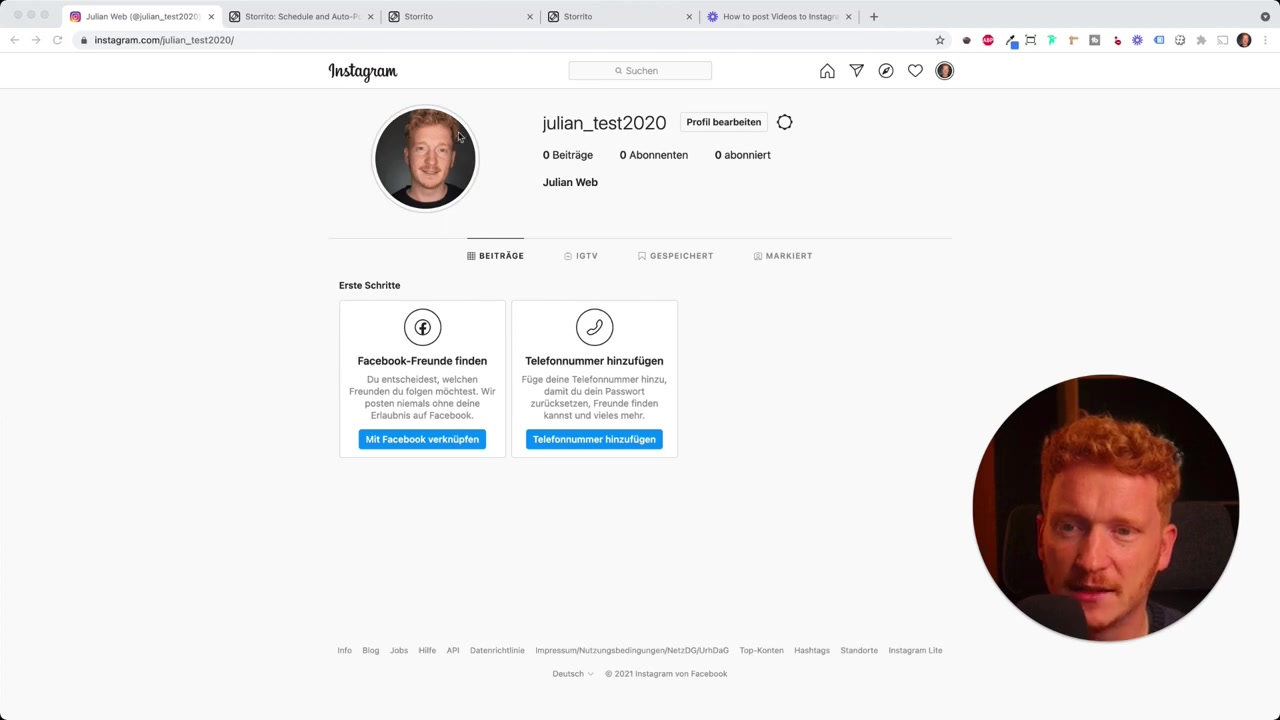
If you've ever opened Instagram in your desktop browser, you've probably noticed the same frustrating thing: you can click the story button, but nothing happens. Instagram simply doesn't support story uploads from a standard desktop browser.
That's where third-party tools come in. Apps like Storrito fill exactly this gap — giving you a proper desktop workflow for Instagram Stories without any workarounds or developer tricks.
2. What Is Storrito?
Storrito.com is a web-based Instagram Story tool that works in any modern browser — Chrome, Firefox, and Internet Explorer included. You don't need to install anything.
It lets you upload photos and videos, edit them with Instagram-style stickers and overlays, and post or schedule stories directly to your Instagram account. It even supports multiple Instagram accounts and cross-posting to Facebook.
3. Create Your Storrito Account
Head over to Storrito.com and click Try for Free. You can sign up with Google or use your email and password — whichever is faster for you.
Once you're in, you'll land on the main dashboard where you can start uploading media right away. But first, you need to connect your Instagram account.
4. Connect Your Instagram Account to Storrito
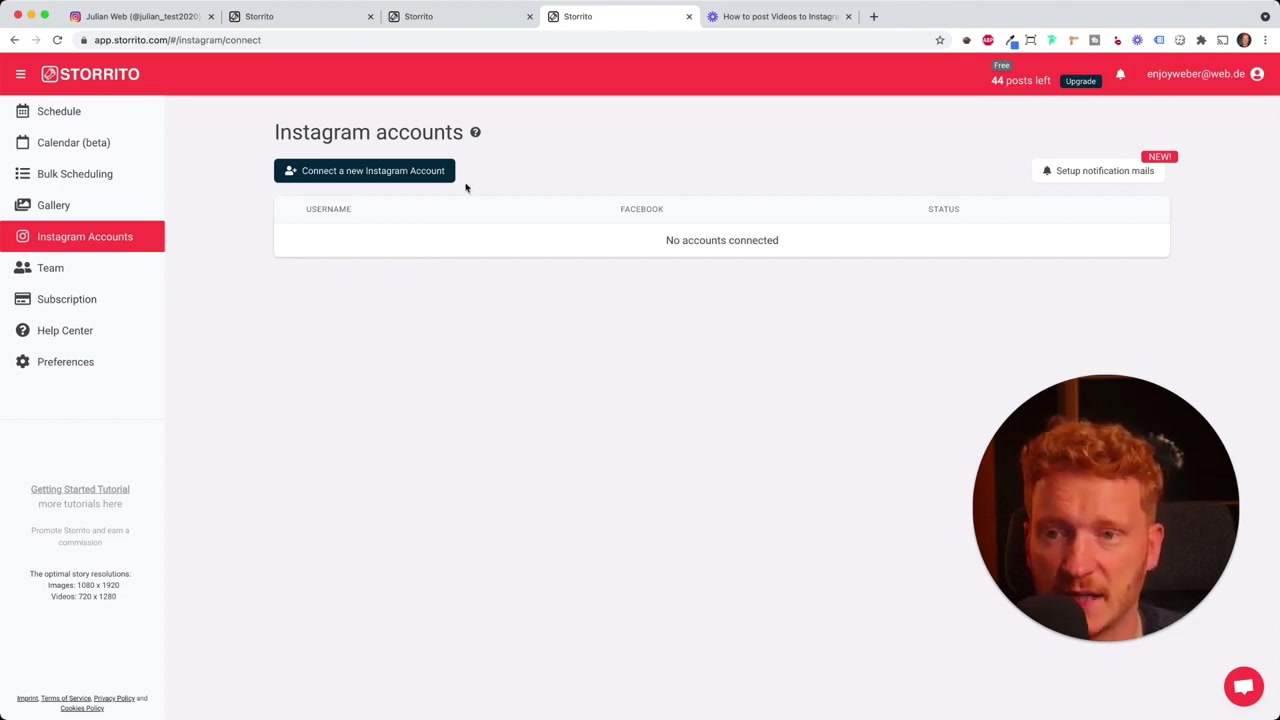
Click Connect Account on the dashboard. Storrito will ask for your location to help establish a better connection with Instagram — just click Continue.
Enter your Instagram username and the app will link your account automatically. Once connected, your account appears under Instagram Accounts in the sidebar. You can connect more than one account, which is great for social media managers handling multiple profiles.
5. Upload a Photo or Video for Your Instagram Story
Go to the Schedule section and click to upload an image or video from your computer. Storrito will upload and process the file — videos take a few extra seconds.
Once the file appears in your gallery, double-tap it to open the editing and posting options. That's where the fun begins.
6. Edit Your Story With Hashtags, Stickers, and More
This is where Storrito really stands out from other Instagram scheduling tools. Most automation apps let you post a photo or video — but strip out all the Instagram-native features. Storrito keeps them all.
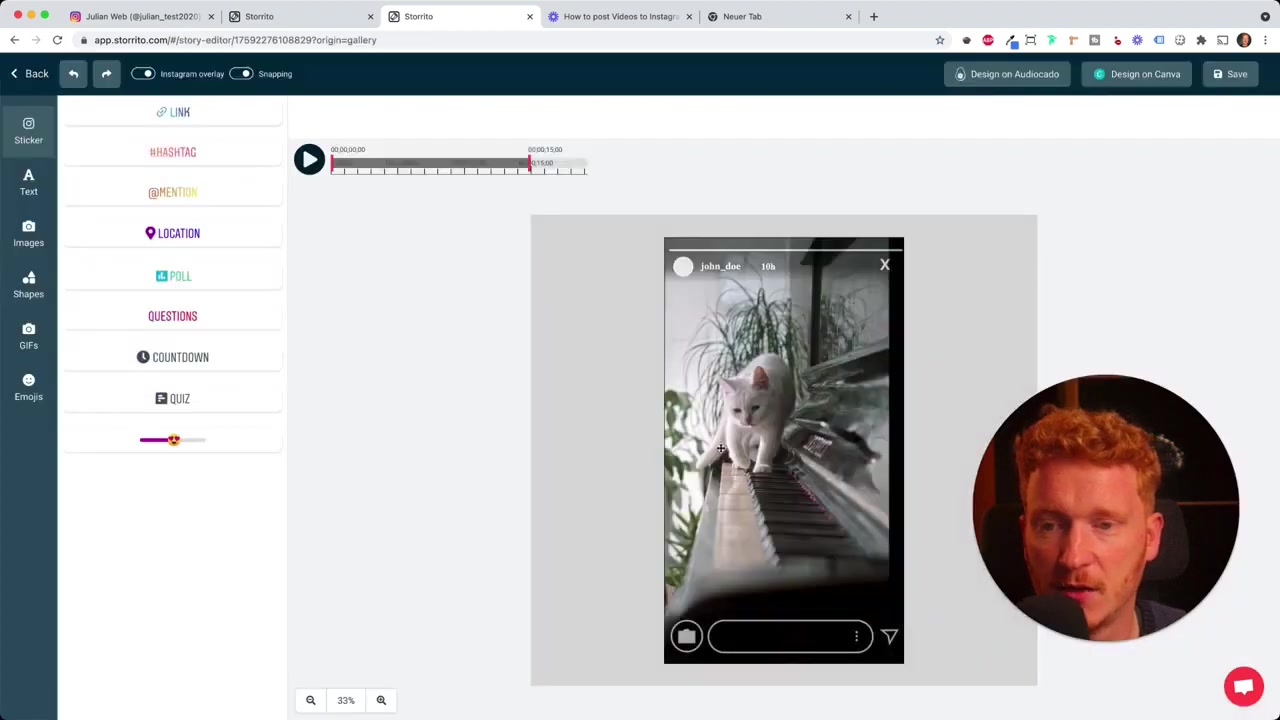
Inside the editor you can add:
- Hashtags — choose the color and drag them anywhere on the canvas
- Mentions
- Location tags
- Question stickers
- Poll sliders — even with custom emoji and colors
- Custom text overlays
You can resize, rotate, and reposition every element, just like you would on your phone.
You can also trim videos to a specific length (for example, 10 seconds) and preview the story before publishing. And if you use Canva, Storrito connects directly to it — import your Canva story designs and post them straight to Instagram without any extra steps.
7. Post or Schedule Your Instagram Story From Your PC
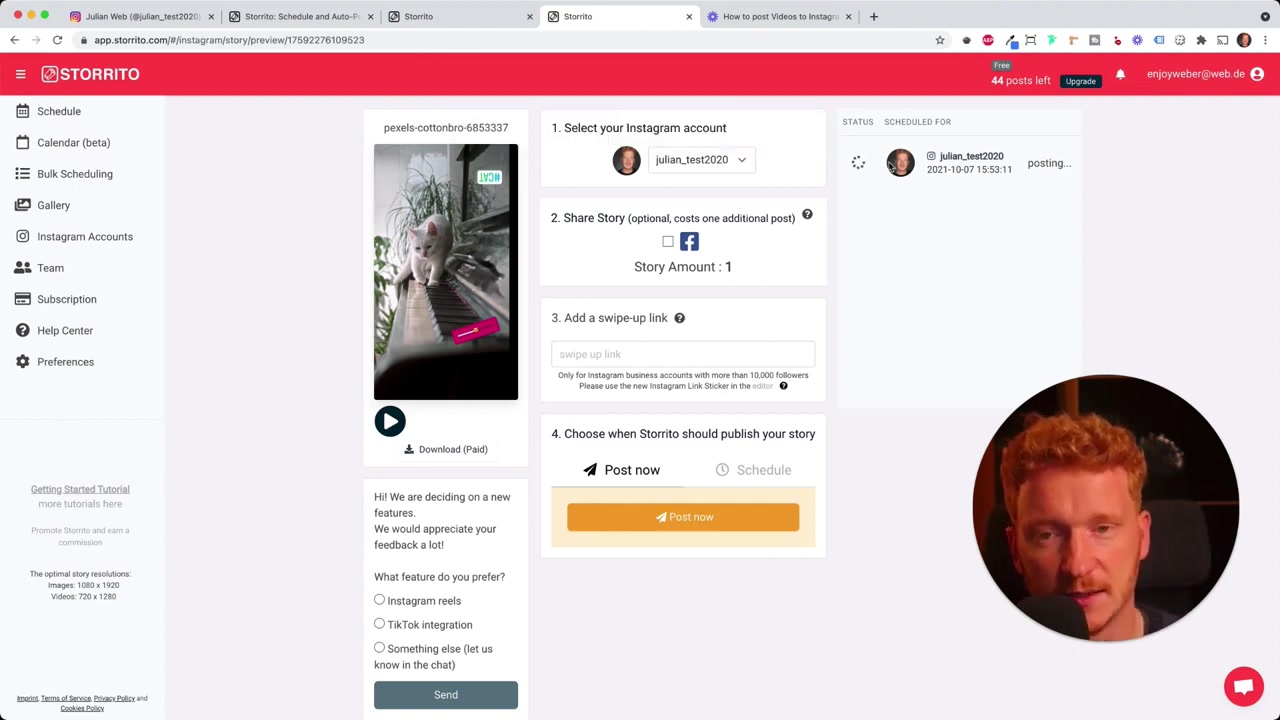
After editing, save your story and double-tap it again to open the publishing screen. Here you choose which Instagram account to post from.
You have two options:
- Post Now — publishes the story immediately
- Schedule — pick a date and time, and Storrito will auto-post for you
If your Instagram is linked to Facebook, you can check a box to cross-post the story to your Facebook account at the same time. You can also add a swipe-up link if your account supports it.
Click Post Now and within seconds you'll see a green checkmark confirming the story is live. Reload your Instagram profile in the browser and you'll see the story ring appear — ready for viewers.
8. Is Storrito Good for Beginners?
Absolutely. Storrito has a clean, intuitive interface that requires no technical knowledge. If you can drag and drop files, you can use it.
The free tier lets you try the core features without committing to a paid plan. It's a great starting point if you're just looking to post occasional stories from your desktop.
9. Storrito Pros and Cons
Pros:
- Works entirely in the browser — nothing to install
- Full Instagram story editor with stickers, hashtags, and locations
- Schedule stories in advance with auto-posting
- Supports multiple Instagram accounts
- Cross-posting to Facebook
- Canva integration
Cons:
- Requires connecting your Instagram account to a third-party service
- Some advanced features may require a paid plan
- Processing time for longer videos can add a short wait
Frequently Asked Questions
Can I post Instagram Stories from a PC without any app?
Is Storrito free to use?
Does Storrito work on Mac as well as Windows?
Can I schedule Instagram Stories in advance with Storrito?
Can I manage multiple Instagram accounts with Storrito?
Does Storrito support Instagram stickers and hashtags?
Can I cross-post Instagram Stories to Facebook using Storrito?
Does Storrito work with Canva?
10. Disclosure
Some links in this post may be affiliate links. If you make a purchase through one of these links, a small commission may be earned at no extra cost to you. All content is provided for informational purposes only and no guarantee is given regarding accuracy or results. Nothing in this post constitutes financial, legal, tax, or investment advice.
Related Articles

28 Oct 2025
How to Create a TikTok Ads Account in 2026
Want to run ads on TikTok but not sure where to start? Setting up your TikTok Ads Manager account is easier than you think — and it only takes a few minutes. In this guide, I'll walk you through the e...

15 Dec 2025
Wix Promo Code 2026 – How to Save on Wix Premium Plans
If you've been thinking about upgrading to a Wix premium plan, timing your sign-up the right way can make a real difference. In this guide, I'll walk you through the exact method to access the best av...

15 May 2024
Como hacer una página web con JIMDO
¿Quieres crear tu propia página web sin complicaciones? En este tutorial completo te mostramos cómo hacerlo con Jimdo, uno de los constructores de sitios web más fáciles de usar para principiantes. Si...