How to Install WordPress on Hostinger – Step-by-Step Tutorial
Want to get a WordPress site up and running on Hostinger without the headache? In this tutorial, Julian Weber walks you through the entire process — from picking a hosting plan to logging into your WordPress dashboard — in under 10 minutes. Whether you're a complete beginner or switching hosting providers, this guide has you covered. Check out Hostinger to get started with one of the most affordable managed WordPress hosts on the market.
1. What Is Hostinger and Why Use It for WordPress?
Hostinger is one of the most popular web hosting providers in the world, known for its low prices and beginner-friendly interface. It offers managed WordPress hosting starting at just 3–4 per month, which makes it a fantastic option for anyone getting started online.
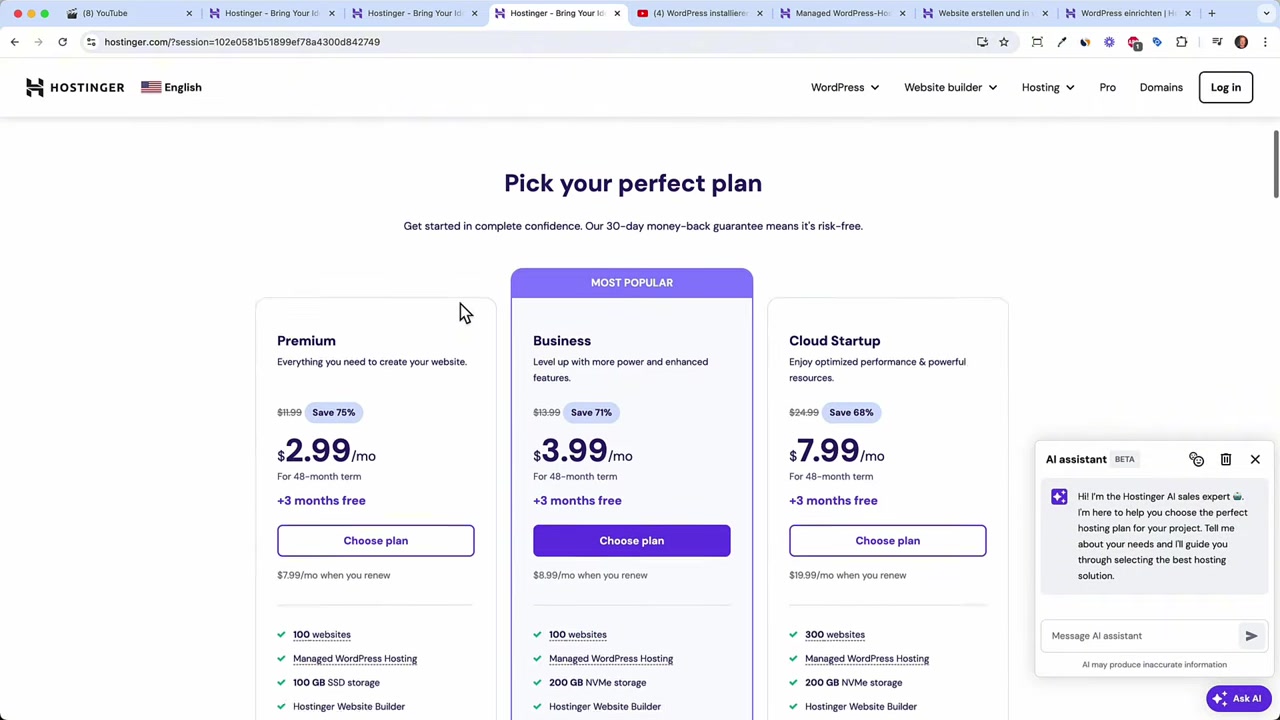
Even the entry-level plan is surprisingly generous. You can host up to 100 websites, get 100 GB of SSD storage, and receive a free domain name — all included in the base price.
2. Choose the Right Hostinger Plan for Your WordPress Site
Head over to Hostinger and navigate to WordPress → Managed WordPress. You'll see a few pricing tiers to choose from.
Julian recommends starting with the lowest-tier plan. You can always upgrade later when your site grows. The starter plan already includes everything you need to launch a professional WordPress website.
Keep in mind that the $3/month price requires a 4-year commitment. If that feels like too much upfront, the 24-month plan is a great middle ground — and still very affordable.
3. Use the Coupon Code to Save Extra on Hostinger
Before completing your purchase, look for the coupon code field at checkout. Type in JULIANWEBER and hit redeem to unlock an extra 10% off your plan.
Hostinger accepts a wide range of payment methods including credit card, PayPal, Google Pay, Alipay, and even Bitcoin — so there's something for everyone.
4. Create a New Website and Install WordPress on Hostinger
Once you've signed up, Hostinger will ask whether you want to create a new website or migrate an existing one. For most beginners, you'll choose Create a website.
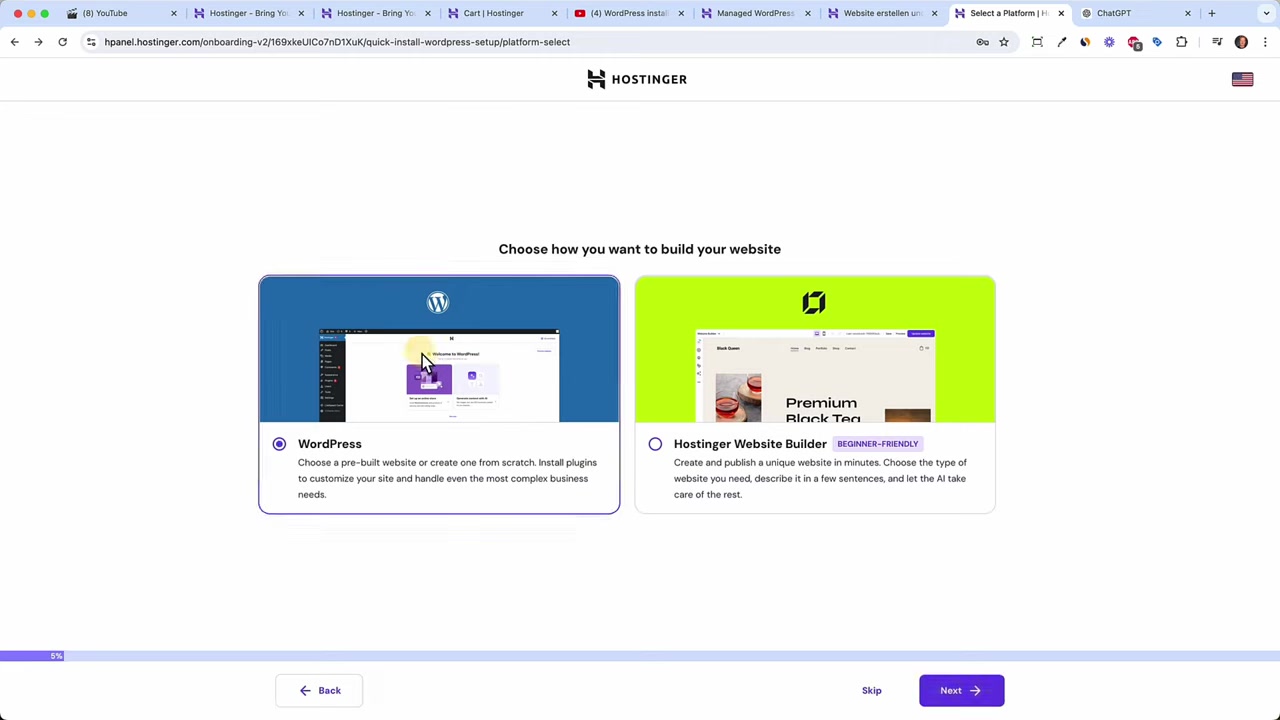
On the next screen, make sure to select WordPress as your platform. Hostinger also has its own website builder, but this tutorial focuses on WordPress — the world's most popular CMS.
5. Set Up Your WordPress Login Credentials
Next, you'll be prompted to create your WordPress login credentials. These are not the same as your Hostinger account credentials — they're separate.
Your WordPress username and password are what you'll use to log directly into your WordPress dashboard later, without going through Hostinger. Make sure to save them somewhere safe.
6. Choose Your Website Type, Theme, and Plugins
Hostinger will ask what kind of website you're building — options include an online store, blog, portfolio, or business/service site. Choose whichever fits your goals.
Next, you'll pick a WordPress theme. Hostinger offers popular choices like Astra, GeneratePress, OceanWP, and Cadence. Julian recommends Astra or Cadence as solid starting points — and don't worry, you can change your theme at any time.
When it comes to the pre-selected plugins, Julian advises deselecting all of them. For example, Hostinger suggests All-in-One SEO, but Yoast SEO is generally considered the better choice. You'll install the plugins you actually need once you're inside the WordPress dashboard.
7. Register Your Domain Name
Every website needs a domain. Type in your desired domain name in the provided field. If you're not sure what name to pick, Julian suggests using ChatGPT — describe your business or idea, mention where you're based, and ask for domain name suggestions.
Once you've chosen your domain, add it to your cart and proceed. You'll fill in your contact details to complete domain registration.
8. Select the Right Hostinger Server Location
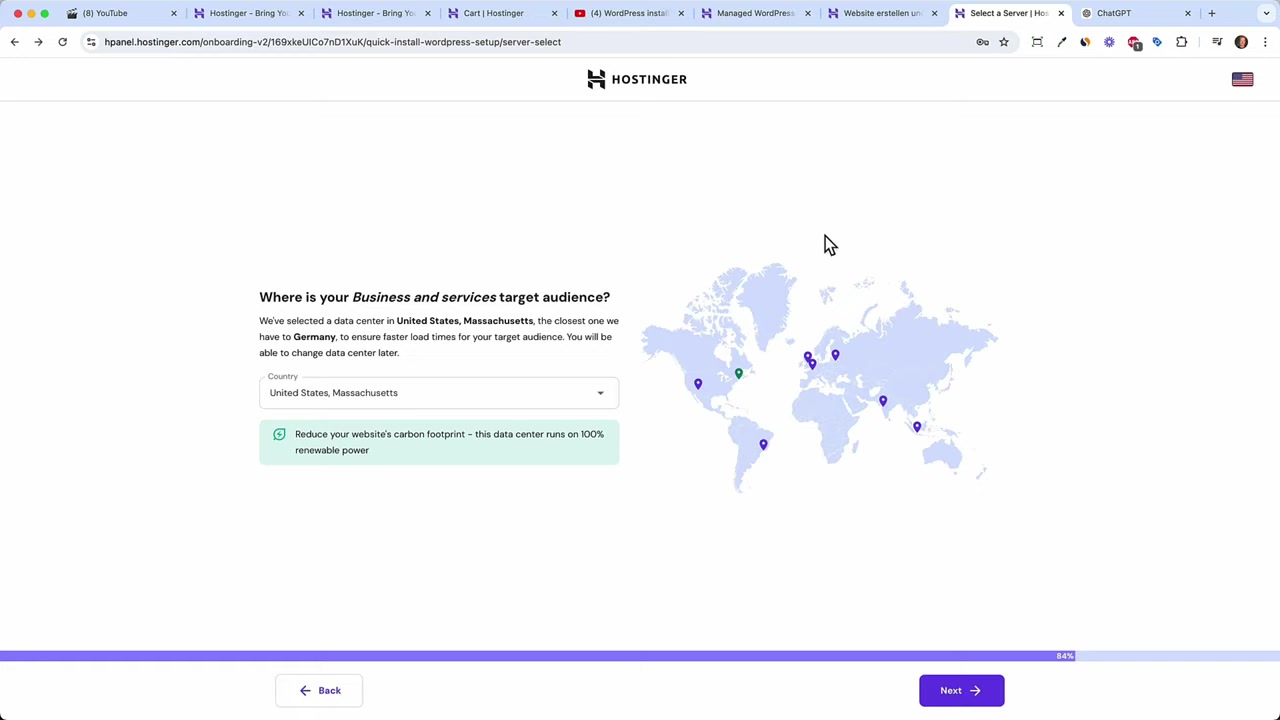
Hostinger has 8 server locations worldwide. You'll be asked to pick the one closest to your target audience. This matters because the physical distance between your server and your visitors affects page load speed.
If your audience is in the US, pick East or West Coast. If you're targeting Europe, choose one of the European server locations. Faster load times lead to a better user experience and better SEO.
9. Access Your WordPress Dashboard
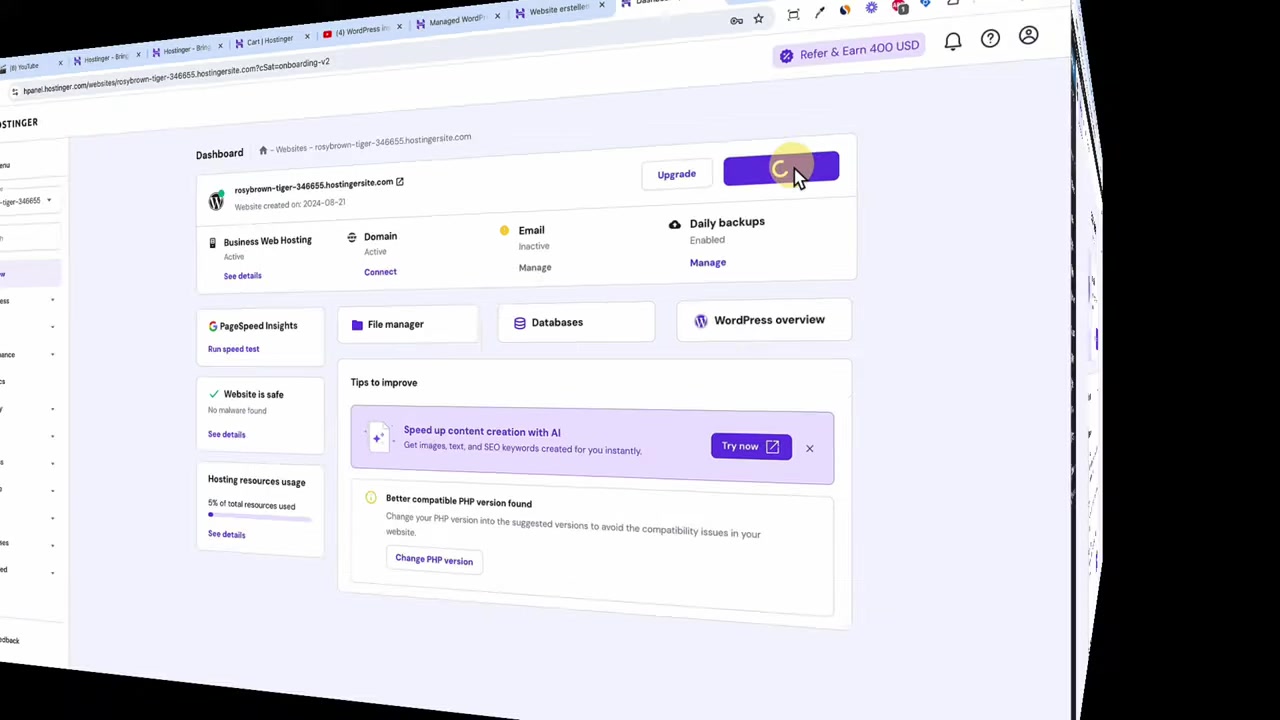
After a short wait, Hostinger will finish installing WordPress. You'll see your domain listed in the dashboard — if you chose a test domain, it's usually live immediately. Custom domains can take up to 24 hours to propagate.
Click through to your WordPress admin panel. This is your command center for everything: creating pages, writing blog posts, managing themes, and installing plugins.
Under Appearance → Themes, you can swap your theme at any time. Under Plugins → Add New, you can install tools like Elementor (used by over 10 million websites) for drag-and-drop page building, Yoast SEO for search optimization, and more.
10. How Much Does Hostinger WordPress Hosting Cost?
Hostinger's managed WordPress plans start at 3/month** (on a 4-year plan) or **4/month (on shorter terms). Both entry-level options include up to 100 websites, 100 GB SSD storage, and a free domain.
Compared to most competitors, Hostinger offers exceptional value for the price. It's one of the few hosts where beginners can launch a full WordPress site for just a few dollars a month.
11. Is Hostinger Good for Beginners?
Absolutely. Hostinger's onboarding flow is one of the smoothest in the industry. The setup wizard guides you through every decision — platform, theme, domain, and server location — without requiring any technical knowledge.
The managed WordPress dashboard is clean and intuitive. Even if you've never touched WordPress before, you'll feel comfortable navigating it within a few minutes.
12. Hostinger vs Other WordPress Hosting Providers
Hostinger competes primarily with providers like Bluehost, SiteGround, and GoDaddy. Its main advantages are price and simplicity. You get more storage and more hosted sites at a lower monthly cost than most comparable plans.
SiteGround, for example, is known for excellent support and performance but comes at a higher price point. If budget is your primary concern and you want an easy setup, Hostinger is hard to beat. If you're curious about SiteGround, check out our SiteGround WordPress Tutorial for a comparison.
Frequently Asked Questions
How long does it take to install WordPress on Hostinger?
Do I need a domain name before signing up for Hostinger?
What is the coupon code for Hostinger?
Can I change my WordPress theme after setup?
What plugins should I install on a new WordPress site?
How do I log into my WordPress site without going through Hostinger?
How long does it take for my domain to go live?
Can I host multiple websites on one Hostinger plan?
13. Disclosure
Some links in this post are affiliate links. If you make a purchase through them, a commission may be earned at no extra cost to you. All content is provided for informational purposes only, without any guarantee of accuracy or completeness. Nothing in this post constitutes financial, legal, tax, or investment advice.
Related Articles

28 Oct 2025
How to Create a TikTok Ads Account in 2026
Want to run ads on TikTok but not sure where to start? Setting up your TikTok Ads Manager account is easier than you think — and it only takes a few minutes. In this guide, I'll walk you through the e...

15 Dec 2025
Wix Promo Code 2026 – How to Save on Wix Premium Plans
If you've been thinking about upgrading to a Wix premium plan, timing your sign-up the right way can make a real difference. In this guide, I'll walk you through the exact method to access the best av...

27 Jun 2025
How to Cancel Your Shopify Plan in 2026 – Quick & Easy Tutorial
Want to cancel your Shopify plan but not sure where to start? Don't worry — it only takes a couple of minutes. This quick guide walks you through every step, so you can close your store cleanly withou...