Hostinger AI Website Builder Tutorial 2026 – Build a Website in Minutes (Step-by-Step)
Want to build a professional website without writing a single line of code? In this step-by-step tutorial, you'll see exactly how to use the Hostinger AI Website Builder to go from a blank slate to a fully published site — in under 30 minutes.
We'll cover everything: picking a plan, generating your site with AI, customizing content, adding pages, setting up SEO, creating a logo, and finally going live. Whether you're a complete beginner or just looking for a faster way to build, this guide has you covered.
You can get started with Hostinger using the link below — use coupon code JULIANWEBER at checkout to save an extra 10%.
1. What Is Hostinger Website Builder?
Hostinger is best known as a web hosting provider, but their AI Website Builder has become one of the most impressive tools for creating websites quickly. It uses AI to generate entire pages — including layout, text, and images — based on a simple prompt you write.
Unlike traditional drag-and-drop builders, Hostinger's AI doesn't just give you a blank template. It actually builds a full, multi-page website tailored to your business type within seconds.
It's a fantastic option for small business owners, freelancers, and anyone who wants a good-looking site without the steep learning curve.
2. Choosing the Right Hostinger Plan
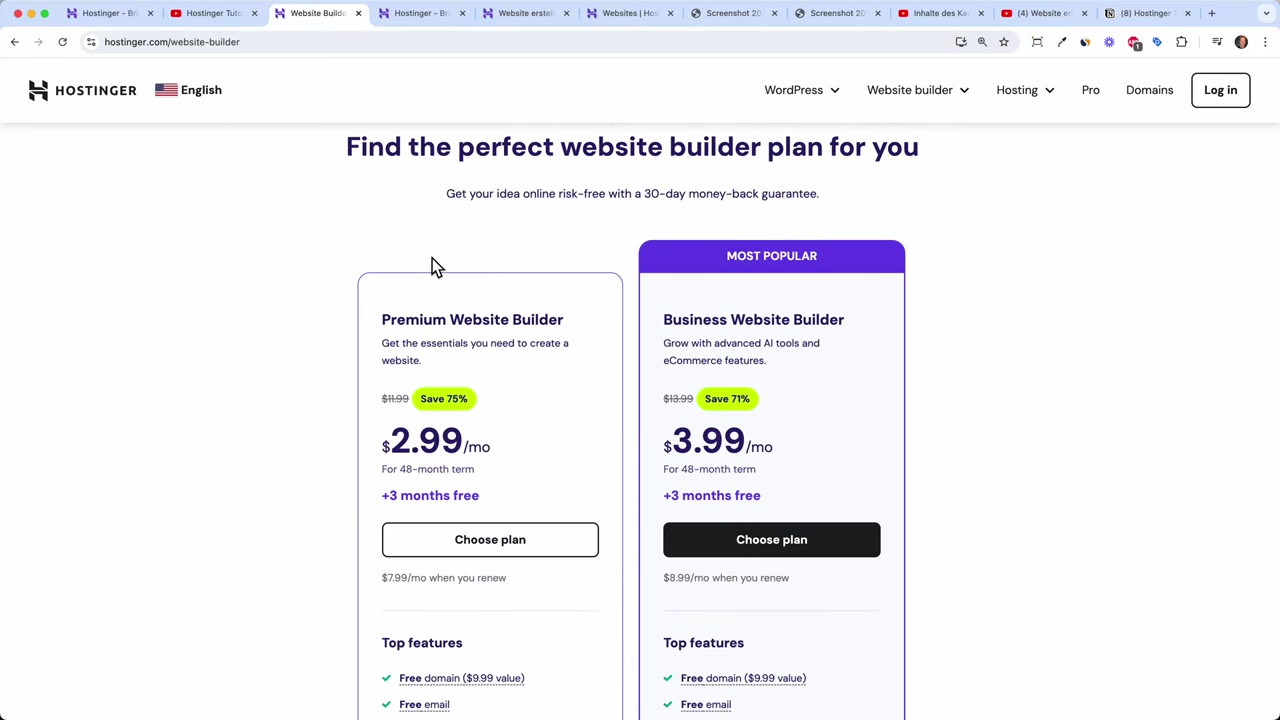
When you head to Hostinger via the affiliate link, you'll see two main website builder plans to choose from.
The key difference is simple: the higher tier includes AI tools and e-commerce features. If you plan to run an online store — or want to use AI to generate blog posts, images, and SEO help — this plan is worth it. It's only a dollar more per month.
For billing period, 24 months is a sweet spot between commitment and value. Just keep in mind the renewal price is slightly higher than the intro price, so factor that in.
At checkout, enter coupon code JULIANWEBER to get an extra 10% off your plan. You can pay by credit card, PayPal, Google Pay, or even Bitcoin.
Hostinger also offers a 30-day money-back guarantee, so there's minimal risk. There's no free trial, but the guarantee gives you a safety net if things don't work out.
3. Generate Your Website with the Hostinger AI Builder
Once you've logged in, Hostinger asks whether you want to create or migrate a website. Choose create a new website, then select the Hostinger Website Builder (not WordPress).
Next, the AI generator launches — and this is where things get really impressive. You'll be asked to select a website type (business, blog, restaurant, landing page, online store, etc.) and give your site a name.
Then comes the prompt. Describe your business in as much detail as possible. You can even use the microphone icon to dictate your description instead of typing it.
For example, for a gym website you might say: "I want to build a website for my gym called Julian's Gym. We offer bodybuilding classes, yoga classes, spinning classes, and more. I also want an online shop selling merchandise and protein powder."
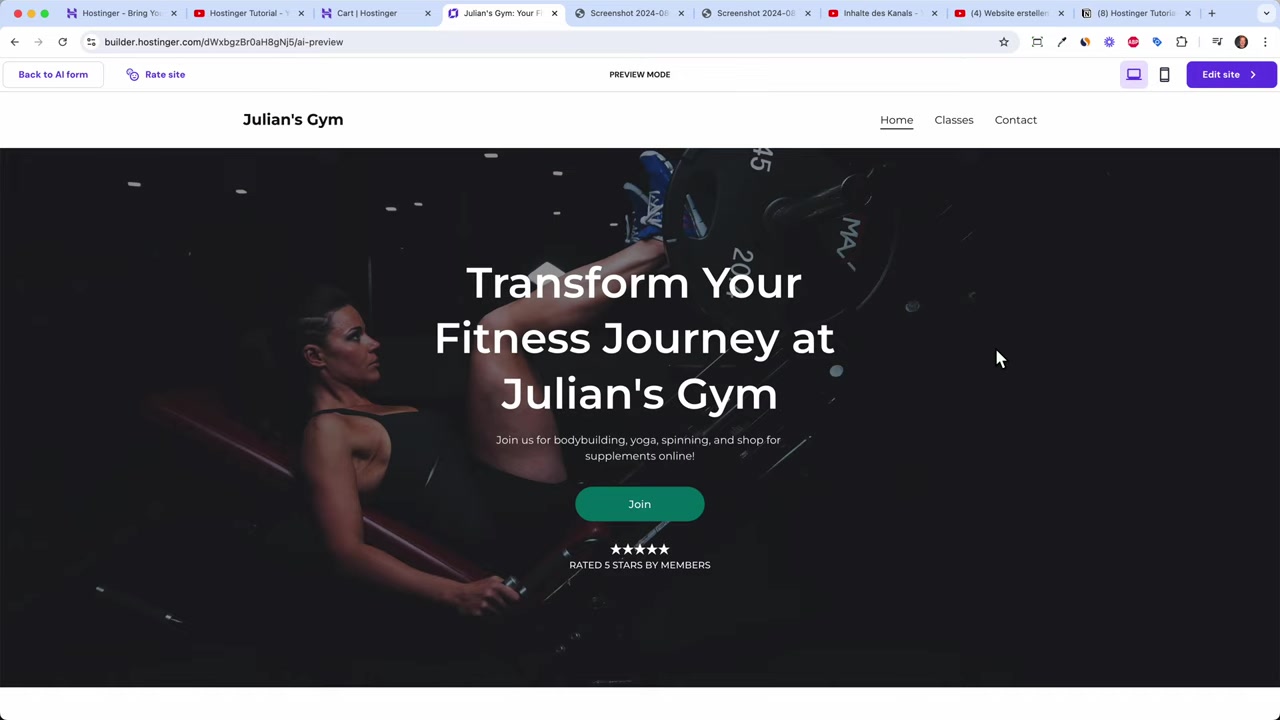
Hit Create a Website and within 30 seconds the AI builds a complete, multi-page website — with chosen images, headlines, a star rating section, a gallery, a footer with social icons, and even a newsletter box.
It's genuinely one of the most capable AI site generators available right now.
4. Explore the Hostinger Editor and Global Design Settings
After the AI generates your site, click Edit Site to enter the visual editor. Before diving into individual sections, take a moment to explore the Global Design Settings.
Here you can set your brand colors (using hex codes), choose fonts, change button styles, and configure page animations — all in one place. Any change you make here automatically applies across every page.
This saves a huge amount of time. Instead of updating every button or heading manually, you set it once and the whole site updates.
5. Edit Headlines, Paragraphs, Images, and Buttons
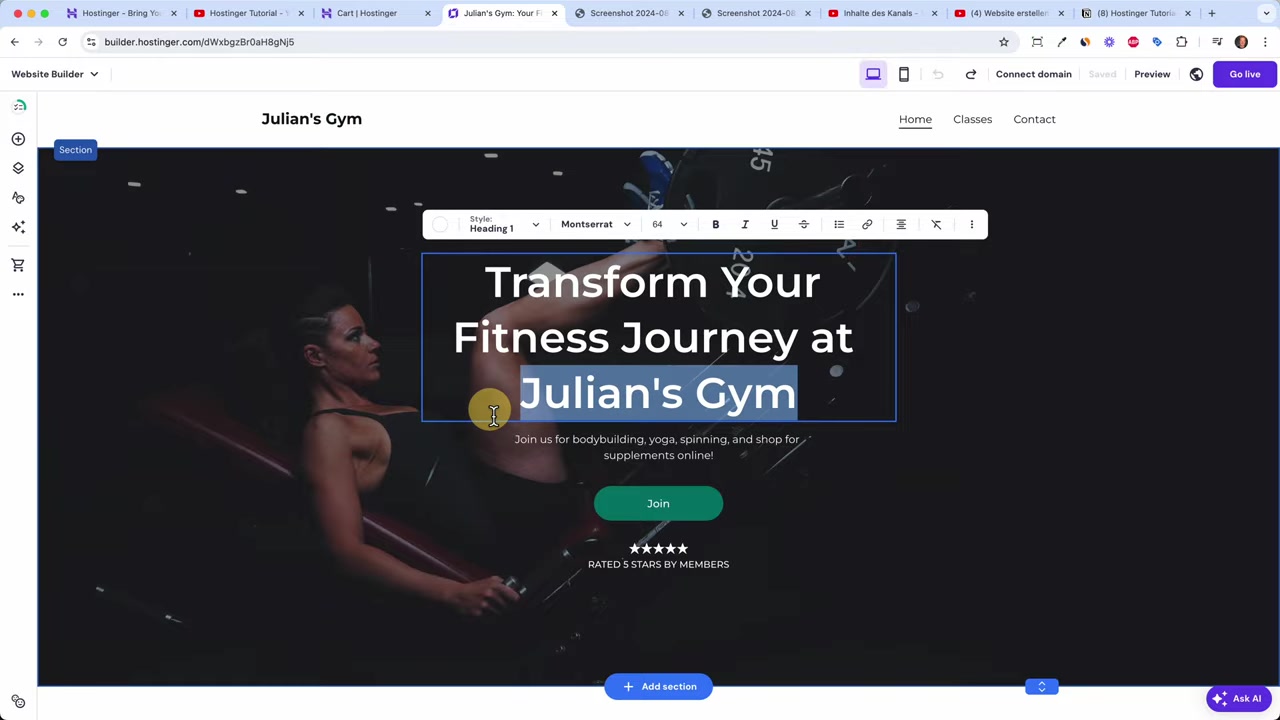
Editing content in Hostinger is straightforward. Click on any headline to edit it directly — you can change the text, adjust font size, apply bold or italic formatting, just like in Word or PowerPoint.
For paragraphs, click to edit and type your own content. For images, click Edit Image and either upload your own photo or browse free stock images from Unsplash built right into the editor.
Buttons are equally simple. Click a button, choose Edit Button, update the text, and — most importantly — link it somewhere. You can link to another page on your site, an external URL, a specific section, an email address, or a phone number.
One useful button option: toggle open in new tab so visitors stay on your current page while the linked destination opens separately.
For background images on hero sections, click Edit Section to swap in a new photo, add a background video, or switch to a solid color for a cleaner look. You can also drag sections around freely — it's a true drag-and-drop builder.
6. Generate Images with AI Inside the Hostinger Builder
One of the standout AI features is the built-in image generator. Click on any image, choose Generate Image, and an AI tool (likely powered by Adobe Firefly) creates a custom image based on your text prompt.
For example, type "people at the gym doing yoga" or "weights at the gym" and the AI produces a unique photo in seconds.
The results are impressive for most subjects — though the AI can struggle with realistic human faces. For hero images showing people, it's often better to use real photos from Unsplash or your own library. But for product shots, backgrounds, or equipment, the AI image generator works really well.
7. Add New Content Elements and Sections to Your Homepage
To add new content elements within an existing section, click Add Element. You can insert text, buttons, images, galleries, YouTube videos, Instagram feeds, contact forms, subscribe buttons, and social icons.
If you want to add an entirely new section to a page, click the Add Section button between sections. Hostinger offers pre-built section templates for things like about sections, contact forms, and galleries.
You can also use AI to generate a completely new section. Just describe what you want — for example, "a section where people can contact me and see directions on Google Maps" — and Hostinger builds it for you automatically.
8. Add New Pages to Your Hostinger Website
A real website has more than one page. In the Hostinger editor, go to the Pages panel on the left to see all existing pages. The AI likely already generated a homepage, a classes page, and a contact page.
To add more, click Add Page. You can choose from pre-built templates (contact page, services page, about page) or generate a new page with AI by writing a prompt.
For example: "I want a new page describing my yoga classes where visitors can book the next class." The AI will generate a full page with class info, customer reviews, a booking button, a contact form, and directions — all in one go.
Once a new page is created, you can rename it, move it in the navigation menu, and even make it a subpage (dropdown) of an existing menu item.
For instance, create separate pages for Yoga Classes, Bodybuilding Classes, and Spinning Classes — then nest them all under a parent "Classes" menu item. Visitors hover over "Classes" and see the full dropdown.
You can also protect pages with a password, duplicate them, and control whether they appear in the navigation or stay hidden until you're ready.
9. Edit the Website Menu and Navigation
The navigation menu in Hostinger is managed from the Pages panel. You can drag pages to reorder them, rename them, or move them to become dropdown subpages.
To create a dropdown, simply drag a page underneath another and select Move to Drop-down. This keeps your navigation clean, especially if you have multiple service or category pages.
Always make sure your most important pages are easy to find in the main navigation. The contact page and any booking pages especially should be just one click away.
10. SEO Settings — Help Google Find Your Hostinger Website
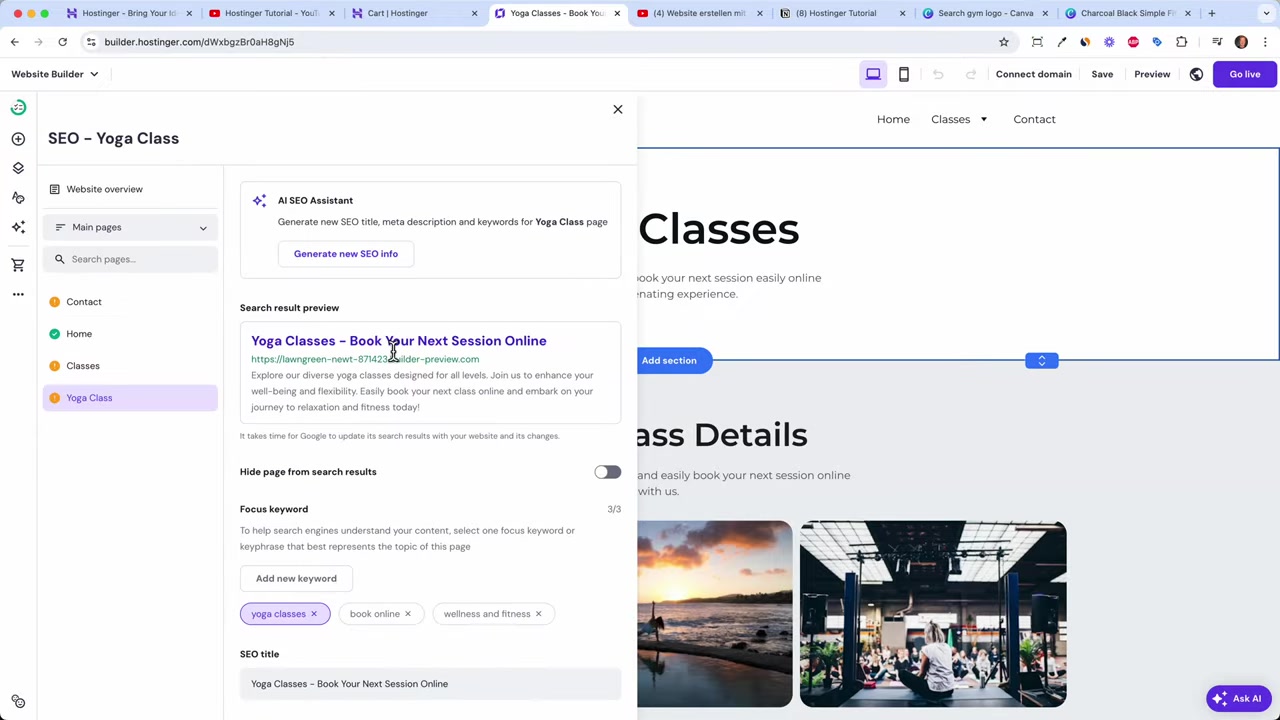
Each page in Hostinger has its own SEO settings where you can set the page title and meta description. These are what appear in Google search results, so they matter a lot.
The key is to be specific, not broad. Instead of just "yoga classes", write something like "Yin Yoga Classes in New York City – Book Your Next Session Online". The more specific you are, the better chance you have of ranking for that exact search.
Also set a social image for each important page. This is the image that appears when someone shares your link on Facebook, WhatsApp, or other platforms — it makes your site look more professional and shareable.
11. Use Hostinger's AI Tools — Blog Writer, SEO Assistant, and More
Beyond the image generator, Hostinger includes several other AI tools accessible from the left sidebar. You can write entire blog posts with AI, which is a major time-saver if you're using content marketing to drive traffic.
There's also an SEO assistant that helps you optimize your content for search engines. These tools are only available on the higher-tier plan — another reason to choose it over the basic option.
Hostinger even has a built-in logo maker, though as you'll see in the next section, there's a better free option for creating a great-looking logo.
12. Create a Website Logo with Canva
For your logo, Canva is a much better option than the built-in Hostinger logo maker. Canva is a free design tool with hundreds of professional logo templates you can customize in minutes.
Just search for your business type (e.g., "gym logo") and you'll get dozens of polished templates. Click Customize This Template, replace the name and tagline with your own, adjust the colors, and download the file.
Once downloaded, go back to the Hostinger editor, click your current logo, and replace it with your new one. Adjust the logo width in the header settings until it looks right.
While you're at it, also update your favicon — the tiny icon that appears in browser tabs. Go to General Settings and upload a simple version of your logo there.
For favicons, keep it simple. A small icon or symbol works much better than a full logo with text, since the favicon is only a few pixels wide.
Use the Canva link from the description to access premium features that make downloading and customizing your logo even easier.
13. Other Website Settings Worth Knowing
Hostinger includes several additional settings that are worth exploring before you publish.
Appointments — If you offer bookable services (like fitness classes), you can set up an appointments system directly inside Hostinger.
Integrations — Connect Google Analytics, Facebook Pixel (for running ads), Google AdSense, WhatsApp, and more. You can even add custom code snippets if needed.
Form submissions — All contact form entries are stored inside your Hostinger dashboard, so you don't need a third-party tool to manage inquiries.
Multi-language support — Hostinger lets you publish your website in multiple languages, which is a great feature if you serve an international audience.
Export to WordPress — Since Hostinger is primarily a WordPress hosting provider, you can export your entire website to WordPress if you ever want to migrate. That's a unique safety net you won't find in most other website builders.
14. Check the Mobile View and Publish Your Website
Before going live, always check the mobile view of your site. Click the mobile preview icon in the Hostinger editor to see how your site looks on smaller screens.
Hostinger does a solid job of making sites mobile-friendly by default, so you usually won't need to make many changes. But if you've added a lot of custom elements, it's worth spending a few minutes adjusting spacing or font sizes.
Once you're happy with both the desktop and mobile versions, click Go Live. If you purchased a custom domain during signup, your site will publish there. Otherwise, Hostinger gives you a temporary domain you can use right away.
After publishing, visit your site and click through every page and button to make sure all links work correctly. Link your social media icons to your real profiles, connect every button to the right page or action, and confirm your contact form is working.
That's it — your Hostinger website is live! The whole process from signup to published site can genuinely be done in under 30 minutes.
Use coupon code JULIANWEBER at checkout via this link to save an extra 10% on your plan.
15. How Much Does Hostinger Website Builder Cost?
Hostinger's Website Builder plans are among the most affordable on the market. The basic plan starts at just a few dollars per month when billed for a longer period.
The premium plan — which includes all AI tools and e-commerce features — is only about $1 more per month than the basic plan. For the added value, it's absolutely worth it.
Keep in mind that the advertised price is the introductory rate. When your plan renews, the price goes up slightly. For a 24-month plan, expect to pay around 9–10 per month at renewal.
16. Is Hostinger Website Builder Good for Beginners?
Yes — Hostinger's AI Website Builder is one of the most beginner-friendly tools available. The AI does most of the heavy lifting for you, so you're not starting from a blank page.
The drag-and-drop editor is intuitive, and the global design settings mean you don't need any design knowledge to make your site look consistent and professional.
The only slight drawback is that there's no free plan — you do need to purchase a subscription to get started. But with the 30-day money-back guarantee, the risk is very low.
17. Hostinger Website Builder vs Competitors
Compared to other popular website builders like Wix or Squarespace, Hostinger stands out in a few ways.
Price — Hostinger is generally cheaper, especially over longer billing periods. You get a lot of features for the money.
AI capabilities — Hostinger's AI generation (full site, pages, images, blog posts) is more advanced than what most competitors offer. The ability to generate an entire multi-page website from a single prompt in under 30 seconds is genuinely impressive.
WordPress export — The ability to export your site to WordPress is unique to Hostinger and gives you a future migration path that other builders don't offer.
On the flip side, Wix has a larger template library and a more mature ecosystem of third-party apps. Squarespace is known for its premium aesthetic, especially for creative portfolios.
For most small businesses, local services, and personal brands, Hostinger's combination of price, AI tools, and ease of use makes it a top choice in 2026.
18. Hostinger Website Builder Pros and Cons
Pros:
- AI generates a full multi-page website in under 30 seconds
- Very affordable plans, especially on longer billing terms
- Built-in AI tools for images, blog posts, and SEO
- Easy drag-and-drop editor with global design settings
- Mobile-optimized sites by default
- 30-day money-back guarantee
- Unique WordPress export feature
- Multi-language support
Cons:
- No free plan (requires a paid subscription)
- Renewal prices are higher than the introductory rate
- Built-in logo maker is basic (use Canva instead)
- AI-generated images of people can look unrealistic
Frequently Asked Questions
Does Hostinger have a free website builder?
Can I use my own domain with Hostinger Website Builder?
How does Hostinger's AI website generator work?
Can I add an online store to my Hostinger website?
Is Hostinger Website Builder good for SEO?
Can I edit the AI-generated website after it's created?
What is the best logo tool to use with Hostinger?
Can I switch from Hostinger Website Builder to WordPress later?
19. Disclosure
Some links in this post are affiliate links. If you make a purchase through them, a commission may be earned at no additional cost to you. All content is provided for informational purposes only — no guarantee of results is given. This post does not constitute financial, legal, tax, or investment advice.
Related Articles

28 Oct 2025
How to Create a TikTok Ads Account in 2026
Want to run ads on TikTok but not sure where to start? Setting up your TikTok Ads Manager account is easier than you think — and it only takes a few minutes. In this guide, I'll walk you through the e...

15 Dec 2025
Wix Promo Code 2026 – How to Save on Wix Premium Plans
If you've been thinking about upgrading to a Wix premium plan, timing your sign-up the right way can make a real difference. In this guide, I'll walk you through the exact method to access the best av...

15 Jun 2026
Revolut Business Account Tutorial – Step by Step for Beginners (2026)
Revolut Business is one of the most feature-packed business accounts available today. Whether you need to hold money in multiple currencies, pay international suppliers, issue cards to your team, or a...