Hostinger eCommerce Website Tutorial – How to Build Your Own Online Store
Want to build a professional online store without touching a single line of code? In this tutorial, we walk through every step of creating an eCommerce website with Hostinger — from generating a site with AI to setting up payments, shipping, taxes, and placing your first test order. Whether you're starting fresh or expanding an existing business, this guide has you covered.
1. Choosing the Right Hostinger Plan for eCommerce
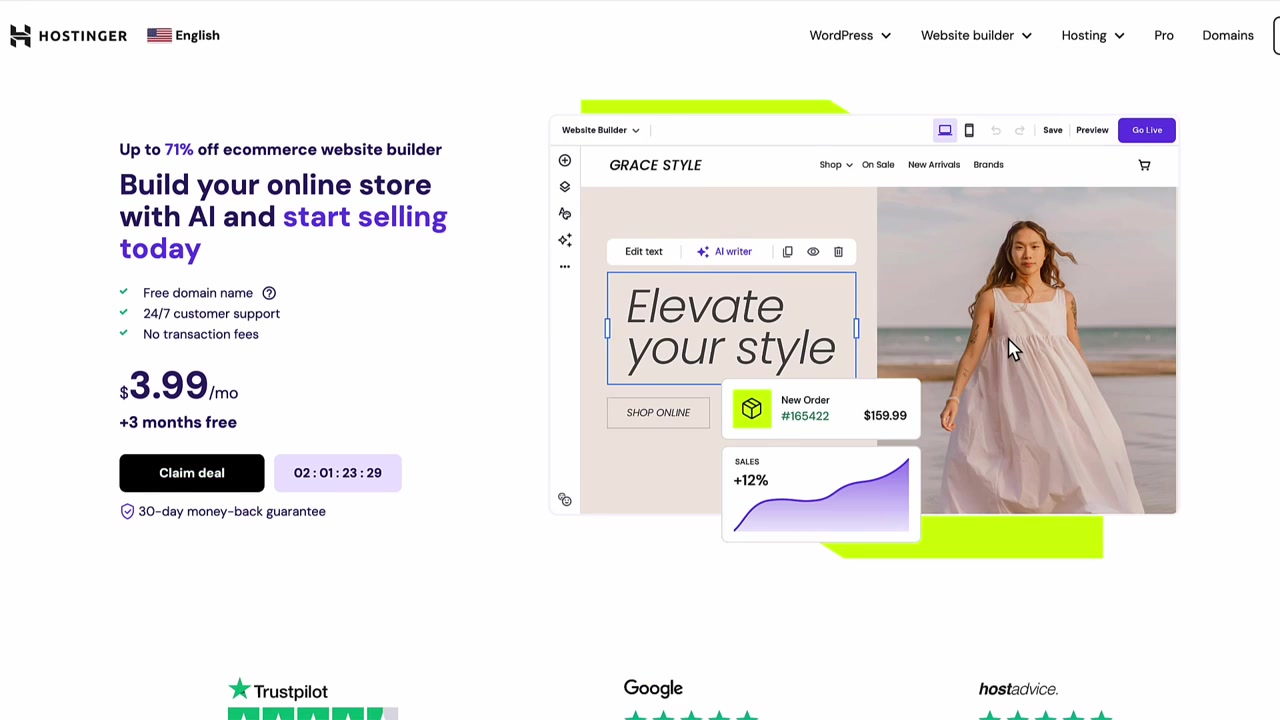
Head to Hostinger using the partner link — this ensures you get the best available deal. Once on the site, select the eCommerce Website Builder plan rather than WordPress.
Scroll down and pick the eCommerce plan. It unlocks multiple payment options and all of Hostinger's advanced AI features — something that genuinely sets it apart from competitors.
When choosing your plan length, a 2-year plan is a comfortable middle ground. You also get a 30-day money-back guarantee, so there's no risk in getting started.
2. Using the Hostinger AI Website Generator
After creating your account, Hostinger asks whether you want to create or migrate a website. Choose create a new website, then select the Hostinger Website Builder (not WordPress).
Next comes the impressive part: Hostinger's AI generator. You choose a website type (online store, business site, blog, etc.) and provide a short prompt describing your business.
You can even use the microphone icon to dictate your prompt instead of typing. The more detail you give the AI, the better the result. Within about 30 seconds, it generates a complete website — with images, headlines, sections, a footer, and even a newsletter box.
3. Editing Your Hostinger Website – Headlines, Images, and Buttons
Once you click Edit Site, you land in Hostinger's drag-and-drop editor. Start with the Global Design Settings on the left — this is where you set your brand colors, fonts, and button styles site-wide, so you never have to update them element by element.
To edit a headline, simply click it, type your new text, and adjust the font size if needed. Paragraphs and buttons work the same way. Buttons should always link somewhere — to a page on your site, an external URL, an email address, or a phone number.
Background images can be swapped out easily. Hostinger provides free stock photos from Unsplash, or you can upload your own. You can also use a background video for a more dynamic homepage feel.
4. Generate Images with AI Inside Hostinger
Hostinger includes an AI image generator (powered by Adobe Firefly) right inside the editor. Click Generate Image on any image block, type a prompt, and it creates a custom image for you.
Results are best for objects and environments — AI still struggles a bit with realistic human faces. For a gym site, something like "weights at a gym" produces very convincing results.
5. Adding New Sections and Pages to Your Hostinger Site
To add a new section to any page, click the Add Section button. Hostinger offers pre-built templates — contact forms, about sections, Google Maps blocks, and more. You can also prompt the AI to generate a new section for you.
Adding new pages is just as straightforward. Click Add Page, choose from templates, or let the AI generate one. For example, you can create a yoga class page complete with a booking button, customer reviews, and a contact form — all from a single prompt.
Pages can be arranged in the menu and nested as dropdowns. For example, a "Yoga Classes" page can live under a "Classes" parent menu item, giving visitors a clean navigation experience.
6. SEO Settings and Meta Information in Hostinger
For every page that should appear in Google, edit the SEO section in the page settings. Add a specific page title and description — avoid broad terms like "yoga classes" and go for something like "Yin Yoga Classes in New York City – Book Online."
The more specific your keywords, the more likely your page ranks well in search results. Broad terms have too much competition; niche phrases give you a real shot at the top.
Also set a social sharing image for your key pages. This is what appears when someone shares your link on Facebook or WhatsApp — it makes your site look more professional and shareable.
7. Creating a Logo with Canva for Your Hostinger Website
Hostinger has a built-in logo maker, but for a more polished result, Canva is the better choice. You can find the Canva link in the video description.
Search for your niche in Canva (e.g., "gym logo"), pick a template you like, customize the name and colors, download it, and upload it directly to your Hostinger site. The whole process takes just a few minutes.
Don't forget to also upload a favicon (the small icon in the browser tab). Go to General Settings in Hostinger and upload a simple version of your logo there.
8. Checking the Mobile View and Publishing Your Hostinger Site
Before going live, always check the mobile view. Hostinger does a solid job of making sites mobile-responsive automatically, but if you've added lots of custom elements, some fine-tuning may be needed.
Once everything looks great on both desktop and mobile, click Go Live. You can connect your own domain or use a temporary domain to preview the site right away.
9. Adding an Online Store to Your Hostinger Website
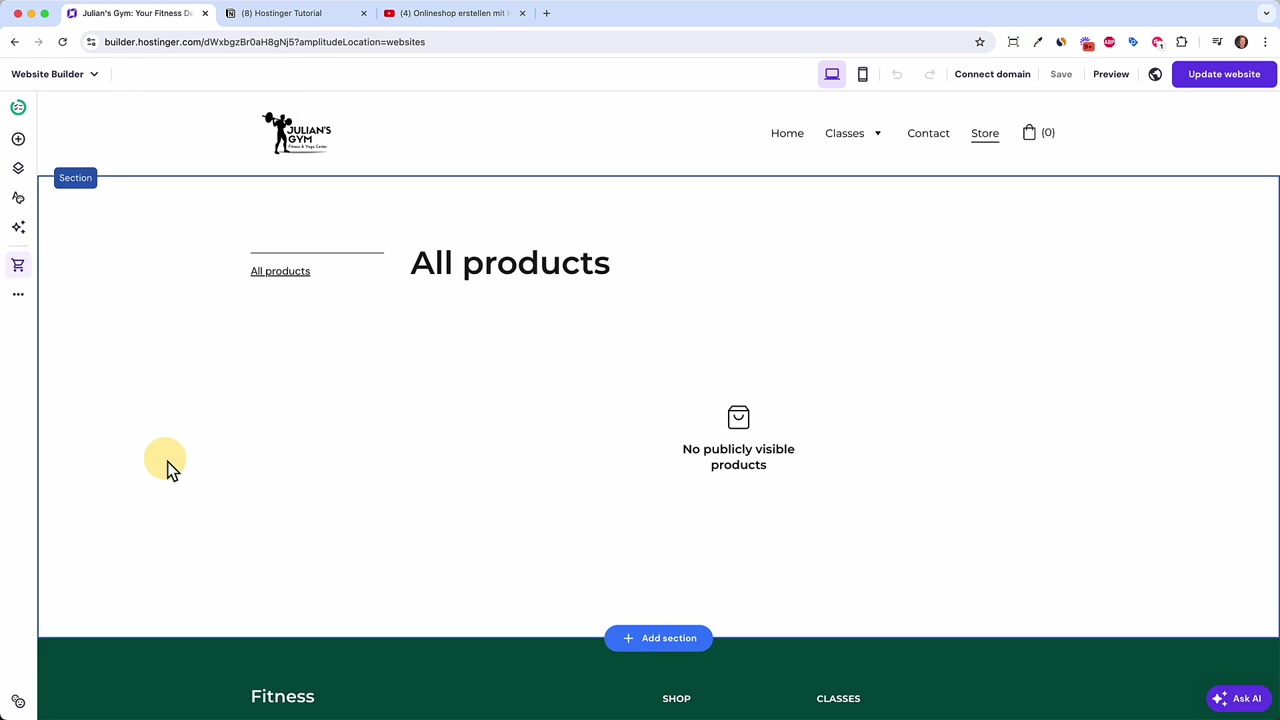
To add a store, click the store icon in the left sidebar and select Add Store. Hostinger sets it up in seconds and even populates it with dummy products so you can see how it looks immediately.
Then head to Online Store in the menu. You'll see a to-do list guiding you through the setup — starting with adding your first product.
10. Adding Products to Your Hostinger Online Store
Click Add a Product and choose the product type: physical product, digital download, service, donation, or appointment. For a typical shop, start with a physical product.
Upload 4–5 product images for the best customer experience. Then click Generate Text — Hostinger's AI analyzes your uploaded images and automatically writes a product title and description for you. This is a huge time-saver when you have many products.
Set your price, an optional sale price, stock quantity, weight, and SKU. You can also enable inventory tracking so the system counts down stock automatically with each sale.
11. Setting Up Product Variations and Categories
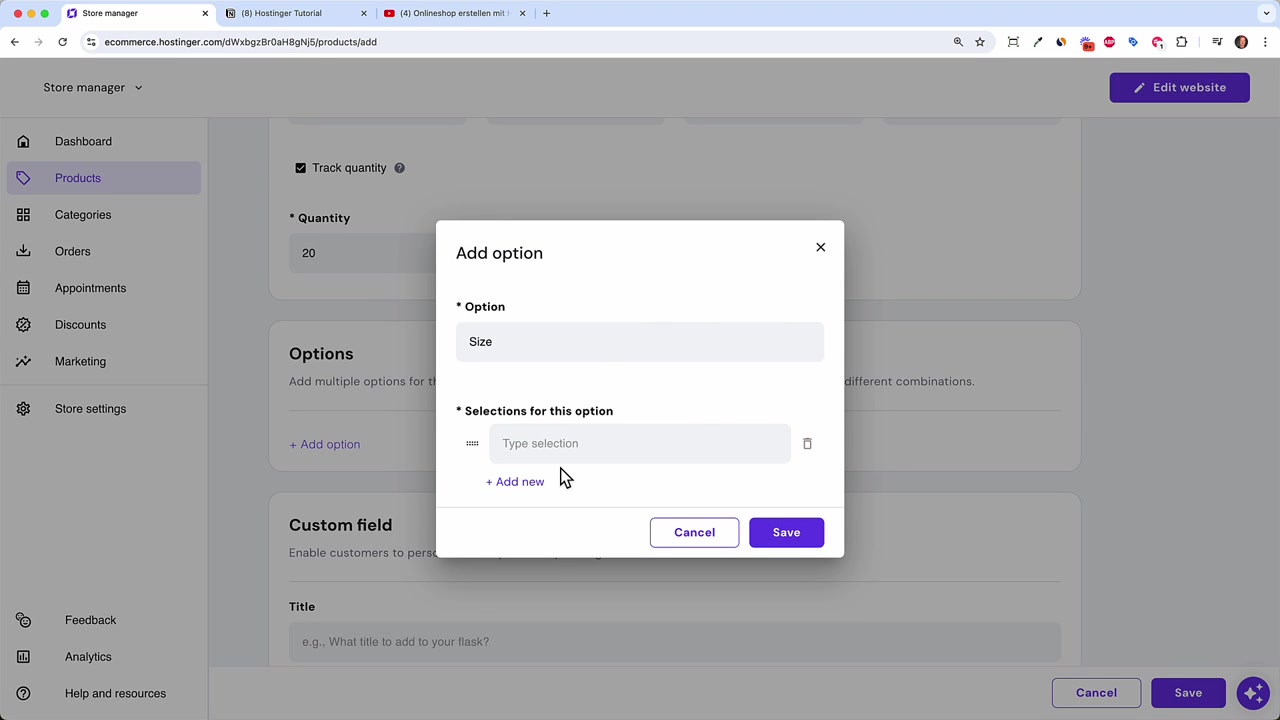
For products that come in different sizes or weights, use the Variations feature. You can create rows for each option (e.g., 10 oz, 15 oz, 30 oz) and assign different prices, weights, and stock quantities to each.
To keep your store organized, add Categories (e.g., Protein Powder, T-Shirts). Assign products to the right category, and they'll automatically appear filtered on your storefront — no extra page setup needed.
12. Setting Up Payments – PayPal and Stripe
Go to Store Settings → Payments. Hostinger supports two main providers: PayPal and Stripe. Both are well-trusted and straightforward to connect.
Stripe is the industry standard for online payments — it powers Shopify, WooCommerce, Wix, and more. It accepts Visa, Mastercard, Amex, Apple Pay, and Google Pay. Connecting it takes about 10–20 minutes and requires your business details.
Keep in mind that payment processing fees apply. Stripe charges approximately 2.9% + $0.30 per transaction in the US (slightly lower in Europe). This is standard across all eCommerce platforms — not specific to Hostinger.
13. Configuring Shipping, Taxes, and Checkout Settings
Under Shipping, create zones for each region you ship to (e.g., United States, Canada). Within each zone, set up shipping rates based on order price or weight.
A common setup: charge a flat rate (e.g., 5) for orders below 100 and offer free shipping for orders above $100. You can add as many zones and conditions as you need.
For Taxes, add the applicable VAT or sales tax rules for your region. In most countries it's a single rate; in the US, rates vary by state. The setup is straightforward — but always consult a tax professional for the specifics of your situation.
Under Checkout, add links to your Terms & Conditions and Privacy Policy pages. These are legally required in many countries. You can also add custom fields to the checkout form (e.g., phone number, birthday).
14. Editing Product Pages and Adding a Bestseller Section
Back in the website editor, your products are automatically displayed on the store page — no manual page design needed. Hostinger pulls product data from the store manager and renders it on the product page template.
To feature a product on your homepage, click Add Section → Online Store and choose either a single product or a product list. This is a great way to highlight bestsellers or new arrivals right on your landing page.
You can also create dedicated category pages — useful once you have 10–20+ products. Add a new page, select the online store template, filter by category, and link it as a submenu under your main shop navigation.
15. How to Place a Test Order in Your Hostinger Store
Before going live, run a test purchase. Enable Pay at Store as a manual payment method under payment settings so you don't need a real credit card.
Browse to your shop, add a product to cart, proceed through checkout, fill in an address, select "Pay at Store," and place the order. Then check the Orders section in your store manager — your test order will appear there, ready to be marked as fulfilled.
16. What is Hostinger Website Builder?
Hostinger is primarily known as a web hosting company, but it also offers a fully featured drag-and-drop website builder with an integrated eCommerce module. It's a direct alternative to platforms like Wix, Squarespace, or Shopify.
What makes Hostinger stand out is its AI-powered toolset — from generating a full website from a text prompt, to writing product descriptions from product photos, to creating blog posts. These features are more advanced than what most comparable builders offer at this price point.
17. Is Hostinger Good for Beginners?
Yes — Hostinger's website builder is one of the most beginner-friendly options available. The AI setup wizard handles the heavy lifting, and the drag-and-drop editor is intuitive enough that no technical background is needed.
The guided to-do list inside the editor helps you stay on track and not miss any critical steps. For someone building their first online store, this structure makes the process much less overwhelming.
18. Hostinger vs Shopify – Which Should You Choose?
Shopify is the most popular dedicated eCommerce platform and has a larger app ecosystem. It's the better choice if you plan to run a large-scale store with hundreds of products and complex integrations.
Hostinger makes more sense if you want a combined website and online store at a lower price point, especially if you're a small business, service provider, or content creator who also wants to sell products. The AI features and ease of setup give it a real edge for beginners.
19. Hostinger Pros and Cons
Pros:
- Advanced AI tools (site generator, product description writer, image generator)
- Drag-and-drop editor that's genuinely easy to use
- Integrated eCommerce with PayPal and Stripe support
- Multi-language website support
- Export to WordPress option
- Competitive pricing with a 30-day money-back guarantee
Cons:
- Store analytics are fairly basic without a Google Analytics integration
- Built-in logo maker is limited (use Canva instead)
- Payment processing fees still apply (standard across the industry)
- Large stores with 100+ products may eventually outgrow the platform
Frequently Asked Questions
Can I sell digital products with Hostinger?
Does Hostinger charge transaction fees on sales?
Can I use my own domain name with Hostinger?
How many products can I add to a Hostinger store?
Does Hostinger support multiple languages on one website?
Is there a free trial for Hostinger?
Can I export my Hostinger website to WordPress later?
What payment methods can customers use in a Hostinger store?
20. Disclosure
Some links in this post are affiliate links. If you make a purchase through them, a commission may be earned at no additional cost to you. All content is provided for informational purposes only — no guarantees are made regarding outcomes or results. Nothing in this post constitutes financial, legal, tax, or investment advice.
Related Articles

20 Sep 2024
Wix Premium Plans - How To Buy A Wix Premium Plan?
Ready to connect your own custom domain to your Wix website? To do that, you'll need to upgrade to a Wix Premium plan. In this guide, we walk you through the entire process — from starting your free t...

17 Sep 2024
WIX Website Templates – How to Choose the Right One for Your Site
Picking the right website template is one of the most important decisions you'll make when building a site. Choose wisely and you save hours of design work. Choose poorly and you spend half your time ...

21 Sep 2024
Wix Accept Payments - How To Add Payment Methods On Wix Websites in 2026
Getting paid is the whole point of running an online store — so setting up your payment methods correctly from day one is essential. In this tutorial, you'll learn exactly how to connect credit cards,...