Gamma AI Tutorial 2026 – How to Use Gamma AI for Presentations
Tired of spending hours on PowerPoint slides? Gamma AI lets you create professional, animated presentations in just a few minutes — all you need is a prompt. In this tutorial, you'll see exactly how to go from a blank page to a fully polished presentation, step by step. Whether you're a student, a business professional, or a freelancer, Gamma AI is a serious game-changer.
You can try Gamma AI for free right now — no credit card required.
1. What is Gamma AI?
Gamma AI is a modern presentation and content creation tool powered by artificial intelligence. Unlike traditional slideshow software, Gamma lets you describe what you want and generates a complete, styled presentation for you in seconds.
Beyond presentations, Gamma can also create web pages, documents, and social media posts — all from a simple text prompt. It's quickly becoming one of the most popular alternatives to PowerPoint and Google Slides.
2. Sign Up and Get Started with Gamma AI
Head to Gamma AI and sign up for free. You can choose your preferred language during the setup process.
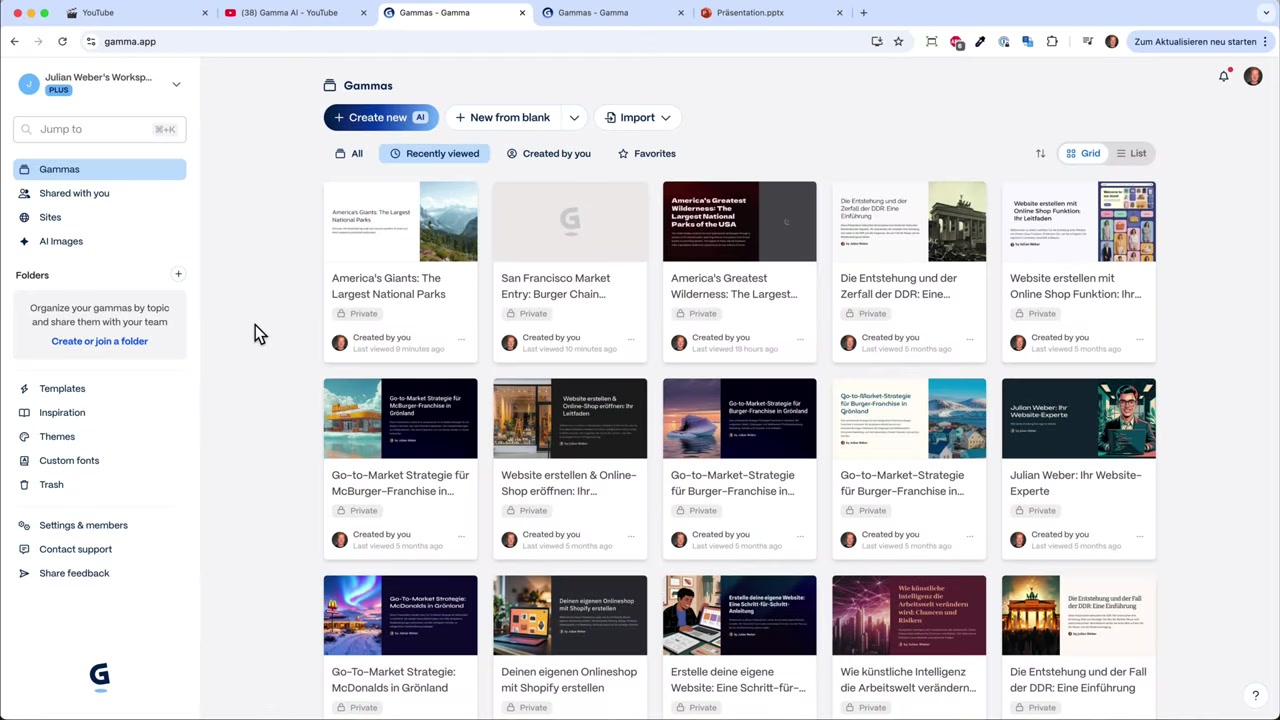
Once you're in, you'll land on your dashboard. This is where all your creations live. From here, click Create New to start building your first presentation.
3. How to Create a Presentation with Gamma AI
When creating a new presentation, Gamma gives you three input options:
- Paste in text — great if you already have an essay or notes
- Import a file or URL — pull content directly from a document or webpage
- Write a prompt — describe what you want and let the AI do the heavy lifting
For most users, writing a prompt is the fastest path. Simply describe your topic, your audience, and any specific details you want included.
4. Writing the Perfect Prompt for Your Slides
The quality of your presentation depends a lot on your prompt. Be specific: mention the topic, the purpose, your audience, and any context that matters.
For example, the prompt used in this tutorial was:
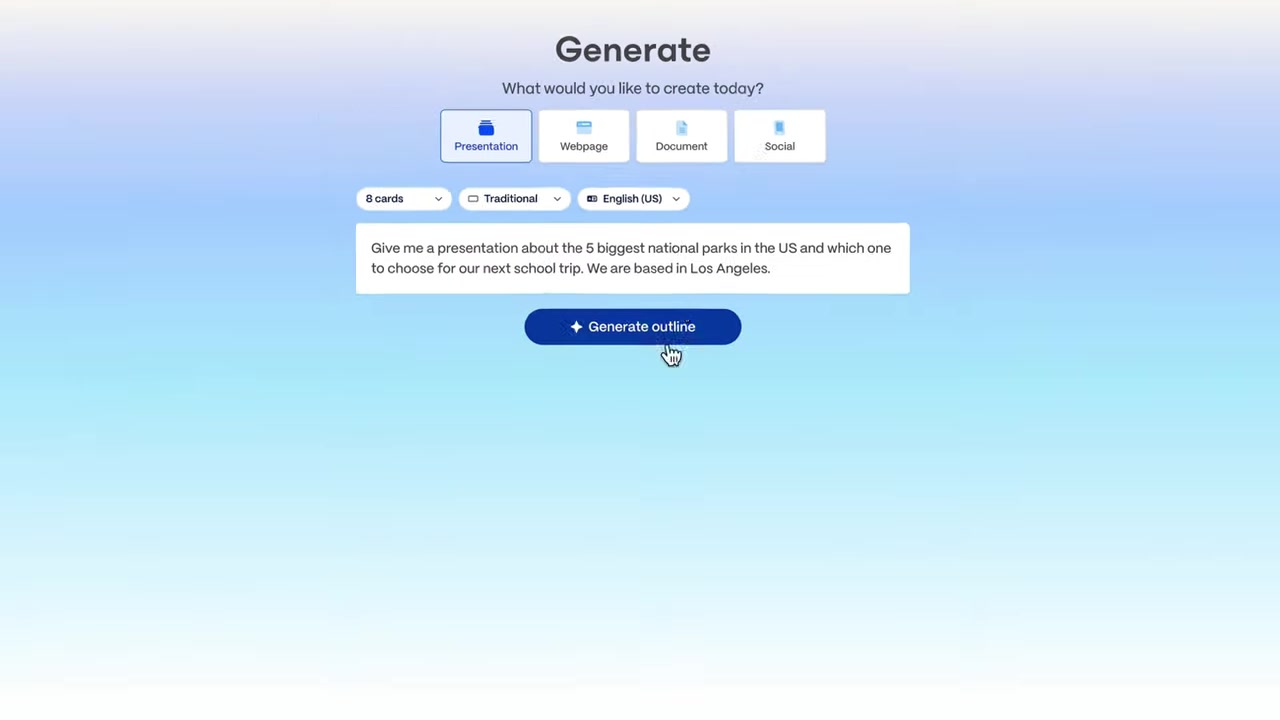
"Give me a presentation about the five biggest national parks in the US and which one to choose for our next school trip. We are based in Los Angeles."
Gamma then generates a structured outline covering all the key points. You can review it, add extra slides, or proceed straight to the design phase.
5. Choosing Slides, Style, and Image Source
Before generating the final slides, Gamma asks you to configure a few options:
Number of cards (slides): The free plan supports 8–10 cards. The Pro plan gives you up to 25.
Page style: Choose between a fluid layout (varied card sizes) or a standard 16:9 ratio — the classic widescreen format.
Text density: Pick from minimal, concise, or detailed text. For most presentations, concise hits the sweet spot.
Theme: Gamma offers a wide range of themes. Pick something that matches your topic — for a nature presentation, a green or earthy tone works beautifully.
Image source: You can use AI-generated images, stock photos from Unsplash, or a mix of both. You can also choose between illustration and photo-realistic styles.
6. Reviewing and Editing Your Gamma AI Presentation
Once Gamma finishes generating your slides, it's time to review the content. The AI does a solid job, but you'll want to check a few things:
- Are the facts and figures accurate?
- Do the images look realistic and relevant?
- Is the text formatted the way you want?
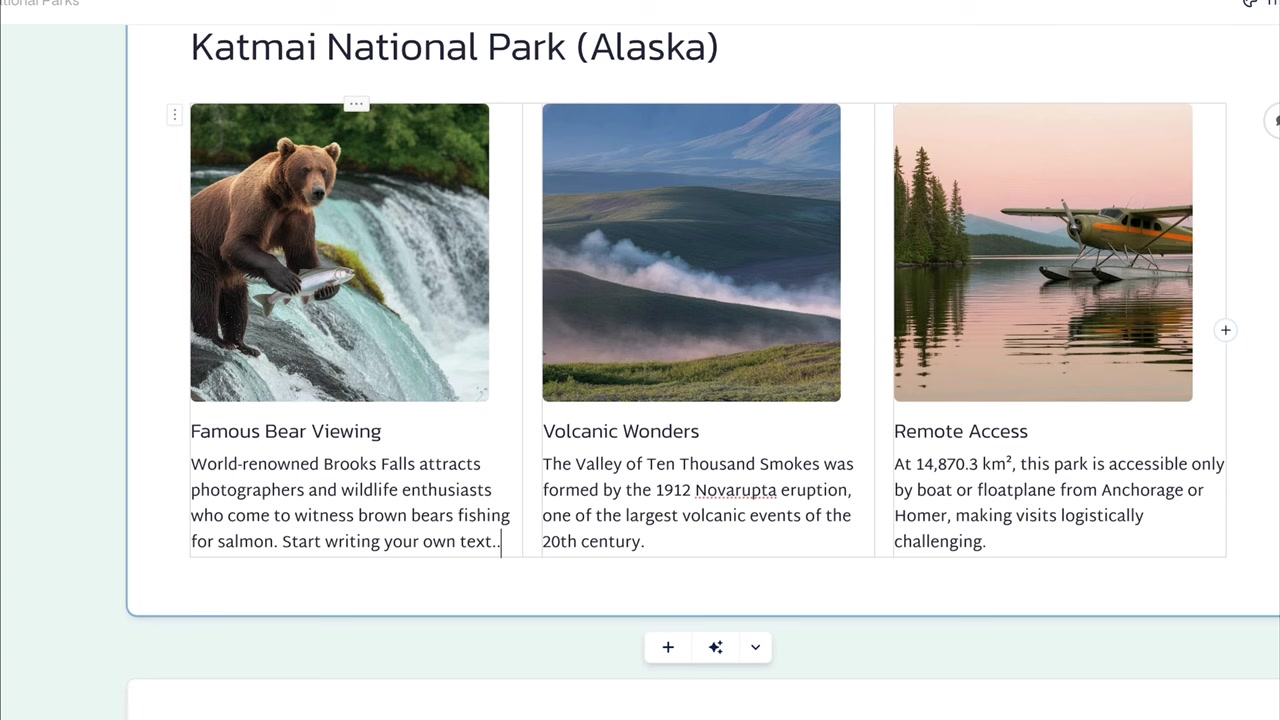
Editing in Gamma works much like PowerPoint. Click on any text block to edit it. You can make text bold, italic, add links, or reformat headings. If an image doesn't look right, you can regenerate it with AI or swap it for a stock photo from Unsplash.
7. Adding New Slides with AI Inside Gamma
One of the most powerful features of Gamma AI is the ability to add new slides mid-presentation using a prompt.
For example, after building the national parks presentation, an extra slide was added by typing: "Calculate the cost per individual for our trip." Gamma instantly created a new card with a budget breakdown — complete with categories like bus travel, camping fees, food, and water.
This is incredibly useful for adding data slides, summary cards, or any section you forgot to include upfront.
8. Gamma AI Content Blocks and Embed Options
The right-hand panel in Gamma gives you access to a full library of content blocks you can add to any slide:
- Text blocks — headings, paragraphs, bullet lists
- Tables — great for comparisons or pricing
- Buttons — add clickable CTAs
- Code blocks — embed code snippets
- Images — from AI or Unsplash
- Videos — upload your own or embed from YouTube, TikTok, or Spotify
- Charts — column, bar, and line charts for data visualization
- Embeds — Instagram, Google Drive, Figma, Miro, and PDFs
This flexibility makes Gamma far more powerful than a typical slide builder.
9. Sharing, Exporting, and Presenting with Gamma
When your presentation is ready, click Share in the top right corner. You have several options:
- Share with collaborators — invite teammates or classmates to view or edit
- Export as PDF — perfect for sending to clients, investors, or teachers
- Export to PowerPoint — download as a .pptx file and edit further in PowerPoint or Google Slides
- Present inside Gamma — use Gamma's built-in presentation mode with smooth, animated transitions
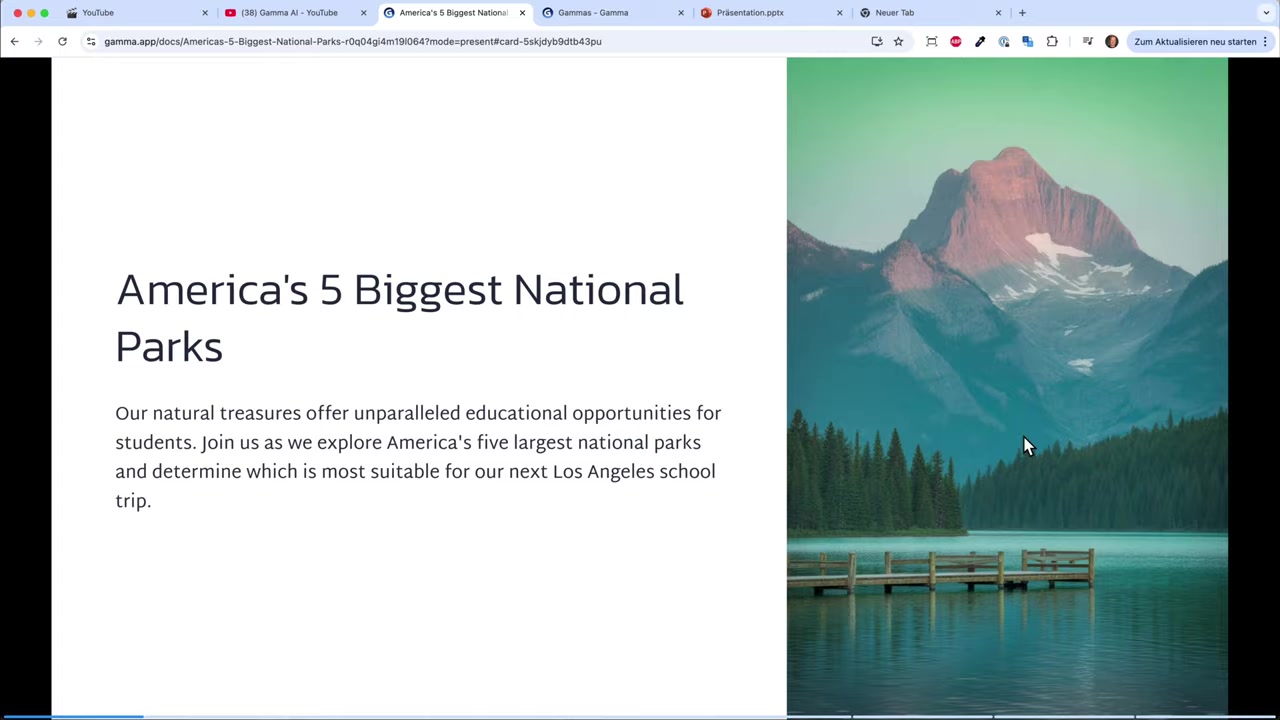
The animations in Gamma are genuinely impressive. Content pops in smoothly as you advance through slides, giving your presentation a polished, professional feel that's hard to replicate in PowerPoint.
10. Is Gamma AI Good for Beginners?
Absolutely. Gamma AI is designed to be intuitive — if you can type a sentence, you can create a presentation. There's no steep learning curve, no design experience required, and no need to fiddle with templates.
The AI handles layout, imagery, and structure automatically. You just review, tweak, and present. It's one of the most beginner-friendly tools available for content creation right now.
11. How Much Does Gamma AI Cost?
Gamma AI offers a free plan that lets you create presentations with up to 8–10 slides. It's a great way to test the tool before committing.
For more slides and advanced features, Gamma offers Pro and Premium plans. The Premium plan unlocks up to 25 cards per presentation, along with additional customization options and priority generation.
You can start for free here and upgrade whenever you're ready.
12. Gamma AI vs PowerPoint – Which Should You Use?
PowerPoint has been the industry standard for decades, but it requires significant time and design skill to produce great-looking slides. Gamma flips that equation entirely.
With Gamma, a complete presentation takes minutes instead of hours. The AI handles design, imagery, and structure automatically. You spend your time on content and strategy — not on formatting.
That said, PowerPoint still has an edge for highly customized enterprise presentations or complex data visualizations. For most use cases — pitches, school projects, client decks, and internal updates — Gamma AI is the smarter, faster choice.
If you want to explore more options for building beautiful content online, check out Wix as a website builder that complements Gamma well for presenting your brand online.
Frequently Asked Questions
Is Gamma AI free to use?
Can I export Gamma AI presentations to PowerPoint?
What languages does Gamma AI support?
Can I use my own images in Gamma AI?
Does Gamma AI work for business presentations?
Can I embed videos in a Gamma AI presentation?
How many slides can I create with the free plan?
Can I collaborate with others on a Gamma AI presentation?
13. Disclosure
Some links in this post are affiliate links. If you sign up through them, a small commission may be earned at no extra cost to you. All content is provided for informational purposes only — no guarantees are made regarding results. This post does not constitute financial, legal, tax, or investment advice.
Related Articles

2 Dec 2025
La fine di PowerPoint – Gamma AI per Presentazioni Incredibili
PowerPoint è lo strumento che tutti conoscono, ma sai benissimo com'è: slide statiche, design datati e ore sprecate a sistemare testi e immagini. Gamma AI cambia tutto questo. In questo tutorial ti mo...

15 Dec 2025
Wix Promo Code 2026 – How to Save on Wix Premium Plans
If you've been thinking about upgrading to a Wix premium plan, timing your sign-up the right way can make a real difference. In this guide, I'll walk you through the exact method to access the best av...

28 Oct 2025
How to Create a TikTok Ads Account in 2026
Want to run ads on TikTok but not sure where to start? Setting up your TikTok Ads Manager account is easier than you think — and it only takes a few minutes. In this guide, I'll walk you through the e...