How to Cancel Your Shopify Subscription and Close Your Store
Want to cancel your Shopify subscription but not sure where to start? The good news: it's a straightforward process — but there are a few important steps you need to complete first to avoid surprise charges. This guide walks you through everything, from logging in to fully deactivating your store.
If you're also looking for a simpler alternative, check out Wix or Hostinger — both are beginner-friendly e-commerce platforms worth considering.
1. Log In to Your Shopify Account
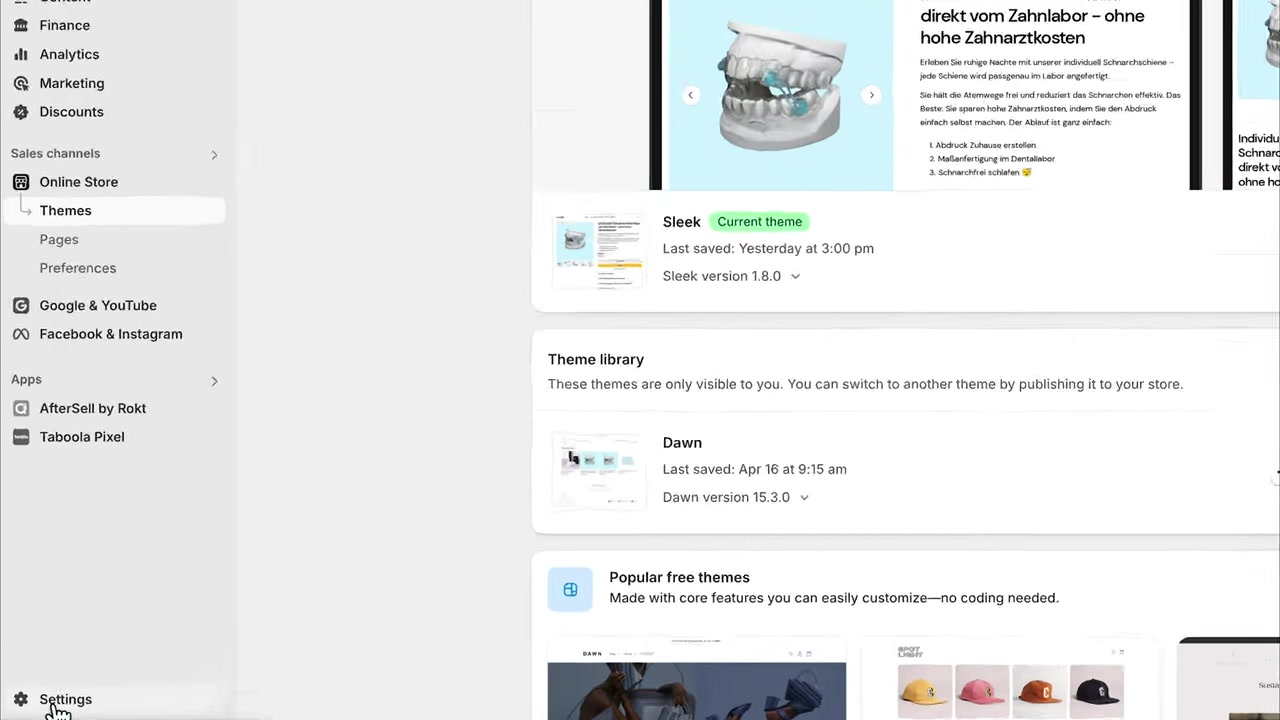
Start by logging in to your Shopify account at shopify.com. Once you're in your dashboard, navigate to Settings in the bottom-left corner.
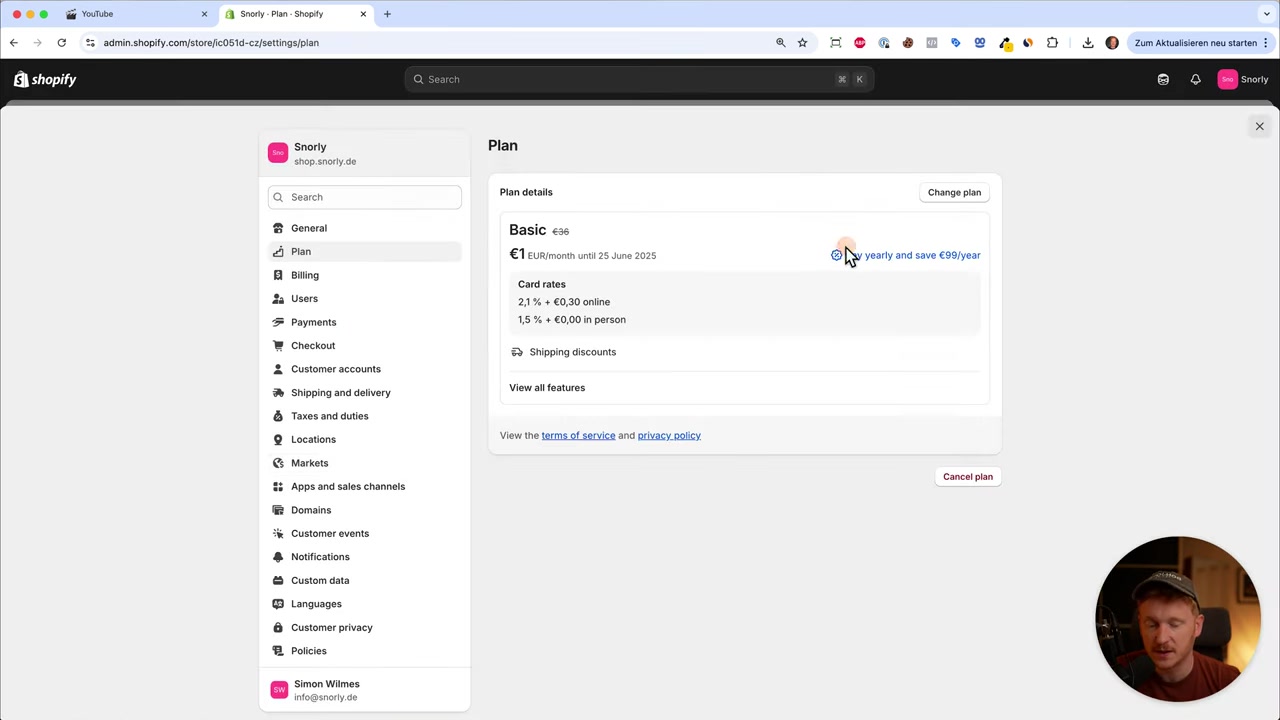
From the Settings menu, click on Plan. Here you'll see details about your currently active plan.
2. Find the Cancel Plan Option in Shopify
Scroll down on the Plan page and you'll see a Cancel plan link. Click on it to begin the cancellation process.
Shopify will present you with a couple of choices at this point — worth reading before you proceed.
3. Pause or Cancel? Choosing the Right Option
Before fully cancelling, Shopify gives you the option to pause your store instead. The Pause plan costs just $10 per month and lets you keep your store data active while you take a break.
If you're not ready to walk away permanently, pausing can be a smart middle ground. But if you want to stop billing entirely, choose the full cancellation option and continue.
4. Cancel All App Subscriptions Before Closing Your Store
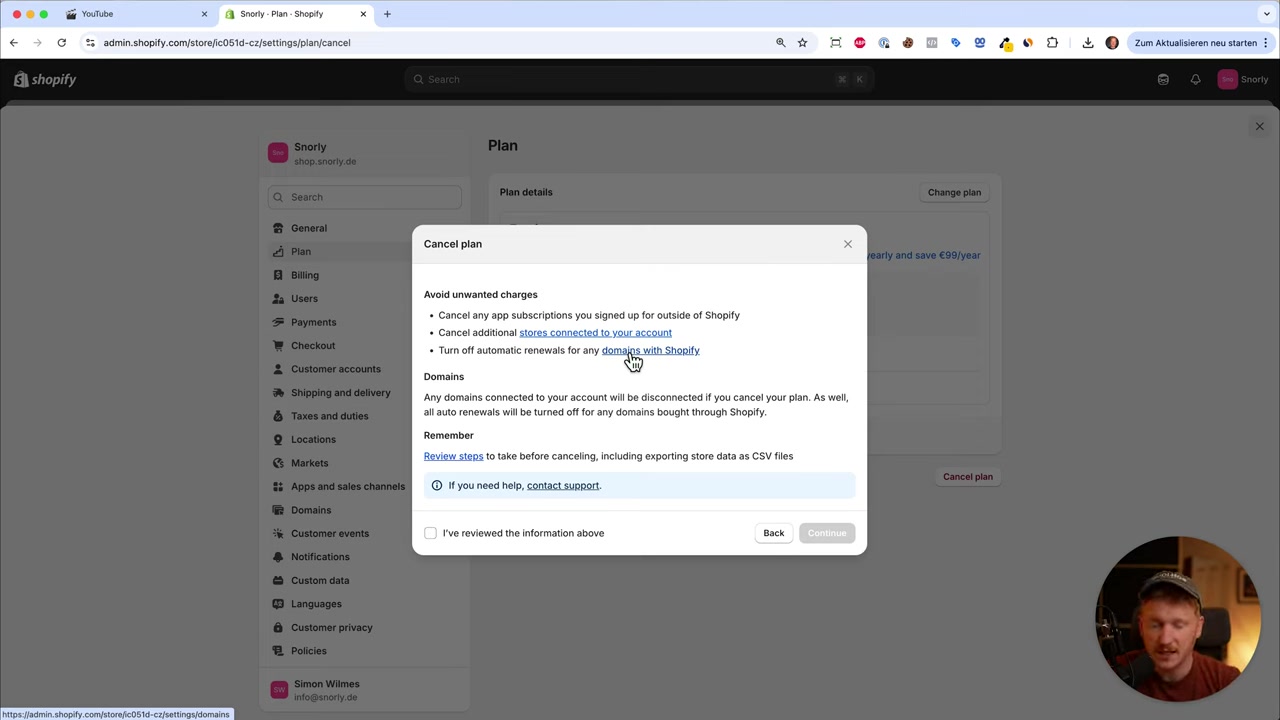
This is the most important step people overlook. Third-party apps installed in your Shopify store may have their own active subscriptions — separate from your Shopify plan.
Go to Apps and Sales Channels in your settings. Uninstall all apps, or at minimum cancel any paid app subscriptions individually. If you skip this, you could keep getting billed even after your store is closed.
5. Disconnect Store Connections and Manage Your Domain
Next, review any additional store connections. If a business partner has access to your store, make sure they're disconnected before you proceed.
Also check your domain settings. If you purchased your domain through Shopify, disable the automatic renewal option — otherwise you'll get charged again in a year. Click the domain link, find the auto-renewal checkbox, and untick it.
6. Confirm and Deactivate Your Shopify Store
Once you've handled your apps and domain, check the box confirming you've reviewed all the information — this step is required before you can proceed.
Click Continue, and your Shopify store will be deactivated. Your plan will be cancelled and no further charges will be made.
7. What Happens to Your Shopify Data After Cancellation?
Here's a reassuring detail: Shopify keeps your store data for 2 years after you close your store. That means your product images, descriptions, and all settings are safely stored.
If you change your mind within that window, just log back in with your email and pick up exactly where you left off. No need to rebuild from scratch.
8. Easier Shopify Alternatives for Beginners
If you found Shopify too complex or just want a fresh start, there are simpler options out there. Wix and Hostinger are both beginner-friendly website builders with solid e-commerce features.
They require less technical know-how and can get you up and running with an online store more quickly. Both are worth exploring if you're starting over.
9. Can You Reactivate a Cancelled Shopify Store?
Yes — as mentioned above, Shopify retains your data for up to two years. To reactivate, simply log back in with the email address you used when you originally set up your store.
You'll need to choose a plan again to bring the store back online, but all your previous content should still be there.
10. What Is the Shopify Pause Plan?
The Shopify Pause plan is a reduced subscription that costs $10 per month. It keeps your store inactive (customers can't purchase) while preserving all your data and settings.
It's a good option if you need a temporary break without losing your setup. You can unpause at any time and resume selling immediately.
11. Shopify Pros and Cons
Pros:
- Powerful e-commerce features
- Large app ecosystem
- Scales well for growing stores
- Data is preserved for 2 years after cancellation
Cons:
- Can be complex for beginners
- Third-party app costs can add up
- Monthly plan pricing is higher than some alternatives
- Easy to accidentally keep paying for unused app subscriptions
Frequently Asked Questions
How do I cancel my Shopify subscription?
Will I be charged after cancelling Shopify?
Does Shopify refund unused days when you cancel?
How long does Shopify keep my data after I close my store?
Can I reopen my Shopify store after cancelling?
What happens to my Shopify domain when I cancel?
What is the difference between pausing and cancelling Shopify?
What are good alternatives to Shopify for beginners?
12. Disclosure
Some links in this post are affiliate links. If you make a purchase through them, a small commission may be earned at no extra cost to you. All content is provided for informational purposes only, and no guarantees are made regarding outcomes. This post does not constitute financial, legal, tax, or investment advice.
Related Articles

28 Oct 2025
How to Create a TikTok Ads Account in 2026
Want to run ads on TikTok but not sure where to start? Setting up your TikTok Ads Manager account is easier than you think — and it only takes a few minutes. In this guide, I'll walk you through the e...

15 Dec 2025
Wix Promo Code 2026 – How to Save on Wix Premium Plans
If you've been thinking about upgrading to a Wix premium plan, timing your sign-up the right way can make a real difference. In this guide, I'll walk you through the exact method to access the best av...

12 Mar 2025
How to Install WordPress on Ionos | Ionos WordPress Tutorial 2026
Want to get a WordPress website up and running on Ionos — without any technical headaches? In this tutorial, Julian Weber walks you through the entire process step by step. From picking a hosting plan...