How to Build a WordPress Website with IONOS - In 10 Minutes Thanks to AI (2026)
Building a WordPress website used to take hours of manual file uploads and database configuration. With IONOS Managed WordPress hosting and its built-in AI tools, you can have a fully designed, content-filled website live in under 10 minutes. This step-by-step tutorial walks you through everything — from picking a plan to viewing your finished site.
1. What is IONOS Managed WordPress Hosting?
IONOS is a web hosting provider that offers a Managed WordPress option — meaning they handle the technical setup for you automatically. No FTP clients, no manual database creation, no config files.
The key difference between regular hosting and Managed WordPress on IONOS is that with the latter, a single button click installs WordPress and the AI assistant jumps in to help you design the site. It is the fastest route from zero to a live WordPress website.
2. Choosing the Right IONOS Plan for Your WordPress Website
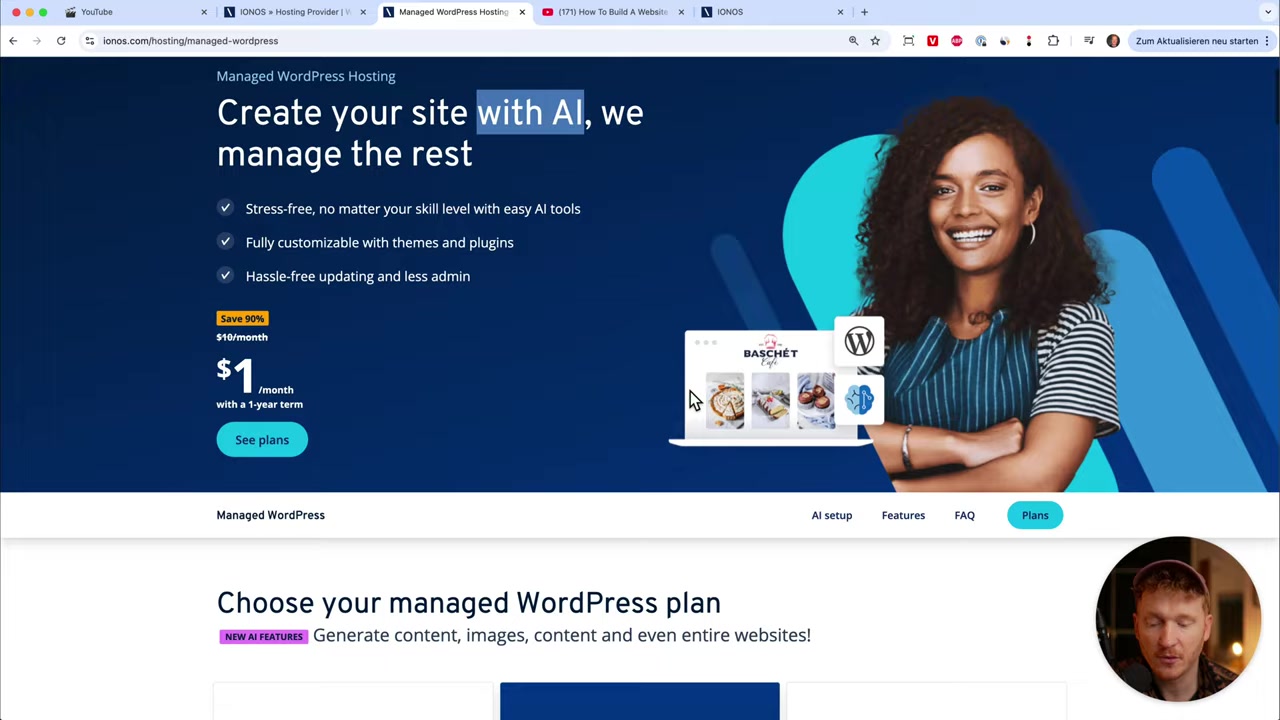
IONOS offers three plans: Starter, Grow, and Boost. All three let you create one website and differ mainly in storage and email addresses.
- Starter — ideal if you are just getting started and only need one email address.
- Grow — includes up to five email addresses on your domain, great for small businesses with multiple team members.
- Boost — more SSD storage and resources for high-traffic sites.
You can always upgrade later, so there is no pressure to over-commit from day one. For most beginners, the Starter plan is a perfectly fine place to begin.
3. Registering a Domain with IONOS (Including AI Domain Suggestions)
During checkout IONOS asks you to choose a domain. If you already own one, simply click Proceed without domain and connect it later.
If you need a new domain, IONOS has a handy AI domain-name generator. Type a short prompt describing yourself or your project — for example "I'm Julian Weber doing website tutorials on YouTube" — and the AI will suggest available domain names for you.
Pick the one you like, click Add to cart, and move through the checkout. The whole process works like any normal online store: review your order, enter your payment details, and confirm.
4. Installing WordPress on IONOS in One Click
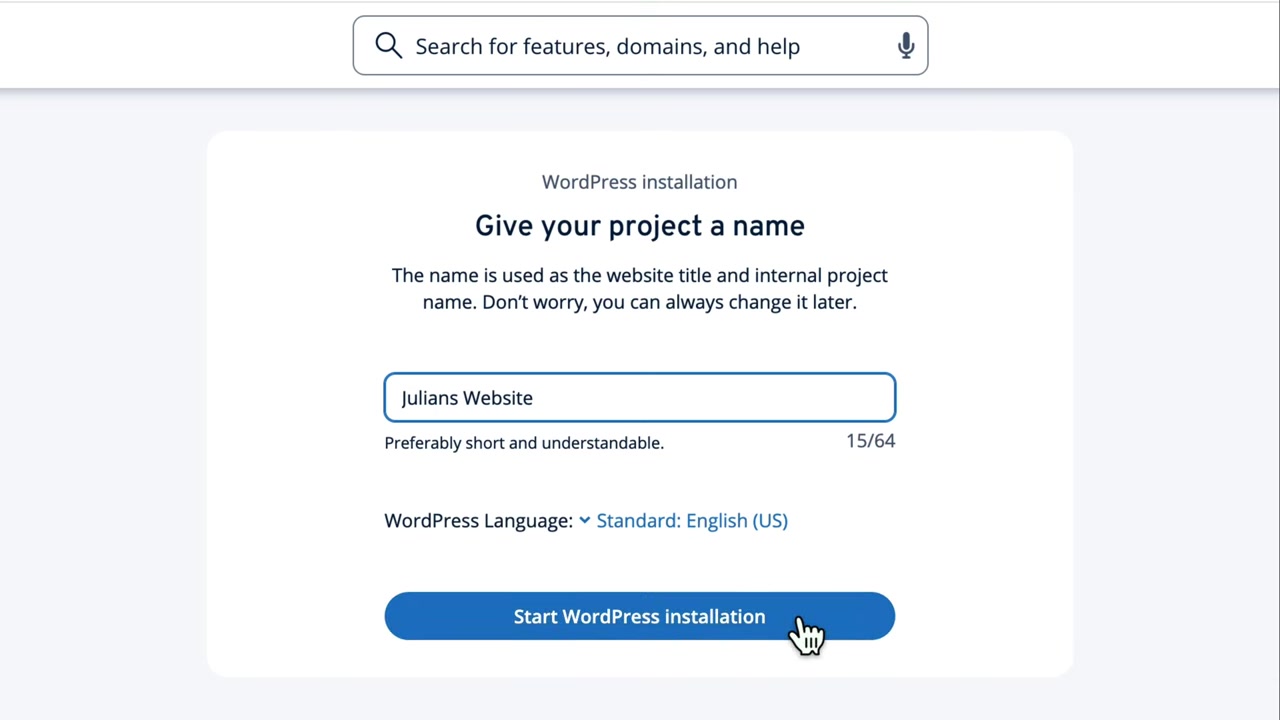
Once your order is confirmed, IONOS sets up your hosting dashboard automatically. From there, give your site a name and click Start Installing WordPress.
You can also select your preferred language at this stage — English, German, French, Spanish, and more are available. Then click Start WordPress Installation and IONOS takes care of everything behind the scenes.
The entire installation takes only one to two minutes. No file uploads, no database configuration — IONOS manages the whole process for you.
5. Using the IONOS AI to Design Your WordPress Website
After installation, you land on a screen that asks whether you want to build your site with AI or do it yourself. The AI route is the fastest — here is how it works.
- Enter a title for your website.
- Describe your site — what you do, who your audience is.
- Choose a tone — for example professional and friendly.
- Set your main goals — drive traffic, publish a blog, grow an email list, etc.
- Pick a layout — a multi-page site (homepage, about, contact) or a clean one-pager.
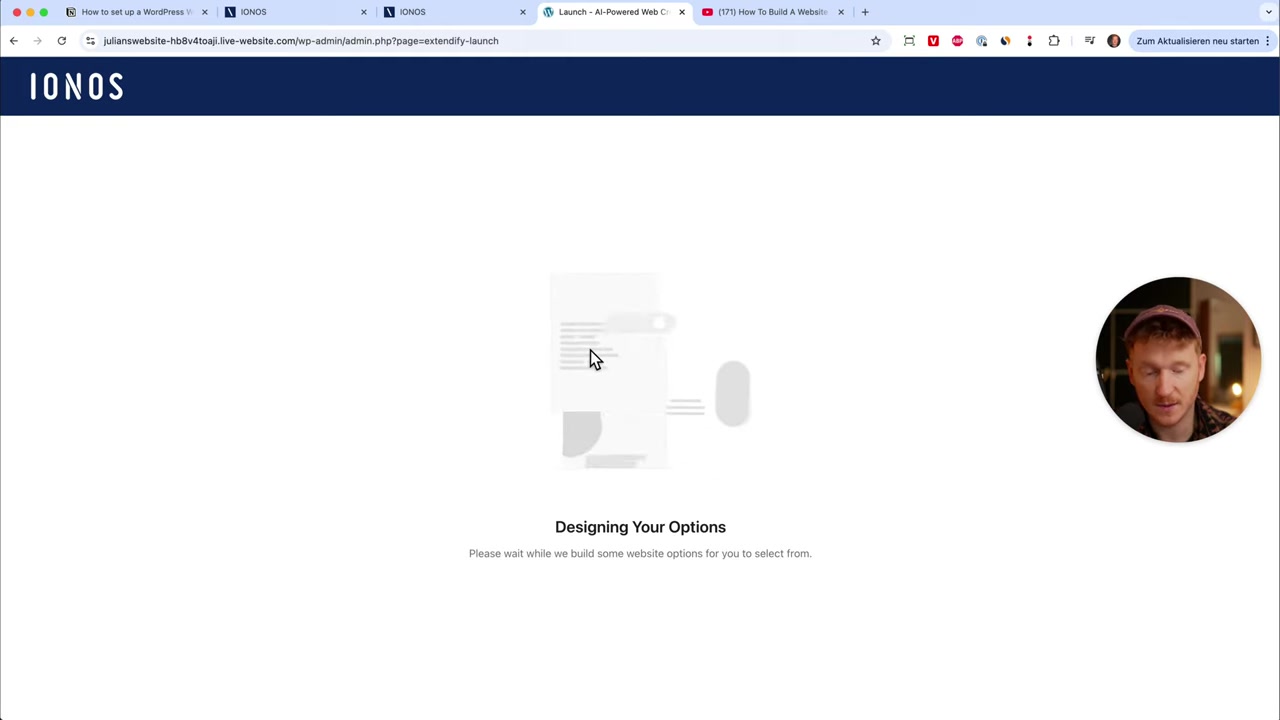
Once you confirm your choices, the AI generates all the text, selects relevant images, and presents you with a selection of design templates. Pick the one you like and the AI applies the style and builds the full homepage — confetti and all.
6. Exploring Your New WordPress Dashboard on IONOS
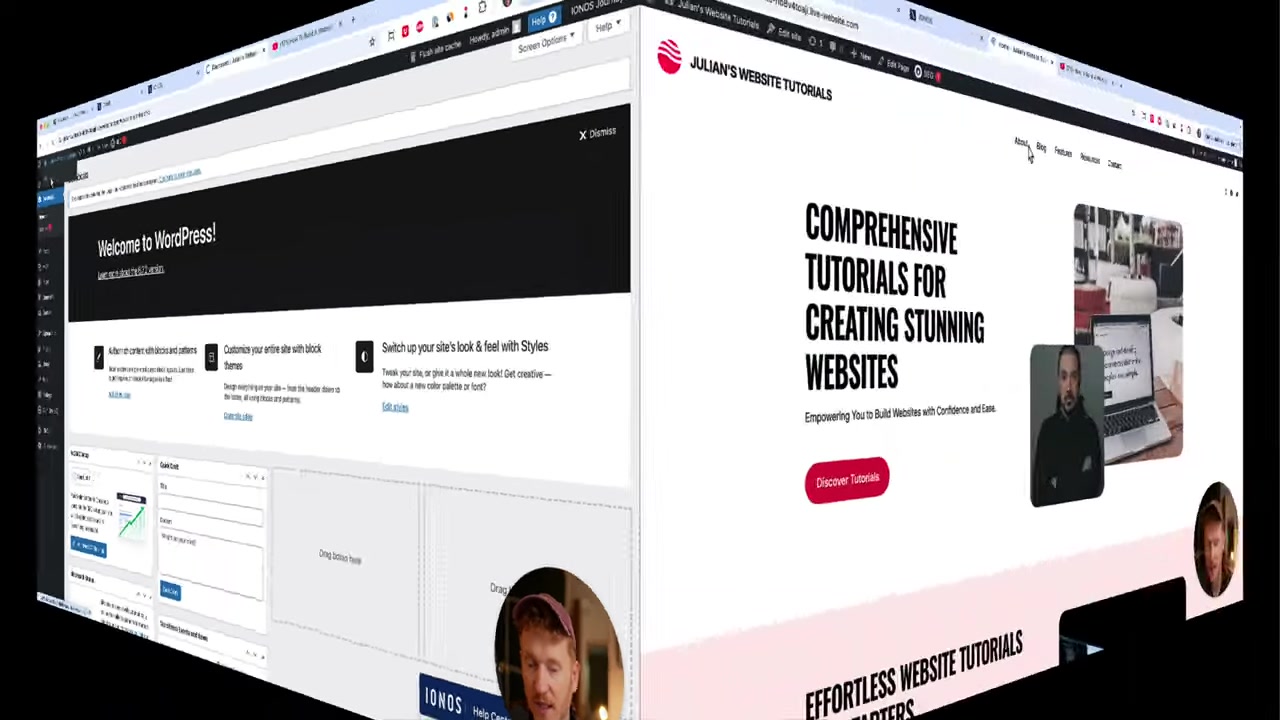
After the AI finishes, you land inside the standard WordPress dashboard. IONOS adds a Site Assistant panel on the right with a startup checklist: connect your domain, edit your homepage, upload your logo, and so on.
Everything you know from WordPress is right here:
- Appearance — switch or add themes.
- Plugins — review pre-installed plugins and remove any you do not need.
- Pages — your homepage and any other pages the AI created.
- Posts — the AI already generated sample blog posts to get you started.
Feel free to browse the auto-generated posts — they are a solid starting point you can edit rather than write from scratch.
7. Previewing and Editing Your IONOS WordPress Site
Click View Site in the WordPress dashboard to see the live result. The AI-built homepage includes a hero section, descriptive text tailored to your prompt, relevant stock images, and pre-populated blog posts — all about the topic you described.
To make changes, click Edit Site to open the Gutenberg block editor. You can swap images, update text, and rearrange sections without touching any code.
If you want to dive deeper into customising your site, check out a full WordPress tutorial for a more detailed walkthrough of the Gutenberg editor and theme customisation.
8. Managing Your Domain, Email, and Contract in IONOS
To get back to your IONOS control panel at any time, go to ionos.com, log in, and click the home icon next to your site. From there you can manage your domain, set up professional email addresses on your domain, and review your hosting contract.
Under Website and Store you will see your WordPress site listed under your custom domain. The settings panel is also where you register additional email addresses for your team.
One more thing worth mentioning: IONOS offers 24/7 phone support with a dedicated personal consultant number for your country. If you ever get stuck, help is just a call away.
9. Is IONOS Good for WordPress Beginners?
Yes — IONOS Managed WordPress is one of the most beginner-friendly hosting options available. The one-click install removes all the technical friction, and the AI website builder means you don't even have to write the first draft of your content yourself.
The dashboard closely follows the standard WordPress interface, so any tutorial or resource you find online for WordPress applies directly to your IONOS-hosted site. The learning curve is as gentle as WordPress gets.
10. IONOS WordPress Hosting Pros and Cons
Pros:
- Managed setup — no manual installation required
- AI website builder included
- 30-day money-back guarantee on the WordPress hosting plan
- 24/7 personal consultant support
- Standard WordPress dashboard (no vendor lock-in)
- Competitive pricing with flexible contract lengths
Cons:
- Starter plan includes only one email address
- The AI-generated content and images need review and personalisation before publishing
- Advanced users may want more server-level control than a managed environment provides
11. Disclosure
Some links in this post are affiliate links. If you make a purchase through them, a small commission may be earned at no extra cost to you. All content is provided for informational purposes only and no guarantee is given regarding results. This post does not constitute financial, legal, tax, or investment advice.
Frequently Asked Questions
Can I use IONOS with my existing domain?
Does IONOS Managed WordPress include a free domain?
Can I use Elementor or other page builders on IONOS WordPress?
How do I cancel my IONOS WordPress hosting?
Is the AI website builder on IONOS free?
Can I add WooCommerce to my IONOS WordPress site?
How long does it take to set up a WordPress site on IONOS?
Does IONOS offer email hosting with WordPress plans?
Related Articles

3 Apr 2025
WordPress Website Maken met IONOS – In 10 Minuten dankzij AI
Wil je snel een professionele WordPress website opzetten zonder gedoe? Met IONOS Managed WordPress Hosting en de ingebouwde AI-tool ben je in minder dan 10 minuten online. In deze stap-voor-stap tutor...
2 Apr 2025
Come Creare un Sito Web con WordPress e IONOS - In 10 minuti grazie all'AI
Vuoi creare un sito WordPress professionale in meno di 10 minuti? Con IONOS e il suo strumento basato sull'intelligenza artificiale, è possibile — anche se non hai mai configurato un sito web prima d'...

15 Dec 2025
Wix Promo Code 2026 – How to Save on Wix Premium Plans
If you've been thinking about upgrading to a Wix premium plan, timing your sign-up the right way can make a real difference. In this guide, I'll walk you through the exact method to access the best av...