Wix Onlineshop Tutorial – How to Create a Wix eCommerce Website
Want to build your own online shop without hiring a developer? Wix makes it surprisingly straightforward — even if you've never built a website before. In this tutorial, we walk through everything from signing up and choosing a template to adding products, setting up payments, and optimizing your mobile design. Follow along and you'll have a fully working Wix eCommerce store by the end.
1. Sign Up for Wix and Start Your Online Shop
Head to Wix using this link to get started. Once you land on the page, click Create Your Store.
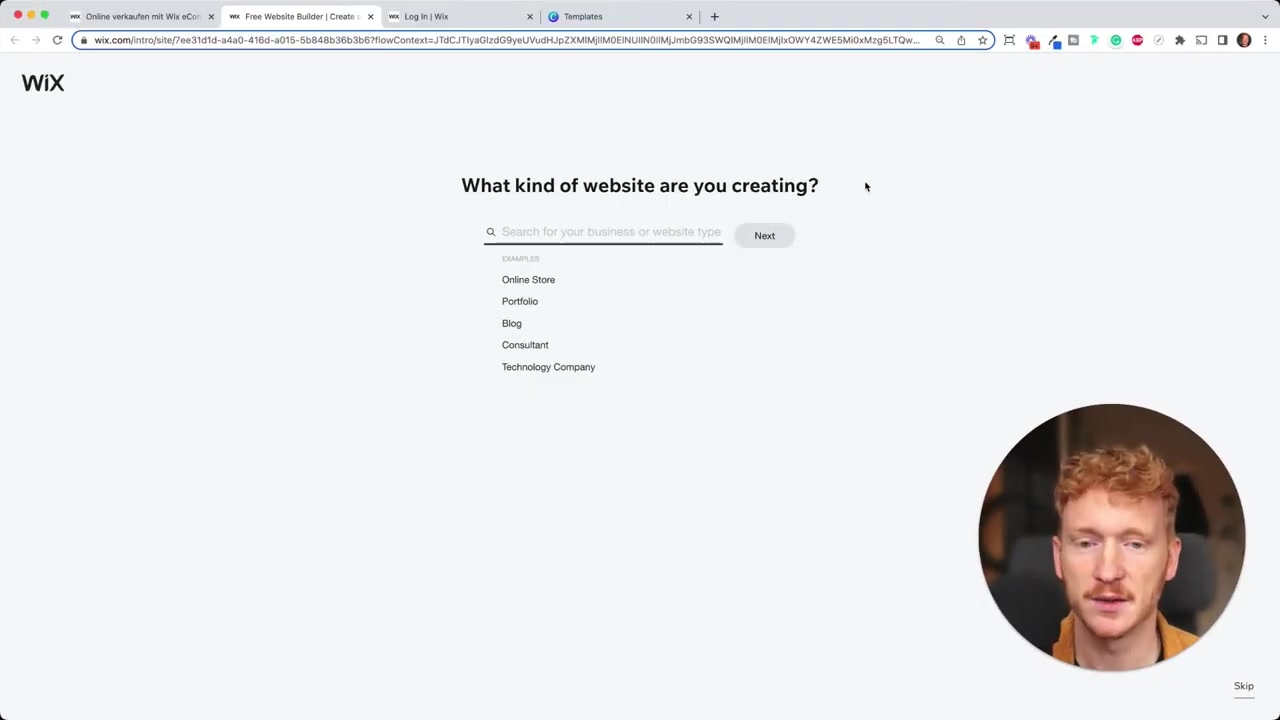
Wix will ask you a few quick questions: what kind of website you're creating, the name of your store, and which extra features you'd like. For most people, you can skip the extras for now — you can always add them later from the App Store.
2. Choose the Right Wix Editor
Wix gives you three editor options. The classic Wix Editor is the most popular and the best choice for most beginners. Editor X is geared toward developers and designers who need more control. Wix ADI is the simplest option — it builds a site for you automatically.
For this tutorial, we'll use the classic Wix Editor. Click Start Now to move on to template selection.
3. Choose a Template for Your Wix Online Shop
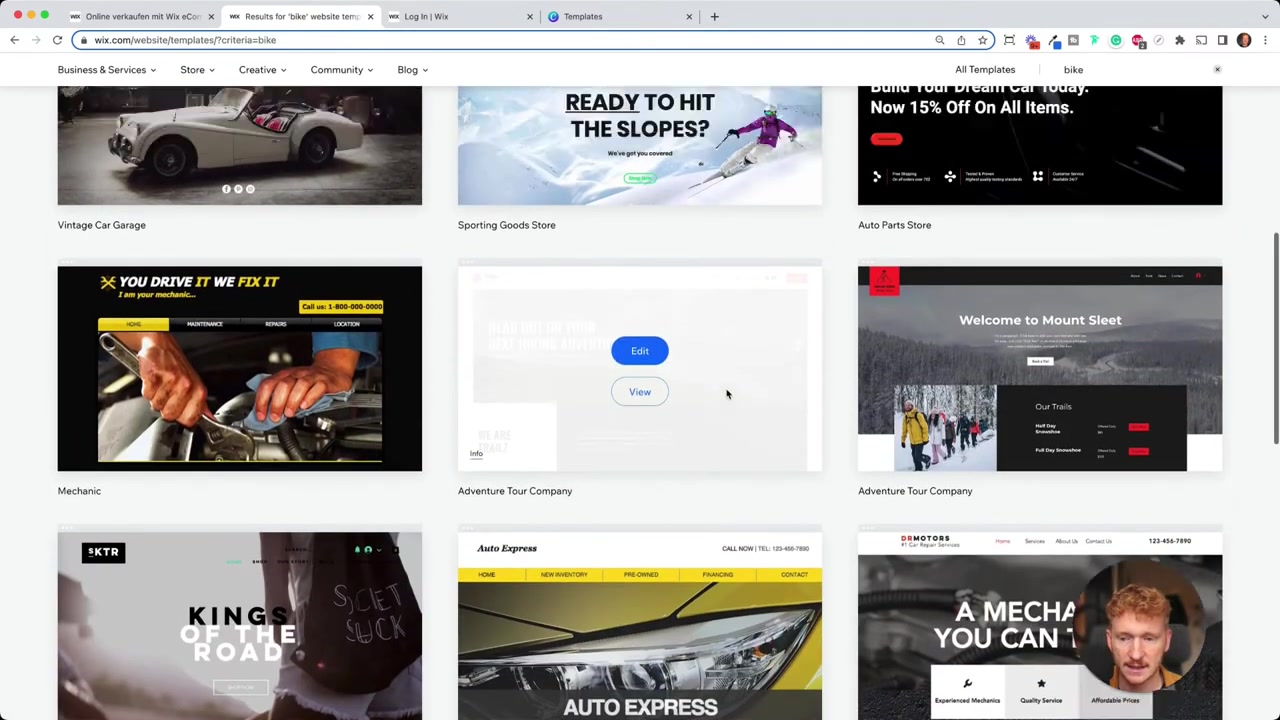
Wix offers a large library of templates. You can search by keyword — type something like "bike" or "bicycle" to filter relevant designs.
Click View on any template to preview it before committing. Once you find one you like, click Edit and Wix will load it in the editor. Don't worry too much about the exact design — virtually everything can be changed.
4. Overview of the Wix Editor Interface
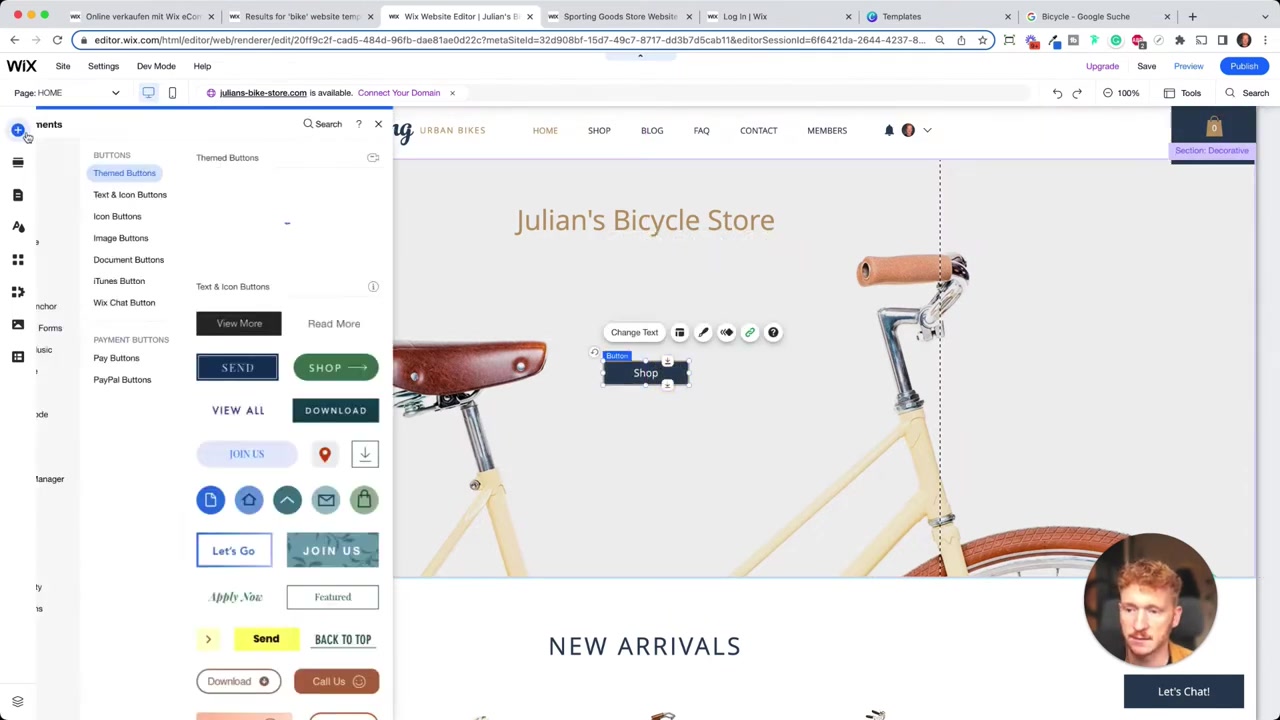
The Wix Editor is a drag-and-drop, what-you-see-is-what-you-get builder. The left sidebar lets you add elements, sections, and pages. The top toolbar gives you undo/redo, preview, and publish controls.
Pages are built from sections that stack on top of each other. You can zoom out to see all sections at once, then drag them into the order you want. Switch between desktop and mobile views using the icons at the top right.
5. Add Content Elements: Text, Images, Buttons, and Videos
Click any element on the page to select and edit it. To add a new element, use the Add panel on the left sidebar. Here's a quick breakdown of the most useful elements:
- Text/Headlines — Click Edit Text to change content, font, size, and color. Use H1 for your main keyword — it matters for SEO.
- Buttons — Add a button and always link it to something: a page on your site, an external URL, a phone number, or an anchor link that scrolls to a section.
- Images — Click a section background and choose Change Section Background. Wix connects to Unsplash so you can search for free stock photos right inside the editor.
- Videos — Add a YouTube video element and paste in your video URL. It embeds directly on the page.
6. Global Design Settings in Wix
Instead of manually changing every headline and button one by one, use Site Design to set global styles. You can define your color palette using hex codes, choose your fonts, and set heading styles (H1–H6) all in one place.
This is especially useful if you have brand colors. Set them once here and they'll apply across your entire site automatically.
7. Explore the Wix App Store
The Wix App Store lets you extend your site with extra functionality. The Wix Stores app is already installed when you create an online shop. Other useful apps include:
- Wix Bookings — great for coaches, doctors, or service businesses
- Wix Events — manage ticket sales and event listings
- Wix Blog — publish articles to help with SEO
- Third-party apps — marketing tools, live chat, and more
8. Adding and Organizing Pages on Your Wix Website
Click Menu & Pages in the left sidebar to see all your current pages. You can add new pages using pre-built templates — for example, a contact page, a project page, or a new shop category page.
To organize pages into submenus, create a folder in the menu manager and drag related pages inside it. For example, you could have a "Shop" folder with "Bikes for Men" and "Bikes for Women" as subcategories. Always fill in the SEO metadata (title, description, and social share image) for each important page.
9. Adding a New Product to Your Wix Online Shop
Go to Manage Products in the editor, or navigate to your Wix dashboard and click Add a Product. You can create physical products (like bikes) or digital products (like ebooks or albums).
For each product, you can add:
- Product images (drag and drop from your desktop)
- A product name and detailed description
- Price and optional sale/discount pricing
- Custom text options (great for print-on-demand)
- Product variations (size, color, etc.)
- Inventory tracking and SKU
- Shipping weight
Take time to write a solid product description. It helps customers make a decision and helps Google surface your products in search results.
10. Set Up Payment Options for Your Wix Store
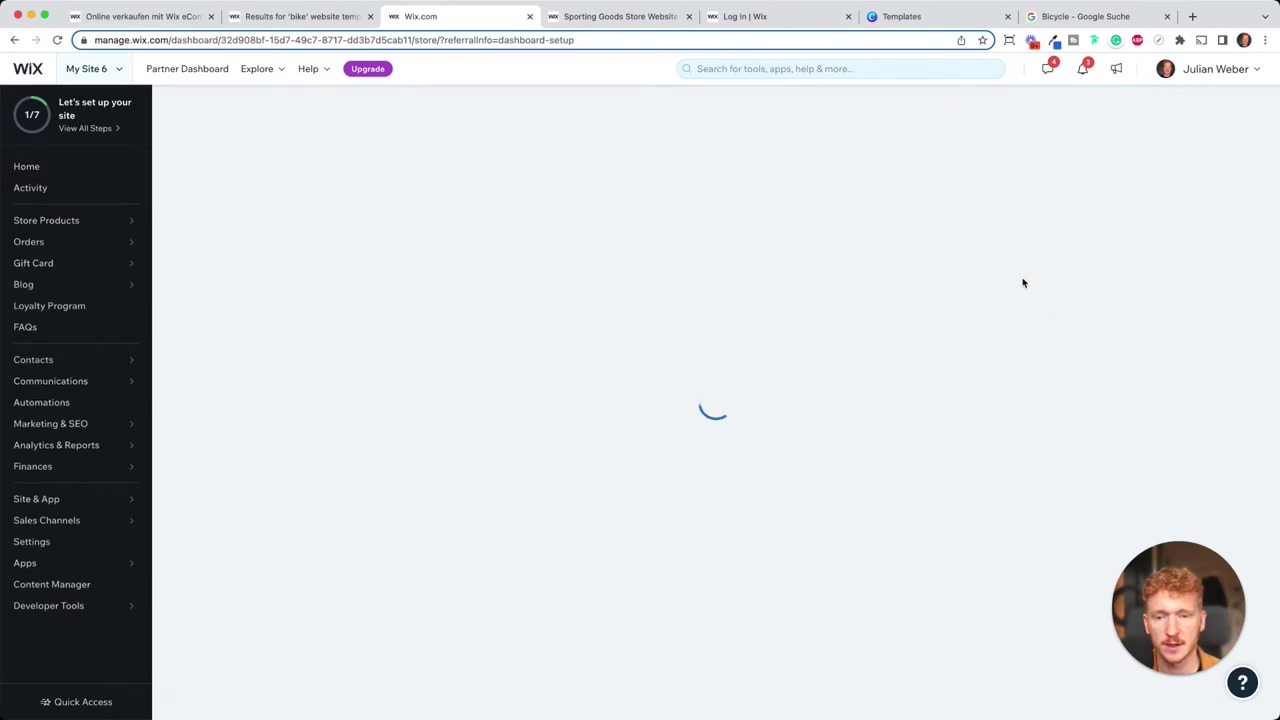
To accept payments, go to the Payment Settings section of your Wix dashboard. You can connect:
- Credit cards (Visa, Mastercard, American Express)
- Klarna
- Apple Pay
- PayPal
- Manual payments (cash in-store)
Keep in mind: you need to be on a Wix eCommerce plan to accept online payments. We'll cover the pricing options in a moment.
11. Configure Delivery and Shipping Options
Head to the Shipping & Delivery section in your dashboard. You can define shipping regions (e.g., United States, Germany, EU) and set rates based on:
- Free shipping — always popular with customers
- Flat rate — one fixed price per order
- Rate by weight — ideal for heavy items like bicycles
- Rate by order price — great for fashion or accessories stores
You can also set estimated delivery times (e.g., 3–5 business days). The system automatically calculates shipping costs at checkout based on the rules you define.
12. Publish Your Wix Online Shop and Choose a Premium Plan
When you're ready to go live, click Publish. Wix gives you a free subdomain like yourstore.wixsite.com. If you want a custom domain (e.g., juliansbikeshop.com), you'll need to upgrade to a paid plan.
Wix offers eCommerce plans with different storage limits and features. The Basic plan is a good starting point — 20 GB of storage is plenty when you're just getting started. You can always upgrade later as your store grows. Each paid plan includes a free domain for the first year.
For more detail on what each plan includes, check out this post: Wix Promo Code 2026 – How to Save on Wix Premium Plans.
13. Edit the Mobile Design Version of Your Wix Site
Switch to mobile view using the icon at the top of the editor. Most of your desktop design carries over automatically, but it's worth checking spacing and readability on smaller screens.
You can drag and rearrange elements specifically for mobile without affecting the desktop layout. Make sure text is readable, buttons are large enough to tap, and images aren't cropped in an odd way.
14. Customize Product Pages, Cart, and Checkout in Wix
The product page is a template — Wix pulls all the details (images, price, description) from your product backend automatically. This means you don't need to create a new page for every product you add.
Go through each page in the checkout flow and customize the design:
- Product page — adjust what's displayed (price, quantity, social icons)
- Cart page — consider adding upsells or cross-sells
- Thank you page — a great place to feature other products, a video, or social links
You'll find these pages under Store Pages in the pages panel. Take the time to go through the full funnel from the homepage all the way to the thank you page.
15. What is Wix?
Wix is one of the world's most popular website builders, used by over 200 million people. It's a cloud-based platform that lets you create websites and online stores without writing any code.
The drag-and-drop editor, large template library, and built-in eCommerce tools make it a strong choice for small businesses, freelancers, and entrepreneurs who want to get online quickly.
16. How Much Does Wix Cost for an Online Store?
Wix offers a free plan with basic features, but to sell products online you'll need one of the eCommerce plans. These include a custom domain, payment processing, and increasing amounts of storage.
Pricing varies by region, but Wix generally offers a Basic, Business, and Business VIP eCommerce tier. You can start with the Basic plan and upgrade as your needs grow. Check the Wix Promo Code page for the latest plan details.
17. Is Wix Good for Beginners?
Yes — Wix is one of the most beginner-friendly eCommerce platforms available. You don't need any coding or design experience. The visual editor lets you see exactly what your site looks like as you build it.
The Wix ADI option takes things even further by building a site for you based on a few questions. For most people, though, the classic editor offers the best balance of ease and flexibility.
18. Wix Pros and Cons for eCommerce
Pros:
- Very easy to use — no coding required
- Hundreds of professional templates
- Built-in tools for payments, shipping, and inventory
- App Store with hundreds of extensions
- Free plan available to start exploring
Cons:
- You can't switch templates after publishing without rebuilding
- Advanced eCommerce features (like abandoned cart recovery) require higher-tier plans
- Transaction fees may apply depending on your payment setup
Frequently Asked Questions
Can I use Wix to sell physical and digital products?
Do I need to upgrade to a paid plan to accept payments on Wix?
Can I use my own domain name with Wix?
How do I add shipping rates to my Wix store?
Can customers buy from my Wix store on mobile?
How do I organize products into categories on Wix?
Does Wix have built-in SEO tools?
Can I add a blog to my Wix online store?
19. Disclosure
Some links in this post are affiliate links. If you click through and make a purchase, we may earn a small commission at no extra cost to you. All content is provided for informational purposes only, and no guarantees are made regarding results. This post does not constitute financial, legal, tax, or investment advice.
Related Articles

15 Dec 2025
Wix Promo Code 2026 – How to Save on Wix Premium Plans
If you've been thinking about upgrading to a Wix premium plan, timing your sign-up the right way can make a real difference. In this guide, I'll walk you through the exact method to access the best av...

28 Oct 2025
How to Create a TikTok Ads Account in 2026
Want to run ads on TikTok but not sure where to start? Setting up your TikTok Ads Manager account is easier than you think — and it only takes a few minutes. In this guide, I'll walk you through the e...

7 Nov 2025
TikTok Ads Tutorial – Snelstartgids voor Beginners
Wil je nieuwe klanten bereiken via TikTok? In deze tutorial laat ik je stap voor stap zien hoe je je eerste TikTok advertentiecampagne opzet – ook als je nog nooit eerder hebt geadverteerd. We beginne...