How to Create a Wix Homepage in 10 Minutes – Step-by-Step Tutorial
Want to build a professional website without any coding skills? In this tutorial, you'll learn how to create a stunning Wix homepage in just 10 minutes — from signing up and choosing a template to customizing your design, adding a contact form, and going live with your own domain.
Wix is the world's most popular website builder, and it's surprisingly easy to use. Whether you're a freelancer, small business owner, or just someone who wants an online presence, this guide walks you through everything step by step. You can sign up for Wix for free and get started right away.
1. Sign Up for Wix and Get Started
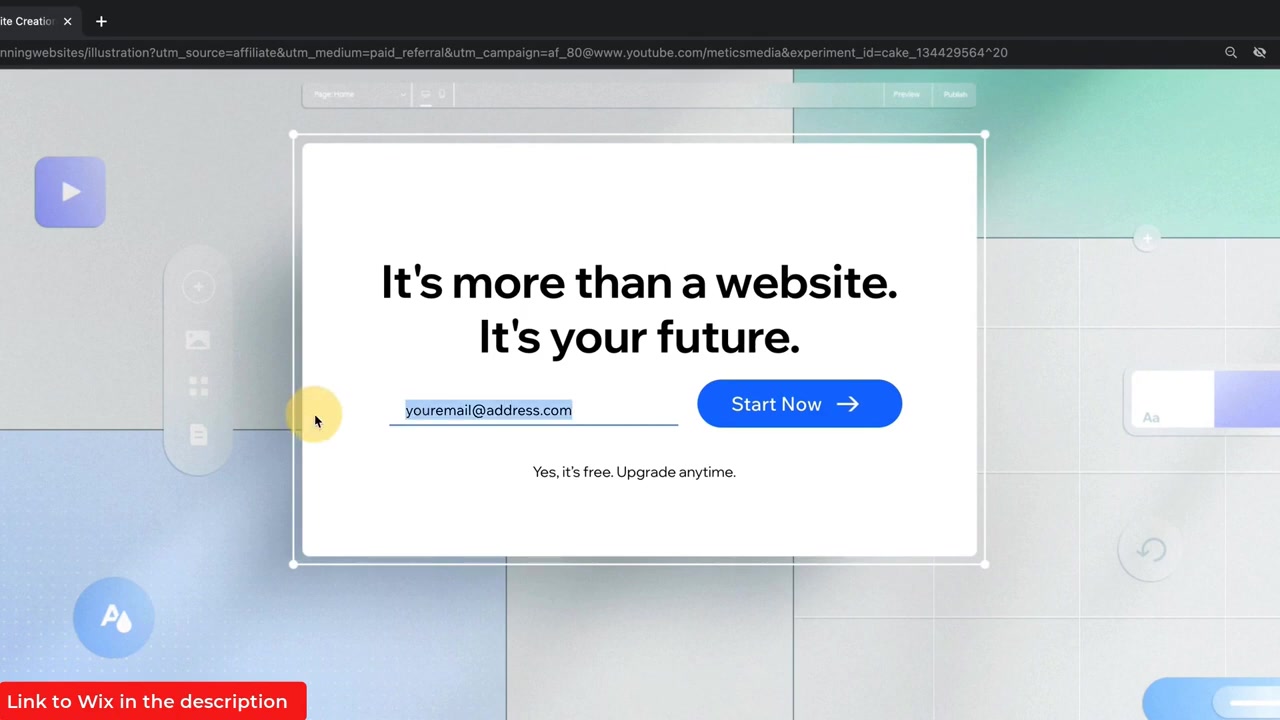
Head over to Wix and enter your email address, then click Start Now. You can register with your email and password, or sign up quickly using your Google or Facebook account.
Once you're signed in, Wix will ask you what kind of website you want to build. For this tutorial, we'll select Business Website and click Next.
Next, give your website a name and select your goals — whether that's selling a product, offering a service, or promoting your business. Wix will then suggest helpful features like chat, an online store, or booking functionality based on your answers.
2. Choose a Template or Let Wix AI Design Your Homepage
After the setup questions, you'll land in the Wix dashboard — your control center as the website owner. From here, click Design Your Site to move into the design phase.
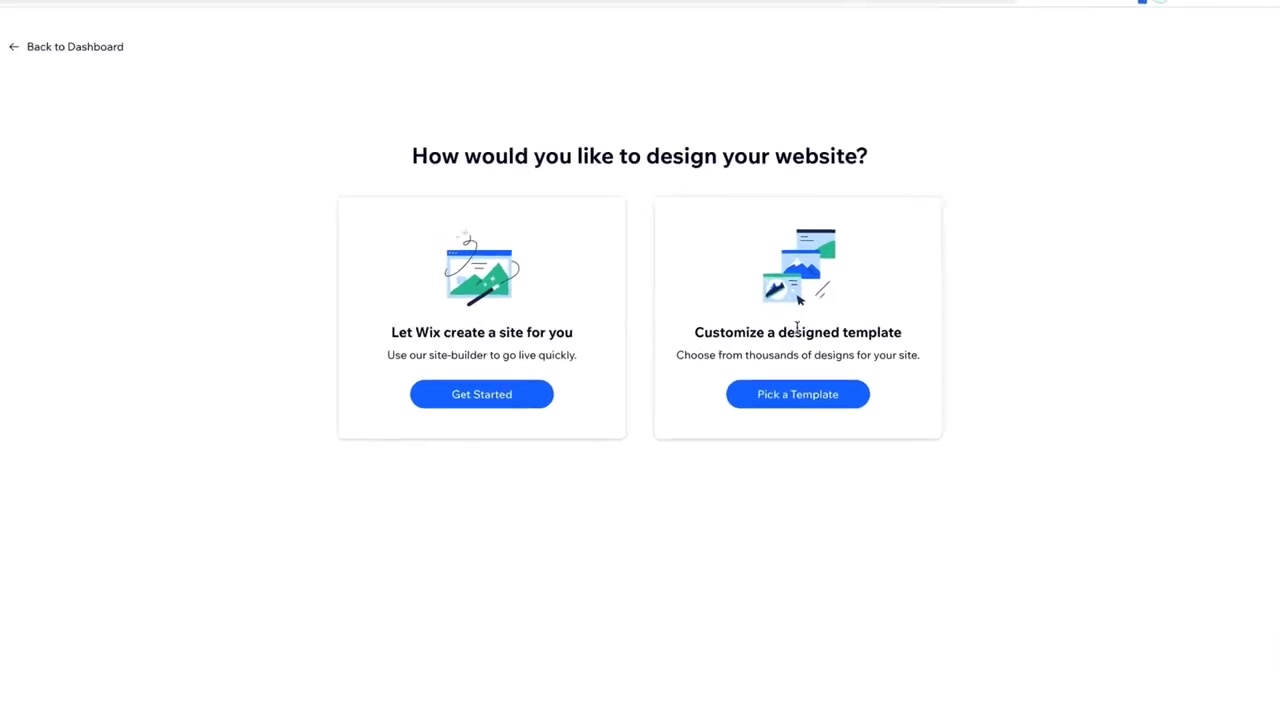
Wix gives you two options: pick a pre-made template or let the Wix AI generate a page for you automatically. For this tutorial, we'll go with the template route, since it gives you full control to customize everything.
Wix will then walk you through a short personalization flow — upload your logo, enter your site name, add your email and social media accounts, and choose a visual style (minimal, fresh, bold, etc.). Once done, Wix automatically generates a home page for you with three template variations to choose from.
3. Customize Your Wix Homepage in the Editor
Click Go to Editor to open the Wix drag-and-drop editor. You'll see the AI-generated home page, which is divided into sections: a hero image at the top, an About Me section, and a contact form at the bottom.
To edit any element, simply click on it and start typing. Customizing the headline text is as easy as clicking and rewriting it.
Below the headline, you'll find a call-to-action button. You can change its color, resize it, and drag it anywhere on the page. Make sure every button links somewhere — either to another page on your site or an external web address.
Change the Background Image
To change the hero image, click Change Strip Background. You can display a solid color, a video, or an image. Click Image and either drag a file from your desktop, upload from Google Drive, or search Wix's built-in stock photo library.
Search for something like "business" and you'll get plenty of professional office and people photos to choose from. Select one and Wix instantly applies it to your page.
Add More Elements to Any Section
Click Add Elements on any section to insert additional content — a second headline, a paragraph, another button, or more. There are plenty of options to explore, so take your time browsing what's available.
Scrolling down, you'll reach the About Me section. Click in to edit the headline and paragraph, and swap out the image just like you did with the hero section.
4. Add and Customize a Contact Form
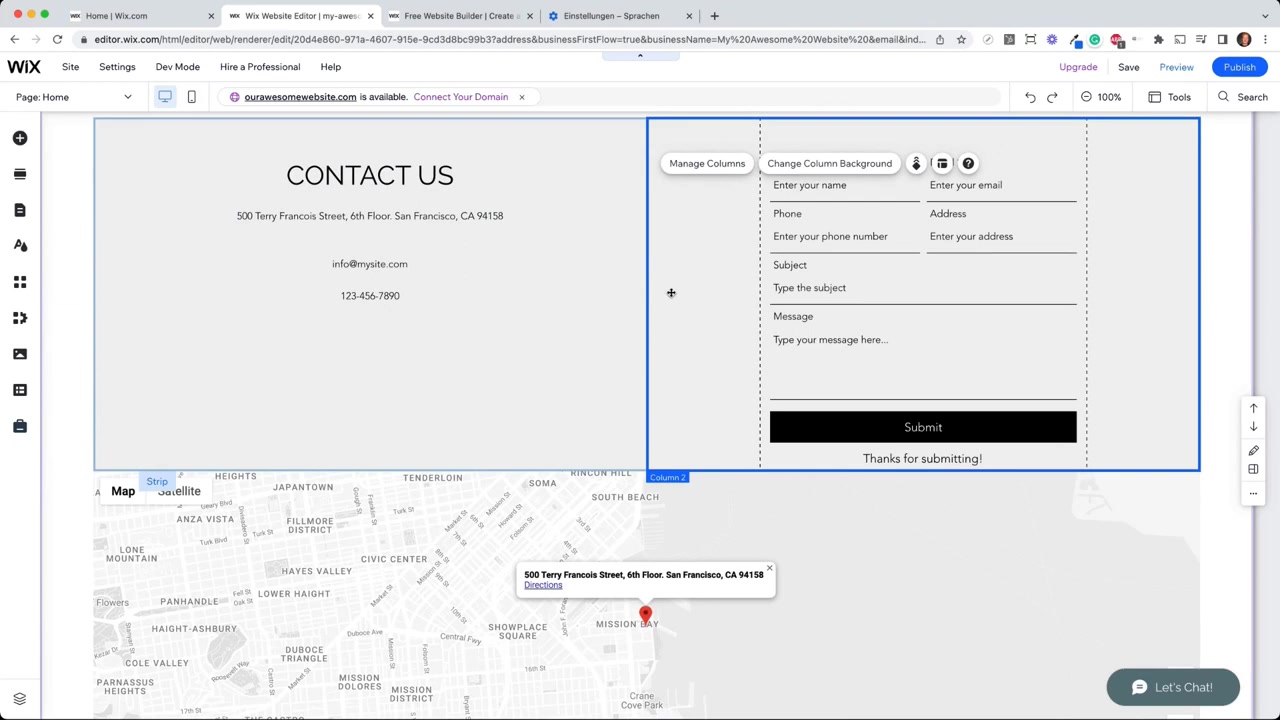
Wix templates already include a contact form at the bottom of the page. You can use it as-is or customize it to fit your needs.
To add new input fields, click Add a New Field inside the form editor and choose from the dropdown — options include date of birth, phone number, address, and more.
On the right side of the editor, you can add your business address and opening hours. Click Manage Location and Wix will automatically pin your address on an embedded Google Map.
There's also a newsletter subscription field at the bottom — visitors can sign up to your mailing list, and you can send them regular email campaigns directly through Wix.
5. Add New Pages and Sections to Your Website
To add a new page, click Pages and Menu in the left sidebar, then click Add Page at the bottom. Choose a page type — for example, a Projects page — and Wix will offer you template options for that page type.
Select one and the new page is automatically added to your site, including a link in the top navigation menu.
You can also add new sections to any existing page. Click Add Section and choose from a variety of section templates — team introductions, portfolio grids, testimonials, and more. This is a great way to build out your homepage without starting from scratch.
6. Extend Functionality with the Wix App Market
In the left sidebar, below the design options, you'll find the Wix App Market. This is where you can add powerful features to your site without any coding.
Want an online store? Add the Wix Stores app and it automatically creates all the necessary pages — category pages, product pages, and a checkout flow. Need appointment booking? The Wix Bookings app lets visitors schedule time with you directly on your site — perfect for therapists, coaches, and consultants.
You can also add Wix Events for event management or Wix Restaurants for taking table reservations online. Browse the app market and see what fits your business best.
7. Preview and Publish Your Wix Homepage
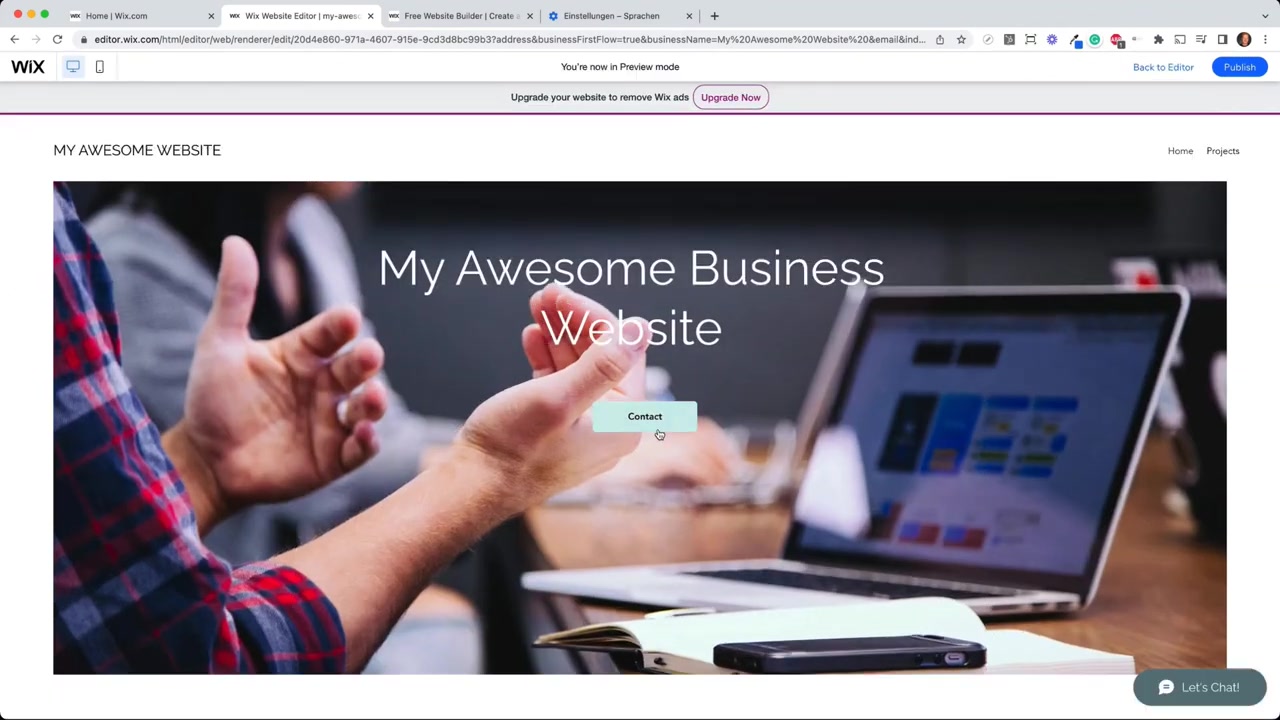
Before going live, use the Preview button at the top of the editor to see exactly how your site looks to visitors. You can also toggle between desktop and mobile view to make sure everything looks great on all devices.
When you're happy with the result, click Publish. Wix will put your site live on a free subdomain (e.g., yourname.wixsite.com).
8. Connect Your Own Domain to Wix
The free Wix subdomain works, but a custom domain looks far more professional. To connect one, exit the editor to go back to the dashboard and enter your desired domain name.
If the domain is available, Wix will prompt you to upgrade to a paid plan. Upgrading also unlocks premium features and removes Wix branding from your site.
Once you've selected a plan and completed checkout, your site will be published under your own domain. From that point, people can find you on Google and contact you directly through your website — and you can even print your URL on business cards.
Congratulations, you now have a live professional website! Get started today by signing up through this link.
9. What is Wix?
Wix is a cloud-based website builder that lets anyone create a professional website without writing a single line of code. Founded in 2006 and headquartered in Tel Aviv, Wix has grown into the world's largest website building platform with over 230 million users globally.
It works on a drag-and-drop principle — you pick a template and then simply click, drag, and customize everything visually. Wix also offers AI-powered features that can generate an entire website for you based on a few questions.
10. Is Wix Good for Beginners?
Yes — Wix is one of the most beginner-friendly website builders available. You don't need any design or coding experience. The drag-and-drop editor is intuitive, and the AI setup wizard makes it easy to get a good-looking site up and running in minutes.
The built-in template library covers dozens of industries, so you're unlikely to start with a blank slate. And with features like the App Market, you can expand your site's capabilities as you grow — without ever needing a developer.
11. How Much Does Wix Cost?
Wix offers a free plan that lets you build and publish a website on a Wix subdomain. If you want a custom domain and to remove Wix branding, you'll need to upgrade to one of the premium plans.
Paid plans are billed monthly or annually — annual billing typically works out cheaper. The Combo plan is a popular choice for personal and small business websites, as it includes a free domain for the first year. For more details, check out resources on Wix pricing before committing to a plan.
12. Wix Pros and Cons
Pros:
- Extremely easy to use with drag-and-drop editing
- Hundreds of professionally designed templates
- Built-in AI website creation
- Large App Market with hundreds of integrations
- Free plan available to get started
- Built-in email marketing, booking, and ecommerce tools
Cons:
- Once you choose a template, switching to a different one requires rebuilding
- The free plan displays Wix branding and uses a subdomain
- Advanced customization (custom code, APIs) requires higher-tier plans
- Can feel overwhelming with so many options
Frequently Asked Questions
Can I create a Wix website for free?
How long does it take to build a Wix homepage?
Can I use my own images on Wix?
Does Wix work on mobile devices?
Can I add a contact form to my Wix website?
Can I sell products on a Wix website?
Do I need a domain name to publish my Wix site?
Can I add booking features to my Wix homepage?
13. Disclosure
Some links in this post may be affiliate links. If you click through and make a purchase, we may earn a commission at no extra cost to you. All content is provided for informational purposes only, and no guarantees are made regarding outcomes. This content does not constitute financial, legal, tax, or investment advice.
Related Articles

15 Dec 2025
Wix Promo Code 2026 – How to Save on Wix Premium Plans
If you've been thinking about upgrading to a Wix premium plan, timing your sign-up the right way can make a real difference. In this guide, I'll walk you through the exact method to access the best av...

28 Oct 2025
How to Create a TikTok Ads Account in 2026
Want to run ads on TikTok but not sure where to start? Setting up your TikTok Ads Manager account is easier than you think — and it only takes a few minutes. In this guide, I'll walk you through the e...

7 Nov 2025
TikTok Ads Tutorial – Snelstartgids voor Beginners
Wil je nieuwe klanten bereiken via TikTok? In deze tutorial laat ik je stap voor stap zien hoe je je eerste TikTok advertentiecampagne opzet – ook als je nog nooit eerder hebt geadverteerd. We beginne...