Wix ADI Website Tutorial – How to Make a Website with Wix
Want to build a website quickly — without any coding or design experience? Wix ADI (Artificial Design Intelligence) is one of the fastest ways to get a professional-looking site online. In this tutorial, we walk through every step: from signing up and answering the setup survey, to editing content, adding apps, and publishing your site. You can get started with Wix right now at julianweber.com/wix-en.
1. What Is Wix ADI?
Wix ADI stands for Artificial Design Intelligence. Instead of dragging and dropping every element yourself, you answer a short survey and Wix automatically generates a personalized website for you.
It is the perfect starting point for beginners. You can always switch from Wix ADI to the classic Wix Editor later — but not the other way around. So starting with ADI is the smart move.
2. Sign Up for Wix
Head to Wix and enter your email address on the homepage. You can sign up with Google, Facebook, or your email — whichever is most convenient.
Once you are signed in, Wix will immediately ask what kind of website you want to create. Options include personal websites, business sites, photography portfolios, online stores, and blogs.

3. Complete the Wix ADI Setup Survey
After choosing your website type, Wix asks which features you want to include — such as a blog, chatbot, online store, booking pages, or contact forms. Don't stress about this step; you can always add features later.
Next, you enter your site name and optional details like an existing website URL or Google Places listing. Wix will pull in existing content and business info automatically if you provide these.
Finally, you pick a design theme (Minimal, Retro, Vivid, Soho, Clean, etc.) and select your favorite homepage layout from a few previews. Again — all of this can be changed afterwards.
4. Explore the Wix ADI Editor Overview
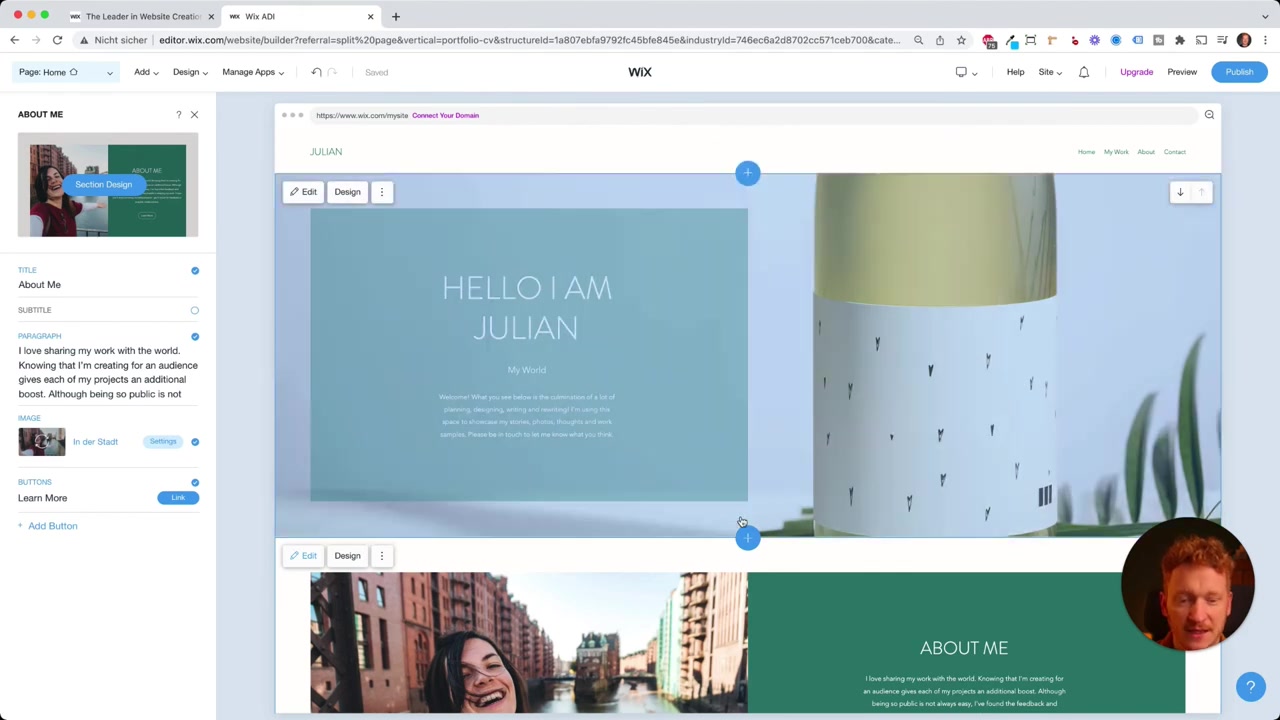
Within seconds, Wix ADI generates your website complete with dummy content — images, text, a contact area, and a map. Now the real fun begins: customizing it to make it yours.
In the top-left corner you will find all your pages (Home, About, Contact). Click the settings icon next to any page to rename, duplicate, delete, or configure its SEO settings like the meta title, description, and keywords.
Pro tip: Set your page URL slug early and do not change it often. Changing it later breaks any links you have already shared or indexed on Google.
Adding and Reordering Pages
Click the Add Page button to insert a new page. Wix gives you templates for contact pages, portfolio pages, and more. Once added, you can reorder pages via Edit Menu by simply dragging them into the sequence you prefer.
5. Change the Global Design of Your Wix Site
One of the most powerful features in Wix ADI is the ability to change your global design theme in one click. Switch from Minimal to Clean or Retro and the fonts, colors, and layout update across every page instantly.
You can also set a custom brand color. Change it once and Wix applies it site-wide — no manual updating required. You can also customize fonts and add scroll animations like fade-ins or slide-ups.
6. Edit and Add Content to Your Wix Website
Wix ADI organizes your page into stripes (also called content blocks). Each stripe can contain text, images, buttons, or any other element. Click a stripe to edit its content directly.
You can upload your own photos or choose from Wix's built-in stock photo library — including an Unsplash integration with thousands of free images. Wix automatically compresses uploaded images so your site loads fast.
Each stripe also has a Design tab that lets you switch the layout — for example placing the image on the left and text on the right. Explore the options; it is quick and intuitive.
Adding Buttons and Links
Buttons are easy to set up. Click Link on any button and choose to link to an internal page, an external URL (like your Instagram or YouTube), or even a phone number that dials directly on mobile.
Adding New Stripes to Your Page
Click the + (plus) icon to add a new stripe. You can choose from a wide variety of section types: image galleries, video players, Instagram feeds, testimonials, portfolios, and more.
After adding a stripe you can move it up or down the page with the arrow controls, or zoom out to get a full overview and rearrange everything at once.
7. Mobile Preview in Wix ADI
Wix automatically creates a mobile-optimized version of your site. Click the mobile preview icon to see exactly how your site looks on a smartphone — no extra design work needed on your part.
You can hide certain elements on mobile or tweak the layout slightly, but in most cases Wix handles this well out of the box. It is a huge time-saver.
8. Explore the Wix App Market
The Wix App Market lets you add powerful functionality to your site without any third-party integrations. Want an online shop? Add it with one click. Need a booking system for client appointments? Done in seconds.
When you add a booking app, Wix automatically generates all the necessary pages: a services page, a booking form, and a calendar view. You manage everything from the Wix backend — adding services, setting availability, and handling appointments.
This is one of the biggest advantages of Wix: everything stays within one platform. No juggling multiple tools or worrying about broken integrations.
9. Publishing Your Wix Website
When you are happy with your site, click Publish. Your site will go live, but it takes Google a little time to discover and index it — so don't worry if it doesn't appear in search results immediately.
Before publishing, you will likely want a custom domain name. Click Upgrade and Wix walks you through choosing a plan. The most basic website plan is very affordable and already includes a custom domain.
If you later want more control over your site's design, you can switch from Wix ADI to the full Wix Editor via Site > Go to Editor. Just remember: once you switch to the Editor, you cannot go back to ADI.
10. Is Wix ADI Good for Beginners?
Absolutely. Wix ADI is specifically built for people with no design or coding experience. The survey-based setup, one-click global design changes, and automatic mobile optimization make it one of the most beginner-friendly website builders available.
If you want even more design control down the road, you can always upgrade to the full Wix Editor. But for getting a polished site live quickly, ADI is hard to beat.
11. Wix ADI vs Wix Editor – Which Should You Choose?
Wix ADI generates your site automatically and keeps things simple. It is ideal for beginners who want results fast. The trade-off is slightly less granular control over every design detail.
Wix Editor gives you pixel-level control over every element on your page. It has a steeper learning curve but unlocks more advanced customization. The key rule: you can move from ADI to the Editor, but never back — so start with ADI if you are unsure.
12. Wix Pricing – How Much Does Wix Cost?
Wix offers a free plan that lets you build and publish a site with a Wix-branded domain. To connect your own custom domain and remove Wix branding, you need a paid plan.
Paid plans start at a very accessible price point, with e-commerce and business plans available for sites that need to accept payments. You can explore all available plans via the Wix link here. For a deep-dive on Wix plans and pricing, check out this Wix promo code guide.
Frequently Asked Questions
What is Wix ADI?
Can I switch from Wix ADI to the Wix Editor?
Is Wix ADI free to use?
How long does it take to build a website with Wix ADI?
Does Wix ADI automatically create a mobile version of my site?
Can I add an online store with Wix ADI?
What is the Wix App Market?
How do I add SEO settings in Wix ADI?
13. Disclosure
Some links in this post are affiliate links. If you click one and make a purchase, we may earn a small commission at no extra cost to you. All content is provided for informational purposes only; no guarantees are made regarding results. Nothing here constitutes financial, legal, tax, or investment advice.
Related Articles

15 Dec 2025
Wix Promo Code 2026 – How to Save on Wix Premium Plans
If you've been thinking about upgrading to a Wix premium plan, timing your sign-up the right way can make a real difference. In this guide, I'll walk you through the exact method to access the best av...

28 Oct 2025
How to Create a TikTok Ads Account in 2026
Want to run ads on TikTok but not sure where to start? Setting up your TikTok Ads Manager account is easier than you think — and it only takes a few minutes. In this guide, I'll walk you through the e...

27 Sep 2025
Lancer des publicités TikTok en 7 min – Tutoriel en français
Tu veux te lancer sur TikTok Ads mais tu ne sais pas par où commencer ? Ce tutoriel rapide te montre comment créer et configurer ta première campagne publicitaire TikTok en moins de 7 minutes. Parfait...