How to Open a Wise Account (2026) – Full Registration Tutorial
Want to send money internationally without paying sky-high fees? Wise (formerly TransferWise) is one of the most popular multi-currency accounts in the world — and opening one takes just a few minutes.
In this tutorial, I'll walk you through the entire Wise account registration process step by step, from signing up to verifying your identity and setting up your first currency balances.
1. What Is Wise?
Wise is an international money transfer and multi-currency account service. It lets you hold, convert, send, and receive money in over 40 currencies — all at the real mid-market exchange rate (the same rate you see on Google).
Unlike traditional banks, Wise charges low, transparent fees with no hidden markups on exchange rates. It's a go-to tool for freelancers, expats, digital nomads, and anyone who regularly deals with international payments.
2. Create Your Wise Account
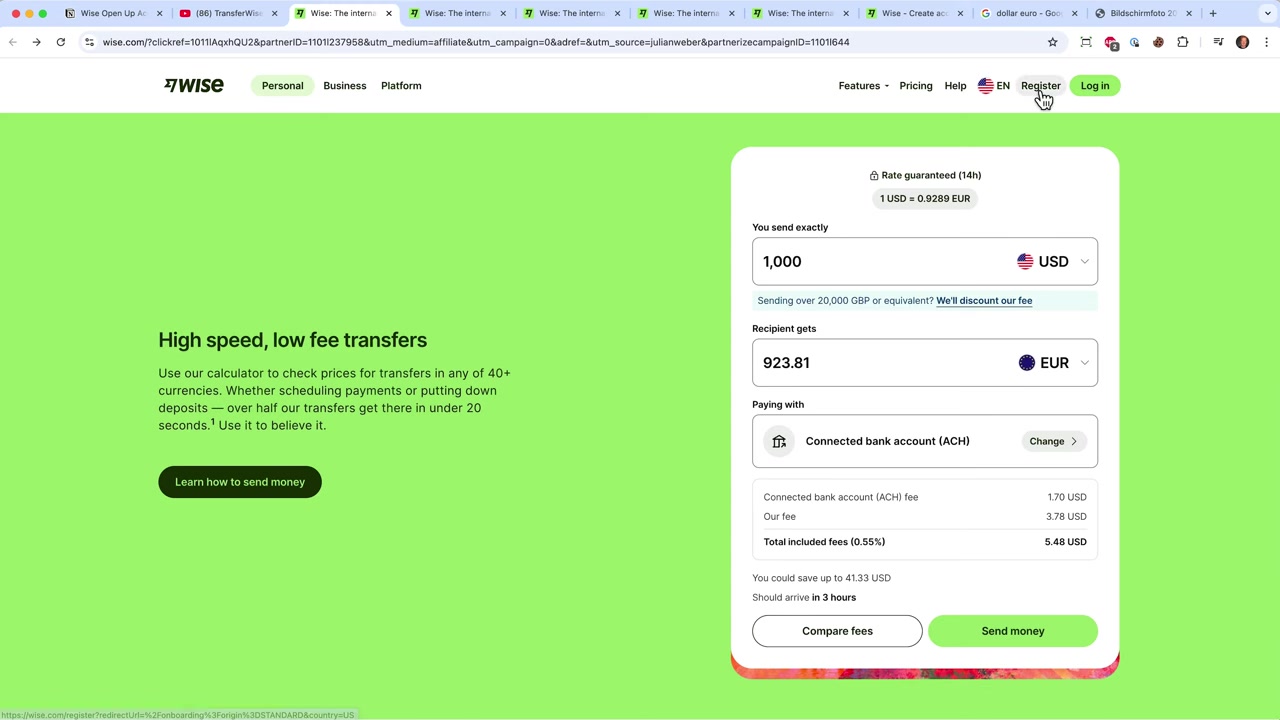
Head to the Wise website using this link and click Register. You can sign up quickly with your Google, Facebook, or Apple account — or simply enter your email address manually.
After entering your email, Wise will send you a confirmation link. Click it to verify your email address and continue the registration process.
3. Choose Personal or Business Account
Wise will ask whether you want to open a personal or a business account. For most individuals, a personal account is the right choice. If you need a business account, Julian has a separate tutorial on that on his channel.
Next, select the country where you live most of the time. For example, if you're in the United States, choose your state (e.g., California) and hit Continue.
4. Verify Your Phone Number and Set a Password
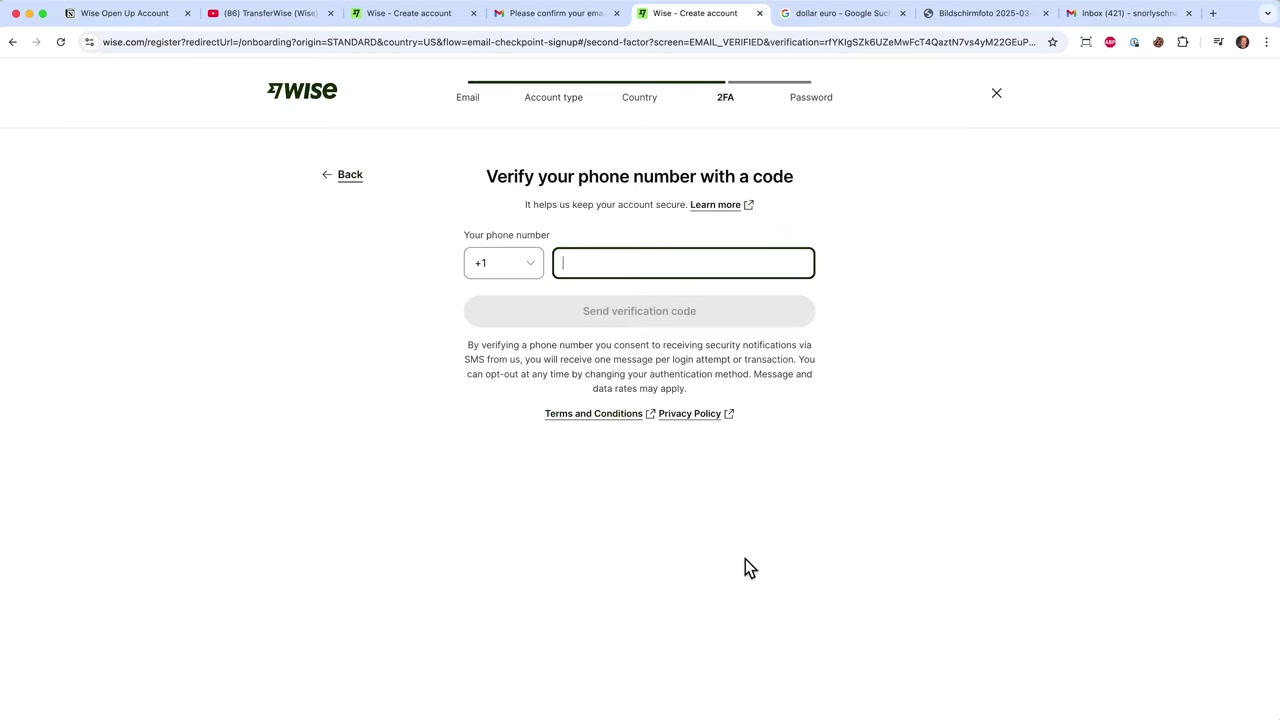
Enter your phone number so Wise can send you a verification code via SMS. Type in the code when it arrives and click Done.
After confirming your phone number, you'll be asked to create a secure password. Choose something strong and click Continue to proceed.
5. Enter Your Personal Details and Address
Now it's time to fill in your personal information — your legal name and country of origin. Make sure this matches your official ID, as Wise will verify your identity later.
You'll also need to provide your current home address. Fill in all required fields and click Confirm and Continue.
6. Add Currency Balances to Your Wise Account
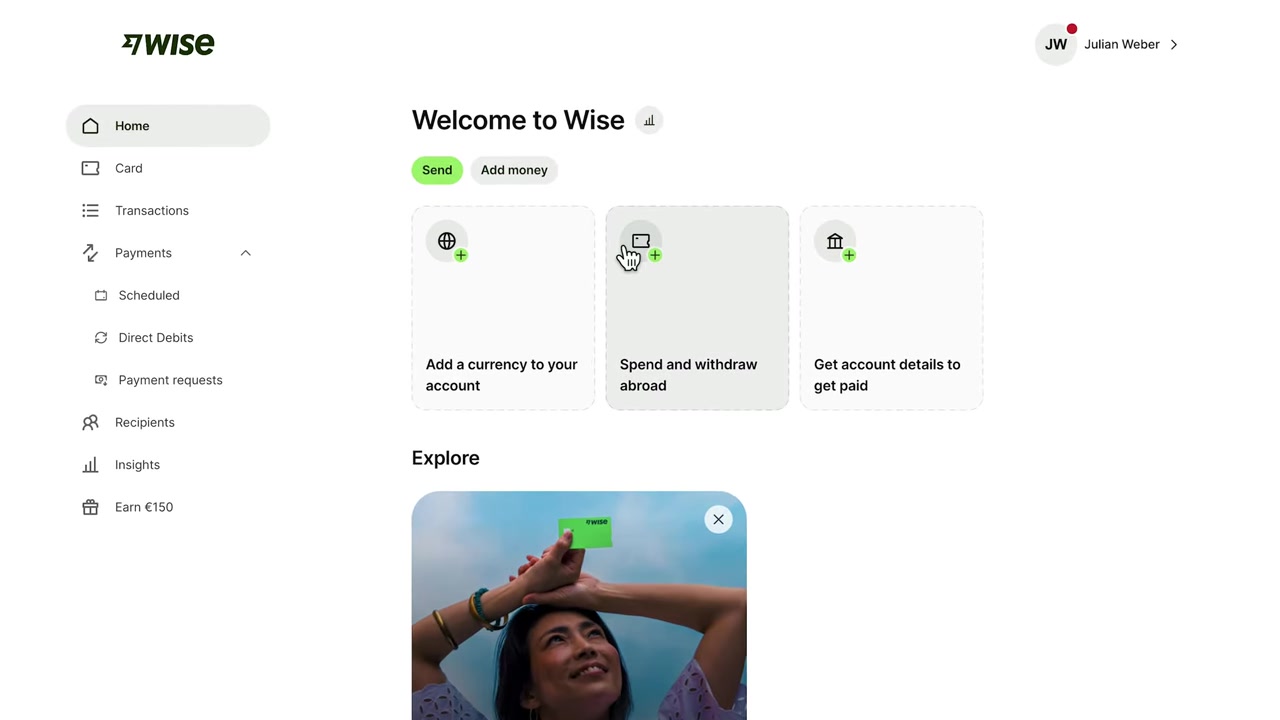
Once you're inside the Wise dashboard, you can start adding currency balances. Click Add currency to account and choose the currencies you want to hold — for example, US dollars and euros.
Wise supports over 40 currencies. Each currency balance gets its own local account details (like an IBAN for euros), which you can share with anyone who wants to pay you.
7. Verify Your Identity on Wise
Before you can receive payments or access your account details, Wise requires identity verification. Click on Account Details, and you'll see a QR code appear on screen.
Scan the QR code with your smartphone, then:
- Scan your government-issued ID (passport or national ID card)
- Take a selfie so Wise can match your face to your document
Once approved, you'll have full access to your account details and can start sending and receiving money.
8. Send Money Internationally with Wise
To send money, simply select a currency pair — for example, USD to EUR — and enter the amount. Wise will show you exactly how much the recipient gets, including all fees upfront.
You can fund the transfer by connecting your local bank account (lowest fees), using a debit card, or doing a wire transfer. To add a recipient, enter their bank details manually or search for them on Wise.
9. Wise Savings Jars and Interest
Wise also offers savings jars — a built-in savings feature where your money can earn interest. For US dollars, the interest rate is currently over 4%, making it a useful place to park funds while earning passive returns.
You can open a savings jar directly from your dashboard alongside your regular currency balances. It's a handy feature that most people don't know about.
10. Get Your Wise Card
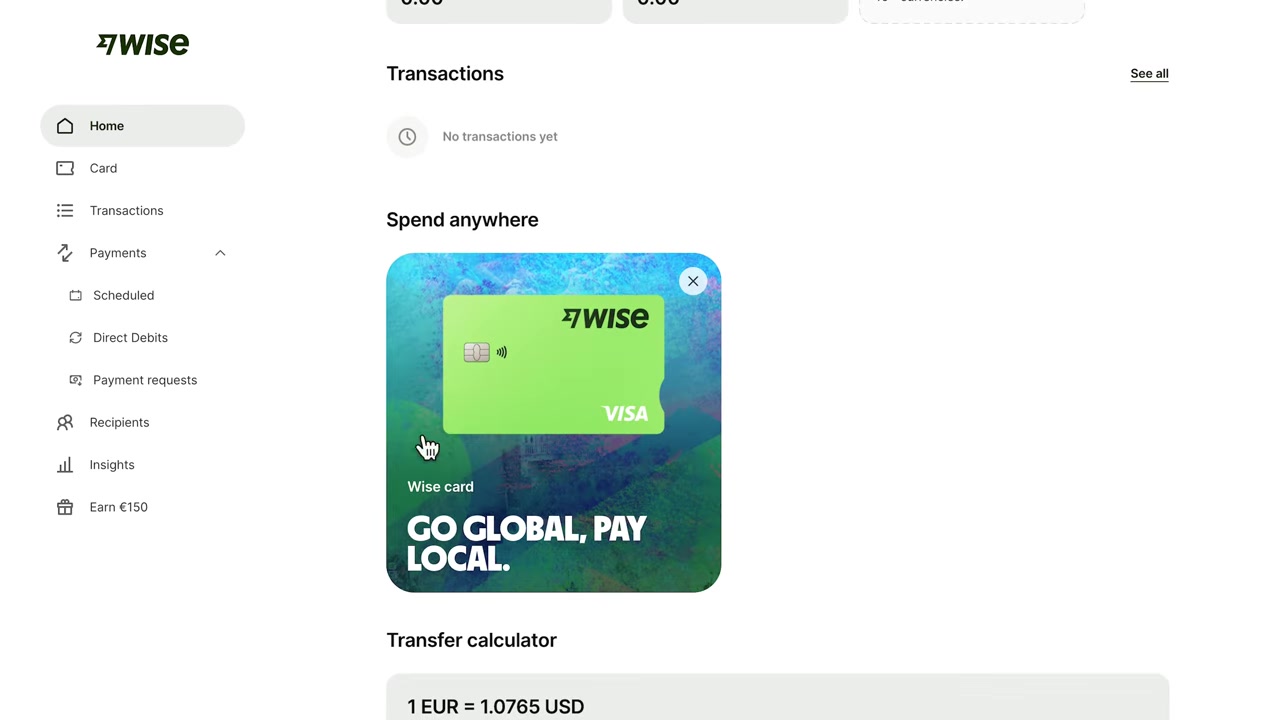
Once your account is set up, you can order a Wise debit card. The card lets you spend money in the local currency wherever you are in the world — automatically converting from whichever balance has funds, at the real exchange rate.
It's ideal for travel, online shopping in foreign currencies, or simply avoiding the poor exchange rates charged by traditional banks.
11. Is Wise Good for Beginners?
Absolutely. The registration process takes less than 10 minutes, and the interface is clean and intuitive. You don't need any prior experience with international banking to get started.
Wise is a great first step for anyone who wants to manage money across borders without the complexity or high fees of traditional banks. The mobile app is also well-rated and easy to navigate.
12. How Much Does Wise Cost?
Opening a Wise account is completely free. There are no monthly fees for a personal account. You only pay small, transparent transaction fees when you send money or convert currencies.
The fees vary depending on the currency pair and transfer method, but they are always displayed clearly before you confirm any transaction. Wise consistently offers lower fees than most banks and many competitors.
13. Wise vs. Traditional Banks
Traditional banks often charge hidden markups on the exchange rate on top of a transfer fee. This means you can lose 3–5% of your money on a single international transfer without even realizing it.
Wise always uses the mid-market exchange rate — the same one you see on Google — and charges only a small, visible fee. For anyone sending money internationally on a regular basis, the savings add up quickly.
Frequently Asked Questions
Is Wise free to use?
How long does it take to open a Wise account?
What documents do I need to open a Wise account?
Can I hold multiple currencies in Wise?
Does Wise use the real exchange rate?
Can I receive payments in my Wise account?
Is there a Wise debit card?
Can I earn interest with Wise?
14. Disclosure
Some links in this post are affiliate links. If you sign up through them, a small commission may be earned at no extra cost to you. All content is provided for informational purposes only — no guarantees are made regarding outcomes. This post does not constitute financial, legal, tax, or investment advice.
Related Articles

28 Oct 2025
How to Create a TikTok Ads Account in 2026
Want to run ads on TikTok but not sure where to start? Setting up your TikTok Ads Manager account is easier than you think — and it only takes a few minutes. In this guide, I'll walk you through the e...

22 Sep 2025
How To Run TikTok Ads for Shopify Store (New Tutorial 2026)
Want to drive real sales to your Shopify store with TikTok Ads? In this step-by-step tutorial, Julian Weber walks you through everything — from creating your TikTok Ads account and connecting your Sho...

4 Sep 2025
TikTok Creative Center Tutorial (2026) – How to Find Top Ads on TikTok
Want to know which TikTok ads are crushing it right now — and how to model them for your own campaigns? In this tutorial, you'll learn two proven strategies to find winning ad creatives on TikTok, inc...