YouTube Thumbnail Tutorial - How to Create a Thumbnail in Canva
Want more clicks on your YouTube videos? It all starts with a great thumbnail. In this tutorial, you'll learn exactly how to create eye-catching YouTube thumbnails using Canva — a free, beginner-friendly design tool with hundreds of ready-made templates. Whether you're just starting your channel or looking to level up your visuals, this guide walks you through everything step by step.
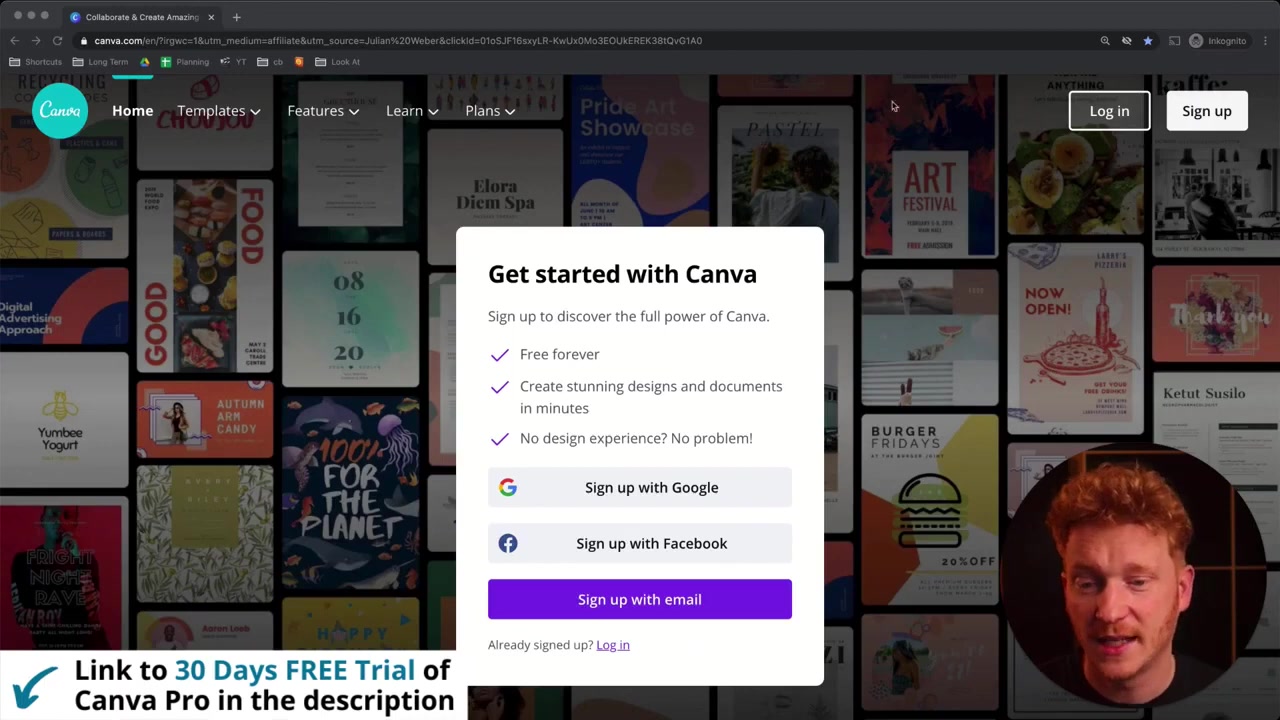
You can sign up for Canva using this link to start a free trial and unlock all the Pro features — including premium templates, icons, and the background remover tool.
1. What Is Canva and Why Use It for YouTube Thumbnails?
Canva is a web-based graphic design tool that makes it incredibly easy to create professional-looking visuals — no design experience required. It comes packed with thousands of templates, fonts, icons, and stock images.
For YouTube creators, Canva is a game-changer. Instead of spending hours in Photoshop, you can have a polished thumbnail ready in minutes. Many top YouTubers use Canva for exactly this reason — it's fast, flexible, and surprisingly powerful.
2. Sign Up and Start Your Free Canva Trial
To get started, click this affiliate link to Canva and create your account. You can sign up with Google, Facebook, or your email address.
During signup, you'll be prompted to enter a payment method (PayPal or credit card) to activate the free trial. Don't worry — you won't be charged until the trial period ends. If you decide Canva isn't for you, you can cancel easily from your account settings before then.
3. Find the Right YouTube Thumbnail Template in Canva
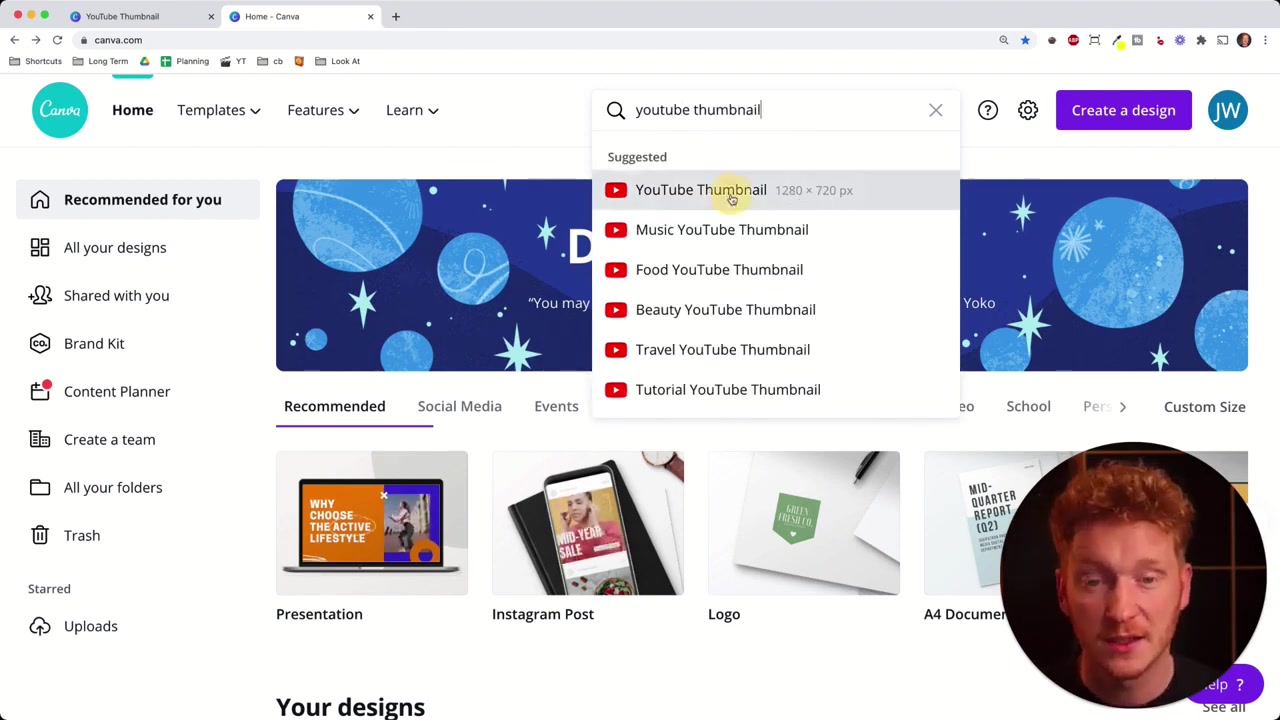
Once you're logged in, simply type "YouTube thumbnail" in the search bar. Canva will instantly show you the correct dimensions — 1280 x 720 pixels — along with hundreds of templates to choose from.
Browse through the options and pick a template that fits your channel's style. Whether you run a fitness channel, a cooking channel, or a tutorial channel, there's something for everyone. With the Pro trial active, you get access to all premium templates for free.
4. Upload Your Own Photo and Customize the Thumbnail
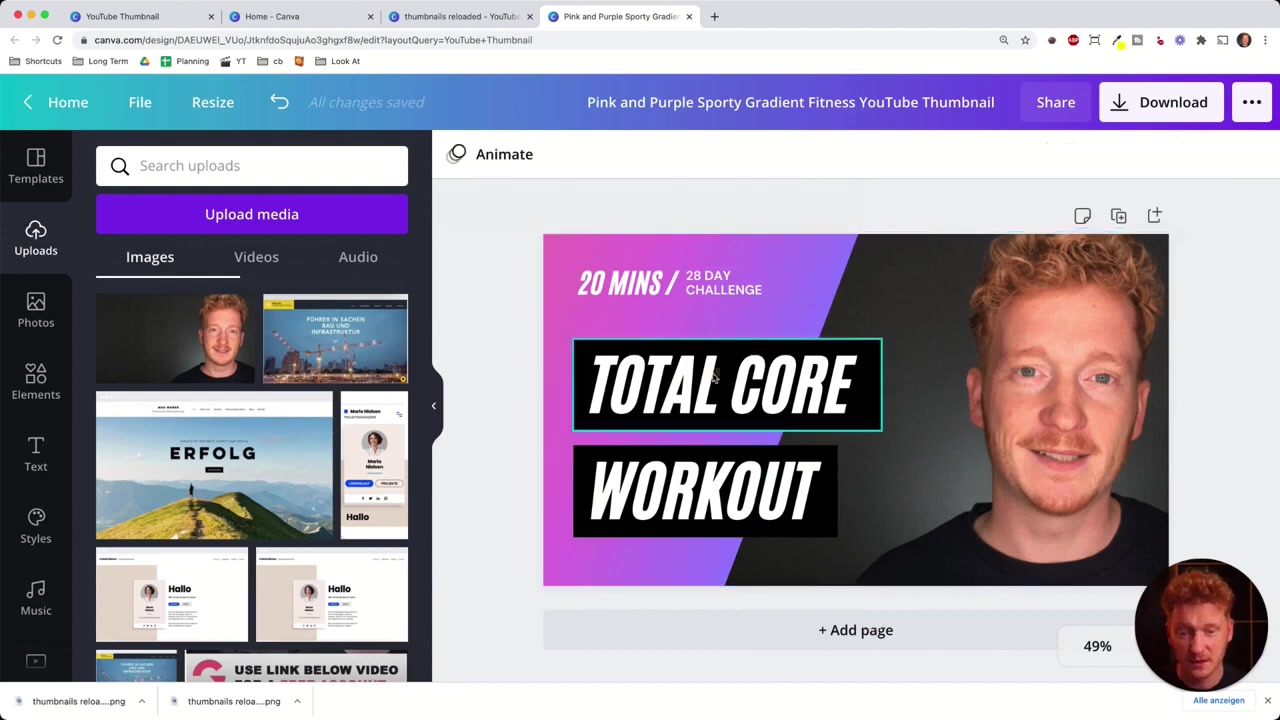
After selecting a template, the Canva editor opens. On the left sidebar, you'll see all your available templates — but now it's time to personalize.
Click on Uploads and drag and drop your photo directly into the editor. Once uploaded, drag it onto the canvas to replace the placeholder image. From there, resize it, reposition it, and use the Position menu to send it backward or forward in the layer order.
Editing the text is just as easy. Click on any text element to select it, then type your own headline. You can:
- Change the font from a wide selection of styles
- Resize text by dragging the corners or adjusting the font size
- Change the text color using the color picker or entering a hex code
- Undo any change with the undo button at any time
You can also add extra text styles from the Text panel — including decorative heading styles that make your thumbnail pop.
5. Add Elements, Shapes, and Stickers
Canva's Elements panel gives you access to basic shapes, frames, stickers, charts, and icons. Want to add a subscribe button icon to a channel banner? It's just a drag and drop away.
These small design details can make your thumbnail stand out in a crowded feed. Experiment with different combinations to find what looks best for your brand.
6. Use the Background Remover to Create Pro-Style Thumbnails
One of the most powerful Pro features in Canva is the background remover. If you've ever tried removing a background in Photoshop, you know how time-consuming it can be — especially around complex areas like hair.
With Canva, it takes just a few seconds. Upload your photo, click Effects, and select Background Remover. The tool automatically detects and removes the background with impressive accuracy — even around fine details like hair.
This is the trick behind those popular thumbnails where the YouTuber appears cut out against a bold background. Now you can do it too, without any Photoshop skills.
7. Duplicate Thumbnails and Compare Designs
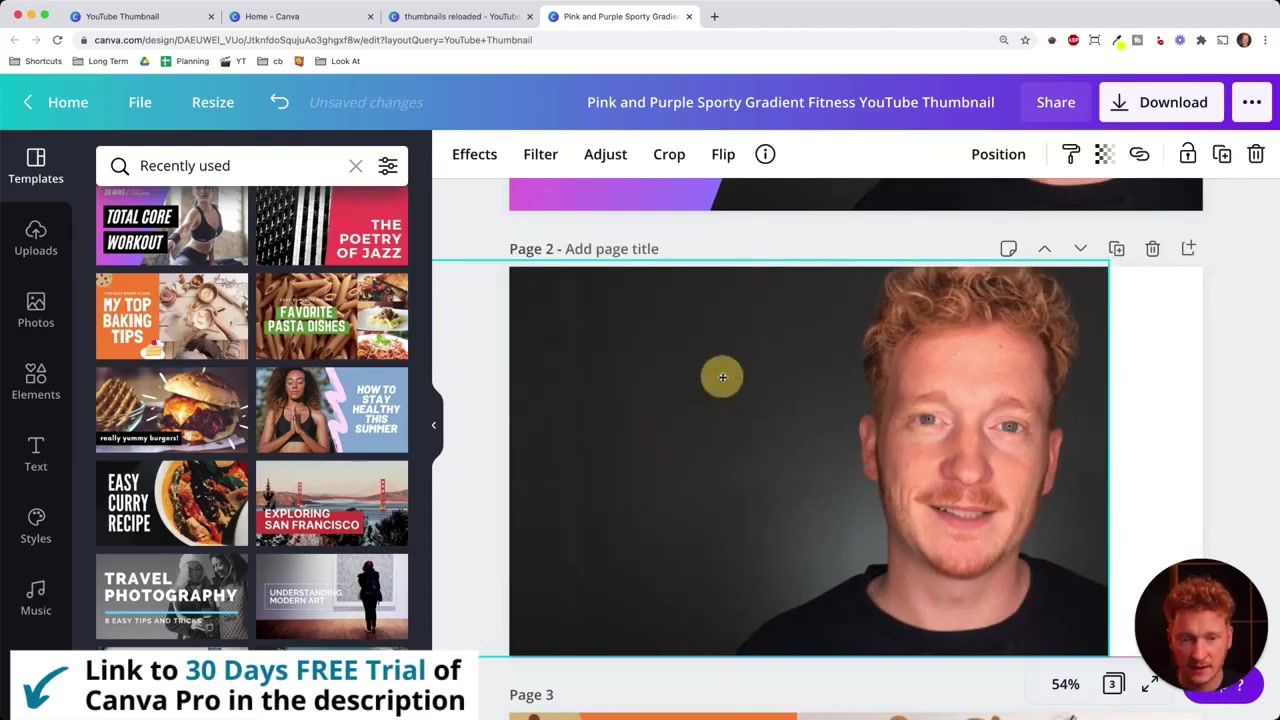
Not sure which thumbnail version will perform better? Canva makes it easy to test ideas side by side. Simply duplicate your thumbnail design, make a few changes (swap a color, update the text, try a different layout), and then switch to Grid View to compare them.
This visual comparison helps you decide which design is more likely to catch a viewer's eye and improve your click-through rate (CTR) on YouTube.
If you want to take it further, you can use TubeBuddy to run proper A/B tests. The tool automatically rotates between two thumbnail versions day by day and then shows you the performance statistics. Julian covers this in a separate tutorial on A/B testing thumbnails — worth checking out once you've got your design workflow down.
8. Download and Use Your Canva Thumbnail on YouTube
Once you're happy with your design, click the Download button in the top-right corner of Canva. Export it as a PNG or JPG file and then upload it directly to your YouTube video as a custom thumbnail.
Make sure your thumbnail is high quality and under 2MB — YouTube's recommended file size limit for custom thumbnails.
9. Is Canva Free for YouTube Thumbnails?
Yes — Canva has a generous free plan that includes access to thousands of templates, basic design tools, and standard image uploads. You can create perfectly good thumbnails on the free plan.
The Pro plan unlocks additional benefits like premium templates, a larger stock image library, the background remover tool, and brand kits. During the trial period, you get full access to all Pro features at no cost. After the trial, you can decide whether to upgrade or continue with the free version.
10. Canva Pros and Cons for YouTube Creators
Pros:
- Beginner-friendly drag-and-drop editor
- Hundreds of YouTube thumbnail templates included
- Fast background remover (Pro feature)
- Easy to duplicate and iterate designs
- Works in the browser — no software to install
- Free plan available with solid core features
Cons:
- Some premium templates and images require the Pro plan
- Less fine-grained control than professional tools like Photoshop
- Background remover is a Pro-only feature
Frequently Asked Questions
What size should a YouTube thumbnail be?
Can I use Canva for free to make YouTube thumbnails?
How do I remove the background from a photo in Canva?
How do I A/B test YouTube thumbnails?
How many thumbnail templates does Canva have?
Can I use my own photos in Canva thumbnails?
What file format should I save my YouTube thumbnail as?
Is Canva good for beginners with no design experience?
11. Disclosure
Some links in this post are affiliate links. If you sign up or make a purchase through them, a small commission may be earned at no extra cost to you. All content is provided for informational purposes only and comes without any guarantee. This post does not constitute financial, legal, tax, or investment advice.
Related Articles

28 Oct 2025
How to Create a TikTok Ads Account in 2026
Want to run ads on TikTok but not sure where to start? Setting up your TikTok Ads Manager account is easier than you think — and it only takes a few minutes. In this guide, I'll walk you through the e...

15 Dec 2025
Wix Promo Code 2026 – How to Save on Wix Premium Plans
If you've been thinking about upgrading to a Wix premium plan, timing your sign-up the right way can make a real difference. In this guide, I'll walk you through the exact method to access the best av...
7 Nov 2025
TikTok Ads Tutorial – Snelstartgids voor Beginners
Wil je nieuwe klanten bereiken via TikTok? In deze tutorial laat ik je stap voor stap zien hoe je je eerste TikTok advertentiecampagne opzet – ook als je nog nooit eerder hebt geadverteerd. We beginne...