Canva Tutorial (2026) – Best AI for Graphics Designs and Social Media Posts
Canva has become the go-to design tool for creators, entrepreneurs, and marketers — and in 2026, it's more powerful than ever thanks to built-in AI features.
In this tutorial, you'll learn how to use Canva from scratch: creating logos, Instagram stories, YouTube thumbnails, and more — all without any design experience. Whether you're a solopreneur or a content creator, Canva makes professional-quality design accessible to everyone.
1. What Is Canva?
Canva is a browser-based design tool that lets you create virtually anything visual — social media graphics, presentations, logos, flyers, business cards, and even websites.
Before Canva, your only options were complex tools like Photoshop or Adobe Illustrator. Those are powerful, but they come with a steep learning curve and a high price tag.
Canva flips the script. It gives you a drag-and-drop interface, a massive library of templates, and now a growing suite of AI-powered features — all in one place.
2. Sign Up and Explore the Canva Dashboard
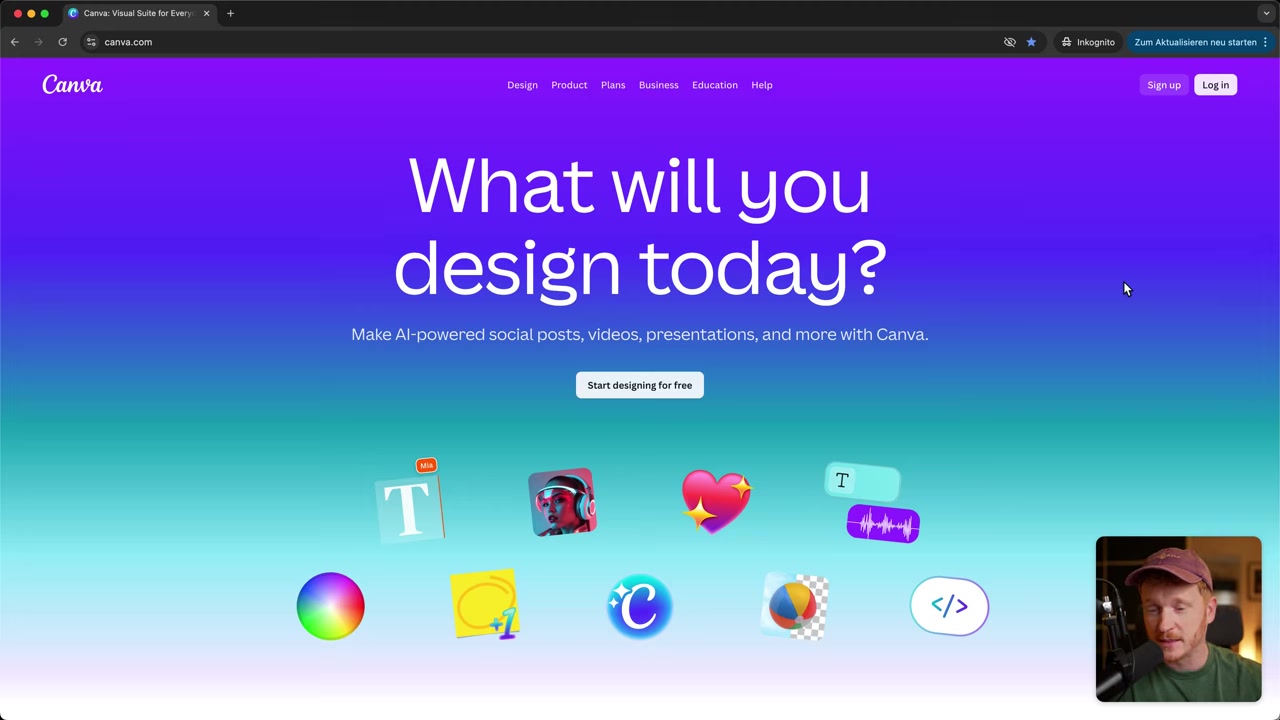
Getting started is straightforward. Head to canva.com and sign up for a free account.
Once you're in, you'll land on your dashboard. Here you can see your past projects and jump straight into creating something new.
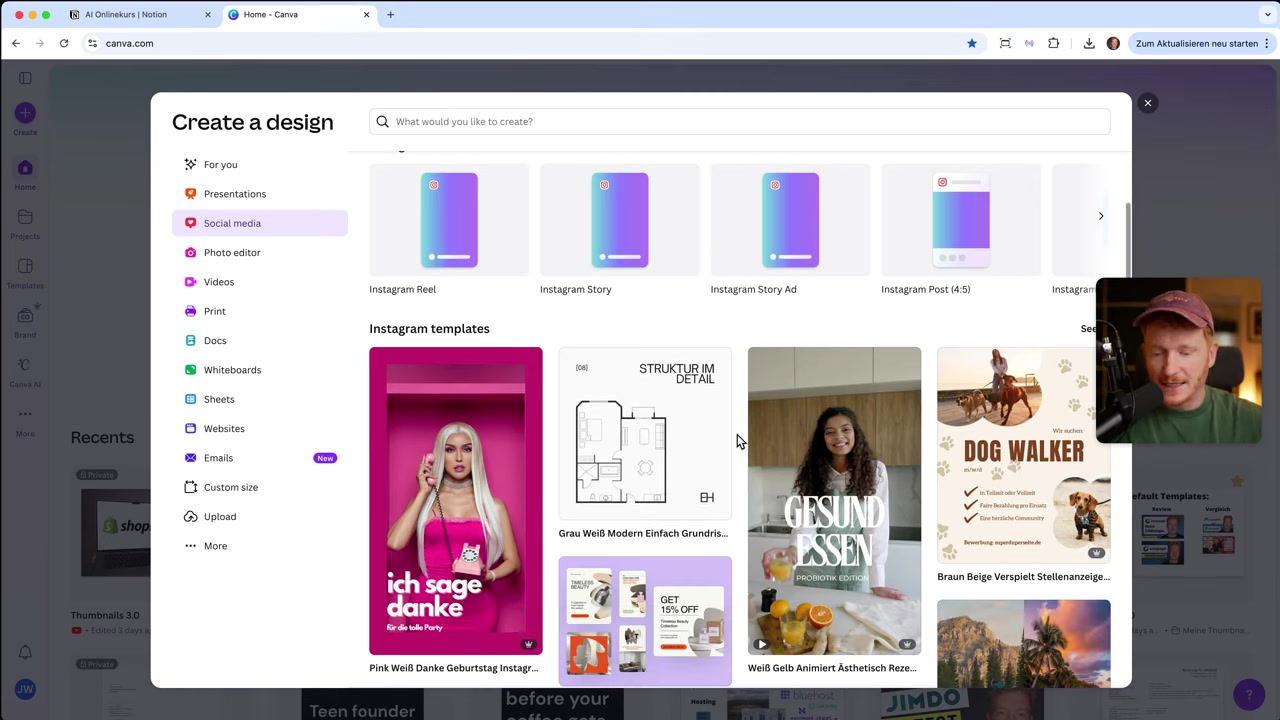
Click Create and you'll be presented with options: presentations, social media posts, videos, print materials, and more. Pick the format that fits your goal.
3. Choose a Template for Your Social Media Post
One of Canva's biggest strengths is its template library. You never have to start from a blank canvas.
Search for your niche — dog walking, travel, food — and Canva will surface ready-made templates tailored to that topic. For example, searching for "ice cream" brings up logo templates, sticker designs, and promotional videos instantly.
Just pick one, click into it, and start editing the text and colors to match your brand.
4. Create a Logo in Canva in Under 60 Seconds
Creating a logo in Canva is surprisingly fast. Search for your business type, filter by logo templates, and pick one that fits your style.
Click into the template, swap out the placeholder text with your business name, and you're done. The whole process takes less than a minute.
It won't replace a professional brand identity designer, but for getting a project off the ground quickly, it's hard to beat.
5. Build an Instagram Story for Your Next Webinar
Navigate to social media templates and filter by Instagram Story. Canva gives you a wide selection of professionally designed layouts to choose from.
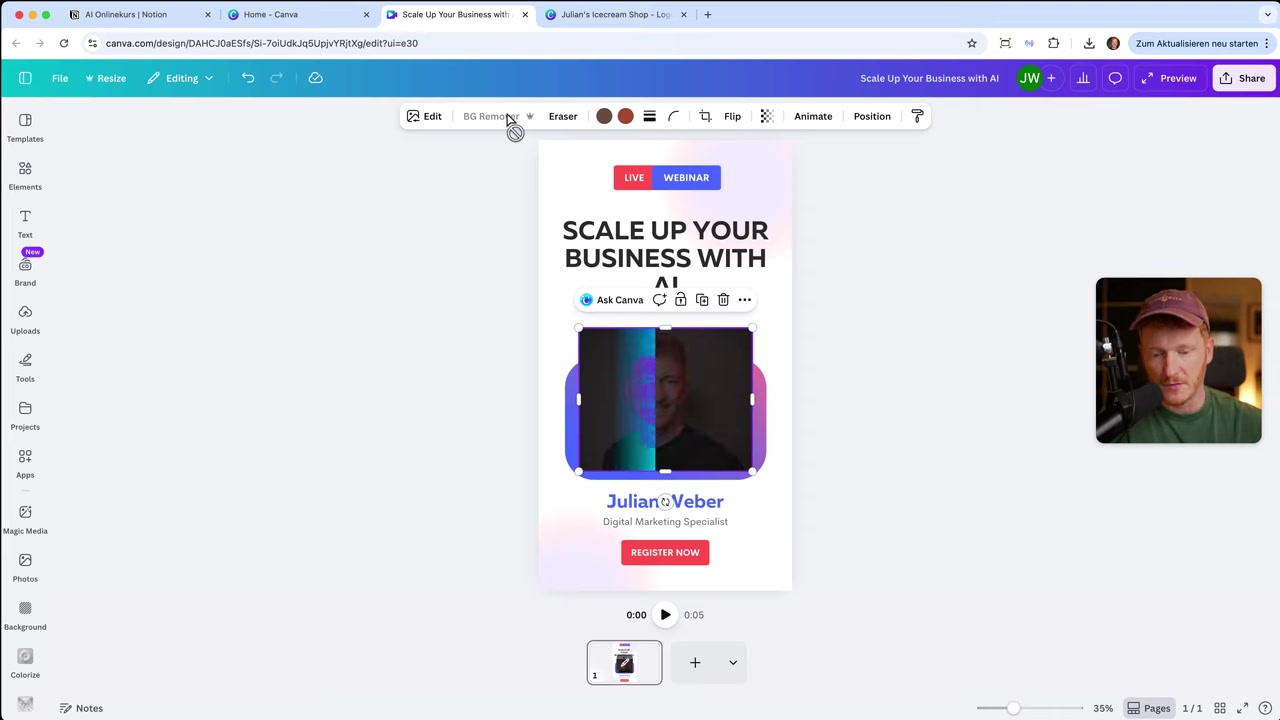
Pick a template, update the headline text to match your message, and swap in your own photo. Canva's interface works similarly to PowerPoint — click any element to edit it, drag it to reposition, and resize with the corner handles.
You can also change colors with a single click to match your brand palette.
6. Use Canva AI to Remove Backgrounds Instantly
This is where Canva's AI features start to shine. Once you've uploaded your own photo, the background can look messy against a designed template.
With the Background Remover tool, Canva cuts out the background in about one second — no manual masking required. It's clean, fast, and genuinely impressive.
Note: Background removal is a Pro feature, but you can access it during your free trial when you sign up via this link.
7. Design YouTube Thumbnails with Canva
Search for "YouTube thumbnail" in the template library and you'll find dozens of high-energy, eye-catching designs ready to customize.
The workflow is the same as with stories: upload your photo, remove the background, drag yourself onto the template, and update the title text. You can duplicate your design and create multiple variants in just a few minutes.
For content creators, this alone can save hours every week.
8. Explore the Canva Magic Studio AI Tools
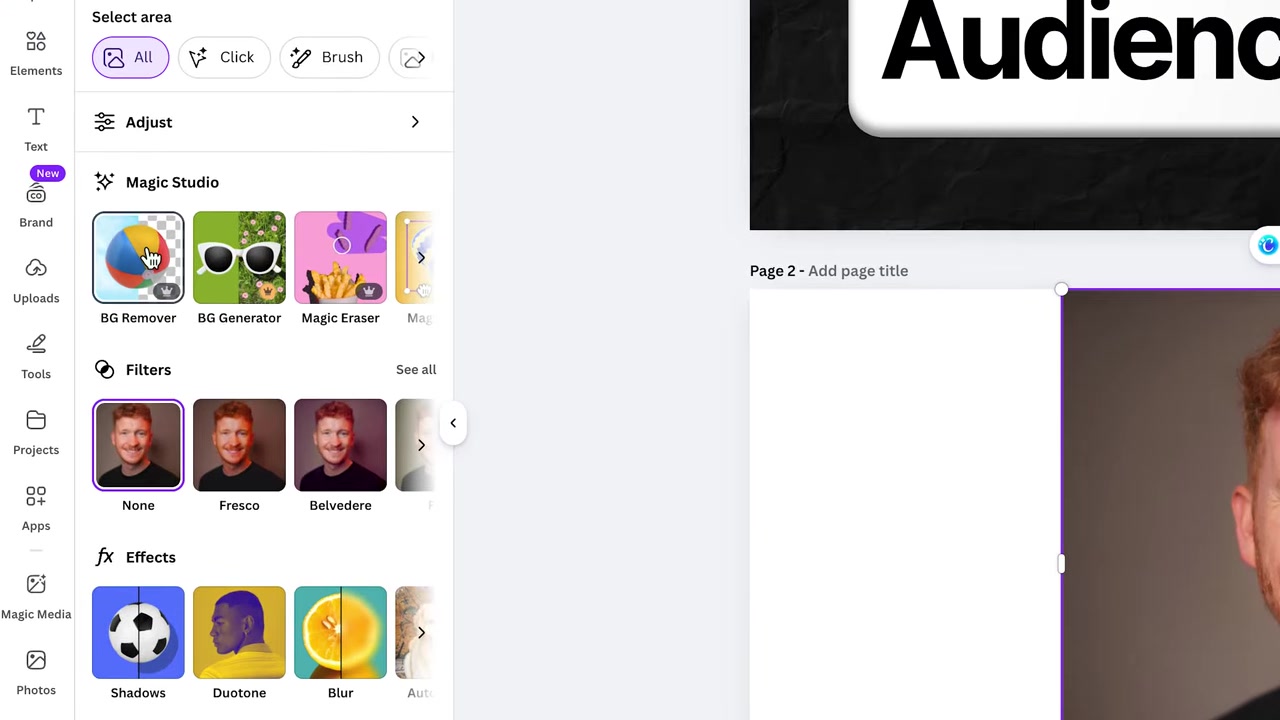
Canva's Magic Studio is where the AI features live. Click on any image and hit Edit to access the full toolkit.
Here's what you can do:
- Magic Extend — Expand an image beyond its original borders. Canva generates new content to fill the extra space. Results vary by image, so hit regenerate a few times if the first attempt doesn't look right.
- Magic Eraser — Paint over any object in a photo and Canva removes it. Great for clearing distracting elements like a coffee cup or a mouse on a desk.
- Magic Edit — Change specific elements in a photo using a text prompt. For example, select a drink and type "make it a red liquid" — and Canva recolors it accordingly.
- Background Remover — Already covered above, but it lives here too.
- Effects and Filters — Add shadows, blur effects, and face retouching with a few clicks.
9. Create Mockups for Your App or Product
Canva also includes a Mockup Generator — a feature that's incredibly useful for app developers, online store owners, and digital product creators.
Search for mockup templates such as a desktop screen, phone, or tablet. Upload your screenshot or design, and Canva automatically places it inside the mockup.
This makes it easy to create professional-looking product visuals without hiring a photographer or learning Photoshop.
10. Everything Else You Can Make with Canva
Beyond social media graphics, Canva covers a surprisingly wide range of design needs:
- Presentations — Build full slide decks with animated transitions
- Videos — Edit short-form content and create video posts
- Business cards and flyers — Design print-ready materials
- Email templates — Create branded newsletters
- Websites — Build simple landing pages
- Whiteboard animations — For explainer content or brainstorming
For solopreneurs and small businesses, having all of this under one subscription is a significant time and cost saver.
11. Is Canva Good for Beginners?
Absolutely. Canva was built with non-designers in mind. The drag-and-drop interface is intuitive, and the template library means you never have to start from scratch.
Most features are self-explanatory, and the AI tools do the heavy lifting for tasks that would otherwise require advanced skills — like background removal or image expansion.
If you can use PowerPoint or Google Slides, you can use Canva.
12. How Much Does Canva Cost?
Canva has a generous free plan that gives you access to thousands of templates, basic editing tools, and a good chunk of the content library.
The Canva Pro plan unlocks premium features including the Background Remover, Magic Studio AI tools, brand kit, premium templates, and more.
You can try Canva Pro free for 30 days when you sign up through this link — no commitment required.
13. Canva vs Adobe — Which Should You Choose?
Adobe's Creative Suite (Photoshop, Illustrator, Premiere) is still the industry standard for professional designers. But it comes with a steep learning curve and a premium price.
For most creators, solopreneurs, and small business owners, Canva is simply more practical. It's faster to learn, cheaper to use, and covers 90% of everyday design needs.
If you're running a business or creating content — not working in a professional design studio — Canva is the smarter choice.
Frequently Asked Questions
Is Canva really free to use?
Do I need design experience to use Canva?
What AI features does Canva have in 2026?
Can I create YouTube thumbnails in Canva?
Is Canva good for business owners?
How does the Canva Magic Eraser work?
Can Canva replace Photoshop?
What is the Canva Mockup Generator?
14. Disclosure
Some links in this post are affiliate links. If you make a purchase through them, a commission may be earned at no extra cost to you. All content is provided for informational purposes only without any guarantee of accuracy or results. Nothing in this post constitutes financial, legal, tax, or investment advice.
Related Articles

15 Dec 2025
Wix Promo Code 2026 – How to Save on Wix Premium Plans
If you've been thinking about upgrading to a Wix premium plan, timing your sign-up the right way can make a real difference. In this guide, I'll walk you through the exact method to access the best av...
4 Sep 2025
TikTok Creative Center Tutorial (2026) – How to Find Top Ads on TikTok
Want to know which TikTok ads are crushing it right now — and how to model them for your own campaigns? In this tutorial, you'll learn two proven strategies to find winning ad creatives on TikTok, inc...

20 Aug 2025
Flippa Review – Is It Legit or a Scam? Full Breakdown
Thinking about buying or selling an online business? Flippa is one of the most well-known marketplaces for digital assets — but is it actually legit, or should you be worried about scams? In this hone...