Convert Your Podcast to a Video for Instagram, Facebook & YouTube – Audiocado Tutorial
As a podcaster, you've got great audio content — but social media is a visual world. How do you get noticed on Instagram, Facebook, YouTube, or Twitter when nobody can see you? That's exactly the problem Audiocado solves. It transforms your podcast episodes into animated videos with wave animations and subtitles, so you can finally promote your show on every social platform. Try it out at Audiocado and follow along with this quick tutorial.
1. What Is Audiocado?
Audiocado is a web-based tool designed specifically for podcasters who want more visibility on social media. It takes your existing podcast episode and wraps it in a polished animated video — complete with a wave animation and your podcast's cover art.
The result is a shareable audiogram — a short video clip that plays a snippet of your podcast with a sound wave bouncing along to the audio. These work brilliantly as teasers on Instagram, Facebook, YouTube Shorts, and Twitter.
2. Find Your Podcast in Audiocado
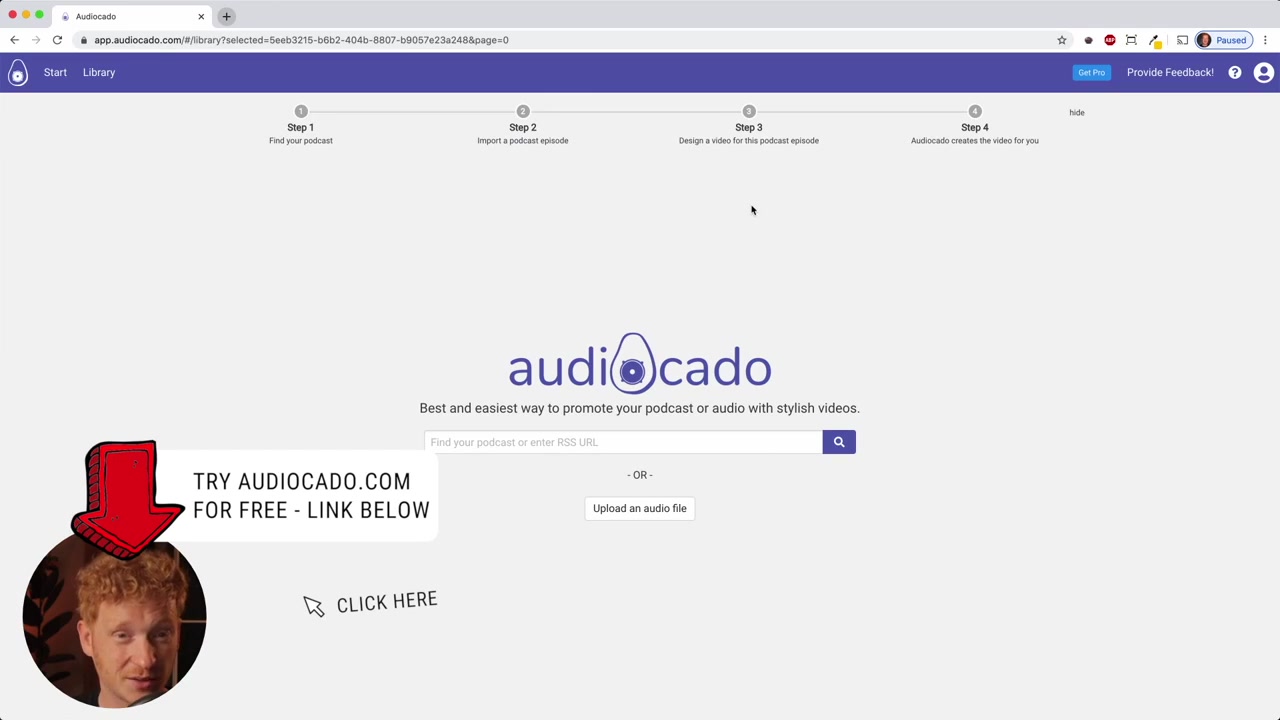
Getting started is straightforward. Once you land on the Audiocado start screen, you'll see a search bar right in the middle of the page. Type in the name of your podcast or paste your RSS feed URL.
Audiocado will pull up all your published episodes. Select the one you want to promote and click Import Episode to Library. The tool automatically grabs the audio file, background image, episode title, and podcast name — no manual uploading needed.
3. Choose a Video Format for Your Social Media Platform
This is where Audiocado really shines. You're not stuck with one video size. You can choose the format that matches the platform you're posting to:
- Story format — for Instagram or Facebook Stories
- Feed Square — perfect for your Instagram feed
- Feed Portrait — a vertical crop for mobile-first platforms
- YouTube Video — widescreen format for YouTube uploads
- Twitter Video — optimized for Twitter timelines
For this tutorial, the Feed Square format is used as an example — ideal for posting to an Instagram feed.
4. Customize Your Audiogram Wave Animation
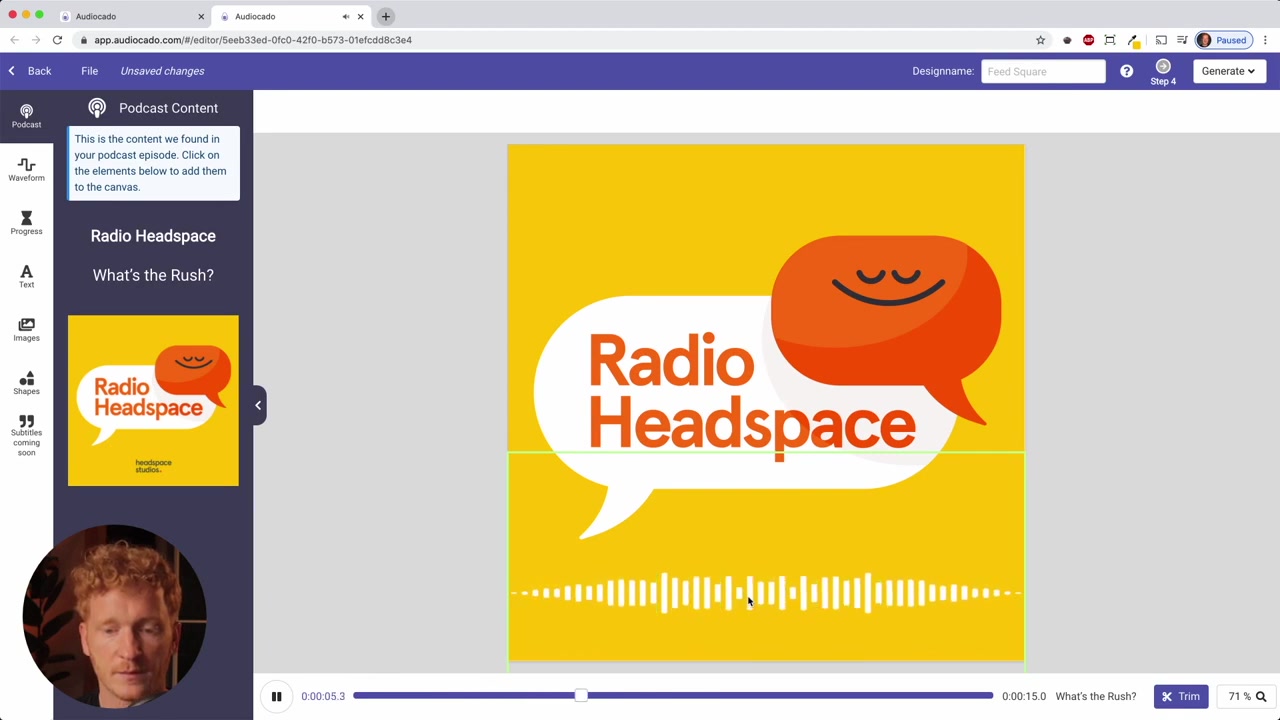
Once you pick a format, Audiocado loads your podcast cover art as the background and overlays an animated wave at the bottom. Hit Start and watch the animation come to life.
You're not locked into one style either. There are several wave animation options to choose from, so you can match the vibe of your podcast. You can also edit the text overlay — such as the episode title — and adjust font size and color to make it pop.
5. Trim Your Podcast to the Best Highlight
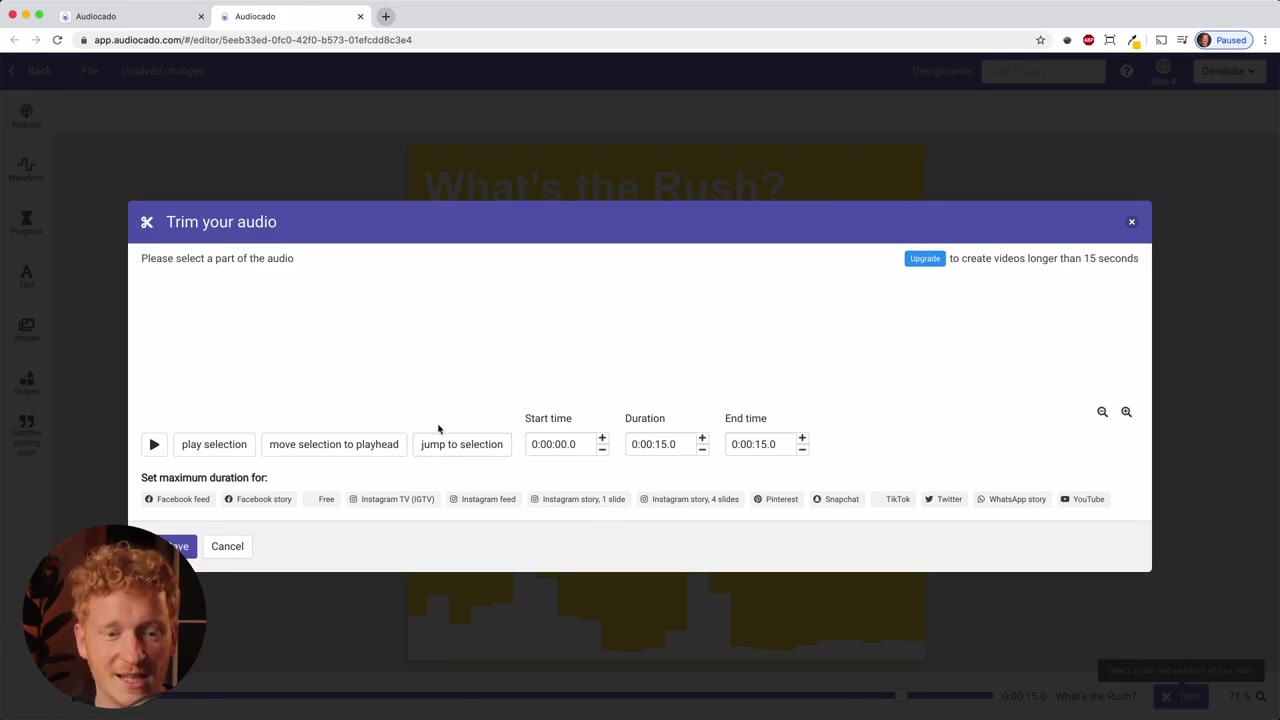
Here's one of the most useful features: you don't have to start the clip from the beginning of your episode. You can jump to any moment — maybe a funny exchange, a powerful insight, or the peak of a conversation — and use that as your teaser.
Set your clip duration based on the platform:
- Instagram Feed: 1–60 seconds
- YouTube: up to 900 seconds
- TikTok, Twitter, and others: platform-specific limits
Then enter your start time — for example, 1 minute into the episode — and hit Save. The preview will immediately jump to that point in the audio. This makes it easy to craft a perfectly timed teaser from any part of your show.
6. Export and Download Your Podcast Video
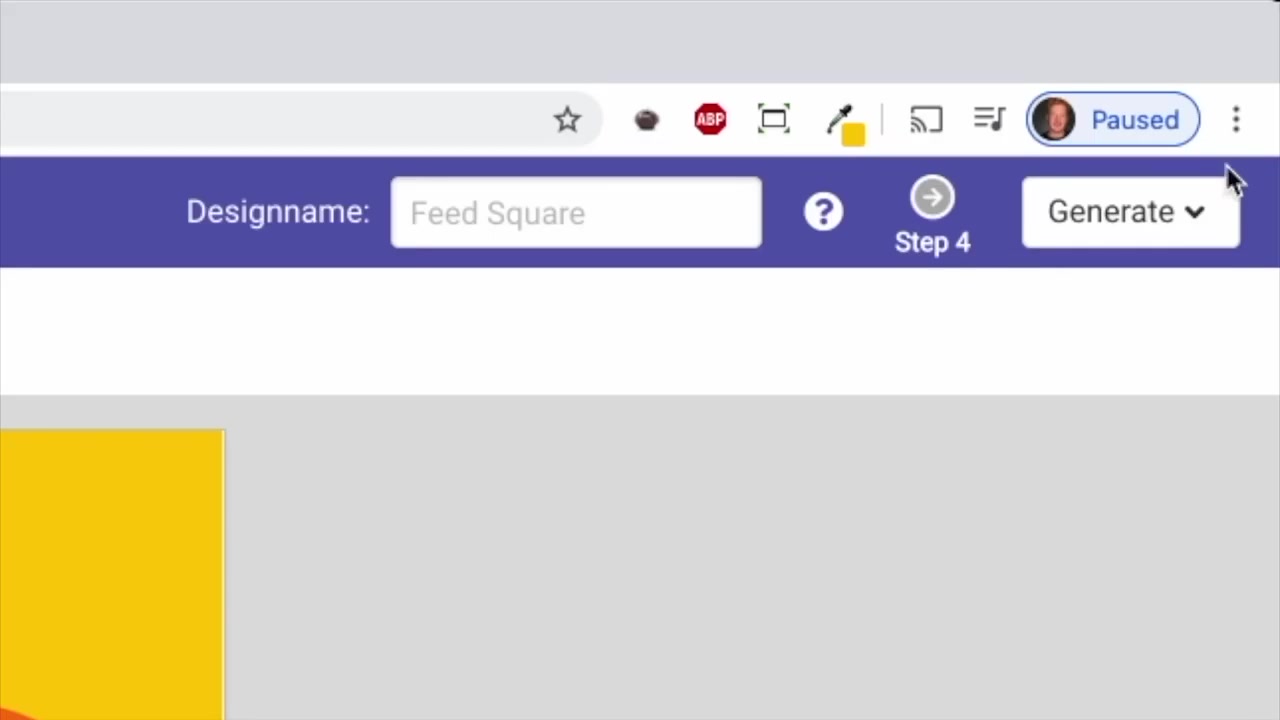
When you're happy with the look and the clip, click Generate Video. Audiocado processes your audio and assembles the final video file. Once it's ready, hit Download and you'll have an MP4 file ready to upload anywhere.
Clips up to 15 seconds are available on the free plan — great for quick teasers. For longer clips, you can upgrade to a paid plan. Either way, the export process only takes a few seconds.
7. Is Audiocado Good for Podcasters?
If you're a podcaster struggling to gain traction on visual platforms, Audiocado is a genuinely practical solution. It removes the need for video editing skills, fancy equipment, or expensive software. You just connect your RSS feed and start creating.
The tool is especially useful for solo podcasters and small teams who don't have a dedicated social media editor. In just a few minutes, you go from raw audio to a polished, shareable video clip.
8. Audiocado Pros and Cons
Pros:
- Super easy to use — no video editing experience needed
- Automatically imports episode data from your RSS feed
- Multiple video format options for different platforms
- Customizable wave animations, text, font size, and colors
- Free tier available for short clips
- Subtitles feature coming soon
Cons:
- Free plan is limited to 15-second clips
- Customization options are fairly basic compared to dedicated video editors
- Best suited for audiogram-style content rather than full video production
Frequently Asked Questions
What is Audiocado?
Is Audiocado free to use?
Which social media platforms does Audiocado support?
Do I need to upload my podcast manually to Audiocado?
Can I choose which part of my podcast to feature in the video?
Does Audiocado add subtitles to the video?
What video formats can I create with Audiocado?
How long does it take to generate a video with Audiocado?
9. Disclosure
Some links in this post are affiliate links. If you make a purchase, a small commission may be earned at no extra cost to you. All content is provided for informational purposes only, and no guarantees are made regarding results. This post does not constitute financial, legal, tax, or investment advice.
Related Articles

28 Oct 2025
How to Create a TikTok Ads Account in 2026
Want to run ads on TikTok but not sure where to start? Setting up your TikTok Ads Manager account is easier than you think — and it only takes a few minutes. In this guide, I'll walk you through the e...
4 Sep 2025
TikTok Creative Center Tutorial (2026) – How to Find Top Ads on TikTok
Want to know which TikTok ads are crushing it right now — and how to model them for your own campaigns? In this tutorial, you'll learn two proven strategies to find winning ad creatives on TikTok, inc...

22 Sep 2025
How To Run TikTok Ads for Shopify Store (New Tutorial 2026)
Want to drive real sales to your Shopify store with TikTok Ads? In this step-by-step tutorial, Julian Weber walks you through everything — from creating your TikTok Ads account and connecting your Sho...