How to Upload Videos to Instagram Story from PC (Also for Longer Videos)
Uploading videos to your Instagram Story from a desktop PC is surprisingly tricky. The usual Chrome developer tool hacks only work for images — not videos. In this tutorial, you'll learn how to use Storrito, a professional story scheduling tool that lets you post both images and videos to Instagram Stories straight from your computer. It even handles videos longer than 15 seconds automatically.
1. What Is Storrito?
Storrito is a web-based scheduling and editing tool built specifically for Instagram Stories and Facebook Stories. Unlike general social media tools, it's designed from the ground up for the story format.
It lets you create, edit, and schedule your stories right from your desktop — no phone required. You can post images, videos, add stickers, hashtags, emojis, GIFs, and more, all from a browser.
2. Create Your Storrito Account
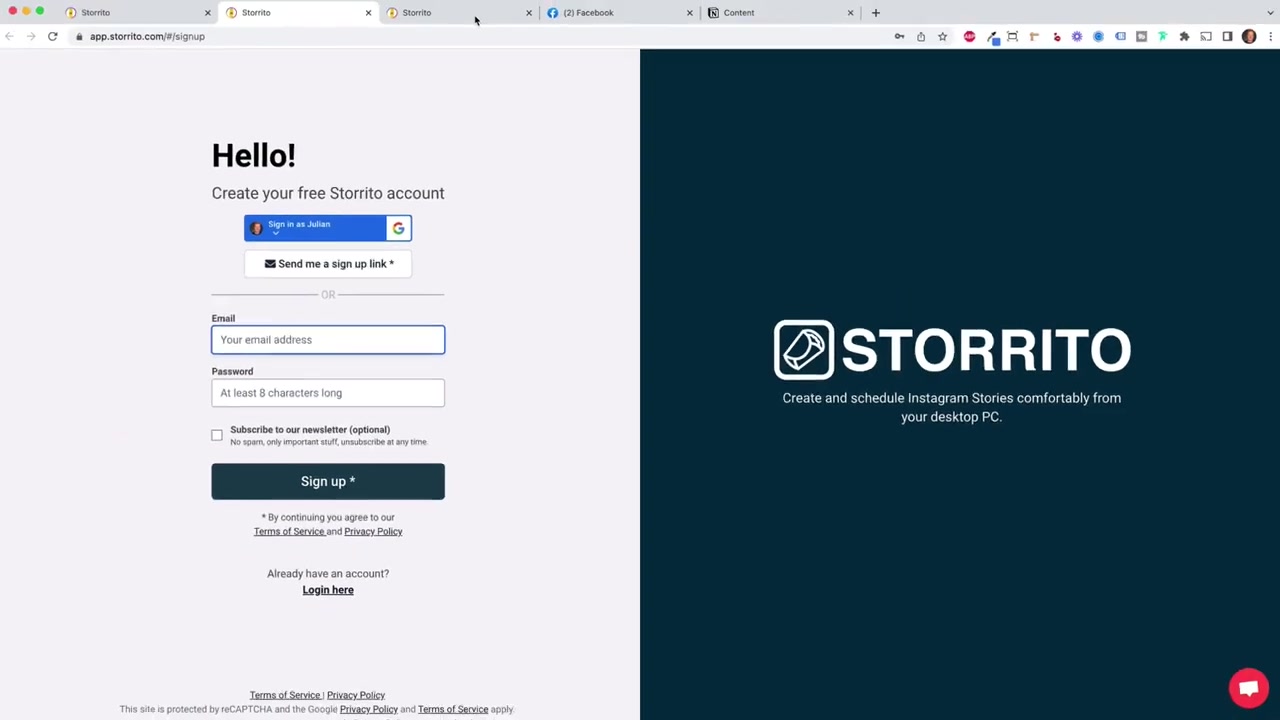
Head to storrito.com and click Try for Free. You can sign up with Google or with an email and password.
After signing up, you'll receive a confirmation email. Click the link inside and you'll land on the Storrito dashboard, ready to get started.
3. Connect Your Instagram Account to Storrito
When you first open the dashboard, a pop-up will guide you through connecting your Instagram account. Confirm your location, click Continue, then enter your Instagram username and password and hit Connect.
It only takes a few seconds. Once connected, your Instagram account is linked and you're ready to start posting stories from your PC.
4. Upload Your Video from Your Desktop PC
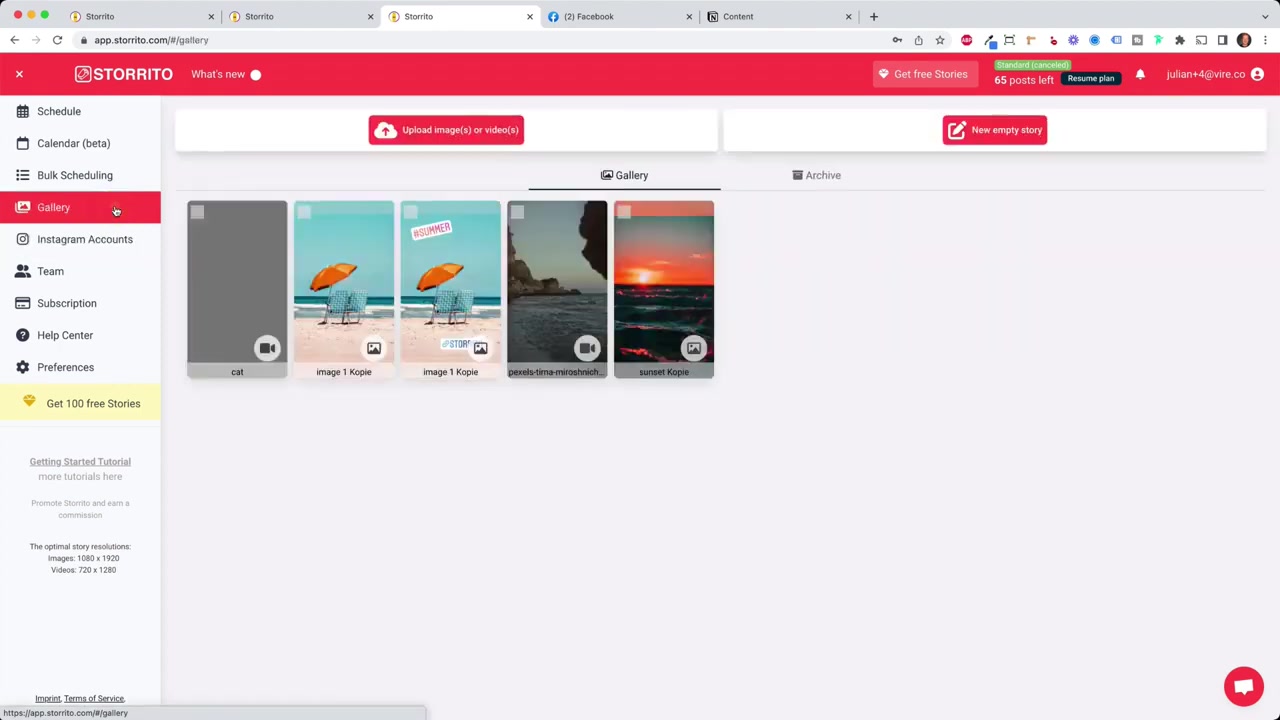
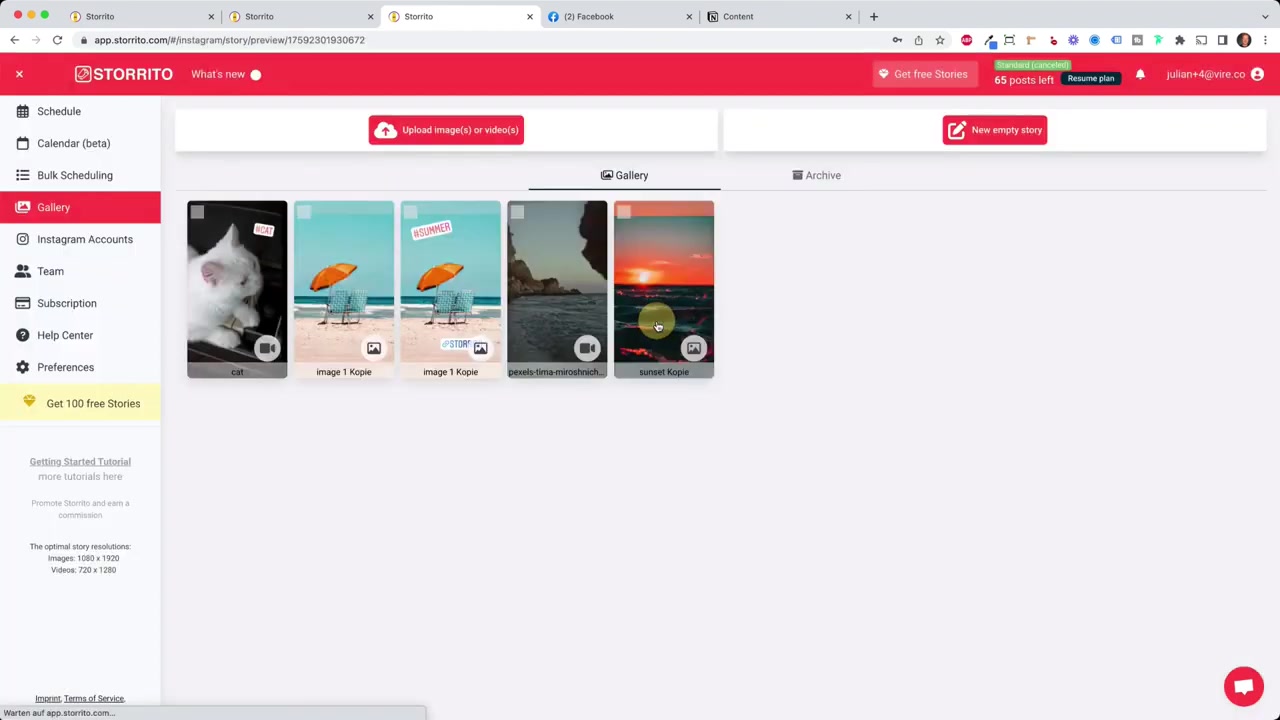
Click on Gallery in the Storrito dashboard. This is where you manage all your uploaded videos and images. Simply drag and drop your video file from your desktop directly into the gallery.
Videos may take a moment to process since Storrito needs to render the file in story format. It usually takes less than a minute, so just be a little patient.
5. Edit Your Instagram Story with the Story Editor
Once your video is uploaded, click on it and then hit Edit. The Storrito story editor will open — it looks and feels similar to Canva, making it very intuitive to use.
From the left panel you can add:
- Hashtags and text
- Emojis and stickers
- GIFs from Giphy
- Link stickers, locations, quizzes, and sliders
- Shapes and additional images
You can move, rotate, resize, and reposition any element — just like you would on your phone. Hit the play button to preview your story before posting.
6. Post Longer Videos to Instagram Story — Automatic Cutting
This is where Storrito really shines. Instagram Stories are limited to 15 seconds per slide, but your video can be much longer than that. Storrito handles this automatically.
In the story editor, simply drag the timeline bar to the full length of your video. Storrito will automatically cut the video into 15-second segments and post them as separate story slides. A 38-second video, for example, becomes three story slides — seamlessly.
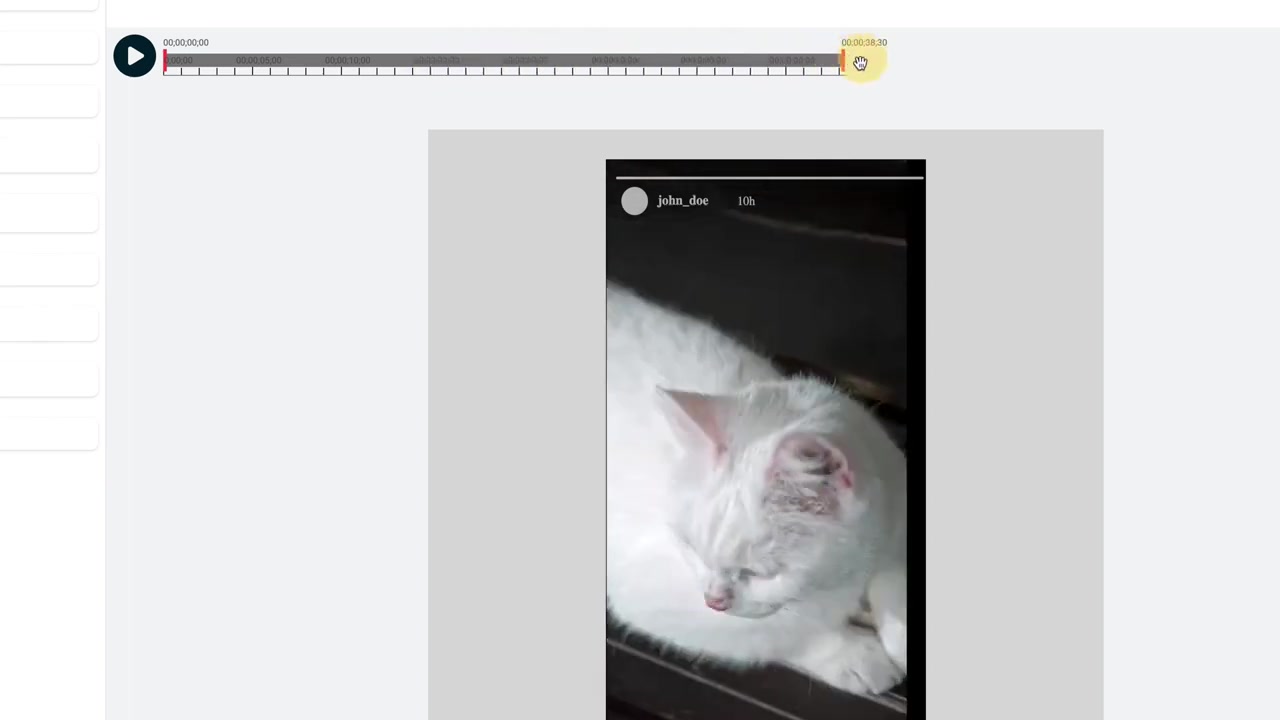
Any elements you add — like a hashtag sticker — will carry over to every slide automatically. So your branding stays consistent across all parts of the story.
7. Post Now or Schedule Your Instagram Story
When you're happy with your story, click Save, then click on the story thumbnail and hit Post and Schedule. A new view will open where you can choose which Instagram account to post to.
Storrito supports multiple Instagram accounts, which makes it a great tool for agencies managing many clients at once. You can also cross-post the story to a connected Facebook page with a single click.
To schedule, simply pick a date and time at the bottom of the screen and click Schedule. Storrito will automatically publish the story at the chosen time — no notifications, no manual action required on your part.
If you want to post immediately, click Post Now. It may take up to a minute or two depending on the queue, and then you'll see a green checkmark confirming your story is live.
8. Is Storrito Good for Beginners?
Absolutely. The interface is clean and beginner-friendly — it closely resembles Canva, so there's very little learning curve. If you've ever edited a social media graphic online, you'll feel right at home.
The drag-and-drop upload, automatic video cutting, and one-click scheduling make the whole process straightforward even if you've never used a social media scheduling tool before.
9. How Much Does Storrito Cost?
Storrito offers a free trial so you can test the tool before committing to a paid plan. You can sign up at storrito.com without a credit card to get started.
Paid plans unlock higher usage limits and are available for individuals, creators, and agencies. Check the Storrito website for the most current pricing details.
10. Storrito Pros and Cons
Pros:
- Post Instagram Stories from any desktop PC or Mac
- Automatically splits long videos into 15-second story slides
- Built-in story editor with stickers, GIFs, hashtags, and more
- Schedule stories in advance — fully automated posting
- Supports multiple Instagram accounts (great for agencies)
- Cross-post to Facebook Stories
Cons:
- Focused exclusively on Stories — not a full social media suite
- Video processing can take a minute or so
- Free tier has usage limits
Frequently Asked Questions
Can I upload videos to Instagram Story from a PC without a phone?
Why doesn't the Chrome developer tools trick work for Instagram Story videos?
How long can the video be that I upload to Instagram Stories with Storrito?
Does Storrito post stories automatically without me doing anything?
Can I manage multiple Instagram accounts with Storrito?
Can I cross-post my Instagram Story to Facebook with Storrito?
Will stickers and hashtags I add in the editor appear on every story slide?
Is there a free version of Storrito?
11. Disclosure
Some links in this post are affiliate links. If you make a purchase through them, we may earn a commission at no extra cost to you. All content is provided for informational purposes only and comes without any guarantee. This post does not constitute financial, legal, tax, or investment advice.
Related Articles

28 Oct 2025
How to Create a TikTok Ads Account in 2026
Want to run ads on TikTok but not sure where to start? Setting up your TikTok Ads Manager account is easier than you think — and it only takes a few minutes. In this guide, I'll walk you through the e...
7 Nov 2025
TikTok Ads Tutorial – Snelstartgids voor Beginners
Wil je nieuwe klanten bereiken via TikTok? In deze tutorial laat ik je stap voor stap zien hoe je je eerste TikTok advertentiecampagne opzet – ook als je nog nooit eerder hebt geadverteerd. We beginne...

27 Sep 2025
Lancer des publicités TikTok en 7 min – Tutoriel en français
Tu veux te lancer sur TikTok Ads mais tu ne sais pas par où commencer ? Ce tutoriel rapide te montre comment créer et configurer ta première campagne publicitaire TikTok en moins de 7 minutes. Parfait...