Gamma AI for Social Media Posts – New Tutorial 2026
Most people know Gamma as a tool for building AI presentations — but did you know it can also generate scroll-stopping social media posts in minutes? In this tutorial from the Julian Weber channel, you'll learn exactly how to use Gamma AI to create eye-catching stories and posts for Instagram, LinkedIn, and Facebook — even if you have zero design or copywriting experience.
1. What Is Gamma AI?
Gamma is an AI-powered creation tool best known for generating professional presentations from a simple text prompt. But its capabilities go well beyond slides.
You can also use Gamma to create web pages and — as this tutorial shows — social media posts and stories fully designed with AI-generated images, text, and layouts. It's one of the fastest ways to produce polished content without touching a design tool.
2. Sign Up and Access the Gamma Dashboard
Head to Gamma via this link and click Start for Free. You can sign up with Google or your email address — no credit card required.
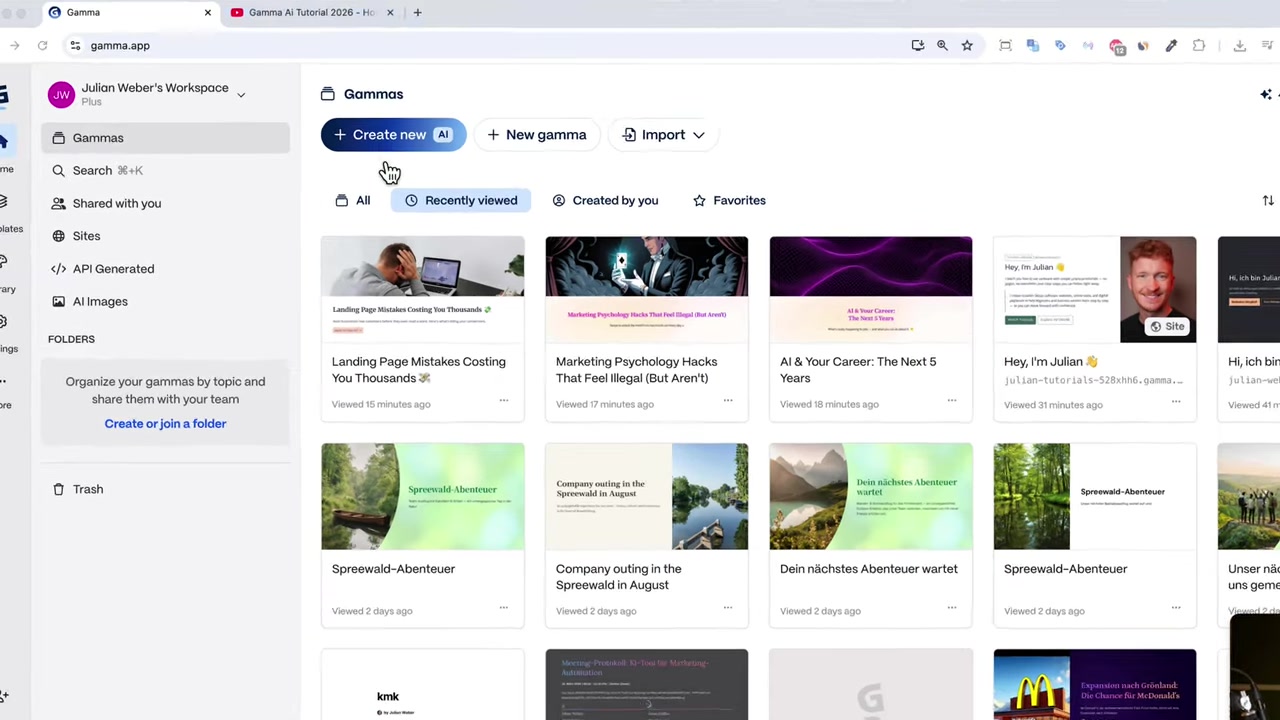
Once you're in, you'll land on the Gamma dashboard. Click Create New in the top bar to get started. Using Julian's link helps support the channel at no extra cost to you.
3. Choose Your Input Method for Social Media Posts
Gamma gives you several ways to get started. You can type a prompt, paste in existing text (like an email or article), build from a template, or import a file or URL such as a Word doc or PDF.
For most creators, starting with a prompt is the fastest approach. Click Generate, then select Social Media Post from the content type options. Julian also has separate tutorials on the presentations and web pages formats on his channel.
4. Configure Your Social Media Post Settings
Once you've selected the social media post format, you'll configure a few key settings before generating:
Number of cards — choose how many posts or story slides you want to generate in one go.
Aspect ratio — pick square (great for Instagram feed posts), portrait (common for Facebook), or 9:16 (perfect for Instagram Stories and LinkedIn Stories).
Language — select your preferred language for the generated content.
Layout style — the free and Plus plans use the Classic editor. If you're on the Pro plan, you can unlock the Studio mode, which produces single-image cards with embedded text for a more polished, professional look.
Julian recommends trying Studio if you're on the Pro plan, but the Classic editor produces great results too — and it's available on the free tier.
5. Write Your Prompt and Pick a Theme
Type your topic into the prompt field. Be as specific as you like — business tips, marketing strategies, environmental topics, anything works. Gamma also shows example prompts to spark ideas, like "Landing page mistakes costing you thousands."
After entering your prompt, Gamma generates an outline of your story slides. You can edit the text directly here or adjust it later. Then choose how much text you want per card: concise or minimal are both smart choices for Stories where attention spans are short.
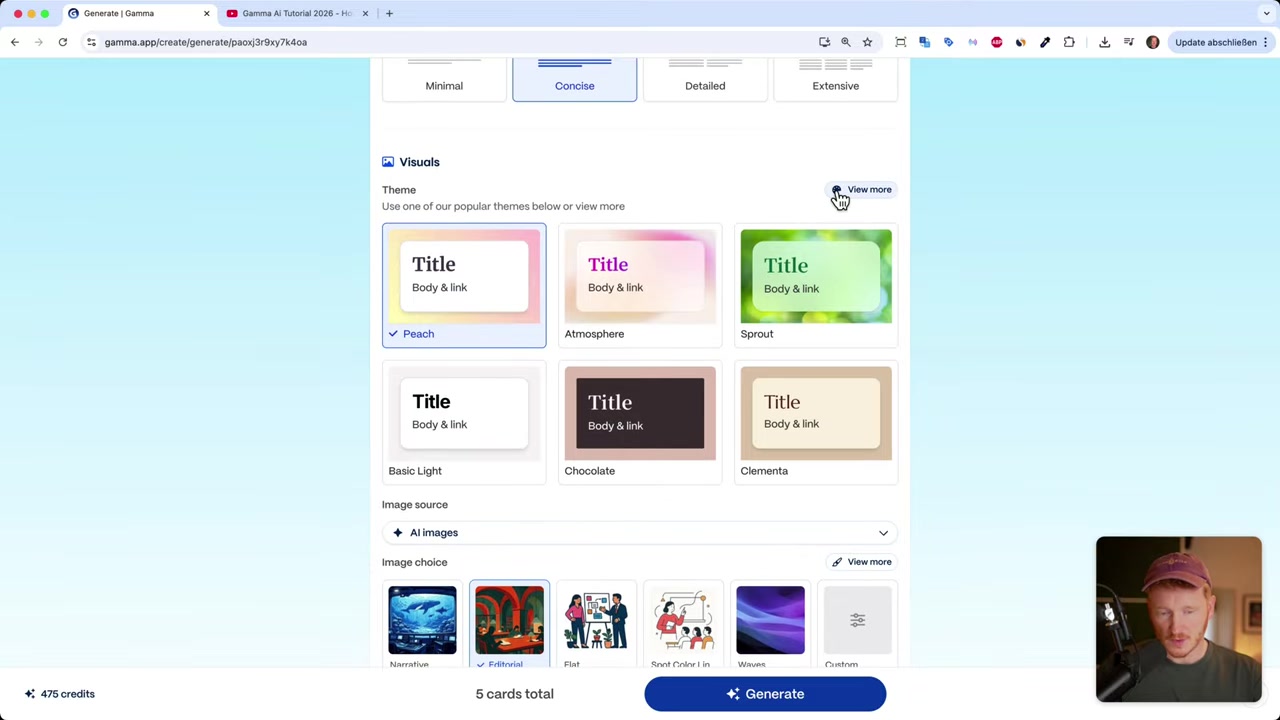
Next, pick a theme. Gamma offers a wide range of color palettes — classic, dark, vibrant, and more. For Instagram, Julian likes the Peach theme because it echoes the Instagram brand colors.
6. Choose Your Image Style and Generate
Now for the fun part — images. You can choose between stock photos, AI-generated images, or illustrations. Gamma's AI image option is particularly impressive: just pick a visual style like Narrative, Flat, Editorial, Lifestyle, or Cinematic, and Gamma handles the rest.
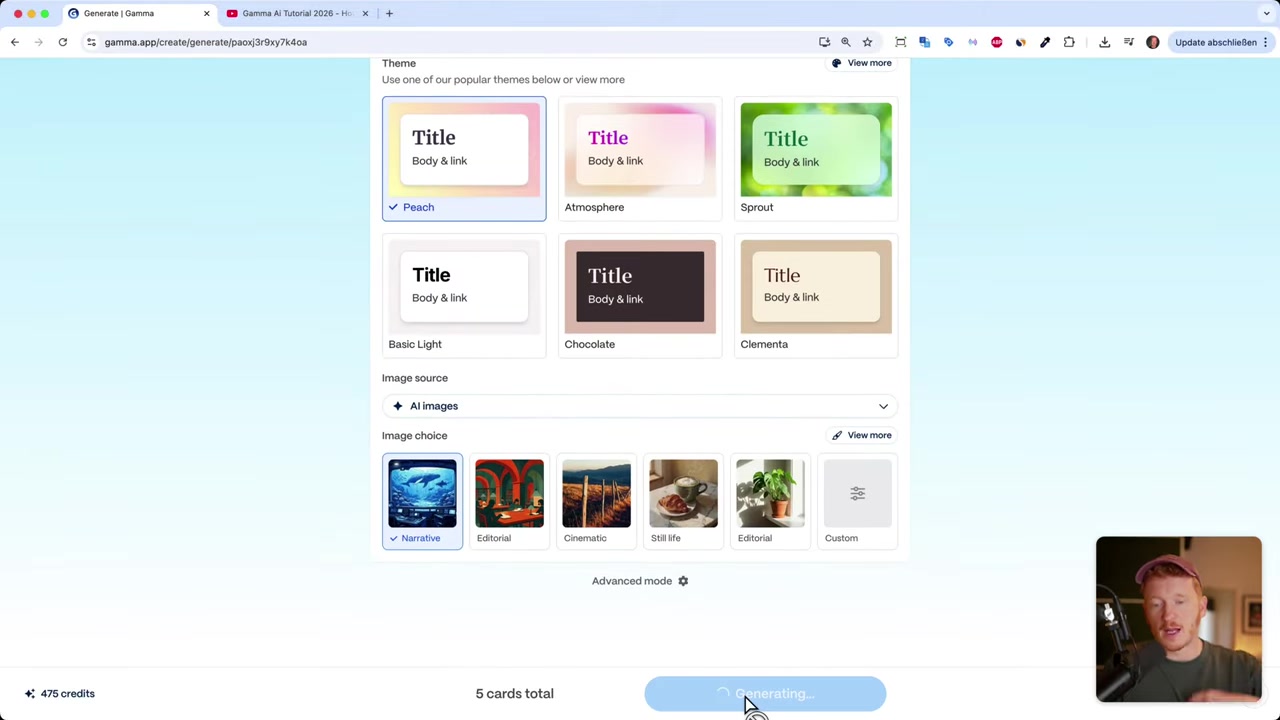
Once you're happy with all the settings, click Generate. Gamma typically produces all your posts in under a minute — including the AI images.
7. Edit Your Posts and Customize Images
After generation, you can edit every element of each card. Click into any text field to update copy, swap numbers, or rewrite entire sections. Interactive elements like progress rings actually update visually as you change the values — a nice touch.
To change an image, click Edit Image. You can:
- Generate a new AI image with a custom prompt and style
- Upload your own photo
- Search the web
- Browse stock photos (Gamma even pre-fills the search based on your content)
You can also change the card layout — move the image to the left, right, or set it as a full background. Use Cmd+Z (Mac) or the undo button to revert any change you don't like.
8. Add Extra Blocks to Enrich Your Social Media Posts
On the right-hand panel, you can add additional content blocks to any card. Available blocks include titles, tables, bullet lists, GIFs from Giphy, infographics, and stock photos.
You can also insert charts — bar charts, donut charts, and more — which is perfect if you want to share data-driven content on LinkedIn. Just drag the chart block in and it's added instantly.
9. Export and Publish Your Posts
When you're done editing, click Share → Export to download your posts as PNG files. You can then upload them directly to Instagram or any other platform.
Gamma also has a native LinkedIn integration. Connect your Gamma account to LinkedIn and post directly from Gamma without downloading anything. It's a seamless workflow for anyone publishing regularly on LinkedIn.

10. Gamma Free vs Plus vs Pro – Which Plan Do You Need?
The free plan lets you create social media posts with the Classic editor and access a solid range of themes and AI image styles. It's a great starting point to test the workflow.
The Plus plan gives you more generations and additional features. The Pro plan unlocks the Studio editor, which produces single-image cards with embedded text — a more polished output that looks professionally designed.
Julian currently uses the Plus plan in the tutorial and notes that Studio Pro is worth exploring if you need that extra level of visual polish. You can try Gamma for free here and upgrade when you're ready.
11. Other AI Tools Worth Exploring
Julian from the Julian Weber channel uses several AI and no-code tools daily alongside Gamma. Here are a few worth bookmarking:
- No-code app builder: Base44
- Website builder: Wix
- Design tool: Canva
- AI voice cloning: ElevenLabs
Frequently Asked Questions
Is Gamma AI free to use for social media posts?
What social media platforms can I create posts for with Gamma?
Can I use my own images in Gamma social media posts?
What is the difference between the Classic editor and Studio in Gamma?
How long does it take Gamma to generate social media posts?
Can I edit the text and images after Gamma generates them?
Does Gamma work for LinkedIn posts as well?
Can I add charts or infographics to my Gamma social media posts?
Related Articles

14 May 2026
How to Create Songs with Suno AI – Tutorial 2026 (Start for Free)
Ever wanted to create your own song but have zero musical experience? In this tutorial from the Julian Weber channel, you'll learn how to generate full, professional-sounding songs using Suno AI — fro...

17 Mar 2026
Base44 Superagents: The Free AI Agent That Automates Your Work
Base44 just released their Superagents to the public — and in this tutorial from the Julian Weber channel, you'll see exactly how to set one up, connect it to Gmail and Google Calendar, and automate r...

24 Apr 2026
Create Your Own Game with Base44 (No Coding Required)
Want to build your own game but have zero coding experience? In this tutorial, Julian Weber walks you through how to use Base44 — an AI-powered app and game builder — to create a fully playable game f...