PowerPoint is dead – This new AI-alternative is killing it!
Let's be honest — most PowerPoint presentations look like they were made in 1995. Static slides, clunky layouts, and way too much time spent on formatting. There's a better way.
In this post, you'll learn how to use Gamma AI to create beautiful, professional presentations in just a few minutes — no design experience required. You can try Gamma for free and see the difference for yourself right away.
1. What is Gamma AI?
Gamma is an AI-powered creation tool that helps you build presentations, documents, social media posts, and even websites — all from a simple text prompt.
Unlike PowerPoint, Gamma handles the design, layout, and content for you automatically. You describe what you need, and the AI does the heavy lifting.
It's not just a PowerPoint alternative — it's a serious upgrade.
2. Getting Started with Gamma AI
Head to Gamma and sign up — you can start for free without a credit card. Once you're in, you'll see the main dashboard where you can create something new.
You have a few options to kick things off:
- Paste in text — drop in an essay or document and let the AI structure it
- Generate from a prompt — describe your presentation idea
- Import a file or URL — pull in content from an existing source
For most people, the Generate option is the fastest way to get started.
3. Creating Your First AI Presentation with Gamma
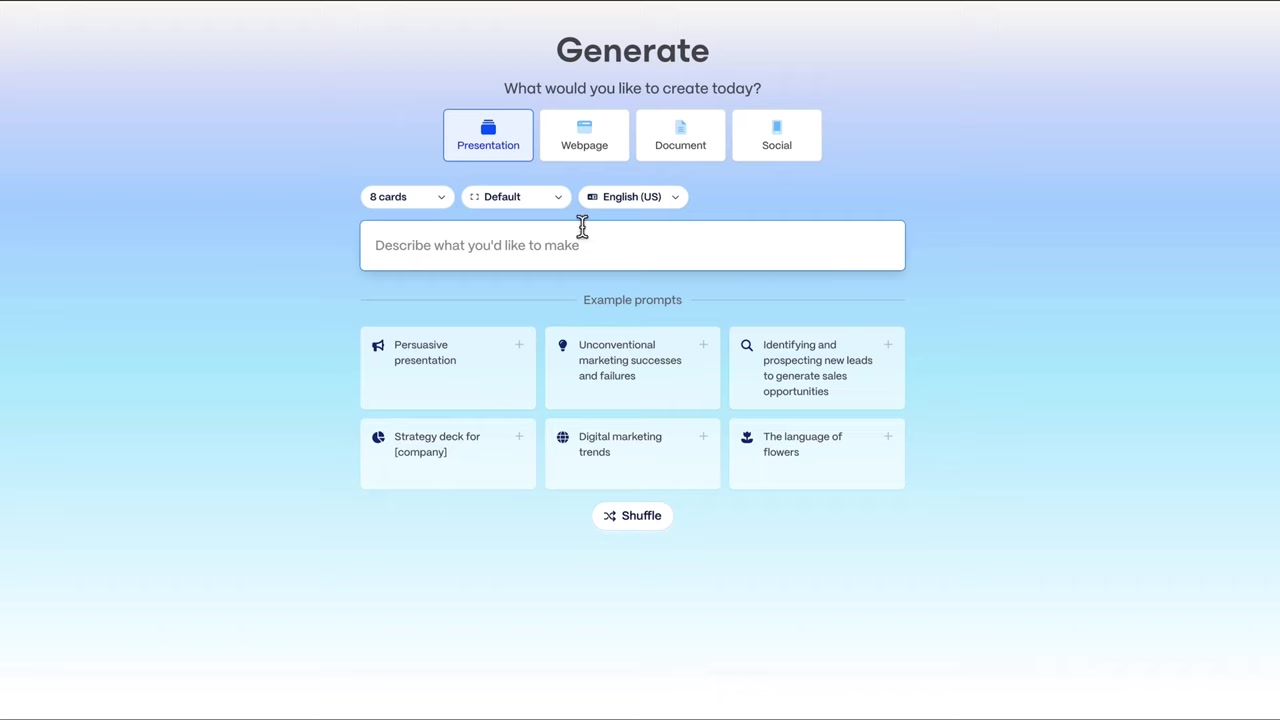
Click Generate and you'll see a prompt field. Describe your presentation in plain language — just like you'd explain it to a colleague.
For example: "I'm a marketing manager of a burger chain and we want to open our next restaurant in San Francisco. I need a marketing plan to enter the local market."
Before generating, you can configure a few options:
- Number of slides — choose how many cards (slides) you want
- Aspect ratio — 16:9 for classic presentations or fluid for web-style
- Language — English, German, Italian, Spanish, and more
Once you're happy with the settings, click Generate Outline. Gamma will create a full slide structure in seconds.
4. Choosing a Theme and Image Style
After the outline is generated, Gamma lets you pick a visual theme before it builds the full presentation. There are several polished options — from dark and professional to clean and minimal.
You can also control how much text appears on each slide. If your audience prefers a quick overview, choose concise. For detail-heavy content, go more descriptive.
For images, you get four options:
- Automatic — Gamma picks the best image type for each slide
- Stock photos — free images from libraries like Unsplash
- Web images — sourced from the web (may have licensing implications)
- AI-generated images — every image is created by the AI from scratch
AI images tend to look cohesive and on-brand, so that's a solid default choice. You can always swap them out later.
5. Reviewing and Editing Your Slides
Once Gamma finishes generating, you'll have a complete presentation ready to review. The results are genuinely impressive — relevant images, well-structured content, and a consistent visual style throughout.
Each slide is fully editable. You can:
- Click any text block and type your own content
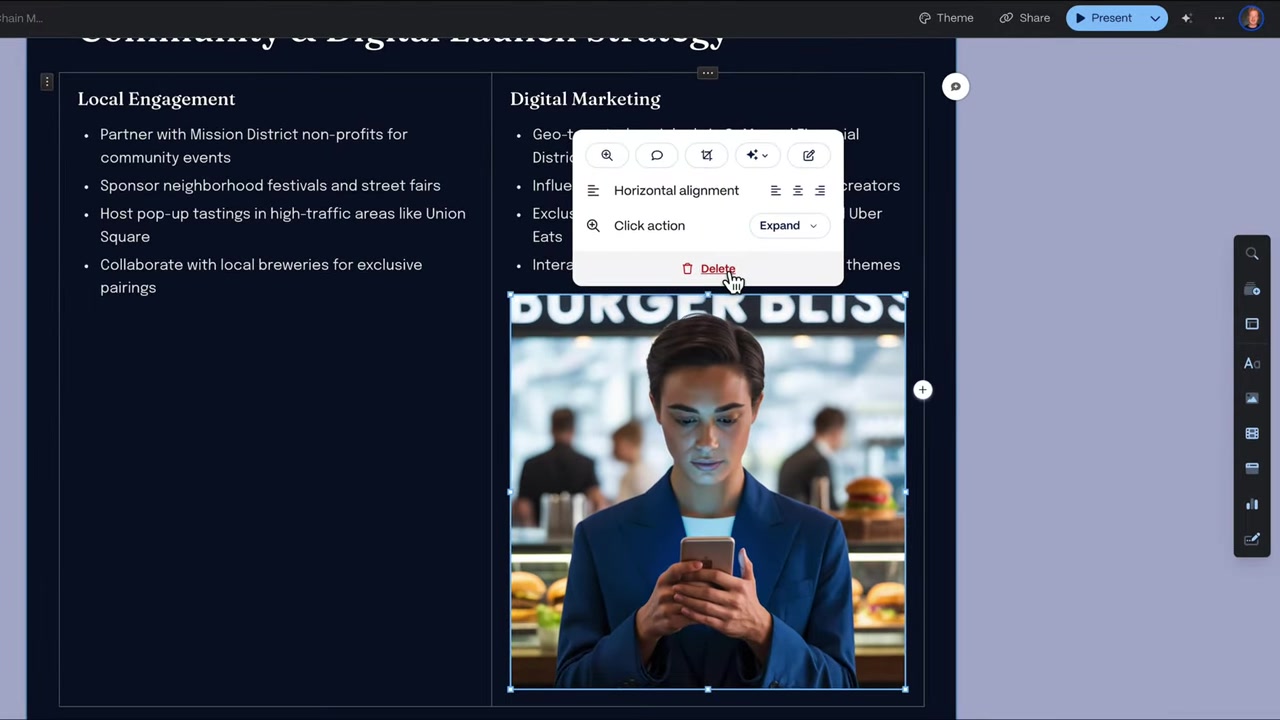
- Delete an AI image and replace it with one from Unsplash or your own files
- Add new blocks like tables, bullet lists, headlines, emojis, or numbered lists
You can also embed third-party content directly into your slides. Gamma connects with Figma, Google Drive, Instagram, Miro, and even lets you drop in tweets for trend-focused presentations.
Need charts? Gamma has you covered with bar charts, line charts, pie charts, and more — all customizable with your own data.
6. Adding New Slides with AI
If you need more slides, just click Add New Card. You can either choose from a template or prompt the AI to generate something specific.
For example: "Describe the local food markets in San Francisco." Gamma will instantly create a new slide with relevant content and imagery.
This is perfect when you realize mid-edit that a topic deserves its own dedicated slide.
7. Presenting and Exporting Your Gamma Presentation
When you're done, Gamma gives you several ways to share and deliver your presentation:
- Present directly in Gamma — smooth animations and slide transitions built in
- Export to PowerPoint — for those who need the classic format
- Export as PDF — great for pitch decks sent via email
- Embed on a website — paste the presentation directly into a web page
- Share a link — send a live version to colleagues instantly
The presentation mode looks polished, with smooth transitions and animated elements that make slides feel modern and dynamic.

8. Is Gamma AI Good for Beginners?
Absolutely. Gamma is one of the easiest presentation tools available right now — you don't need any design skills or technical knowledge.
If you can type a sentence, you can build a presentation. The AI handles layout, imagery, color themes, and content structure automatically.
It's also great for professionals who know what they want but don't have time to spend hours formatting slides.
9. Gamma vs PowerPoint – What's the Real Difference?
PowerPoint gives you a blank canvas and expects you to do everything manually — layout, design, content, images. It takes time and design knowledge to make slides look good.
Gamma flips that model. You start with a fully designed, AI-generated presentation and then customize from there. The default output already looks professional.
For most everyday use cases — business pitches, school projects, marketing plans — Gamma produces better results in a fraction of the time.
10. How Much Does Gamma Cost?
Gamma offers a free plan that lets you get started without entering any payment details. It's a great way to explore the tool and create your first few presentations.
Paid plans unlock additional features like more AI credits, custom branding, and advanced export options. Check the Gamma website for current pricing details.
For most casual users, the free tier is more than enough to get a feel for what the tool can do.
Frequently Asked Questions
What is Gamma AI used for?
Is Gamma AI free to use?
Can I export a Gamma presentation to PowerPoint?
Do I need design skills to use Gamma AI?
Can I use my own images in Gamma?
What image styles does Gamma AI support?
Can I add charts and tables to a Gamma presentation?
Does Gamma AI support languages other than English?
11. Disclosure
Some links in this post are affiliate links. If you make a purchase through them, a small commission may be earned at no extra cost to you. All content is provided for informational purposes only — no guarantees are made regarding outcomes. This post does not constitute financial, legal, tax, or investment advice.
Related Articles

2 Dec 2025
La fine di PowerPoint – Gamma AI per Presentazioni Incredibili
PowerPoint è lo strumento che tutti conoscono, ma sai benissimo com'è: slide statiche, design datati e ore sprecate a sistemare testi e immagini. Gamma AI cambia tutto questo. In questo tutorial ti mo...

1 Dec 2025
¡El fin de PowerPoint! Cómo crear presentaciones con IA usando Gamma
¿Cansado de presentaciones aburridas y estáticas que parecen sacadas de 1995? Con Gamma AI puedes crear presentaciones profesionales y visualmente impresionantes en cuestión de minutos, sin necesidad ...

5 Dec 2025
O fim do PowerPoint – Esta nova IA para apresentações está acabando com ele!
Você já fez uma apresentação no PowerPoint e ficou envergonhado do resultado? Slides estáticos, layout travado, visual de 1995… Isso tem solução. O Gamma AI é uma ferramenta que usa inteligência artif...