Build Your First AI Agent in 10 Minutes (Free & No Coding) | Base44 Tutorial
Imagine having a personal assistant that checks your emails every morning, writes draft replies, adds calendar events from a quick voice message, and even handles your LinkedIn posts — all without you lifting a finger. That's exactly what an AI agent built with Base44 can do for you.
In this tutorial, you'll learn how to set up your first AI agent from scratch using Base44 — no coding, no technical skills required. Whether you're a freelancer, creator, or just someone who wants to save time, this guide is for you.
1. What Is Base44 and Why Use It for AI Agents?
Base44 is a platform that lets you create powerful AI agents — called Superagents — that can connect to your everyday tools like Gmail, Google Calendar, LinkedIn, and more.
What makes Base44 stand out is its security model. Unlike other AI agent setups (such as running Claude or OpenAI agents locally on your machine), Base44 connects to your tools via API. That means the AI never has unrestricted access to your files or browser — you decide exactly what it can and cannot do.
You can start using Base44 completely for free. Sign up through this link and you'll get 25 credits per month at no cost — more than enough to get started and explore what your agent can do.
2. Sign Up for Base44 Superagents
Head to the Base44 website using the link in this post. Click "Get Your Superagent" and create your account.
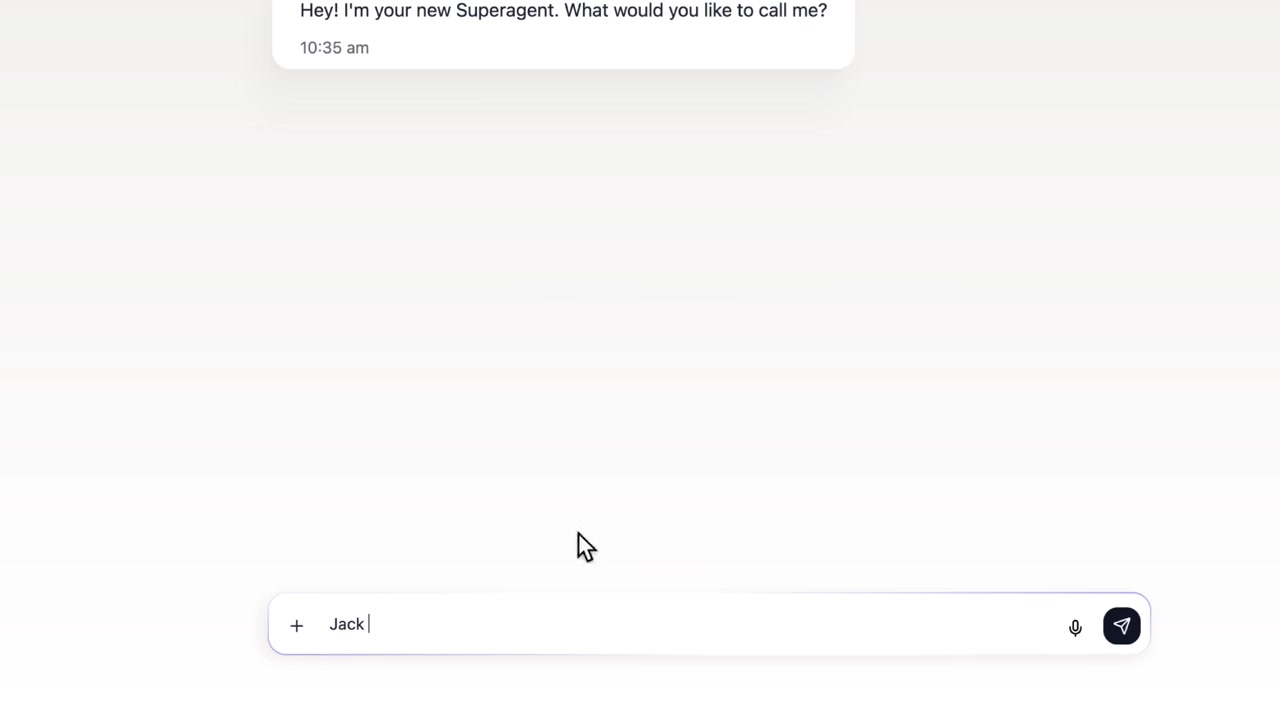
Once you're in, you'll be prompted to give your agent a name. In the tutorial, the agent is named Jack — but feel free to pick anything that feels right to you.
3. Set Up Your AI Agent and Start Talking to It
After naming your agent, you can immediately start a conversation with it. Type or use the microphone button to speak — the agent understands both text and voice input.
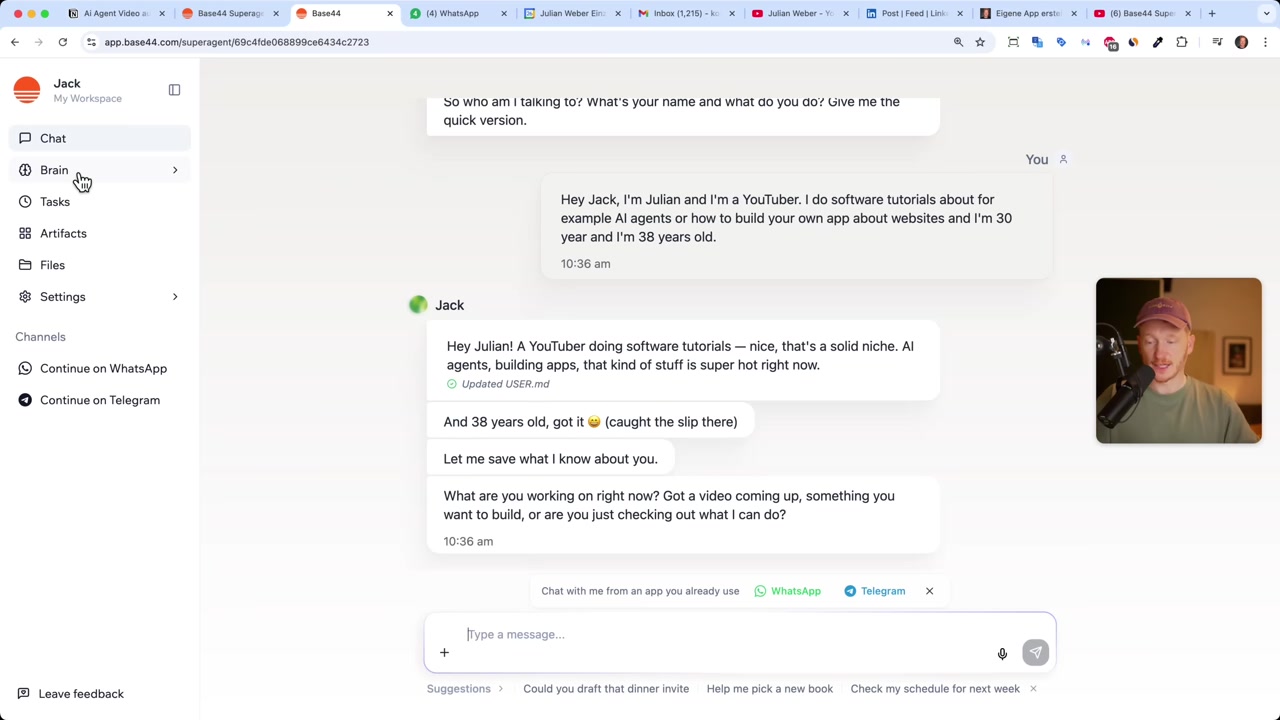
Tell your agent a bit about yourself: your name, what you do, your age, your interests. This information gets saved into the agent's "brain" — its personal knowledge base about you.
The more you interact with your agent, the more it learns about your preferences and working style. Over time, it gets better and better at completing tasks exactly the way you would.
4. Connect Gmail to Your Base44 AI Agent
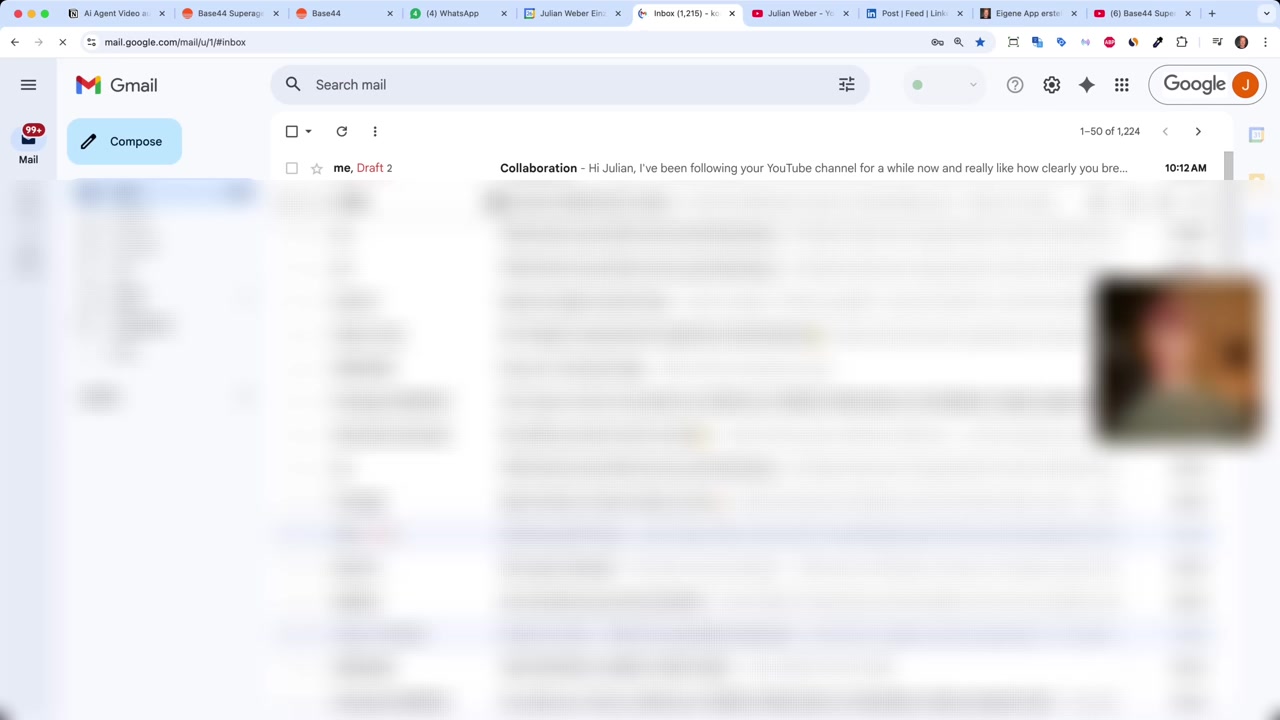
One of the most powerful features is Gmail integration. Go to Brain → Integrations and click on Gmail. No technical setup needed — just select your Google account and click continue.
You can choose exactly what access the agent gets. For example, you can allow it to send emails on your behalf, or restrict it to only creating drafts — which is the safer option if you want to stay in control.
Once connected, tell your agent what you want it to do. For example:
"Check my emails every morning at 7 a.m. and write up a draft reply for each one — but don't send them. Just draft them the way I would answer."
Jack will create an automated task for itself, which you can view, edit, disable, or delete at any time under the Tasks section.
5. Connect Your Google Calendar to Base44
Adding calendar access is just as easy. Go back to Brain → Integrations, click on Google Calendar, select your account, and you're done.
Now your agent can read and write calendar events. This is where things get really impressive.
Try sending your agent a voice message via WhatsApp:
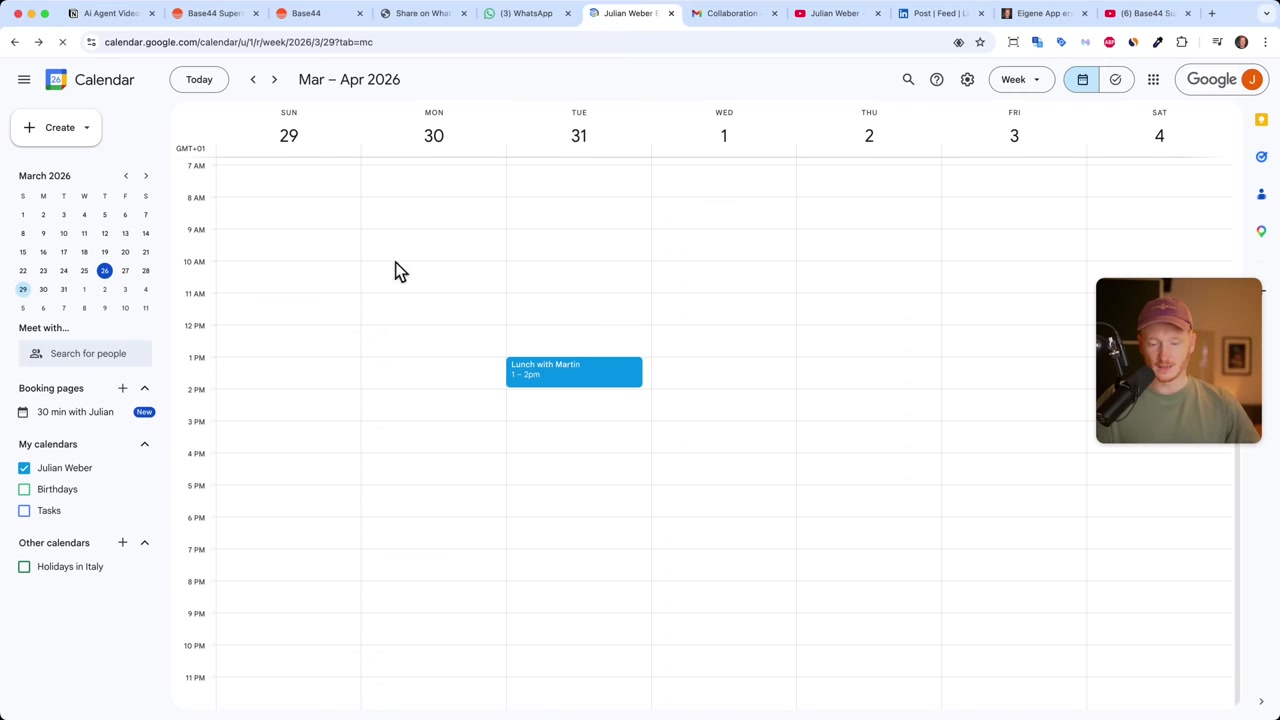
*"Hey Jack, my friend Martin just called and wants to go to lunch next Tuesday at 1 p.m. Please create a calendar event for me."
Within seconds, the event appears in your Google Calendar — no typing, no app-switching needed.
6. Connect Your Agent via WhatsApp or Telegram
You can connect Base44 to your smartphone through WhatsApp or Telegram. Go to the integration settings, click on WhatsApp, and follow the simple setup steps.
Once connected, you can send text or voice messages to your agent from anywhere. It's like having a personal assistant in your pocket — available 24/7.
7. LinkedIn Automation with Your AI Agent
If you create content or run a business, the LinkedIn integration is a game-changer. Connect LinkedIn under Brain → Integrations, and then instruct your agent to automatically write and post LinkedIn updates whenever a new piece of content goes live.
For example: every time a new YouTube video is published, the agent can pull the transcript, write a LinkedIn post with a summary and hashtags, and publish it — all automatically.
You can take this even further by connecting your website or blog. The agent can write full blog posts from video transcripts, complete with FAQ sections and SEO optimization.
The result? You spend your time creating content — your AI agent handles the distribution.
8. What Else Can You Automate with Base44?
The integrations don't stop at Gmail and Google Calendar. Base44 supports a growing list of tools, including:
- Slack — team notifications and messages
- Salesforce — CRM updates and follow-ups
- Outlook — if you prefer Microsoft over Google
- TikTok — for social media automation
- HubSpot — for marketing and sales workflows
- Custom APIs — connect virtually any tool you use
You don't need to configure any of this manually. Just tell your agent which tools you use, and it will guide you through the connection process in plain language.
9. Is Base44 Good for Beginners?
Absolutely. Base44 was built with non-technical users in mind. There's no coding, no API configuration, and no complex setup involved.
Everything is done through a conversational interface — you just tell your agent what you want, and it figures out the rest. If something doesn't work the way you expected, you can simply talk to the agent and adjust it.
The free tier gives you 25 credits per month, which is a great starting point to explore all the core features without spending anything. Get started at Base44.
10. Base44 vs. Running AI Agents Locally
You may have heard of people setting up local AI agents using tools like Claude or open-source frameworks on a Mac Mini or VPS server. While that gives maximum flexibility, it also means the AI has access to your entire machine — every file, your browser, everything.
Base44 takes a different approach. Your agent connects to tools via API integrations only, and you control the access level for each one. That makes it significantly more secure for everyday use — especially if you're connecting sensitive accounts like Gmail or a CRM.
Frequently Asked Questions
Do I need any coding skills to use Base44?
Is Base44 really free to use?
What tools can I connect to my Base44 agent?
Is it safe to connect my Gmail account to an AI agent?
Can my AI agent post on LinkedIn automatically?
Can Base44 write blog posts automatically?
Can I talk to my AI agent on my phone?
What happens if my agent does something I didn't want?
Disclosure: Some links in this post are affiliate links, meaning I may earn a small commission at no extra cost to you. All content is provided for informational purposes only. No results are guaranteed. This post does not constitute financial, legal, tax, or investment advice.
Related Articles

17 Mar 2026
Base44 Superagents: The Free AI Agent That Automates Your Work
Base44 just released their Superagents to the public — and in this tutorial from the Julian Weber channel, you'll see exactly how to set one up, connect it to Gmail and Google Calendar, and automate r...

26 Apr 2026
How to Clone Any Website for Free with AI (Base44 Tutorial)
What if you could clone an entire website in under five minutes — without writing a single line of code? In this tutorial, Julian Weber walks you through exactly how to do that using Base44, a powerfu...

24 Apr 2026
Create Your Own Game with Base44 (No Coding Required)
Want to build your own game but have zero coding experience? In this tutorial, Julian Weber walks you through how to use Base44 — an AI-powered app and game builder — to create a fully playable game f...